
If your Wi-Fi works downstairs but not upstairs, the problem may be the wireless coverage around your home rather than the broadband connection itself.
Before changing router settings or buying a Wi-Fi booster, work out whether the problem affects the upstairs area or just one particular device. That distinction can save you from troubleshooting the wrong thing.
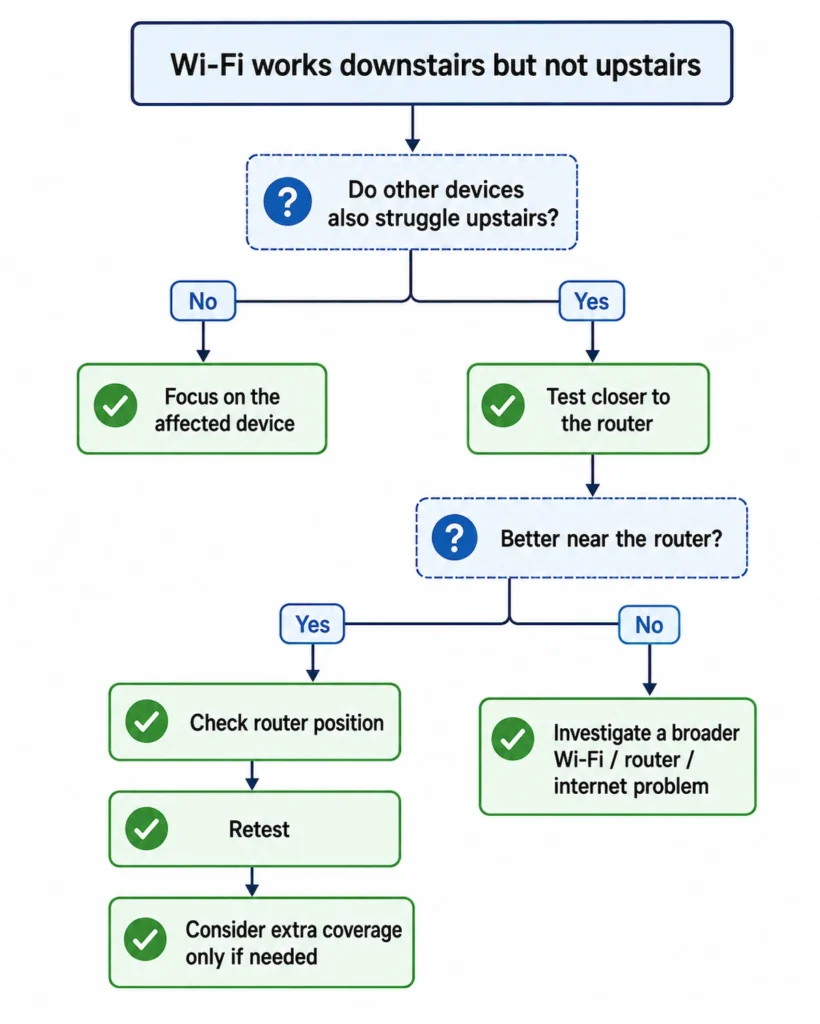
Quick answer: Test another phone, tablet or laptop in the same upstairs location. If several devices struggle upstairs but work normally closer to the router, poor Wi-Fi coverage becomes more likely. Check whether the router is low down, enclosed or badly positioned before buying extra hardware. If only one device struggles upstairs, focus on that device first.
Why Wi-Fi works downstairs but not upstairs
Your broadband connection and your home Wi-Fi are related, but they are not the same thing.
Broadband is the internet service coming into your home. Wi-Fi is the wireless connection between your router and devices such as phones and laptops.
Wi-Fi signals become weaker with distance and as they pass through walls, floors, furniture and other objects. Some building materials can reduce the signal more than others. (ofcom.org.uk)
This means a device can work well near a downstairs router but have a much weaker connection in an upstairs bedroom.
However, poor Wi-Fi upstairs does not automatically prove that the house needs better Wi-Fi coverage. One device can also perform differently from another.
The first useful check is therefore not a router setting.
It is whether another device has the same problem in the same place.
What to check first
1. See whether another device struggles in the same upstairs location
Stay in roughly the same place where the Wi-Fi is poor and try another device that already connects to your home network.
For example, if your laptop is struggling, try your phone or tablet in the same room.
You do not need to set up a new device purely for this test. Use something that already connects to your Wi-Fi if you have one available.
If both devices struggle, the location or Wi-Fi coverage becomes a stronger suspect.
If only one device struggles, do not start changing the whole home network yet. Turn Wi-Fi off on the affected device, then turn it back on and try again. You can also test that device closer to the router.
Eero’s troubleshooting guidance similarly recommends comparing another device in the same location when trying to distinguish a device-specific problem from one affecting an area of the home. (support.eero.com)
Why this matters: you are keeping the location roughly the same while changing the device. That helps you work out whether the problem follows one device or affects the area generally.
2. Test the affected device closer to the router
Next, use the device that was struggling upstairs and take it closer to the router.
Try the same sort of activity that was causing trouble upstairs — for example, loading a familiar website or streaming something you normally use.
You do not need an exact speed-test figure for this check.
The useful question is:
Does the connection become noticeably better as you move closer to the router?
If it does, distance and obstacles between the router and upstairs location become more likely explanations.
If the same device remains poor when it is close to the router, especially if other devices also have problems there, this may be a broader Wi-Fi, router or broadband problem rather than simply poor upstairs coverage.
Why this matters: the previous check kept the location the same and changed the device. This check keeps the device the same and changes the location.
Together, those two tests can tell you much more than simply trying a long list of Wi-Fi fixes.
3. Check where your router is positioned
If several devices struggle upstairs but improve closer to the router, look at where the router is located.
Check whether it is:
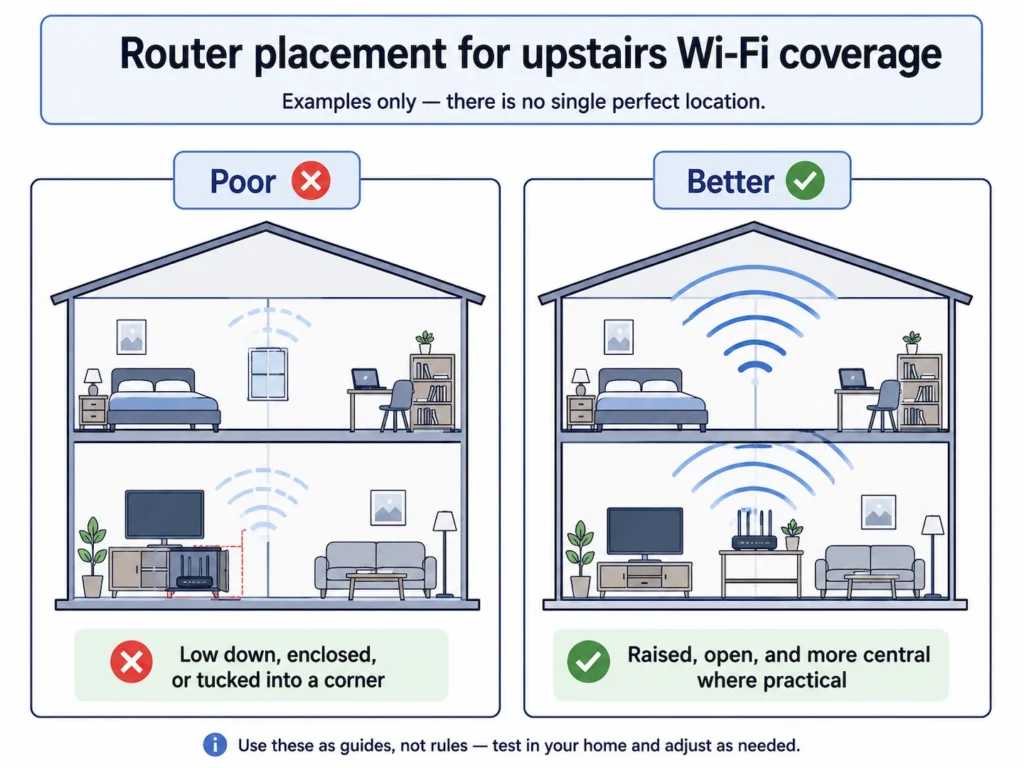
- sitting on the floor;
- hidden inside a cupboard or cabinet;
- behind a television or large piece of furniture;
- at the far edge or corner of the home;
- surrounded by large objects or electrical equipment.
Where practical, try placing the router somewhere more open and raised from floor level.
A more central position can also help. Where Should You Put Your Wi-Fi Router at Home? explains how to choose the best practical location while working around broadband sockets, fibre equipment and cabling.
Ofcom recommends positioning a router centrally and off the floor where possible. It also notes that objects and materials such as metal, water and glass can weaken Wi-Fi signals, while some electrical equipment can cause interference. (ofcom.org.uk)
You do not need to rewire the house just to perform this check. If the router cannot be moved far, even removing it from an enclosed space or raising it onto a suitable open shelf may be worth testing.
Make sure it remains stable, ventilated and safely connected without stretching cables across walkways.
Why this matters: a router can be working normally but still be in a poor position for reaching the parts of the home where you need Wi-Fi.
4. Test upstairs again after changing one thing
After making a sensible router-position change, return to the problem area and test again.
Try to use the same device in roughly the same place.
Avoid changing several things at once.
For example, do not move the router, restart every device, change Wi-Fi settings and install an extender before testing again.
If the connection improves after one change, you have useful evidence that the change helped.
If it does not, you can move on without wondering which of several changes made a difference.
Work out where the problem is
At this point, the pattern is more useful than any single Wi-Fi signal icon.
| What you find | What it points towards |
|---|---|
| Only one device struggles upstairs | Investigate that device before changing the home network |
| Several devices struggle upstairs but improve near the router | Wi-Fi coverage, distance or obstacles are more likely |
| Several devices are poor upstairs and beside the router | Look beyond a simple upstairs coverage problem |
| Moving the router improves upstairs Wi-Fi | Router position was contributing |
| One upstairs room is much worse than nearby rooms | The room’s location, obstacles or building materials may be contributing |
If the device having trouble upstairs is a printer that Windows also shows as Offline, see our guide to printer offline but connected to Wi-Fi.
These are diagnostic clues rather than proof that one particular device or component has failed.
The aim is to narrow the problem down before making more disruptive or expensive changes.
Further checks if upstairs Wi-Fi is still weak
If it used to work upstairs but recently became worse
If the same devices previously worked normally upstairs, think about what has changed.
Check whether:
- the router has been moved;
- furniture or equipment has been placed around it;
- the router is now more enclosed than before;
- the problem affects one device or several.
If the router has not been restarted recently, a normal restart is also reasonable at this stage. Eero includes restarting network equipment as a later troubleshooting step when local Wi-Fi performance remains poor after the simpler checks. (support.eero.com)
Use the router’s normal restart or power-off process.
Do not factory-reset the router for this problem. A factory reset can remove your network settings and is far more disruptive than the checks above.
Check 2.4 GHz only if your router makes this practical
Wi-Fi routers commonly use more than one frequency band.
In general, 2.4 GHz provides greater coverage but lower potential speeds than 5 GHz, while 5 GHz has less range but can provide higher speeds. Higher-frequency signals also have more difficulty passing through solid objects such as walls and floors. (kb.netgear.com)
That can make 2.4 GHz useful at greater distances from the router.
For a fuller explanation of when each band makes sense, see 2.4GHz vs 5GHz Wi-Fi: Which Should You Use at Home?
However, do not assume you need to start changing router settings.
Many routers manage Wi-Fi bands for you, and the available controls vary between manufacturers and broadband providers.
If your router or provider gives you a straightforward way to compare the bands separately, testing 2.4 GHz upstairs can be useful. If it does not, there is no need to start splitting network names or changing advanced settings purely for this troubleshooting guide.
What probably isn’t worth doing yet
Upgrading your broadband package
If several devices work well beside the router but become unreliable only upstairs, that pattern points more towards the Wi-Fi connection around the home than the speed of the broadband service coming into it. (ofcom.org.uk)
A faster broadband package may be useful for other reasons, but it does not automatically fix a weak wireless path between a downstairs router and an upstairs room.
Factory-resetting the router
Do not use a factory reset as an early attempt to improve upstairs coverage.
It can remove your network configuration without addressing a physical coverage problem.
Randomly changing advanced Wi-Fi settings
Manual channel changes, transmit-power settings and other router controls can introduce more variables without first establishing what is wrong.
They may have a place in more specific troubleshooting, but they are not necessary simply because the signal becomes weak upstairs.
Replacing the router immediately
Poor upstairs coverage does not, by itself, mean that the router is faulty.
Consider replacement only when there is stronger evidence that the router itself is the problem, or when you have established that your existing equipment cannot provide the coverage your home needs.
When extra Wi-Fi hardware might make sense
If several devices consistently work well near the router but struggle upstairs even after sensible positioning changes, adding Wi-Fi coverage may be reasonable.
You still do not necessarily need the most expensive option.
One weak area: a Wi-Fi extender may be enough
A Wi-Fi extender can be useful when most of the home has acceptable coverage but one particular area needs some help.
Placement matters.
If you decide to use one, see where to put a Wi-Fi extender so it still has a good connection to the router while reaching towards the weak area.
An extender needs to receive a usable Wi-Fi signal from the router before it can extend that signal further. TP-Link recommends positioning an extender between the router and the weak area while the router’s signal is still strong enough at the extender’s location. (tp-link.com)
That means putting an extender deep inside a room where the original Wi-Fi has already disappeared may not work well.
Try the free checks first before buying one.
Several weak rooms: mesh Wi-Fi may make more sense
If several upstairs rooms have poor Wi-Fi, or there are weak areas across a larger property, a mesh Wi-Fi system may be a better fit than trying to fix one spot with a single extender. If you are not sure which approach suits your home, see Mesh Wi-Fi vs Wi-Fi Extender: Which Do You Actually Need?
If you already use a mesh system, Where Should You Put Mesh Wi-Fi Nodes? explains how to position the nodes so they maintain a good connection while extending coverage towards weak rooms or floors.
Mesh systems use multiple units around the home to provide broader Wi-Fi coverage. Ofcom includes mesh networking as an option for improving home coverage, while also noting that it costs more than simply repositioning the equipment you already have. (ofcom.org.uk)
That does not mean every two-storey home needs mesh Wi-Fi.
First establish that you really have a wider coverage problem.
If Ethernet is already available, consider a wired access point
If you already have an Ethernet connection upstairs, or installing one is practical, a wired access point is another option.
If the upstairs room is your home office, see our Ethernet vs Wi-Fi for a Home Office guide to decide whether connecting the computer itself by cable would be worthwhile.
Instead of trying to repeat a weak wireless signal from downstairs, the Ethernet cable carries the network connection to the upstairs location and the access point provides Wi-Fi from there.
TP-Link also recommends an Ethernet-connected access-point arrangement when distance or obstacles make a stable wireless connection unsuitable. (tp-link.com)
This is more involved than moving the router or using an extender, so it is mainly worth considering when the cabling is already available or there is a clear reason to install it.
If several devices still struggle upstairs after the simpler checks, you have much stronger evidence that extending your Wi-Fi coverage is the next sensible step.