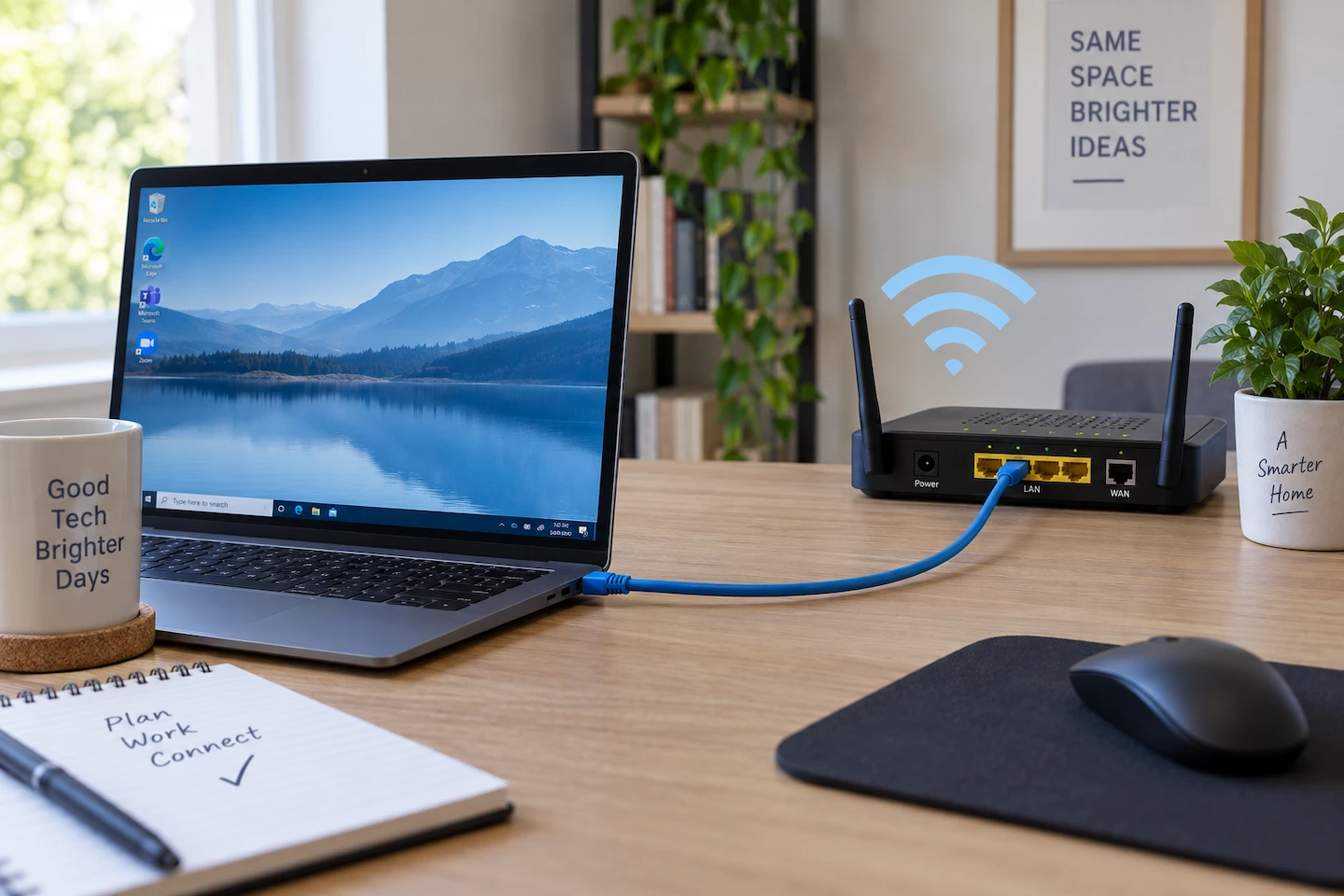
When comparing Ethernet vs Wi-Fi for a home office, the main trade-off is consistency versus convenience. Ethernet can give a fixed computer a more consistent connection, while Wi-Fi gives you much more freedom over where you use your laptop.
But that does not mean every home office needs Ethernet. If Wi-Fi at your desk is already stable and your video calls, websites and work applications behave normally, changing to a cable may make very little noticeable difference.
Quick answer: Ethernet is usually the better choice for a fixed home-office computer when reliability matters most. Wi-Fi is usually good enough if the signal at your desk is strong and stable.
If calls or remote work are unreliable, temporarily connecting your computer directly to the router with Ethernet can also be a useful test. If the problem improves, Wi-Fi is more likely to be contributing. If it does not, the problem may lie elsewhere.
Ethernet vs Wi-Fi for a Home Office: The Difference in Plain English
Ethernet and Wi-Fi can both connect your computer to your home network and internet connection. The main difference is how your computer reaches the router.
With Ethernet, a cable carries the connection between your computer and router.
With Wi-Fi, that part of the connection travels wirelessly.
That makes Wi-Fi more convenient, especially for laptops. You can move around without plugging in a network cable.
Ethernet has a different advantage. Because it does not rely on the Wi-Fi signal between your computer and router, it is less affected by distance, walls and wireless interference.
Ofcom notes that Wi-Fi performance can be affected by factors including distance from the router, walls and interference, and that a wired connection is usually faster and more reliable.
For a permanent home-office desk, that extra consistency can be useful. For a laptop that moves around the house, good Wi-Fi may be the more practical choice.
Which Is Better for Working From Home?
For most home offices, the simplest comparison is:
Ethernet is better for consistency. Wi-Fi is better for convenience.
Which one you should use depends on whether there is actually a problem to solve.
Choose Ethernet if…
Ethernet is particularly worth considering when:
- your computer normally stays at one desk;
- Wi-Fi at that desk is unreliable;
- video calls or remote sessions sometimes freeze or disconnect;
- you regularly transfer large files across your home network;
- connection consistency matters more than being able to move around;
- your employer specifically requires a wired connection.
If running a cable to the desk is straightforward, Ethernet can also be a sensible permanent choice even when the existing Wi-Fi is reasonably good.
Choose Wi-Fi if…
There is little reason to change simply because Ethernet is technically available.
Wi-Fi is probably good enough when:
- the signal at your desk is stable;
- video calls already work reliably;
- normal work applications behave as expected;
- you move your laptop between different rooms;
- running an Ethernet cable would be awkward;
- there is no connection problem you are trying to fix.
Good Wi-Fi is not a second-rate option for ordinary home-office work.
Test Ethernet first if…
If your real question is whether unreliable Wi-Fi is causing a work problem, you do not need to redesign your network immediately.
A temporary Ethernet connection can help you find out.
Connect the same computer directly to the router, then repeat the activity that normally causes trouble.
That comparison can tell you more than simply buying a new router, extender or mesh system and hoping it fixes the problem.
Ethernet vs Wi-Fi: Quick Comparison
| Factor | Ethernet | Wi-Fi |
|---|---|---|
| Reliability | Usually more consistent | Depends more on signal conditions |
| Convenience | Requires a cable | Very convenient |
| Mobility | Limited | Excellent |
| Video calls | Strong choice | Usually fine with stable Wi-Fi |
| Weak-signal problems | Avoids the Wi-Fi link | Can be affected |
| Large file transfers | Usually preferable | Can still perform well |
| Fixed home-office desk | Particularly suitable | Still fine if reliable |
The table does not include theoretical maximum speeds because those figures rarely answer the question that matters to a home worker: does your connection work reliably enough for what you actually do?
Will Ethernet Make Your Internet Faster?
Sometimes, but not in the way people often expect.
It helps to separate two parts of the connection:
Broadband is the internet service coming into your home.
Ethernet or Wi-Fi carries that connection between your router and your computer.
If weak or congested Wi-Fi is currently limiting your computer, switching to Ethernet may give that computer a faster and more consistent connection.
If Wi-Fi is much slower on one computer while other devices work normally, Wi-Fi Slow on One Device but Fine on Others: What to Check helps you narrow down whether the problem is the device, its wireless connection or something else on that computer.
But Ethernet cannot make the broadband service entering your home faster than the service itself provides.
For example, if your existing Wi-Fi already lets your computer make full use of your broadband connection, changing to Ethernet may produce little noticeable improvement during normal office work.
This is also why a speed test should be treated as one clue rather than the whole answer.
Ofcom specifically warns that a slow Wi-Fi test does not automatically mean there is a fault with the broadband line because the wireless connection itself can be affected by the router, device, distance, walls and interference.
A higher Ethernet speed-test result can show that Wi-Fi was limiting performance. It does not automatically mean email, web browsing or video calls will suddenly feel dramatically different.
Is Wi-Fi Good Enough for Video Calls?
Usually, yes — provided the connection is stable.
Video calls do not necessarily need the hundreds of megabits per second that modern broadband connections and Wi-Fi speed tests often advertise.
For example, Microsoft says Teams can deliver HD video quality using less than 1.5 Mbps, although actual bandwidth use varies with factors such as video quality, layout and the number of participants.
That does not mean connection quality is unimportant.
A Wi-Fi connection can show an apparently healthy speed while still behaving inconsistently. Ofcom notes that speed is not the only factor affecting online services and that delay, or lag, can affect live activities such as video calls.
So if a Teams or other video call sometimes freezes or the audio breaks up, do not assume that you simply need a faster broadband package.
The problem could involve:
- an unstable Wi-Fi connection;
- poor coverage at the desk;
- other network activity;
- the broadband connection itself;
- a work VPN;
- the computer;
- the conferencing service.
Testing Ethernet can help narrow down that list.
When Ethernet Is Worth Using in a Home Office
There are several situations where a wired connection makes particularly good sense.
Your computer stays at one desk
A desktop PC or laptop that spends most of its working life in the same place does not benefit as much from Wi-Fi’s mobility.
If a short Ethernet cable can connect the desk to the router without creating a trip hazard or awkward installation, a wired connection can be a straightforward choice.
Wi-Fi at the desk is unreliable
An office that is far from the router, upstairs or behind several walls may have a less reliable wireless connection.
If other devices also struggle in the same area, the problem may be Wi-Fi coverage rather than the computer itself.
Our guide to weak Wi-Fi in one room explains how to distinguish a local coverage problem from a device problem before changing your network.
Video calls and remote sessions are frequently disrupted
Ethernet will not guarantee that a video call or remote desktop session never has a problem.
However, it removes the Wi-Fi connection between the computer and router from the equation.
That can be worthwhile when interruptions are disruptive and the computer does not need to move.
You regularly move large files across your home network
Ethernet can also make sense if you regularly transfer substantial files between computers or to network storage in your home.
In this situation, the local connection between devices can matter independently of your internet speed.
Your employer requires a wired connection
Some employers have their own requirements for home workers.
If yours says that the work computer must use Ethernet, follow its IT or security guidance rather than assuming that ordinary Wi-Fi is acceptable.
It is also worth checking exactly what the employer means by a wired connection, particularly if your home uses a mesh Wi-Fi system.
When Wi-Fi Is Probably Good Enough
There is an equally important side to the comparison: knowing when not to change anything.
If you work from a laptop at a desk with strong, reliable Wi-Fi and your normal work is not being interrupted, there may be no meaningful problem for Ethernet to solve.
That is especially true for everyday activities such as:
- email;
- web browsing;
- Microsoft 365 or similar office applications;
- cloud-based documents;
- normal video calls;
- messaging and collaboration tools.
Wi-Fi also has an obvious advantage if the laptop moves between a desk, kitchen table, sofa or other parts of the home.
You do not need to install Ethernet simply because a speed test shows that the cable could produce a bigger number.
If your existing Wi-Fi works reliably for what you do, it is good enough.
Try Ethernet Before Changing Your Wi-Fi Setup
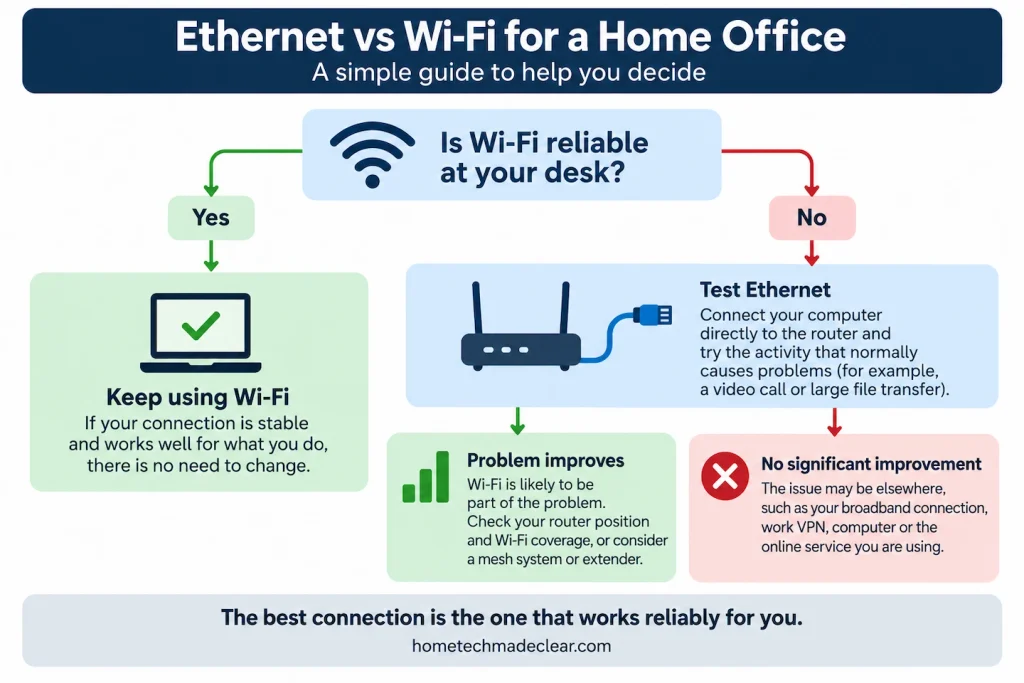
If your home-office connection is unreliable, a temporary Ethernet test is a useful way to narrow down the cause before buying anything.
1. Connect the computer directly to the main router
Where practical, connect an Ethernet cable between your computer and one of the router’s Ethernet or LAN ports.
Microsoft describes the basic Windows setup in the same way: connect one end of the Ethernet cable to the router and the other to the Ethernet port on the PC.
For the clearest test, connect to the main router rather than changing several parts of the network at once.
2. Repeat the activity that normally causes the problem
Try to reproduce the same conditions.
For example:
- make a video call;
- use your remote desktop connection;
- transfer the same sort of file;
- use the work application that normally becomes unreliable.
A speed test can be useful as supporting information, but do not judge the result solely by the biggest number.
The more useful question is:
Does the connection now behave noticeably more reliably?
3. Compare what happens
If the problem improves substantially when you use Ethernet, the Wi-Fi part of the connection becomes a more likely contributor.
You can then investigate the wireless network more directly.
For example, if the office is in one particular weak area, see Weak Wi-Fi in One Room: What Usually Causes It?
If you are choosing between the two common Wi-Fi bands, 2.4GHz vs 5GHz Wi-Fi: Which Should You Use at Home? explains the practical trade-off.
And if several areas of the house need better coverage, Mesh Wi-Fi vs Wi-Fi Extender: Which Do You Actually Need? can help you decide whether extra hardware is justified.
If the problem behaves much the same over Ethernet, do not assume you need a better Wi-Fi system.
The broadband connection, work VPN, computer or online service may need investigating instead.
If the computer also shows Wi-Fi as connected but cannot get online, Wi-Fi Connected but No Internet: Is It the PC or the Router? can help you narrow down whether the problem is the PC, router or broadband connection.
The test does not prove exactly which component is faulty, but it helps stop you troubleshooting the wrong part of the connection.
What If Your Laptop Has No Ethernet Port?
Many thin laptops do not have a built-in Ethernet socket.
That does not necessarily prevent you from using a wired connection.
Microsoft notes that a Windows PC without an Ethernet port can use a USB-to-Ethernet adapter.
Depending on the laptop, this may connect through a standard USB port or USB-C.
You do not need to buy an expensive docking station simply to perform this test. If you decide an adapter is useful, check that it is compatible with the ports on your particular laptop.
If your Wi-Fi already works perfectly well and you have no other reason to use Ethernet, you may not need an adapter at all.
What If the Router Is in Another Room?
The biggest practical disadvantage of Ethernet is usually the cable.
If your router is beside the desk, the decision is simple. If it is downstairs, across a hallway or at the other end of the house, a permanent cable can be much less convenient.
There are three sensible ways to approach this.
Use a temporary cable for testing
If practical and safe, a temporary cable can help establish whether Wi-Fi is responsible for the problem even if you would never leave that cable in place permanently.
Do not leave loose cables across stairs, doorways or walking routes where someone could trip over them.
If Ethernet fixes the problem, you then have better information for deciding on a permanent solution.
Run Ethernet permanently if it is practical
For a fixed office, permanent Ethernet cabling can be worthwhile when there is a sensible route between the router and desk.
But running network cable through walls, floors or several rooms is not automatically necessary for ordinary home working.
If Wi-Fi already works well, there may be little reason to take on the extra installation.
Improve Wi-Fi instead
When several devices struggle in the office and running Ethernet is impractical, improving wireless coverage may make more sense.
If the problem is mainly between floors, start with Wi-Fi Works Downstairs but Not Upstairs: What to Try First.
If most of the house has good Wi-Fi but one particular area is weak, a correctly positioned extender may be sufficient.
If several rooms or floors need better coverage, a mesh system may be easier to justify. Our mesh Wi-Fi vs Wi-Fi extender guide explains that choice in more detail.
Do these checks before buying equipment rather than assuming a more expensive Wi-Fi system is automatically necessary.
Does Plugging Into a Mesh Unit Count as Ethernet?
This depends on how the mesh system itself connects back to the rest of the network.
Suppose your office laptop is plugged into an Ethernet port on a satellite mesh unit.
The short connection between the laptop and that mesh unit is wired.
But the satellite unit may still communicate with the main mesh unit over Wi-Fi. In that case, part of the route is still wireless.
Some mesh systems can instead use Ethernet backhaul, where Ethernet cables connect the mesh units themselves. TP-Link, for example, distinguishes Ethernet backhaul from the wireless connection normally used between Deco units.
This distinction does not matter to every home user.
However, if an employer specifically requires a wired connection, do not assume that plugging the work computer into a wireless mesh satellite automatically meets that requirement. Check with the employer or IT department if necessary.
Ethernet or Wi-Fi: Which Should You Choose?
For a home office, there is no need to make this more complicated than it is.
Choose Ethernet when:
- the computer stays at one desk;
- connection consistency matters most;
- Wi-Fi at the desk is unreliable;
- running a cable is practical;
- your employer requires a wired connection.
Keep using Wi-Fi when:
- it is already reliable;
- video calls and work applications behave normally;
- you regularly move the laptop;
- a cable would create unnecessary inconvenience.
Test Ethernet first when:
- you are having connection problems but do not yet know whether Wi-Fi is responsible.
Ethernet is usually the more predictable connection, while Wi-Fi is usually the more convenient one.
For most home offices, the best choice is not the connection with the highest theoretical speed. It is the one that lets you work reliably without adding complexity you do not need.