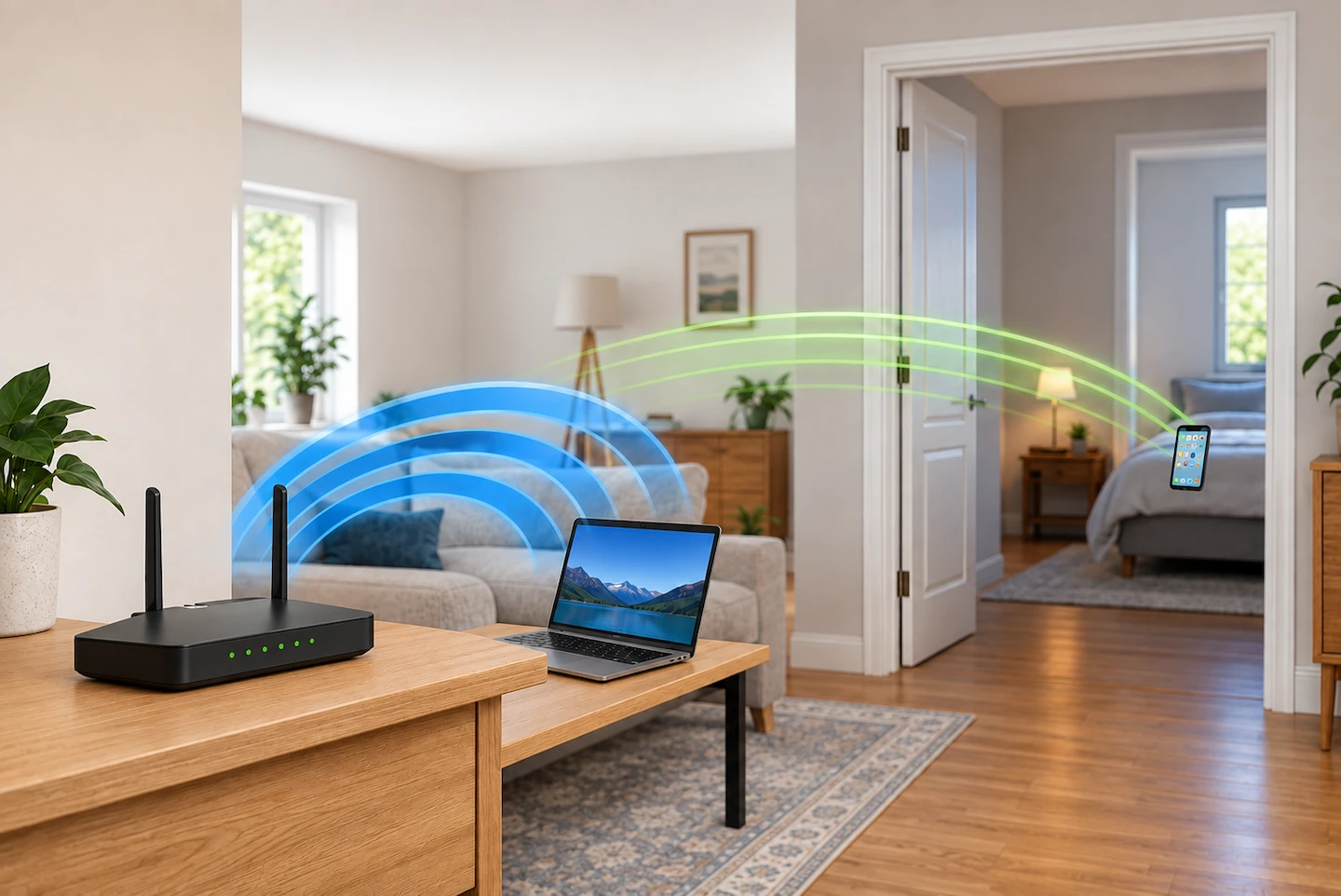
If you’re comparing 2.4GHz vs 5GHz Wi-Fi at home, it can be difficult to know which one you should use.
Neither band is automatically better. The useful choice depends mainly on how far the device is from your router, what is between them and whether the device supports both bands.
You may not need to choose manually at all. Many modern routers use both bands at the same time and manage the connection automatically.
Quick answer: Use 5GHz when you are reasonably close to the router and want good Wi-Fi performance. Use 2.4GHz when you are farther away, have more walls or floors between you and the router, or your device only supports 2.4GHz.
If your router uses one Wi-Fi network name and automatically manages both bands, and everything works properly, you usually do not need to change anything.
If neither band gives you reliable Wi-Fi where you need it, the real problem may be Wi-Fi coverage rather than which band you are using.
2.4GHz vs 5GHz Wi-Fi: The Difference in Plain English
2.4GHz and 5GHz are different frequency bands that Wi-Fi can use to carry data between your router and wireless devices.
For most home users, the practical difference is fairly simple.
2.4GHz generally reaches farther and copes better with distance and obstacles.
It is also supported by a very wide range of devices, including some smart-home equipment and older Wi-Fi devices.
The trade-off is that 2.4GHz generally offers lower potential performance and can be more congested.
5GHz generally offers higher potential Wi-Fi performance when the connection is good.
It also has more wireless capacity available and is widely supported by modern phones, laptops, tablets, TVs and other devices.
The trade-off is range. A 5GHz connection generally becomes weaker sooner as you move farther from the router or put more walls and floors in the way.
Microsoft similarly describes 2.4GHz as offering longer range and better performance through obstacles, while 5GHz generally provides higher throughput over a shorter range.
That means a strong 2.4GHz connection can sometimes be more useful than a weak 5GHz connection.
Do not choose purely on the assumption that 5GHz must always be faster.
2.4GHz vs 5GHz Wi-Fi at a Glance
| 2.4GHz Wi-Fi | 5GHz Wi-Fi | |
|---|---|---|
| Typical range | Generally longer | Generally shorter |
| Walls and floors | Usually handles obstacles better | Usually affected more by obstacles |
| Potential performance | Generally lower | Generally higher |
| Congestion | Often greater | Often lower |
| Device compatibility | Very broad | Broad, but not universal |
| Usually suits | Distance, obstacles and some older or smart devices | Nearby devices and higher-performance use |
These are general differences rather than guarantees.
Your router, device, home layout, neighbouring Wi-Fi networks and building materials can all affect what actually works best.
Use 5GHz When You Have a Good Connection to the Router
If your device supports both bands and has a good connection to the router, 5GHz is usually a sensible starting point.
You Are Reasonably Close to the Router
5GHz works particularly well when there is not too much distance or too many obstacles between the device and router.
That could include a:
- laptop used in the same room as the router;
- phone used in nearby rooms;
- smart TV with a reliable connection;
- games console or streaming device reasonably close to the router.
There is no useful distance in metres that works for every home.
A solid wall, floor or large obstruction can matter more than a small difference in distance, and different routers and devices have different wireless capabilities.
Judge the connection by how reliably it works where you actually use the device.
If the 5GHz connection remains stable and does what you need, there is usually no reason to move that device to 2.4GHz simply because 2.4GHz can reach farther.
You Want Good Performance for Streaming, Downloads or Everyday Use
5GHz can also make sense for devices that regularly move larger amounts of data.
Examples include:
- streaming high-quality video;
- downloading large files;
- video calls;
- cloud storage transfers;
- normal laptop and desktop use.
That does not mean these activities always require 5GHz.
If a 2.4GHz connection already works reliably and provides enough performance for what you are doing, you do not need to change bands solely to achieve a theoretically higher speed.
The practical question is whether the connection works well enough where the device is used.
Use 2.4GHz When Range or Compatibility Matters More
2.4GHz remains useful even if most of your newer devices support 5GHz.
Its main advantages are greater potential reach and broad compatibility.
You Are Farther From the Router or Have More Walls or Floors in the Way
As you move farther away from the router, a 5GHz connection may weaken before 2.4GHz does.
That can make 2.4GHz worth trying when you are:
- several rooms away from the router;
- on another floor;
- behind several walls;
- near the edge of your existing Wi-Fi coverage.
For example, a laptop upstairs might receive a usable 2.4GHz connection after its 5GHz connection has become unreliable.
But switching bands cannot overcome every coverage problem.
If several devices struggle in the same room regardless of which band they use, investigate the location itself. Our guide to weak Wi-Fi in one room explains how to work out whether distance, obstacles or the room’s position are likely to be involved.
If the problem mainly affects another floor, see Wi-Fi Works Downstairs but Not Upstairs: What to Try First.
Your Device Only Supports 2.4GHz
Some Wi-Fi devices support only 2.4GHz.
This can still occur with certain:
- smart plugs;
- wireless cameras;
- printers;
- sensors;
- older Wi-Fi equipment.
That does not mean there is anything wrong with the device or your router.
Check the specifications or setup instructions for the exact device rather than assuming from the type of product alone. Some smart devices support both 2.4GHz and 5GHz, while others do not.
If the manufacturer says that a particular device supports only 2.4GHz, use its documented setup process rather than changing the rest of your home network unnecessarily.
What If Your Router Uses One Wi-Fi Name for Both Bands?
You may open the Wi-Fi list on your phone or computer and see only one network name even though your router supports both 2.4GHz and 5GHz.
That is normal.
The technical name for your Wi-Fi network name is the SSID.
Many modern routers can use the same SSID for both frequency bands. The router may steer compatible devices towards a suitable band, but the exact behaviour depends on both the router and the device. In normal use, this can save you from having to choose a separate Wi-Fi network manually.
This type of arrangement is normal on modern equipment. Google Nest Wifi, for example, uses one network name across its supported Wi-Fi bands, while TP-Link uses the term Smart Connect for similar automatic band-management features on compatible routers.
Some router manufacturers call features like this Smart Connect, band steering or something similar.
The exact behaviour varies between routers and devices, but the practical advice is straightforward:
If your router manages both bands automatically and your devices work properly, leave it alone.
You do not need separate Wi-Fi names simply so you can manually control whether every phone, laptop and television uses 2.4GHz or 5GHz.
A working automatically managed setup is not a problem that needs fixing.
Should You Separate 2.4GHz and 5GHz Wi-Fi?
Usually not just for the sake of optimisation.
Separate network names can sometimes be useful when you are diagnosing a specific problem or setting up equipment with particular Wi-Fi requirements.
For example, it may be worth checking the manufacturer’s instructions when:
- a 2.4GHz-only device refuses to complete its setup;
- the device manufacturer specifically tells you to connect through 2.4GHz;
- you are trying to establish whether a problem occurs on one band but not the other;
- your router already provides separate networks and makes switching between them straightforward.
That does not make separating the bands a good general-purpose fix.
Changing a Wi-Fi network name, password or band configuration can disconnect devices that currently work and may require them to be connected again.
Do not reconfigure your whole network merely because one device has a problem.
First check the official guidance for the exact device and router involved.
You also do not need to start changing Wi-Fi channels, channel widths, transmit power or other advanced settings simply to decide whether 2.4GHz or 5GHz suits your home.
Does 5GHz Wi-Fi Give You Faster Internet?
Not automatically.
It helps to separate your broadband connection from your Wi-Fi connection.
The basic path is:
Internet service → router → Wi-Fi → device
Your broadband service determines how much internet capacity reaches your router.
Wi-Fi then carries that connection from the router to your wireless device.
If the Wi-Fi connection itself is limiting performance, a good 5GHz connection may allow the device to make better use of the broadband speed already available.
But changing from 2.4GHz to 5GHz cannot increase the broadband speed entering your home.
For example, if your internet service is slow at the router itself, changing Wi-Fi bands will not remove that underlying limit.
Likewise, if your broadband is fast but one distant bedroom has weak Wi-Fi, paying for a faster broadband package will not automatically improve the wireless path to that room.
What If Neither Band Works Well Where You Need It?
If 2.4GHz and 5GHz are both unreliable in the same part of your home, stop treating the band choice as the main problem.
Try to establish whether the problem follows the device or the location.
A useful comparison is:
- Use the affected device reasonably close to the router.
- See whether another phone, tablet or laptop also struggles in the problem area.
- Look for a repeatable pattern.
If one device struggles everywhere while others work normally, investigate that device first.
If several devices work properly close to the router but become unreliable in the same distant room, Wi-Fi coverage is more likely to be the issue.
That does not automatically mean you need to buy anything. Router position and the physical layout of the home should be considered first.
If you eventually confirm that several areas have poor coverage, our mesh Wi-Fi vs Wi-Fi extender guide can help you decide whether additional hardware actually makes sense.
What About 6GHz Wi-Fi?
Some newer routers and devices also support 6GHz Wi-Fi. It can provide additional wireless capacity and high performance, but generally has less reach than the lower-frequency bands and requires compatible equipment at both ends.
If your equipment does not support 6GHz, you do not need to do anything. For a home where the practical choice is between 2.4GHz and 5GHz, the guidance above remains the useful place to start.
2.4GHz or 5GHz: Simple Decision Guide
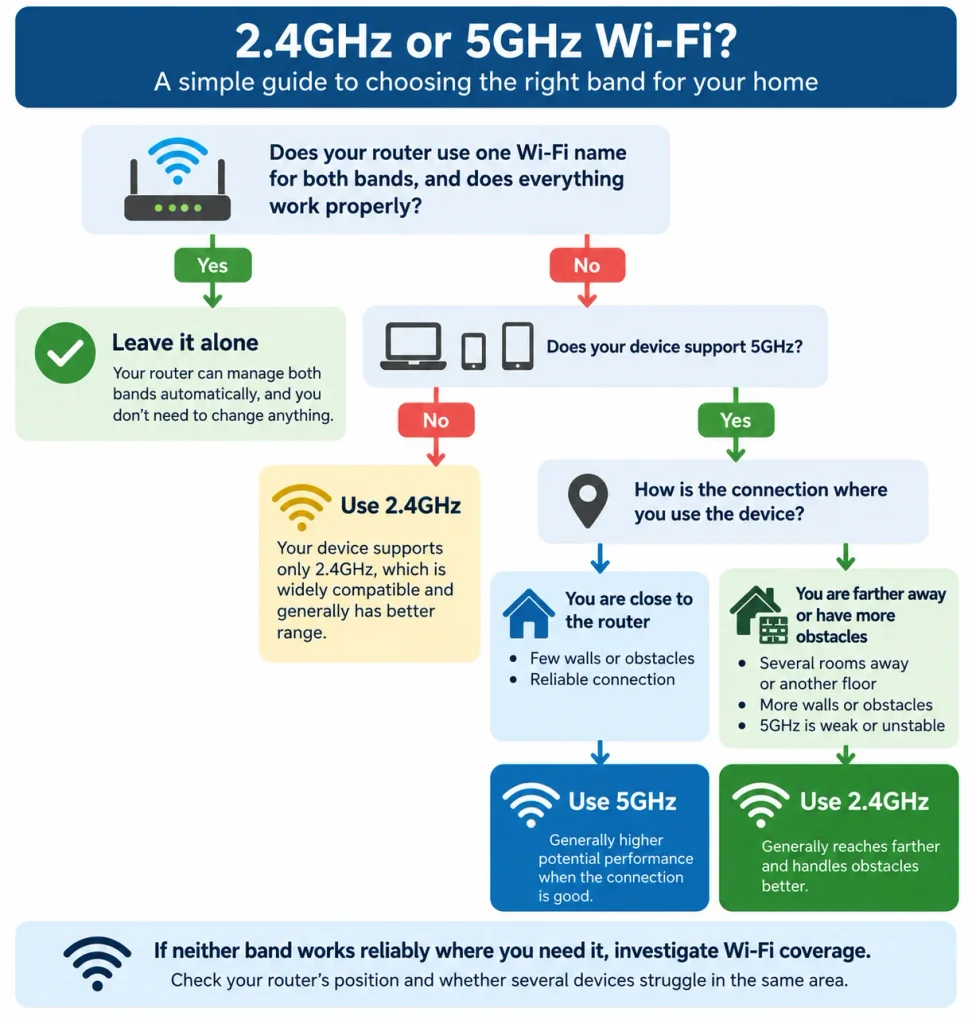
You do not need to find a perfect band for your entire home. Choose based on the device and the connection where it is actually used.
| What you find | What to do |
|---|---|
| Your router manages both bands automatically and everything works | Leave it alone |
| The device is nearby and supports 5GHz | 5GHz is a sensible first choice |
| The device is farther away or behind more obstacles | Try 2.4GHz if your router makes comparison straightforward |
| The device supports only 2.4GHz | Use 2.4GHz |
| One device has problems with a combined Wi-Fi network | Check the manufacturer’s setup instructions |
| Neither band works reliably in that part of the home | Investigate Wi-Fi coverage |
Frequently Asked Questions
Is 2.4GHz Better Through Walls?
Generally, 2.4GHz handles distance and solid obstacles better than 5GHz.
That can make it more usable through walls or between floors.
However, building materials, router position, interference and the wireless hardware in the device also matter. Switching to 2.4GHz therefore does not guarantee a reliable connection through every wall or floor.
Should My Smart TV Use 2.4GHz or 5GHz?
If your TV supports both and has a reliable 5GHz connection, 5GHz is usually a sensible choice, particularly for streaming.
If the television is farther from the router and 5GHz becomes unstable, 2.4GHz may provide a more reliable connection.
Choose the connection that works consistently rather than forcing the TV onto a particular band because one has a higher theoretical performance.
Can 2.4GHz and 5GHz Devices Communicate With Each Other?
Usually, yes.
On a normal home network, a device connected through 2.4GHz can normally communicate with another device using 5GHz.
For example, your phone does not normally need to switch to 2.4GHz simply because a smart device uses that band.
Some guest-network, device-isolation or unusual router configurations can restrict communication between devices, so check your router settings or manufacturer guidance if you have a specific local-network problem.
Is 5GHz Wi-Fi the Same as 5G?
No.
5GHz Wi-Fi refers to a frequency band used by your home wireless network.
5G normally refers to a generation of mobile or cellular networking used by phones and mobile broadband services.
The similar names do not mean they are the same technology.
For most homes, there is no single Wi-Fi band that should be forced onto every device. Let your router manage both bands when that works well, favour 5GHz when a nearby device has a good connection, and consider 2.4GHz when range or compatibility matters more.
If the problem follows a particular room regardless of the band, investigate the Wi-Fi coverage rather than repeatedly changing frequency bands.
References
- Microsoft — Wi-Fi and your home layout
- Google Nest Help — How Nest Wifi, Nest Wifi Pro, and Google Wifi 2.4, 5 GHz and 6 GHz bands work
- Apple Support — Recommended settings for Wi-Fi routers and access points
- TP-Link — What is Smart Connect?