Printer connected to Wi-Fi but computer can’t find it? Do not start by reinstalling drivers or changing router settings. First check that the printer is really connected to the network you expect, then work out whether the problem affects the printer generally or only this Windows PC.
The steps below focus on Windows 11. The aim is to narrow down where the problem is before making unnecessary changes.
Quick answer: Check that the printer and PC are connected to the expected home network. If another device that is already set up for the printer can still use it, focus on the Windows PC. In Windows 11, go to Settings > Bluetooth & devices > Printers & scanners, select Add device and give Windows time to finish searching. If no device can reach the printer, check the printer’s Wi-Fi connection before changing Windows or your router.
Why Your Computer Can’t Find a Printer Connected to Wi-Fi
A printer can show a Wi-Fi symbol or appear connected while Windows is still unable to discover it.
Possible reasons include:
- the printer is connected to a different network from the one you expect;
- the printer and computer are connected in a way that prevents them communicating locally;
- Windows has not yet discovered or added the printer;
- the problem is limited to this particular computer;
- less commonly, a guest network or another network setting is isolating the devices.
The exact meaning of a printer’s Wi-Fi light or symbol varies by model, so it is better to check the connected network rather than rely on the light alone.
Microsoft’s printer installation guidance says a wireless or network printer should be switched on and connected to the same network as the Windows device.
What to check first
1. Make sure the printer is ready and connected to the expected Wi-Fi
Before changing anything in Windows, check the printer itself.
Make sure:
- it is switched on and awake;
- it is not displaying an obvious error that needs attention;
- its wireless connection is enabled;
- where possible, it shows the home Wi-Fi network you expect it to be using.
Depending on the printer, you may be able to check the network name on its screen, through a network-status page or in the manufacturer’s official app.
If your printer does not provide an obvious way to see its network details, check the official support information for your exact model rather than guessing your way through its menus.
Why this matters: Windows cannot normally discover a network printer if the printer itself is not properly connected to the home network.
2. Check which network the computer is using
On your Windows PC, check how it is connected to your home network.
If it is using Wi-Fi, compare the network name with the one shown by the printer. If the PC is connected by Ethernet, that is fine — the printer can still work as long as both devices are on the same home network.
The important point is not whether both devices are using Wi-Fi. It is whether they are on the same usable home network.
Check this particularly carefully if you have recently:
- changed your router;
- changed your Wi-Fi name or password;
- reconnected the printer;
- added another router or guest network.
Why this matters: a printer can have a working wireless connection while still being connected somewhere the computer is not expecting it to be.
Do not start changing 2.4 GHz or 5 GHz settings just because Windows cannot find the printer. Wireless requirements vary between printer models and are better checked later if the simpler tests point in that direction.
3. If possible, see whether another device can still use the printer
If you have another computer, phone or tablet that is already set up to use this printer, try printing from it.
Do not configure a completely new device just for this test. It is most useful when the other device has already worked with the printer before.
If possible, perform the test while that device is on your normal home network.
If another device can use the printer
This points more towards a problem with the affected Windows PC or the way it is discovering or adding the printer.
It does not prove that the printer or network is working perfectly, but it makes a problem limited to this PC more likely.
If the printer works normally from another computer but not this one, follow Wireless Printer Works on One Computer but Not Another for the PC-specific checks.
Continue with the Windows checks below.
If no other device can use the printer
This points more towards the printer or its network connection.
Instead of making lots of changes to Windows, move to the If no device can use the printer section below.
If you do not have another device to test
That is fine.
Try the normal Windows discovery process next. If Windows still cannot find the printer, continue through the printer and network checks afterwards.
The aim of this test is not to prove which component has failed. It is to give you a useful clue about where to concentrate next.
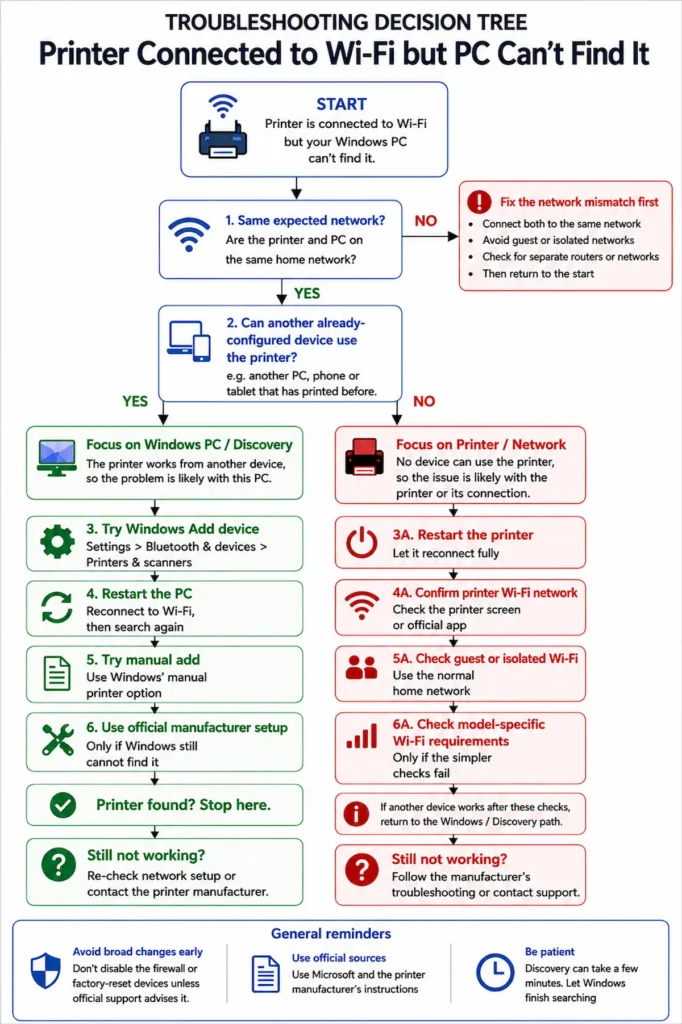
If another device can use the printer, focus on Windows
Try adding the printer in Windows 11
If the printer works from another device, check whether Windows can discover it normally.
If this is a new Windows 11 PC and you have not added this printer before, see our guide to adding an existing wireless printer to a new Windows 11 PC first.

- Open Start > Settings.
- Select Bluetooth & devices.
- Select Printers & scanners.
- Find Add a printer or scanner.
- Select Add device.
- Wait for Windows to finish searching.
Do not cancel the search immediately if your printer does not appear.
Microsoft says the printer list can take a few minutes to finish populating. When the correct printer appears, select Add device beside it.
Why this matters: this uses the normal Windows discovery process before introducing more complicated setup methods.
If the printer appears and installs successfully, stop there. There is no need to work through the remaining steps.
Restart the affected PC and search again
If Windows still cannot see the printer, save any open work and restart the affected computer.
Once Windows has restarted:
- reconnect to your normal home Wi-Fi if necessary;
- return to Settings > Bluetooth & devices > Printers & scanners;
- select Add device again;
- allow the search to finish.
If another device can still use the printer, restarting the router is a lower-priority check. Do not factory-reset the router for this symptom.
Why this matters: restarting only the computer showing the problem is a targeted, low-risk check before changing the printer or network.
Try the manual-add option if Windows still cannot find it
If automatic discovery finishes without showing the printer, Windows also provides a manual installation route.
From Settings > Bluetooth & devices > Printers & scanners, start the printer search. If your printer is not found, look for The printer that I want isn’t listed or the option to Add a new device manually.
Microsoft’s printer installation guidance provides this route when automatic discovery does not find the printer.
The Add Printer window may offer several ways to locate a printer.
If you do not know which method applies to your model, avoid guessing IP addresses, ports or other network settings. Check the manufacturer’s instructions for your exact printer instead.
Why this matters: manual addition can help when the printer is available on the network but Windows has not discovered it automatically.
Use the printer manufacturer’s official setup method if needed
If Windows still cannot find the printer, check the official support site for your exact printer model.
Depending on the manufacturer and model, there may be:
- a printer setup app;
- a connection diagnostic tool;
- model-specific Windows software;
- instructions for confirming the printer’s network connection;
- a network-status or configuration report.
Use software from Microsoft or the printer manufacturer’s official support site.
You do not need a generic driver updater or third-party “printer repair” tool just because Windows cannot find a wireless printer.
Microsoft notes that Windows can install many printers directly, while manufacturers may provide additional software or drivers where needed.
Why this matters: manufacturer guidance can provide model-specific information without requiring you to change unrelated network settings.
If no device can use the printer, focus on the printer and network
If a phone, tablet or another computer that previously used the printer can no longer reach it either, stop concentrating on the affected Windows PC for the moment.
The shared part of the problem is now more likely to be the printer or its connection to the home network.
Restart the printer and let it reconnect
Switch the printer off normally.
Wait about 30 seconds, then switch it on again. Give it enough time to finish starting up and reconnect to Wi-Fi before testing it.
Microsoft’s printer connection troubleshooting includes restarting the printer as an early connection check.
Do not factory-reset the printer.
A normal restart keeps its existing configuration, while a factory reset can remove settings and create an additional setup job.
Why this matters: restarting is a reversible way to re-establish the printer’s network connection without removing its configuration.
Confirm that the printer has rejoined the expected Wi-Fi
After the restart, check the printer’s wireless status again.
Depending on the model, you may be able to use:
- its built-in display;
- its network menu;
- a printed network-status or configuration page;
- the manufacturer’s official app.
The exact method varies by printer, so use the manufacturer’s official instructions for your model if you are unsure.
Why this matters: there is little value troubleshooting Windows discovery until you know the printer itself has successfully rejoined the network.
Check for a guest, isolated or separate network
If the printer appears connected but your home devices still cannot reach it, check whether the printer and computer are actually on the same usable home network.
Possible complications include:
- the printer being connected to guest Wi-Fi;
- a second router creating a separate network;
- an extender or access point configured as an independent network;
- a router setting that deliberately prevents local devices communicating with one another.
Guest and device-isolation features can allow a device to connect to Wi-Fi while restricting communication with other devices on the home network. TP-Link’s documentation on device isolation provides one example of how this type of feature works.
If the printer is on guest Wi-Fi, the simplest approach is normally to connect it to your usual trusted home network instead.
Do not disable security or isolation settings across the router unless you understand what the setting does and have a specific reason to change it.
Why this matters: a printer can appear properly connected while still being separated from the computer that needs to reach it.
Check model-specific Wi-Fi requirements only now
If the printer still will not connect reliably to the same usable network as your other devices, check its wireless specifications.
Some printer models have particular requirements for:
- supported Wi-Fi bands;
- wireless security modes;
- router channels;
- other network settings.
These requirements vary.
Do not assume that every printer needs 2.4 GHz, and do not start splitting Wi-Fi network names or changing router channels purely because Windows could not initially find the printer.
Use the support page or manual for the exact model before making this kind of change.
Why this matters: model-specific compatibility is a legitimate possibility, but it is a poor first assumption when simpler explanations have not yet been ruled out.
What probably isn’t worth changing yet
If the checks above have not solved the problem, avoid making several broad changes at once. Doing so can make the original cause harder to identify.
In particular:
- Do not disable your firewall or antivirus as an early fix. Security software can sometimes affect local network communication, but turning protection off is too broad a first step.
- Avoid a full Windows network reset unless there is wider evidence of a network problem. It affects more than printer discovery.
- Do not uninstall printer drivers at random. If Windows has not found the printer yet, establish that the PC can actually reach it before assuming a driver fault.
- Do not reconfigure your whole Wi-Fi network just because the printer was not discovered. Splitting 2.4 GHz and 5 GHz networks or changing router settings should be based on the printer’s documented requirements.
- Do not factory-reset the printer or router as routine troubleshooting. A reset can erase working configuration and create a larger setup problem.
If official support for your exact printer eventually recommends one of these steps, follow the manufacturer’s instructions carefully and make sure you understand how to reverse the change where possible.
If the printer appears in Windows but says Offline
If the printer now appears under Printers & scanners but Windows shows it as Offline, the problem has changed.
Windows knows the printer exists, so you are no longer dealing primarily with printer discovery.
See our guide to printer offline but connected to Wi-Fi for checks covering the printer entry, print queue, Windows printing service and other Offline-specific causes.
Avoid repeatedly removing and re-adding a printer that Windows can already see. Diagnose the Offline state instead.
Does this mean you need a new printer?
Windows failing to find a wireless printer does not, by itself, mean that the printer is faulty.
If another phone, tablet or computer can still use it, replacing the printer makes particularly little sense because the printer is demonstrating that it can still communicate and print.
Even when no device can currently reach it, a lost network connection or setup problem should be investigated before assuming hardware failure.
Replacement or paid repair becomes more reasonable when there is stronger independent evidence of a printer fault — for example, persistent printer-side hardware errors or an inability to maintain its own network connection after appropriate manufacturer troubleshooting.
For a discovery problem alone, you probably do not need to buy anything.