
If you have weak Wi-Fi in one room but the connection works normally through most of your home, the problem is often the wireless coverage reaching that particular location rather than your broadband connection itself.
Before changing router settings or buying extra equipment, work out whether the problem follows the room or one particular device. A couple of simple comparisons can tell you much more than trying a long list of Wi-Fi fixes.
Quick answer: If Wi-Fi is weak in one room:
- Try another phone, tablet or laptop in exactly the same weak spot.
- If several devices struggle there, use the same device at the doorway or in a nearby room.
- If the connection improves as you leave the room, distance, obstacles or the physical path from the router are likely contributing.
- Check whether the router is low down, enclosed or blocked by large objects, then make one sensible positioning change and test again.
- Only consider an extender, mesh Wi-Fi or other extra coverage once you have established that the room really does have a coverage problem.
One weak room does not automatically mean you need faster broadband or a new router.
What Weak Wi-Fi in One Room Usually Means
Wi-Fi and broadband are related, but they are not the same thing.
Your broadband connection is the internet service arriving at your home. Wi-Fi is the wireless connection between your router and devices such as phones, laptops and tablets.
If most of the home works normally but several devices consistently struggle in one particular room, the physical Wi-Fi connection to that room becomes a likely explanation.
Common factors include:
- distance from the router;
- walls, floors and other obstacles;
- where the router is positioned;
- something unusual about the room or its construction;
- local wireless interference;
- differences between individual devices.
Ofcom explains that Wi-Fi signals weaken as they pass through objects and that materials including metal, water and glass can affect the signal. Microsoft similarly recommends reducing the number of walls and other obstacles between the router and device where possible.
However, do not assume the room is definitely responsible just because the Wi-Fi icon shows fewer bars there.
Start by comparing devices and locations.
First, Check Whether the Problem Really Follows the Room
1. Try Another Device in Exactly the Same Place
Stay in the part of the room where Wi-Fi normally performs badly.
Try another device that already connects to your home Wi-Fi, such as another:
- phone;
- tablet;
- laptop.
Use it for the sort of activity that normally causes trouble.
For example, open a few familiar websites, stream something you normally watch or test the video-calling service you use.
You do not need to chase an exact speed-test number for this first check.
What matters is whether both devices behave badly in the same place.
If the second device works normally, the room may not be the main problem. The original phone or laptop could have poorer Wi-Fi reception or another device-specific issue.
If one device is consistently slower while others work normally in the same place, Wi-Fi Slow on One Device but Fine on Others: What to Check walks through the device-specific checks in a sensible order.
Google notes that Wi-Fi performance can vary depending on the device being used, as well as distance, frequency and physical barriers.
If several devices struggle in the same spot, continue with the next test.
Why this matters: you have kept the location the same and changed the device. That helps separate a device problem from a location or coverage problem.
2. Use the Same Device Just Outside the Room
Now keep the device the same and change only the location.
Start where Wi-Fi normally performs badly, then move towards:
- the doorway;
- the hallway or landing;
- a nearby room.
Use the same activity each time.
Ask:
Does the connection become noticeably more usable as you leave the room?
If a laptop that struggles at a desk works much better near the doorway, that is a useful clue.
It suggests the Wi-Fi signal reaching the usual position may be weaker because of distance, obstacles or the physical route the signal has to take.
If there is little or no improvement even as you move towards the router, the problem may be wider than one particular room.
Why this matters: the first test kept the location the same and changed the device. This test keeps the device the same and changes the location.
Together, those two comparisons help you narrow the problem down before changing anything.
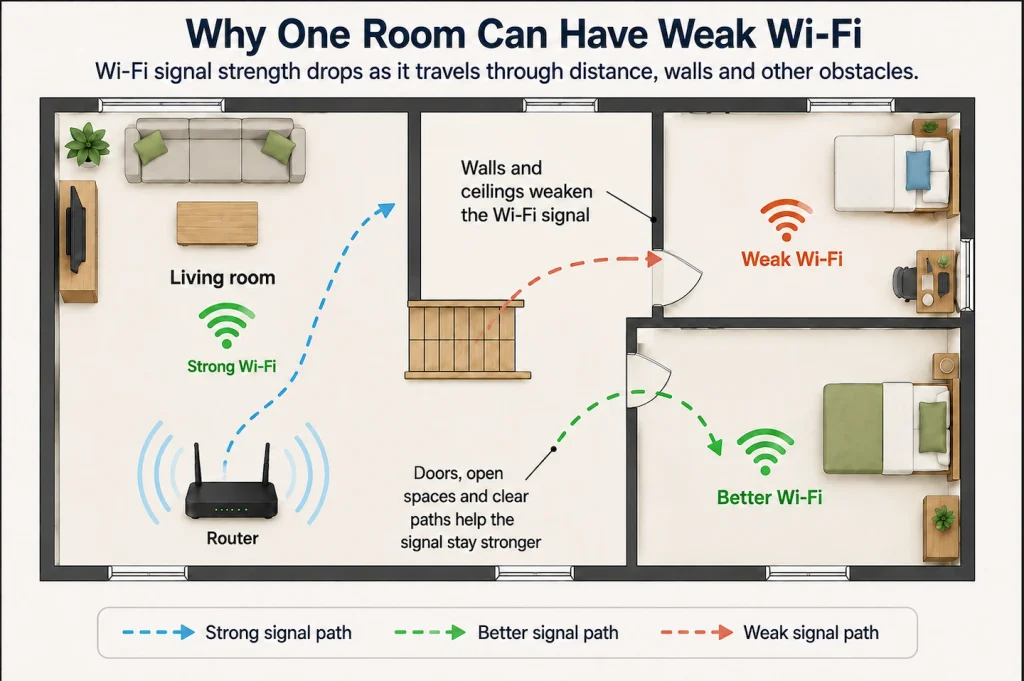
Look at What the Wi-Fi Has to Travel Through
It is tempting to judge Wi-Fi coverage purely by how far a room is from the router.
The actual path matters too.
Two rooms can appear to be a similar distance from the router but receive very different Wi-Fi because the signal has to travel through different obstacles to reach them.
Look at the route between:
router → problem room
Consider whether it passes through:
- several walls;
- thick or dense walls;
- a floor or ceiling;
- large pieces of furniture;
- substantial metal objects;
- radiators;
- large water-filled objects such as a fish tank;
- part of the home built differently from the surrounding rooms.
For example, an extension may use different building materials from the original part of the property.
Google’s Wi-Fi guidance notes that denser materials such as concrete, brick and metal can make wireless connections more difficult, while large objects and appliances can also affect the signal path.
Spotting one of these things does not prove that it is causing your problem.
Instead, look for a pattern.
If several devices struggle behind the same substantial obstruction but improve when moved towards the doorway, the physical path becomes a much stronger explanation.
Check Where Your Router Is Positioned
If several devices struggle in the room but improve elsewhere, take a quick look at the router.
Check whether it is low down, enclosed or immediately blocked by large objects.
If practical, make one modest change. For example:
- move it out of a cupboard;
- raise it onto a suitable open shelf;
- move it slightly away from a large obstruction.
Ofcom recommends keeping a router in an open position, off the floor and reasonably central in the home where practical.
If you are not sure what a sensible position looks like, Where Should You Put Your Wi-Fi Router at Home? explains how to choose the best practical location for your home.
Your broadband socket, fibre equipment, power sockets and cabling may limit where you can realistically move it. You do not need to rearrange the whole house.
Make sure the router remains stable, ventilated and safely connected without stretching cables across walkways.
Then return to the same weak spot and test again using the same device and activity.
If Wi-Fi improves noticeably, the router’s previous position was probably contributing.
Why this matters: change one thing at a time. That way, if the connection improves, you have useful evidence about what actually helped.
Think About What Is Different About This Room
If this room is much worse than other nearby rooms, ask what is physically different about it.
For example:
- Is it part of an extension?
- Are the walls thicker?
- Is there a chimney breast or substantial structure between it and the router?
- Is large furniture or equipment blocking the most direct route?
- Is your usual desk or chair in a particularly poor part of the room?
- Did something change shortly before the Wi-Fi became worse?
Try Another Position Within the Room
Use the same device in another part of the room.
For example, compare:
- the desk with the doorway;
- one side of the room with the other;
- a position surrounded by furniture with a more open position.
If Wi-Fi is usable on one side of the room but poor in one particular corner, you may not have a complete room-wide dead spot.
That can matter if the affected device normally stays in one fixed position, such as a desktop PC, smart television or home-office laptop.
There is no need to spend hours searching for the perfect signal.
You are simply trying to establish whether the whole room is weak or one particular part of it is worse.
Further Checks If the Room Is Still Weak
If the simple location and router-position checks have not explained the problem, consider a few secondary possibilities.
Think About Recent Changes
If Wi-Fi used to work normally in the room, think about what changed around the time the problem started.
For example:
- Was the router moved?
- Was furniture rearranged?
- Was new equipment added?
- Was the router placed inside or behind something?
- Did the problem start on one device or on several devices?
If the problem appeared unexpectedly, a normal restart of the router and affected device is also reasonable.
Follow your broadband provider or router manufacturer’s normal restart instructions if you are unsure of the correct process.
A restart is different from a factory reset. You do not need to erase the router’s settings for this check.
Consider Local Wireless Interference
Other wireless or electrical equipment can sometimes interfere with Wi-Fi.
Ofcom gives examples including microwave ovens, baby monitors and cordless phones.
Interference deserves more attention if the problem:
- comes and goes;
- is noticeably worse at particular times;
- began after new equipment was added.
Do not start unplugging every electrical device in the house.
Look first for something close to the router or problem area that fits the timing of the issue.
Check 2.4 GHz Only If It Is Easy to Compare
If your router or broadband provider’s app already makes it easy to compare 2.4GHz and 5GHz, you can see whether the weak room behaves better on 2.4GHz. For a fuller explanation of the trade-offs, see our guide to 2.4GHz vs 5GHz Wi-Fi.
If your router manages the bands automatically, leave it alone rather than splitting network names or changing advanced settings just for this test.
What Probably Isn’t Worth Doing Yet
For a predictable one-room Wi-Fi problem, do not jump straight to:
- upgrading your broadband package;
- factory-resetting the router;
- randomly changing channels, channel widths or transmit-power settings;
- replacing the router.
Those actions can make sense in other circumstances, but none follows automatically from the evidence that one particular room has weaker Wi-Fi.
A faster broadband package, for example, does not repair a weak wireless path between the router and one room.
A factory reset is particularly poor as an early troubleshooting step because it can erase working network settings without addressing a physical coverage problem.
Establish whether the problem really follows the room first.
How to Tell What Is Actually Causing the Weak Wi-Fi
Once you have performed the controlled tests above, look at the overall pattern.
| What you find | What it suggests |
|---|---|
| Only one device struggles in the room | Investigate that device first |
| Several devices struggle in the same spot | The room, location or Wi-Fi path becomes more likely |
| The same device improves at the doorway | Distance, obstacles or the room’s location are probably contributing |
| Moving the router improves the room | Router position was contributing |
| One part of the room is much worse than another | The exact device position and signal path matter |
| Wi-Fi is weak in several rooms | You may have a wider home coverage problem |
| Several devices also struggle close to the router | Look beyond a simple one-room coverage problem |
| Wi-Fi used to work there but recently changed | Look for a recent equipment, environment or network change |
These are diagnostic clues rather than absolute proof.
The aim is to narrow the problem down enough that your next action matches the problem you actually have.
When Extra Wi-Fi Coverage Might Make Sense
If several devices consistently struggle in this one room but work normally elsewhere, and sensible positioning changes have not helped enough, you now have much stronger evidence of a genuine coverage gap.
If it is still mainly one room or small area, a Wi-Fi extender may be worth considering. Before placing one, see Where Should You Put a Wi-Fi Extender?
If your testing reveals several weak rooms or floors, see Mesh Wi-Fi vs Wi-Fi Extender: Which Do You Actually Need? instead.
If you discover that the wider pattern is specifically that Wi-Fi works downstairs but several upstairs areas struggle, see Wi-Fi Works Downstairs but Not Upstairs: What to Try First.
If Ethernet already reaches the room, a wired connection or wired access point can also be worth considering.
If the weak room is your home office, our Ethernet vs Wi-Fi for a Home Office guide explains when connecting the computer itself by cable is worthwhile.
One weak room is not, by itself, good evidence that your router needs replacing. If several devices also struggle close to the router or throughout the home, that is a different problem and deserves wider troubleshooting.
If several devices also struggle close to the router or are connected to Wi-Fi but cannot get online, Wi-Fi Connected but No Internet: Is It the PC or the Router? can help you work out whether the problem is the PC, router or broadband connection.