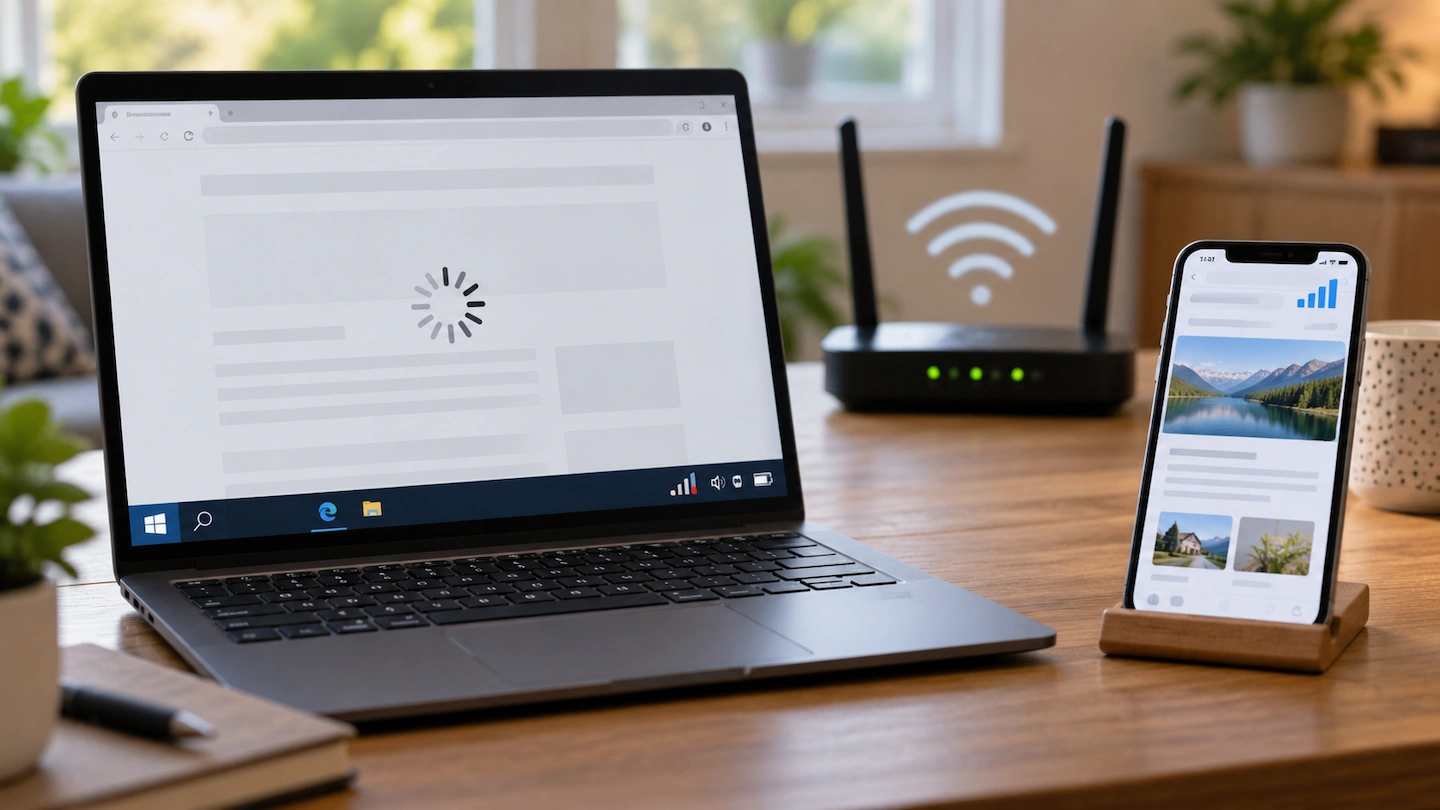
Wi-Fi slow on one device but fine on others? The problem is more likely to be connected with that device or the way it is connecting to your network than with your broadband connection as a whole.
But do not start resetting network settings or replacing hardware yet.
The most useful first step is to compare the slow device with another device under the same conditions. That can tell you whether the slowdown follows the computer, the room you are in or the wider network.
Quick answer: Put the slow device and another device in the same room, connect both to the same home Wi-Fi and compare their performance.
If only one remains noticeably slower:
- Restart the slow device.
- Check for downloads, updates, cloud syncing or other background activity.
- Try it closer to the router.
- Check whether it is using a different Wi-Fi band.
- Compare Wi-Fi with Ethernet if you can.
- Only then move on to Windows, driver or Wi-Fi adapter checks.
If several devices are slow rather than just one, the problem is more likely to involve the home network or broadband connection instead.
Wi-Fi slow on one device? First, make sure the problem really is device-specific
Before changing anything, make the comparison as fair as possible.
A laptop upstairs and a phone beside the router are not experiencing the same Wi-Fi conditions. A weak signal in one part of the house can make one device look faulty when location is really the difference.
Compare both devices in the same place
Take the device that seems slow and another device that appears to work normally.
Put them in the same room, preferably reasonably close to the router, and make sure both are connected to your normal home Wi-Fi.
Then try the same sort of activity on each device. You might load the same website, stream the same type of video or run the same internet speed test.
You do not need the results to be identical. Different devices have different wireless hardware and capabilities.
What matters is whether one device is consistently much slower than the other under similar conditions.
If both become slow in the same location, the problem may not be device-specific after all.
Restart the slow device and test again
If the problem still appears to affect only one computer, restart that device before changing any settings.
A restart can clear temporary software or networking problems and gives you a cleaner starting point for the checks that follow.
At this stage, there is usually no reason to reset the router or the whole home network when every other device is working normally.
Check what is using the connection on the slow device
Sometimes the Wi-Fi connection itself is fine, but the computer is already using much of its available bandwidth in the background.
This can make browsing, streaming or downloads feel unusually slow even though other devices on the network are unaffected.
Check for downloads, updates and cloud syncing
On a Windows PC, open Task Manager by pressing Ctrl + Shift + Esc.
Look at the running processes and the Network column. This can help you spot programs that are actively using the internet.
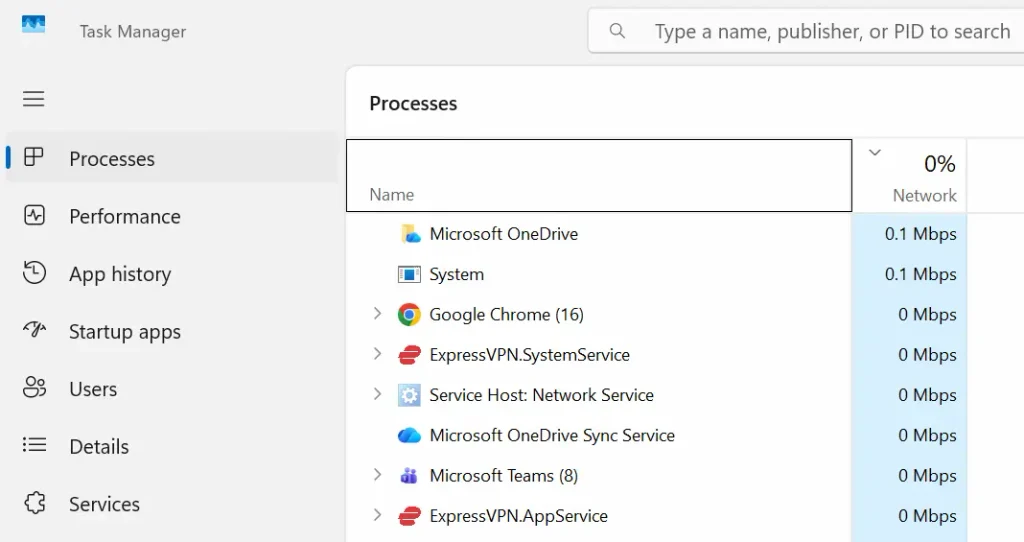
Possible examples include:
- Windows or application updates;
- large game or software downloads;
- OneDrive or another cloud service synchronising files;
- backup software uploading data;
- a browser downloading a large file.
If you find substantial background activity, let it finish or pause it where appropriate and then test the connection again.
This check matters because it separates a genuinely slow Wi-Fi connection from a computer that is simply busy using it.
Check whether a VPN is affecting the connection
If you use a VPN, it can sometimes reduce connection speed because your traffic is being routed through another service.
If it is safe and appropriate to do so, temporarily disconnect the VPN and repeat the same test.
If performance improves significantly, the VPN or the server you were connected to may be contributing to the slowdown.
Reconnect it afterwards if you normally use it for privacy, security or work.
If the computer is managed by an employer, do not change work VPN or security settings without permission.
Check the Wi-Fi signal and connection
Two devices sitting in the same house do not necessarily connect to Wi-Fi in exactly the same way.
Differences in antennas, wireless adapters, supported Wi-Fi standards and frequency bands can all affect performance.
Try the device closer to the router
Move the slow device reasonably close to the router and test it again.
If it becomes dramatically faster, that points more towards a wireless signal or reception problem than a general performance problem with the computer.
This is especially useful with laptops because their position, construction and wireless hardware can affect how well they receive a signal.
If the problem mainly happens in one part of your home, treat it as a coverage problem rather than immediately changing Windows settings. Weak Wi-Fi in One Room: What Usually Causes It? explains how to check whether the problem follows the location rather than the device.
Check whether 2.4GHz or 5GHz makes a difference
Many home routers provide both 2.4GHz and 5GHz Wi-Fi.
In simple terms, 5GHz can usually provide higher speeds at shorter distances, while 2.4GHz generally reaches further and passes through walls more effectively.
That means two devices can sometimes behave differently even when they appear to be using the same home Wi-Fi.
If your router gives you a choice of bands, testing the other one can help establish whether the connection itself is part of the problem.
For a fuller explanation of when each band makes sense, see 2.4GHz vs 5GHz Wi-Fi: Which Should You Use at Home?.
Do not start manually changing router channels or advanced wireless settings simply because one device is slow. There are simpler things to rule out first.
Compare Wi-Fi with Ethernet if you can
If the slow computer has an Ethernet port—or you already have a suitable adapter—connecting it temporarily to the router with an Ethernet cable can be a particularly useful test.
You do not need to buy equipment purely for this check.
Connect the computer by Ethernet, then temporarily turn off Wi-Fi on that computer before retesting. This makes sure the comparison is actually using the wired connection rather than relying on Windows to choose between Wi-Fi and Ethernet.
Test the computer again and compare the result with Wi-Fi.
If Ethernet works normally but Wi-Fi remains slow, that narrows the problem towards the computer’s wireless connection, Wi-Fi adapter or reception.
If both Ethernet and Wi-Fi are unusually slow on the same computer while other devices remain normal, look more closely at software, background activity or the computer itself.
If you are unsure about the practical differences between the two connection types, Ethernet vs Wi-Fi for a Home Office: Which Is Better? explains where each makes sense.
Check Windows and the Wi-Fi adapter
If the simple comparisons still point towards one Windows computer, it is reasonable to move on to software and adapter checks.
This is the point where troubleshooting becomes slightly more technical.
Check for Windows and Wi-Fi driver updates
First, make sure Windows is reasonably up to date.
You should also check whether the computer manufacturer provides a newer wireless driver for your exact laptop or desktop model.
For a pre-built laptop or PC, the manufacturer’s support page is usually a better starting point than downloading drivers from an unfamiliar third-party website.
Microsoft’s Windows Wi-Fi troubleshooting guidance also recommends checking the network adapter and appropriate driver when simpler connection checks have not solved the problem.
Avoid installing generic “driver updater” utilities simply because they claim several drivers are out of date.
Could an older Wi-Fi adapter be limiting the connection?
Sometimes there is nothing actually broken.
An older laptop may simply have less capable Wi-Fi hardware than a newer phone or computer.
For example, the devices may support different Wi-Fi generations, frequency bands or connection speeds.
That does not mean you should replace the computer or router immediately.
The important question is whether the device is slower than it reasonably needs to be for what you use it for, not whether it achieves the same speed as the newest device in your home.
If web pages load normally, video streams reliably and downloads are acceptable, a lower speed-test result on an older device may not be a practical problem.
Further checks if the device is still slow
If the problem continues after the earlier checks, there are a few more things worth trying before considering hardware replacement.
Forget and reconnect to the Wi-Fi network
Removing the saved Wi-Fi connection and reconnecting to it can refresh the connection details stored on the computer.
Make sure you know your Wi-Fi password before doing this.
After reconnecting, test again before making any additional changes.
This is more targeted than resetting all of Windows networking and is therefore a better step to try first.
Leave Network reset until near the end
Windows includes a broader Network reset option, but it should not be one of the first fixes you try.
A Network reset removes and reinstalls network adapters and returns networking settings to their defaults. It can also mean you need to reconfigure networking software afterwards.
That makes it much more disruptive than restarting the computer, reconnecting to Wi-Fi or checking for a suitable driver.
Microsoft describes Network reset as a later troubleshooting step rather than the place to start.
If you reach this point, follow Microsoft’s current Wi-Fi troubleshooting instructions carefully rather than running collections of reset commands copied from forums.
How to tell where the problem probably is
No single test proves the cause, but the pattern you see can narrow things down considerably.
| What you find | What it points towards |
|---|---|
| One device is slow in several rooms while others are normal | The affected device, its software or Wi-Fi adapter becomes more likely |
| The device becomes much faster close to the router | Wi-Fi signal, reception or band becomes more relevant |
| Wi-Fi is slow but Ethernet is normal on the same computer | The wireless connection or Wi-Fi adapter side |
| Both Ethernet and Wi-Fi are slow only on one computer | Background software, local configuration or the computer itself |
| Several devices are slow | A wider Wi-Fi, router or broadband problem |
| Devices are mainly slow in one room | Wi-Fi coverage or router placement |
The important point is to follow the evidence rather than assuming that one slow device automatically means something is broken inside that computer.
What if several devices are slow?
If your testing shows that other phones, tablets or computers are also slow, stop treating this as a single-device problem.
The next question becomes whether the slowdown is coming from Wi-Fi inside your home or from the broadband connection itself. How to Tell Whether Slow Internet Is Your Wi-Fi or Broadband covers that broader diagnosis.
Likewise, if a device says it is connected to Wi-Fi but cannot actually reach the internet, Wi-Fi Connected but No Internet: Is It the PC or the Router? covers that different symptom.
When replacing hardware might make sense
Replacing the router should not normally be the first response when every other device is working properly.
A hardware change becomes more reasonable if your testing consistently points towards the affected device’s Wi-Fi adapter and simpler software, driver and connection checks have not helped.
For a desktop PC, adding or replacing a Wi-Fi adapter may sometimes be practical.
For a laptop, the options depend much more on the particular model. An external USB Wi-Fi adapter may sometimes be an alternative, but there is no reason to buy one until you have established that the existing wireless connection is genuinely the limiting factor.
The same principle applies to the router: replace hardware because the evidence points there, not simply because a speed test produced a lower number than expected.
The main thing to remember
When Wi-Fi is slow on one device but fine on others, start by proving that the slowdown really follows that device.
Compare devices in the same location, restart the affected computer, check background activity and test the wireless connection before moving into drivers or network resets.
Those simple comparisons often tell you more than running a long list of fixes.
And if the problem turns out to affect several devices instead, switch your attention away from the individual computer and towards the wider Wi-Fi or broadband connection.