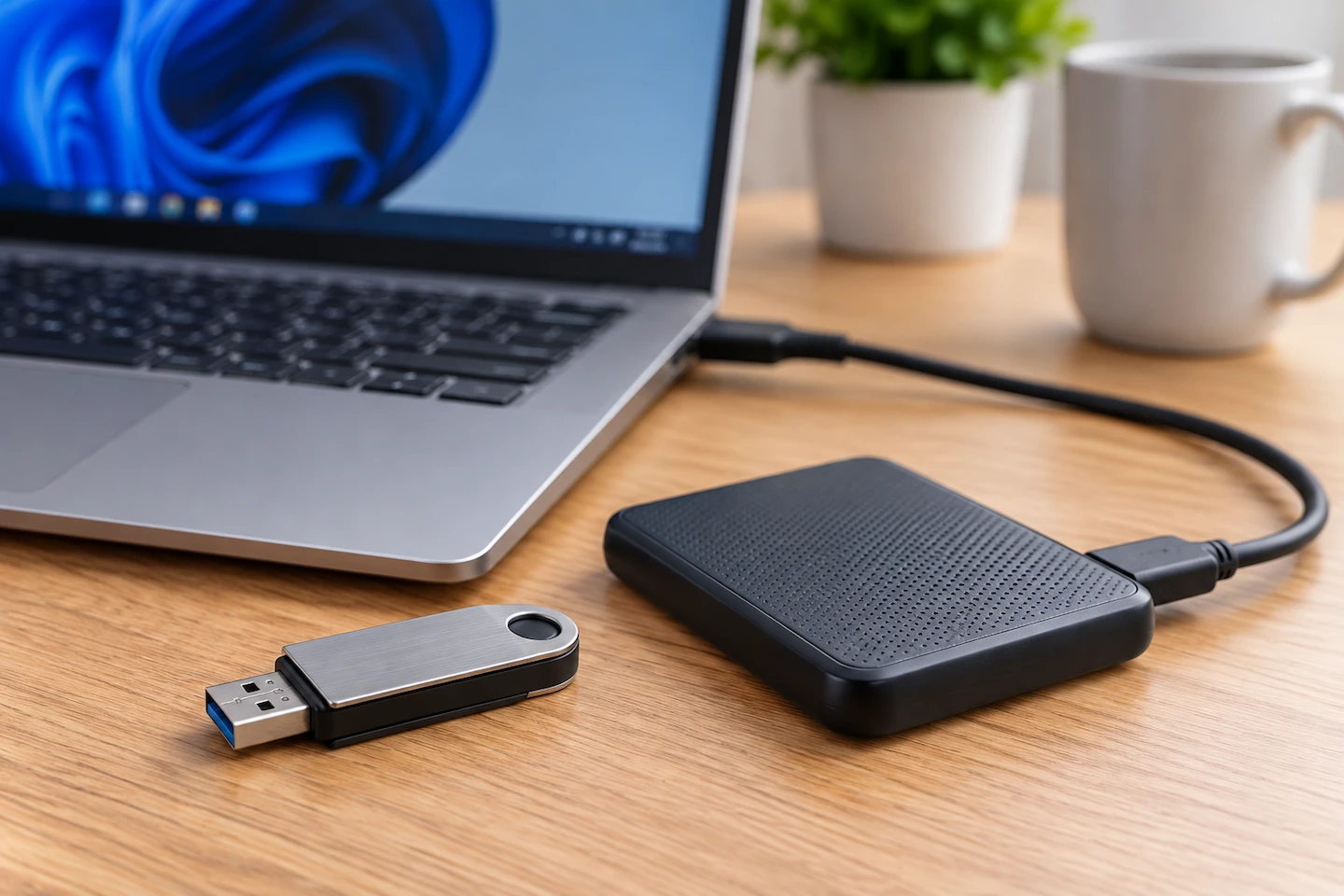
A USB flash drive and an external SSD can both give you extra storage that plugs into your computer. At first glance, the main difference may seem to be that one is tiny and the other comes in a small box with a cable.
For most home users, the USB flash drive vs external SSD choice comes down to how much data you handle, how often you move it and how much convenience matters. A flash drive is usually best when convenience matters most, while an external SSD generally makes more sense for larger amounts of data and more frequent transfers.
Quick answer: A USB flash drive is usually enough if you mainly carry documents, photos and other modest amounts of data between computers. It is small, convenient and normally plugs straight into a USB port without a separate cable.
An external SSD generally makes more sense if you regularly move large folders, back up hundreds of gigabytes or work directly with large files stored on the drive.
Do not assume that every external SSD is faster than every flash drive, though. Performance varies considerably between individual models, and your computer’s USB connection can also limit the speed.
Whichever you choose, avoid keeping the only copy of important files on one removable drive.
The Difference in Plain English
USB flash drives and external SSDs have something important in common: both use flash memory to store data without needing power to keep that data there. Neither relies on the spinning platters found inside a traditional hard disk drive.
The practical difference is mainly in what the device is designed to do.
A USB Flash Drive Prioritises Convenience
A USB flash drive — sometimes called a USB stick or thumb drive — is designed to be extremely portable.
It normally plugs directly into a USB port, so there is no separate cable to carry. That makes it particularly convenient for moving files between computers or keeping a collection of documents and photos with you.
For example, a flash drive may be all you need if you regularly move:
- Word documents and PDFs;
- spreadsheets or presentations;
- a collection of family photos;
- downloaded files;
- other relatively modest amounts of data.
The main complication is that flash-drive performance varies enormously. A fast premium model and a basic low-cost model may look very similar while behaving very differently when you start copying large files.
An External SSD Is Better Suited to Larger Storage Workloads
A portable external SSD is usually a small separate device connected to your computer with a USB cable.
It is generally better suited to larger or more frequent storage jobs, such as:
- backing up hundreds of gigabytes;
- moving large photo or video collections;
- regularly copying large folders between computers;
- storing files that you work with directly from the external drive.
External SSDs are normally less convenient than a tiny flash drive if all you want to do is carry a few documents. However, their design makes more sense when transfer performance and handling larger quantities of data are more important.
USB Flash Drive vs External SSD: Quick Comparison
| USB flash drive | External SSD | |
|---|---|---|
| Best for | Carrying and occasionally transferring modest amounts of data | Larger or more frequent storage workloads |
| Physical size | Very small | Small, but normally larger |
| Separate cable | Usually no | Usually yes |
| Transfer speed | Varies greatly by model | Usually high, but still model dependent |
| Large transfers | Can become less practical | Generally better suited |
| Capacity | Wide range | Wide range and commonly chosen for larger storage needs |
| Backup use | Possible for modest amounts | Usually more practical for substantial backups |
| Main advantage | Convenience | Capacity and sustained performance |
The important point is that these are general differences rather than guarantees about every product.
Two devices with the same capacity can still have very different transfer speeds and prices.
Choose a USB Flash Drive If…
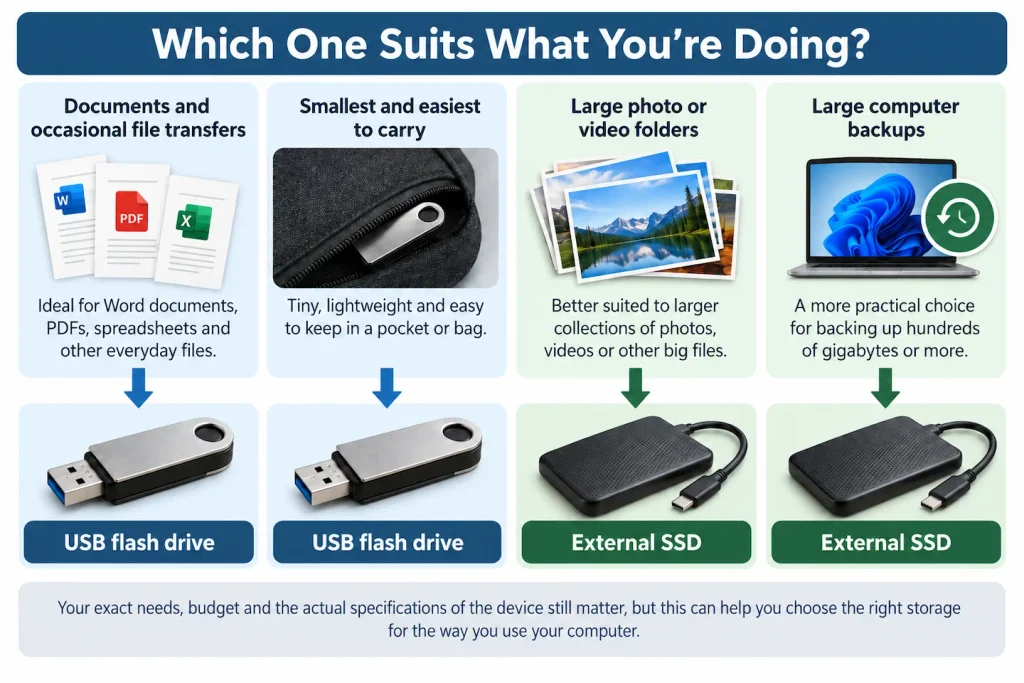
A flash drive is probably the better fit if you mainly want the simplest possible way to carry files around.
It makes particular sense if:
- you mostly transfer documents and other small files;
- you occasionally carry photos between computers;
- you want something that takes almost no room in a bag or pocket;
- you regularly use different computers and want to plug the drive straight in;
- you do not want to carry another cable;
- transfer speed is not currently causing you a problem.
There is also no need to replace a flash drive simply because an external SSD is technically capable of higher performance.
If your existing flash drive holds everything you need and files copy quickly enough for you, it may already be doing the job perfectly well.
Choose an External SSD If…
An external SSD becomes more attractive when the amount of data increases.
Consider one if:
- you regularly transfer very large folders;
- you store substantial collections of photos or videos;
- you want to back up a large amount of computer data;
- you frequently copy files onto and off the drive;
- you work directly with large files stored on the external drive;
- waiting for transfers has become a genuine inconvenience.
This does not mean every home user needs an external SSD.
Someone moving a few PDFs and photos once a month is unlikely to benefit in the same way as someone regularly copying hundreds of gigabytes.
Is an External SSD Always Faster Than a USB Flash Drive?
No.
External SSDs are generally better suited to high-speed, sustained transfers, but the individual device still matters.
This distinction has become more important because some premium flash drives can now advertise speeds close to those of portable SSDs.
For example, SanDisk currently specifies one Extreme PRO USB flash drive at up to 1,000MB/s read and 900MB/s write. Samsung specifies its T7 Shield external SSD at up to 1,050MB/s read and 1,000MB/s write. Both manufacturers also make clear that actual performance can vary depending on the computer, connection and other conditions.
Those figures do not mean a flash drive and an external SSD will always perform the same way.
They show why it is risky to judge performance from the words “flash drive” or “SSD” alone.
If speed matters, check the specifications of the actual drive you are considering.
Read speed tells you how quickly data can potentially be read from the drive.
Write speed tells you how quickly data can potentially be written onto it.
Write speed can be especially important when you are copying a large backup, photo collection or video folder onto the drive.
Also remember that advertised figures are normally maximum or “up to” speeds. Your real transfer speed can be lower.
Does USB-C Mean the Drive Is Faster?
Not by itself.
USB-C describes the connector type; it does not guarantee a particular USB data speed.
Devices using USB-C can support different USB data rates. A device therefore does not become fast simply because it has the smaller reversible USB-C connector.
This matters when you are comparing storage products.
You might see:
- a USB-A flash drive with high advertised transfer speeds;
- a USB-C flash drive with much lower speeds;
- an external SSD capable of higher speeds than your computer’s USB port can provide.
The simplest rule is:
Do not choose a storage device purely because it says USB-C. Check its advertised read and write performance as well.
The drive, computer port and — for an external SSD — cable all need to support an appropriate connection for you to get the expected performance.
Which Is Better for a Computer Backup?
For a substantial computer backup, an external SSD will usually be more practical than an ordinary USB flash drive.
If you already have a suitable external drive and want to start using it for backups, How to Back Up Files to an External Drive in Windows 11 walks through the basic process.
If you need to back up hundreds of gigabytes, the workload is closer to the kind of regular, large transfer for which an external SSD is generally better suited.
But capacity comes first.
A fast 500GB SSD is not much help if you need 800GB of space for your backups. If you are unsure how much space you need, see our guide to how much storage you need for a computer backup before deciding which type of drive to buy.
If you are already certain that you want a conventional external drive for backups but are deciding between solid-state and traditional hard-disk storage, our external SSD vs HDD for backups guide covers that choice separately.
There is also an important distinction between owning a backup drive and having a safe backup.
Neither a USB flash drive nor an external SSD should automatically become the only place where an irreplaceable file exists.
If you copy your family photos from your computer to an SSD and then delete the originals, you have moved the files rather than created another independent copy.
For files you could not afford to lose, keep another dependable copy elsewhere.
If some of your files are stored in Microsoft’s cloud service, our guide to whether OneDrive is really a backup explains how synchronisation and an independent backup copy differ.
Which Specifications Actually Matter?
Storage product listings can make a simple purchase look surprisingly technical.
For most home users, you can narrow the decision down considerably.
Capacity
Start with how much data you actually need to store.
Someone carrying documents may only need a relatively modest drive. Someone backing up years of photographs and videos may need hundreds of gigabytes or several terabytes.
Do not pay extra for speed before checking that the drive is large enough for the job.
Read and Write Speed
If you only move a few small files occasionally, transfer speed may not matter very much.
It matters more as the amount of data grows.
When comparing products, look for clearly stated read and write speeds rather than assuming all drives using a particular connector or storage type perform similarly.
If a manufacturer only gives a read speed, remember that this does not tell you how quickly a large collection of files will necessarily copy onto the drive.
USB Connection
Your storage device cannot operate in isolation from the rest of the connection.
A fast drive connected through a slower USB port will not magically bypass that limit.
For most home users, there is no need to memorise every USB generation.
Check the speed supported by:
- the storage device;
- the computer port;
- the cable, if the drive uses one.
That is normally enough.
Physical Design
A flash drive wins on simplicity.
It can plug directly into the computer without a cable and takes almost no room to carry.
There is a small trade-off: because the drive sticks directly out of the USB port, you need to be careful not to knock or bend it while it is connected.
An external SSD takes up slightly more room and normally requires a cable. On the other hand, the drive can sit beside the computer rather than protruding directly from the port.
Neither design is automatically better. It depends on how and where you use it.
Warranty and Manufacturer Support
Storage is one area where a sensible warranty and manufacturer support are worth considering.
Look for clear capacity and speed specifications, a sensible warranty and manufacturer support rather than choosing on headline claims alone.
What Most Home Users Probably Do Not Need to Worry About
Storage specifications can quickly lead into terms such as:
- TLC and QLC NAND;
- DRAM cache;
- NVMe;
- IOPS;
- controller types;
- PCIe generations.
Those details can matter in particular situations, but most home users do not need to start there when deciding between a flash drive and an external SSD.
Start with five simpler questions:
- How much space do I need?
- How much data will I normally move at once?
- How often will I use the drive?
- Is tiny size more important than transfer performance?
- Does the actual drive offer reasonable performance and support for the price?
Those answers will usually get you much closer to the right choice than comparing technical acronyms.
The Simple Choice
Choose a USB flash drive if you want the smallest and simplest way to carry documents, photos and other modest amounts of data, and you only transfer files occasionally.
Choose an external SSD if you regularly handle larger amounts of data, make substantial backups or want better performance for frequent transfers.
Do not choose purely from the words USB-A, USB-C, flash drive or SSD. Individual products vary, so capacity and actual read/write specifications still matter.
And if the storage device you already own comfortably holds your files and transfers them quickly enough, there may be no practical reason to replace it.