If you use OneDrive on a Windows PC, you may already have important files stored in the cloud without giving it much thought. Microsoft even describes features such as OneDrive folder protection as backup.
At the same time, you may have heard the advice that “sync is not backup”. Both ideas contain some truth.
The useful question is not whether OneDrive is allowed to use the word backup. It is what OneDrive actually protects you against, where that protection has limits, and whether your most important files need another copy as well.
Quick answer: OneDrive does provide genuine backup and recovery protection. If files have successfully reached OneDrive, it can protect them if your computer fails or is lost, and features such as Version History and the Recycle Bin can help recover some unwanted changes or deletions.
However, OneDrive also synchronises your files. Changes made on your computer can be reflected in the cloud, and its recovery features do not keep every previous state forever.
For files you could not afford to lose — such as family photos, important documents or irreplaceable personal work — OneDrive plus one separate independent copy is a sensible approach.
Most home users do not need a complicated business-style backup system.
Is OneDrive a Backup or Just Sync?
The confusion comes from the fact that OneDrive does more than one job.
It stores files in Microsoft’s cloud, makes them available across devices and synchronises changes between those devices.
Microsoft also provides OneDrive folder backup features and describes protected folders as backed up. In its current OneDrive guidance, Microsoft directs Windows users to Sync and backup > Manage backup to control this protection.
Microsoft: Back up your folders with OneDrive
So it would be inaccurate to say that OneDrive provides no backup protection at all.
However, OneDrive folder backup is not a complete backup of your whole PC. It protects selected files and folders through OneDrive; it does not create a full copy of Windows, all your installed programs and everything stored on every drive.
If you are also seeing Windows Backup in Windows 11 and are unsure how it differs from OneDrive, Windows Backup vs OneDrive: What’s the Difference? explains how the two features work together.
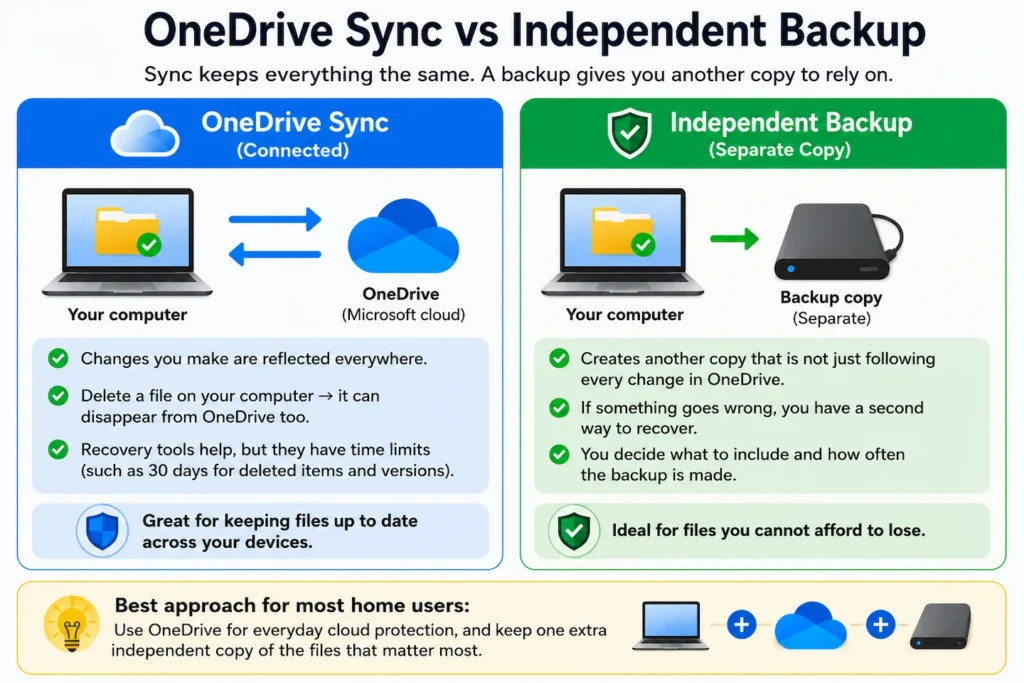
The important distinction is between synchronisation and an independent backup copy.
What OneDrive sync means
With synchronisation, your computer and OneDrive are designed to stay up to date with each other.
A simplified version looks like this:
Computer ⇄ OneDrive
If you edit a synchronised document on your computer, the new version can be uploaded to OneDrive.
If you rename or move a synchronised file, that change can also appear elsewhere.
If you delete a synchronised file, that deletion can be reflected in OneDrive as well.
That behaviour is useful. It is what allows you to open the latest version of a file from another computer or device.
It also means the cloud copy should not automatically be thought of as an untouched copy that never changes.
What an independent backup means
An independent backup gives you another recovery copy that is not simply following every live change in OneDrive.
A simplified example is:
Computer → separate backup copy
That separate copy might be stored on an external drive or through another suitable backup method.
The key point is not the type of storage. It is that the second copy gives you another recovery path if something goes wrong with the files in your normal OneDrive setup.
What OneDrive Can Protect You Against
OneDrive offers more useful protection than the phrase “it is only sync” might suggest.
If your computer fails, is lost or is stolen
If an important file has successfully synchronised to OneDrive, it is not dependent on that one computer continuing to work.
You can normally sign in to the same Microsoft account from another suitable device and access files stored in OneDrive.
This is one of OneDrive’s biggest advantages for home users.
However, there is an important qualification:
OneDrive can only protect files that are actually stored or successfully synchronised there.
Having OneDrive installed does not automatically mean every file on every drive in your computer has been uploaded.
If you accidentally change a file
OneDrive provides Version History, which can allow you to restore an earlier version of a file.
Microsoft currently states that OneDrive Version History works with all file types and retains file versions for 30 days.
Microsoft: Restore a previous version of a file stored in OneDrive
That means accidentally saving an unwanted change does not necessarily destroy the previous version immediately.
It is still better not to depend on Version History as permanent archival storage, but it provides useful protection against everyday mistakes.
If you accidentally delete something
Deleting a OneDrive file does not always mean it is immediately gone forever.
For personal Microsoft accounts, deleted OneDrive items normally remain in the OneDrive Recycle Bin for 30 days before being automatically removed.
Microsoft: Restore deleted files or folders in OneDrive
That can provide a valuable second chance after an accidental deletion.
However, the Recycle Bin has a retention period. It should not be treated as a permanent backup of deleted files.
If lots of files are damaged or changed
Microsoft 365 subscribers can also use Restore your OneDrive to undo file and folder activity from an earlier point within the previous 30 days.
Microsoft lists situations such as deletion, overwriting, corruption and malware among the problems this feature may help recover from.
Microsoft: Restore your OneDrive
That gives OneDrive more recovery capability than basic file synchronisation alone.
It still does not make OneDrive an unlimited historical archive.
Where OneDrive Has Limits as a Backup
The limitations become clearer when you look at how synchronisation works.
Changes and deletions can synchronise
OneDrive is designed to keep your files consistent.
That means a mistake on one device can sometimes become a change in the cloud as well.
For example, if you delete a synchronised file because you no longer want it on your computer, you may also be deleting it from OneDrive rather than making a local-only change.
OneDrive’s Recycle Bin and Version History provide protection against some of these mistakes, so a synchronised change does not automatically mean the older information is permanently lost.
But this is different from having another independent copy that has not simply followed the same change.
Recovery options do not last forever
The OneDrive Recycle Bin, Version History and broader restore features all have limits.
For personal accounts, Microsoft currently documents a 30-day Recycle Bin period. Its Version History documentation also states a 30-day retention period, while Restore your OneDrive can take Microsoft 365 subscribers back to an earlier point within the previous 30 days.
These features are extremely useful when you notice a problem reasonably quickly.
They are less reassuring if, for example, you discover several months later that an irreplaceable file disappeared long ago.
That is one reason a genuinely separate backup can still be worthwhile.
A file in OneDrive may not also be stored on your PC
This is easy to misunderstand.
OneDrive’s Files On-Demand feature allows files to appear in File Explorer without keeping the complete file permanently stored on your computer.
Microsoft describes online-only OneDrive files as being available through cloud storage without using normal local storage space.
If your PC is running short of space, Windows 11 Storage Full: What Can You Safely Remove? explains which files are sensible to review first and how OneDrive can help free local storage without deleting your cloud files.
Microsoft: Save disk space with OneDrive Files On-Demand for Windows
So seeing:
File Explorer > OneDrive > Your file
does not necessarily prove that you currently have one complete copy in the cloud and another complete copy stored on the computer.
Check What OneDrive Is Actually Protecting
Before deciding whether you need another backup, first check what your existing OneDrive setup is doing.
There is no need to delete or alter a valuable file as a test.
1. Open OneDrive settings
On a Windows PC, select the OneDrive cloud icon in the notification area near the clock.
Select the Settings or gear icon, then open Settings.
The exact appearance can vary slightly as Microsoft updates OneDrive.
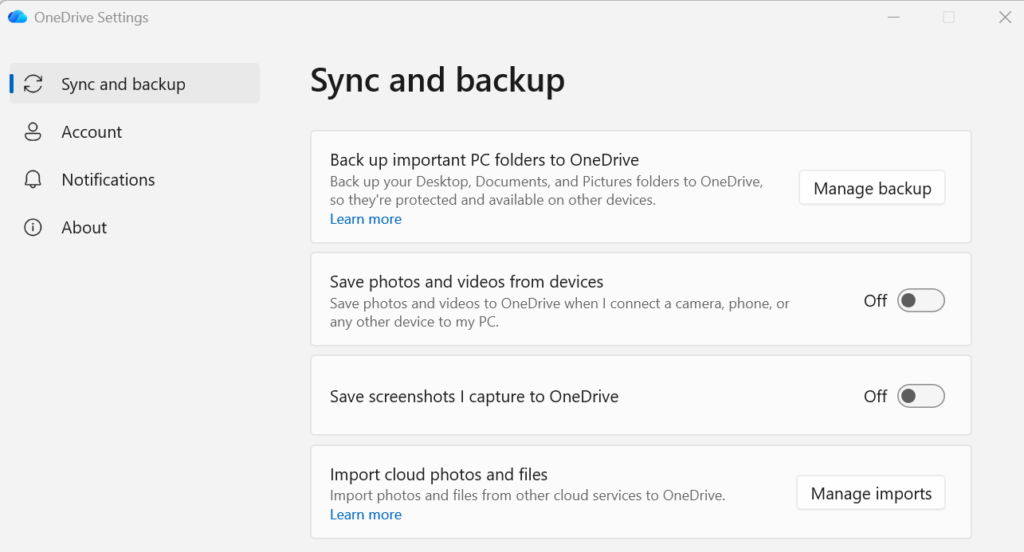
2. Open Sync and backup
In OneDrive settings, select:
Sync and backup
Then look for:
Manage backup
Microsoft currently uses this area to control OneDrive folder backup.
3. Check which folders are being protected
Look at the folders listed in Manage backup.
Confirm that the folders containing the files you actually care about are shown as being backed up.
Do not assume that because one folder is protected, every folder on the computer is also protected.
For example, files saved somewhere outside your OneDrive folder or the Windows folders protected through OneDrive may not be included.
Why this matters: the question “Is OneDrive enough?” only makes sense after you know that your important files are actually in OneDrive.
4. Check that OneDrive has finished syncing
Look at the OneDrive cloud icon and check for any obvious warning, paused state or synchronisation error.
If OneDrive is reporting a problem, do not simply assume that the newest files have reached the cloud.
A healthy-looking local folder does not prove that every recent change has uploaded successfully.
5. Check an important folder through OneDrive online
If you want additional reassurance, sign in to OneDrive through Microsoft’s website and check that the folders and files you expect to see are present.
You do not need to delete anything to perform this check.
For especially important files, confirming that they appear in the cloud is safer than relying entirely on the fact that the OneDrive app is installed.
Are Your OneDrive Files Also Stored on Your Computer?
OneDrive Files On-Demand can leave files in several different states on a Windows PC.
On mobile, swipe left or right to view the full table.
| File state | Stored in OneDrive | Full copy currently stored on this PC? | Available without internet? |
|---|---|---|---|
| Online-only | Yes | No | No |
| Locally available | Yes | Yes, currently | Yes |
| Always keep on this device | Yes | Yes | Yes |
Microsoft explains that online-only files do not take up normal storage space on the computer and cannot be opened while the device is offline.
Microsoft: What do the OneDrive icons mean?
When you open an online-only file, OneDrive downloads it and it becomes locally available.
You can also right-click a suitable OneDrive file or folder and choose Always keep on this device if you want it to remain downloaded for offline use.
Why this matters for backup
Suppose a family photo appears in File Explorer inside your OneDrive folder.
If it is online-only, the full file is stored in OneDrive rather than as another complete local copy taking up space on that PC.
Even when a file is stored both locally and in OneDrive, those two locations are still part of the same synchronised system.
That is useful protection against a computer failing.
It is not quite the same as having a second independent backup that is managed separately.
Do You Still Need Another Backup If You Use OneDrive?
There is no rule saying every home user must back up every file in several different places.
A better question is:
How serious would it be if this particular file disappeared permanently?
Keep another copy if losing the files would really matter
A separate copy is sensible for files such as:
- family photos and videos you cannot recreate;
- important personal documents;
- scans of certificates or records;
- long-term creative projects;
- personal archives;
- anything that would be difficult or impossible to replace.
OneDrive remains useful for these files.
The extra backup is additional protection, not a reason to stop using OneDrive.
An external drive can provide that additional copy, particularly when the backup is kept separately rather than simply mirroring every live OneDrive change.
If you want to create that separate copy on a Windows 11 PC, How to Back Up Files to an External Drive in Windows 11 shows how to do it using File Explorer or File History.
If you are choosing a drive for that separate backup, our guide to external SSD vs HDD for backups explains when each type makes sense.
Other independent backup methods can work too. What matters is that the extra copy gives you another recovery path.
OneDrive may be enough protection for less-important files
Not every file deserves the same level of protection.
You may decide that OneDrive’s existing protection is enough for:
- software installers that can easily be downloaded again;
- temporary working files;
- replaceable downloads;
- copies of documents already available from an authoritative source;
- files you genuinely would not mind losing.
Backing up everything in several places simply because it exists can add cost and complexity without providing much practical benefit.
Concentrate your strongest protection on the files that actually matter.
A Sensible Backup Setup for Most Home Users
For many home users, a sensible setup can remain simple:
Use OneDrive for everyday cloud protection and keep one additional independent copy of files that would be difficult or impossible to replace.
If you want a simple framework for how those different copies fit together, What Is the 3-2-1 Backup Rule for Home Users? explains why keeping local and offsite copies can give your important files better protection.
That might mean family photos, important documents, scans of personal records or long-term creative work.
You do not automatically need several paid cloud services, a NAS or business-grade backup software. Nor do you need to create multiple backup copies of every replaceable download and temporary file.
The aim is simply to make sure your irreplaceable files have more than one dependable recovery path.
A useful rule of thumb is:
If losing a file would be inconvenient but manageable, OneDrive’s existing protection may be enough for you. If losing it permanently would be unacceptable, keep another independent copy as well.