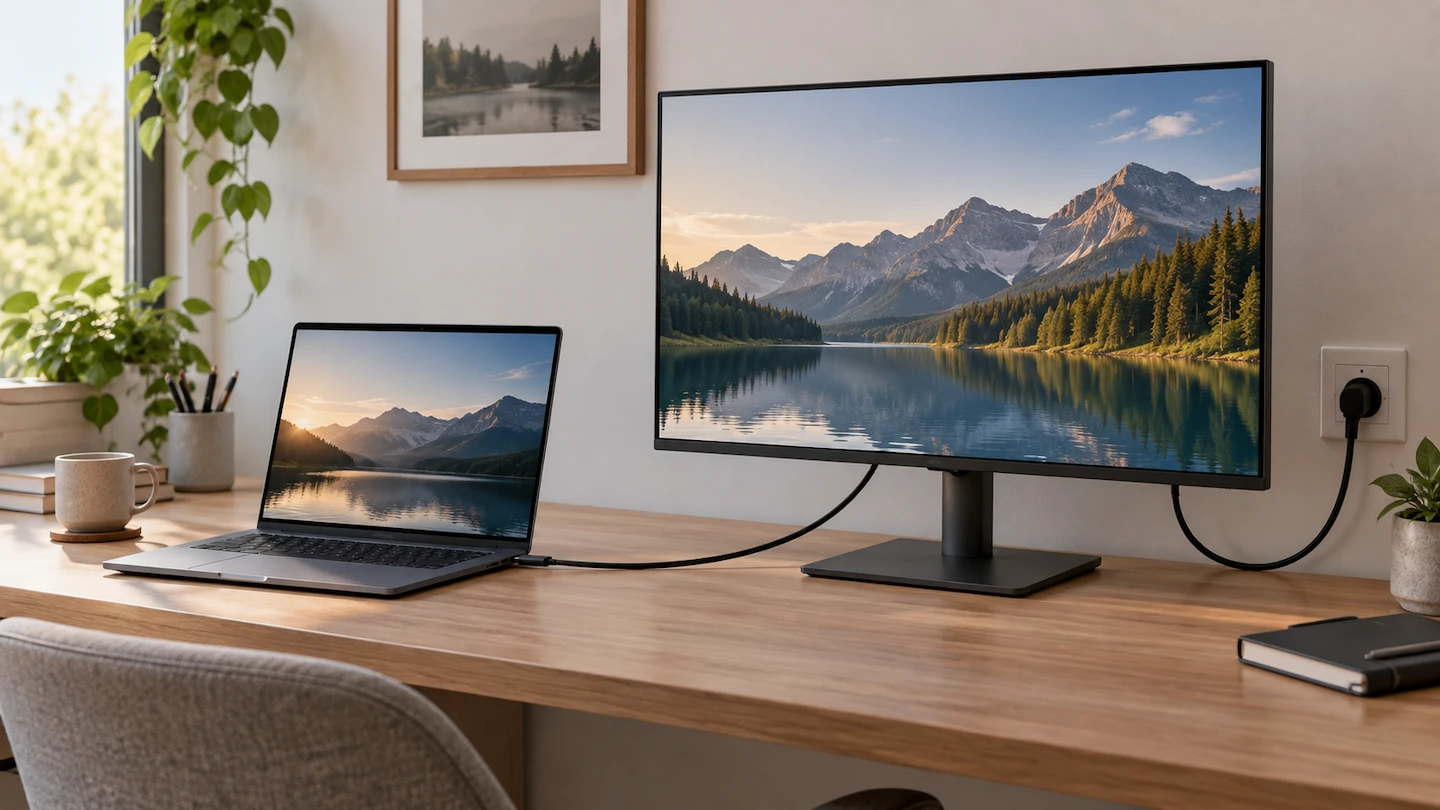
Yes, USB-C can charge a laptop and run a monitor at the same time. With the right laptop, monitor and cable, one USB-C connection can carry the picture to the monitor while the monitor sends charging power back to the laptop.
The important part is that USB-C ports and cables do not all support the same functions. Before relying on a one-cable setup, check that your laptop supports USB-C video and charging, your monitor provides USB Power Delivery, and the cable is suitable for both.
Quick answer: One USB-C cable can handle both display and laptop charging when four things line up: the laptop USB-C port supports video, the laptop accepts charging through USB-C, the monitor provides USB Power Delivery, and the cable supports the required video and power functions.
Also check how much charging power the monitor can provide. A monitor that supplies 65W may be suitable for one laptop but not another.
How USB-C Can Charge a Laptop and Run a Monitor at the Same Time
A compatible USB-C connection can carry several functions through the same cable.
In a typical desktop setup:
Laptop → video → monitor
and at the same time:
Monitor → charging power → laptop
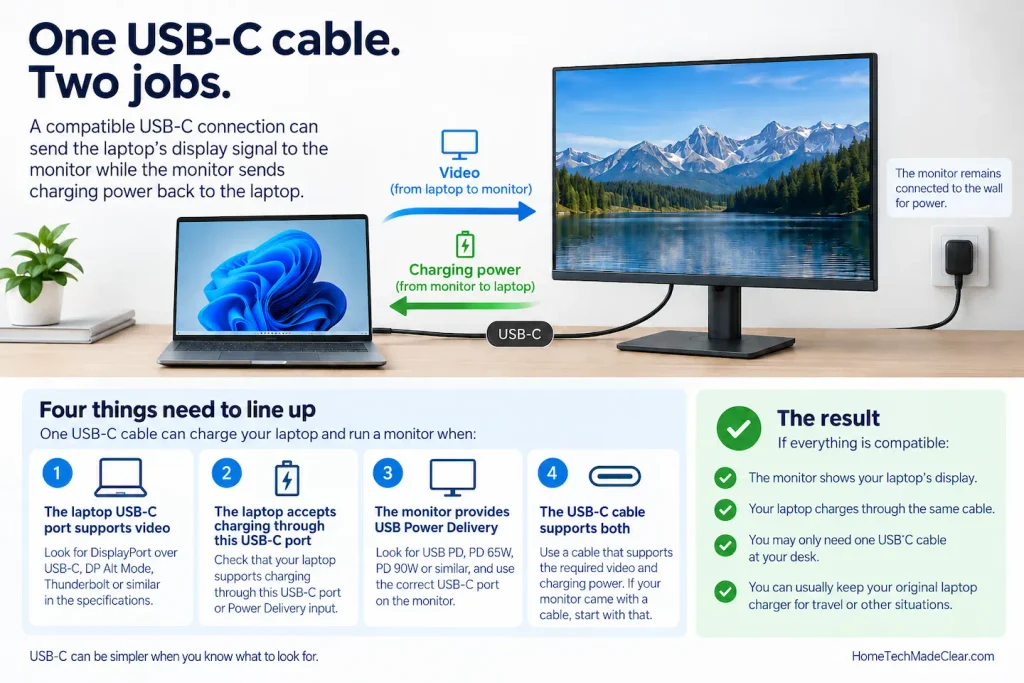
The monitor itself remains connected to the wall for power. It then uses the USB-C connection both to receive the laptop’s display signal and to supply power back to the laptop.
The USB Implementers Forum gives this exact example, explaining that a monitor powered from the wall can power or charge a laptop while still displaying an image.
VESA, the organisation behind DisplayPort, also confirms that DisplayPort video, USB data and USB Power Delivery can operate simultaneously through a suitable USB-C connection.
You do not need to understand the underlying USB standards to use this type of setup. What matters is whether the particular ports and cable you are using support the functions you need.
What You Need for a One-Cable USB-C Setup
There are four main things to check.
1. The Laptop USB-C Port Must Support Video
A USB-C socket on a laptop does not automatically mean that it can send a picture to a monitor.
Depending on the laptop and port, USB-C may support:
- data;
- charging;
- video;
- or a combination of these functions.
Check the specifications or manual for your exact laptop model.
Useful wording may include:
- DisplayPort over USB-C;
- DisplayPort Alt Mode;
- DisplayPort through USB-C;
- Thunderbolt;
- or explicit support for an external display through USB-C.
The USB-C connector itself is not proof that video is supported.
If you are unsure what the specifications mean, see Does My Laptop USB-C Port Support a Monitor? That guide explains how to check the port without having to work through every USB standard.
If the laptop USB-C port does not support video, the monitor cannot receive its picture through that port even if charging works.
2. The Laptop Must Accept USB-C Charging
Video support and charging support are separate capabilities.
A laptop may have a USB-C port that can send video but does not accept charging through that port.
Check the laptop manufacturer’s specifications for wording that confirms USB-C charging or Power Delivery input.
If the laptop cannot be charged through USB-C, you may still be able to use the monitor for video, but you will need to keep using the laptop’s normal charger as well.
3. The Monitor Must Provide USB Power Delivery
A USB-C socket on the monitor does not automatically mean that the monitor can charge a laptop.
Look at the monitor specifications for terms such as:
- USB Power Delivery;
- USB PD;
- PD 65W;
- PD 90W;
- charging power;
- or power delivery to the connected computer.
The wattage normally tells you the maximum charging power that the relevant USB-C port can provide.
It is also worth checking which USB-C port on the monitor provides these functions.
Some monitors have several USB-C connections with different capabilities.
Dell, for example, documents monitor USB-C ports where 65W or 90W ports support both display and laptop charging, while lower-powered USB-C ports may support display or small-device charging without being able to charge a laptop.
The practical lesson is simple:
Do not assume that any USB-C socket on the monitor will do the same job.
Use the port that the manufacturer identifies for the computer connection, display and Power Delivery.
4. The USB-C Cable Must Support the Required Functions
The cable matters too.
Two cables can both have USB-C connectors but support different combinations of:
- charging power;
- data;
- and video.
A cable that successfully charges a laptop does not automatically prove that it can carry the monitor’s video signal.
VESA confirms that simultaneous DisplayPort, USB data and USB Power Delivery can be carried using a suitable full-featured USB-C cable.
If your monitor came with a USB-C cable intended for connecting it to a computer, start with that cable.
That removes one compatibility question from the setup.
If you need to buy or use another cable, check its stated video and power capabilities rather than assuming it is suitable simply because both ends are USB-C.
Check How Much Charging Power the Monitor Provides
Once you know that the monitor supports USB Power Delivery, check its stated charging output.
You may see specifications such as:
- USB-C PD 45W;
- USB-C PD 65W;
- USB-C PD 90W.
There is no single wattage that is correct for every laptop.
Check the manufacturer’s charging specifications for your exact laptop model. The wattage shown on the original charger can also be a useful clue.
For example, a monitor capable of supplying 65W may be sufficient for a laptop normally supplied with a 45W charger, provided the laptop supports charging through that USB-C connection.
A more powerful laptop that normally uses a much higher-wattage charger may behave differently when connected to a lower-powered monitor.
Depending on the laptop, insufficient available power may mean:
- the battery charges more slowly;
- the laptop reports a low-power charger;
- charging stops under a heavy workload;
- or the battery level gradually falls while the laptop is being used.
That does not necessarily mean anything is faulty. The monitor may simply be unable to provide as much power as the laptop needs at that moment.
What If the Monitor Provides More Watts Than the Laptop Charger?
Seeing a 90W monitor when your laptop came with a 65W charger can sound worrying, but the 90W figure is the monitor’s available maximum rather than a requirement that the laptop continuously takes 90W.
USB Power Delivery allows compatible devices to negotiate their power requirements rather than simply forcing the source’s maximum output into the connected device.
The laptop and monitor still need to be compatible, so check the manufacturer’s documentation if there is any model-specific restriction.
How to Check Your Laptop and Monitor Specifications
You normally do not need to decode every logo around the USB-C ports.
Start with the manufacturer’s specification page or manual for your exact model.
Look for wording like this:
| If you see this | What it tells you |
|---|---|
| DisplayPort over USB-C / DP Alt Mode | The USB-C port supports a display connection |
| Thunderbolt with display support | The port can normally be used for compatible external displays |
| USB Power Delivery / USB PD | USB-C power is supported; check the device specifications for direction and wattage |
| PD 65W / PD 90W | The stated maximum Power Delivery output of that port |
| USB-C by itself | Not enough information to confirm video or laptop charging |
Port symbols can be useful clues, but they are not always as clear as the specifications.
If the documentation for your laptop or monitor spells out the functions of each USB-C port, use that information rather than judging the port only by its shape.
What Your USB-C Connection Result Tells You
If you already have the laptop and monitor connected, what happens can help narrow down which capability needs checking.
| What happens | What it suggests |
|---|---|
| Picture and charging both work | Your one-cable setup is working as intended |
| Picture works but the laptop does not charge | Check monitor Power Delivery, the monitor port, laptop charging support and available wattage |
| Laptop charges but there is no picture | Check the laptop’s USB-C video support, ports and cable |
| Neither works | Check the port and cable capabilities before assuming that hardware has failed |
These results are useful clues rather than proof that one particular device is faulty.
Picture Works but the Laptop Does Not Charge
If you have a normal picture but no laptop charging, start by checking whether the monitor actually provides USB Power Delivery through the port you are using.
Then check:
- whether the laptop accepts USB-C charging;
- whether you are using the monitor’s correct USB-C port;
- and whether the monitor provides enough power for the laptop.
There is little value changing Windows display settings when the picture is already working normally.
Laptop Charges but the Monitor Shows No Picture
Charging tells you that power is passing through the USB-C connection, but it does not prove that a working video signal is reaching the monitor.
Check whether the laptop USB-C port and cable support video and make sure you are using the correct ports on both devices.
If your laptop is already charging but the display remains blank, see USB-C Monitor Charges Your Laptop but Shows No Picture for the troubleshooting checks in the right order.
Do You Still Need Your Laptop Charger?
Not necessarily.
If the monitor provides suitable USB Power Delivery and the laptop charges properly while connected, you can normally use the monitor as the laptop’s power source while working at that desk.
That is one of the main advantages of a USB-C monitor.
Instead of connecting:
Laptop charger + display cable
you may only need:
One USB-C cable from monitor to laptop
It is still sensible to keep the laptop’s original charger.
You may need it:
- when travelling;
- when using the laptop away from the monitor;
- if the monitor does not supply enough power for a demanding workload;
- or when troubleshooting the USB-C setup.
There is no need to buy another charger simply because you are using a USB-C monitor if the monitor already provides suitable charging power.
Do You Need a Docking Station as Well?
Probably not if all you want is:
- one external monitor;
- laptop charging;
- and perhaps a few peripherals connected through the monitor.
Many USB-C monitors already provide the basic one-cable experience people buy docking stations for.
A separate dock becomes more useful when you need things the monitor cannot provide, such as:
- more USB ports;
- Ethernet;
- memory-card readers;
- extra display connections;
- or additional types of ports.
If you are deciding whether another device is actually necessary, see USB-C Hub vs Docking Station: Which Do You Need?
Do not add a dock simply because you think charging and display cannot work through the same USB-C connection. If the laptop supports USB-C video and charging, the monitor provides suitable Power Delivery, and the cable supports both functions, one USB-C cable may be all you need at your desk.