How much storage do you need for a computer backup? Do not automatically start with the size printed on your laptop or PC.
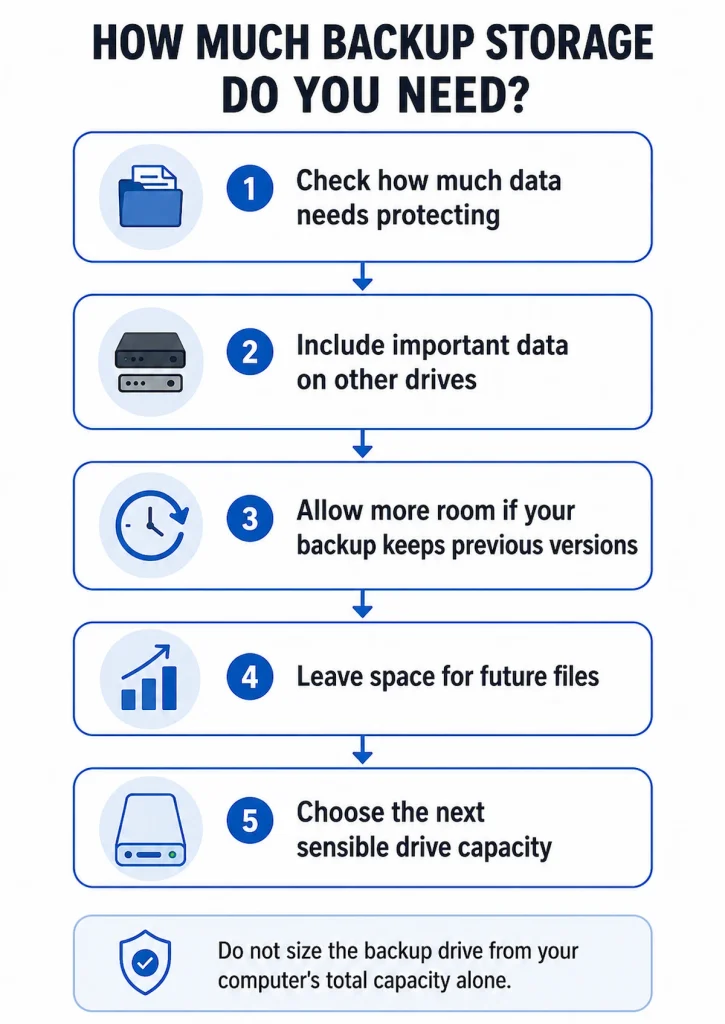
A computer with a 1TB drive might contain only 300GB of files and other data that you actually want to protect. The useful starting point is how much data needs backing up, followed by how much room you want for new files and older backup versions.
Quick answer: Start with the amount of data you actually want to back up, rather than the total capacity of your computer. For an ordinary home file backup, having roughly 1.5 to 2 times the amount of data you currently need to protect is a useful planning range. This is not a Windows requirement, and some backup methods may need more.
For example, if your 1TB laptop has around 350GB of data that needs protecting, a 1TB backup drive may give you plenty of practical room. If you already need to protect around 850GB, a 2TB drive is a much more comfortable starting point.
Start With How Much Data You Actually Need to Back Up
There are three different numbers that are easy to confuse:
- the total capacity of your computer’s drive;
- the amount of storage currently being used;
- the amount of data you actually want your backup to protect.
They are not necessarily the same.
Imagine a laptop with a 1TB internal SSD.
Windows might currently be using 420GB of that space. Some of the 420GB may be Windows itself, installed programs, temporary files and other content that you do not need to copy as part of a simple personal-file backup.
You might eventually decide that around 350GB of documents, photos, videos and other important files are what you actually need to protect.
In that situation, 350GB is a more useful starting point than 1TB.
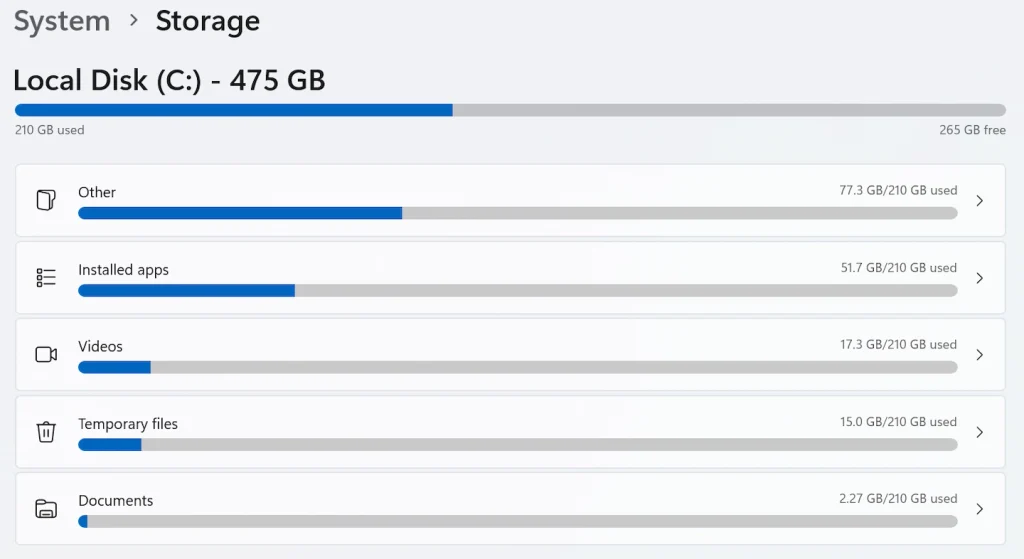
Check Your Storage Use in Windows 11
Windows can show you how your storage is currently being used.
- Open Settings.
- Select System.
- Select Storage.
- Look at the amount of space currently being used.
- Select the individual categories if you want to see what is taking up that space.
The Storage page breaks usage down into categories such as installed apps, temporary files, system storage and other content. It can also help you check storage on other connected drives.
This does not calculate your backup size for you, but it gives you a useful starting point.
If your main problem is that the drive itself is running out of room, Windows 11 Storage Full: What Can You Safely Remove? can help you decide what to clear first and what to leave alone.
Remember Data on Other Drives
Your main Windows drive may not contain everything you want to protect.
If important files are stored on another internal or external drive and you want them included in the same backup plan, add that data to your estimate too.
Cloud-only files need slightly different treatment, which we will cover below.
Decide What Kind of Backup You Are Making
The amount of storage you need also depends on what you mean by a backup.
There is a significant difference between copying a few personal folders and using software that keeps previous versions or complete system images.
A Simple Copy of Your Files
The simplest case is copying important folders to an external drive.
For example, you might protect:
- Documents;
- Pictures;
- Videos;
- personal projects;
- and other files you would not want to lose.
If those files total 300GB, a single copy needs roughly that amount of destination space.
But buying a drive that only just holds 300GB would leave almost no room for new files.
That is why the minimum amount that physically fits today’s files is not necessarily the most useful capacity to buy.
A Backup That Keeps Previous Versions
Some backup systems do more than keep one current copy.
Microsoft’s File History, for example, can back up changed personal files and allow earlier versions to be restored.
That means 300GB of current files does not necessarily mean the backup drive will remain at around 300GB.
As files change, older versions can use additional storage.
There is no useful fixed percentage to add because the amount depends on things such as:
- how many files change;
- how large those files are;
- how often backups run;
- and how long previous versions are retained.
The practical answer is simply to leave more spare room when you want backup history.
Full-System or Image Backups
A full-system or image backup is different from copying personal files.
Depending on the software, it may include Windows, installed applications, settings and other parts of the system as well as your personal data.
It may also keep more than one image.
For that type of backup, check the documentation for the particular software you plan to use rather than assuming that a simple file-backup sizing rule will always be enough.
How Much Extra Backup Space Should You Allow?
For an ordinary home file backup, a useful planning starting point is to have roughly 1.5 to 2 times the amount of data you currently need to protect.
For example:
- 300GB of protected data → roughly 450–600GB as a planning range;
- 600GB → roughly 900GB–1.2TB;
- 1TB → roughly 1.5–2TB.
You do not need to buy a drive in those exact calculated sizes. External drives are sold in standard capacities, so in practice you normally choose the next capacity that gives you comfortable spare room.
The purpose of the extra space is not to satisfy a technical formula. It gives you room for:
- new photos and videos;
- additional documents;
- new projects;
- changed files;
- previous backup versions;
- and some uncertainty in your original calculation.
If your files barely change and you only want one manual copy, you may need less headroom.
If you regularly add large video files or want extensive backup history, you may need considerably more.
How Much Storage Do You Need for a Computer Backup? A Size Guide
The following table gives practical starting points for an ordinary home file backup.
| Data you currently need to protect | Backup capacity worth considering |
|---|---|
| Up to about 250GB | 500GB–1TB |
| Around 250–500GB | 1TB |
| Around 500GB–1TB | 2TB |
| Around 1–2TB | 4TB |
| More than 2TB | Calculate from your data and backup method |
These are practical examples, not minimum technical requirements.
If you regularly add large amounts of data or your backup software keeps extensive history, choosing more capacity may make sense.
One small capacity detail: a drive sold as 1TB may appear as roughly 931GB in Windows because storage capacity is expressed using different measurement systems. This is normal and is another reason not to choose a drive whose advertised capacity only just matches the data you already have.
Example 1: A 1TB Laptop With 250GB to Protect
Your computer may have a 1TB internal drive, but that does not mean you need a 2TB backup drive.
If only about 250GB of important files need protecting, a 500GB drive may hold a basic backup.
A 1TB drive, however, gives much more useful space for future files and backup history.
Example 2: A 1TB Laptop With 600GB to Protect
A 1TB external drive can physically hold considerably more than 600GB, so it may be sufficient for a simple backup.
But it does not leave a large amount of spare capacity once your files start to grow or older versions accumulate.
In this situation, 2TB is usually the more comfortable long-term choice.
Example 3: A 2TB Computer With Only 400GB to Protect
This is where sizing a backup from the computer’s total capacity can become unnecessarily expensive.
A blanket rule based on the 2TB internal drive might suggest buying 4TB of backup storage.
But if only about 400GB actually needs protecting, a 1TB external drive may be entirely reasonable for an ordinary file backup.
The important number is the data being protected, not simply the maximum amount the computer could hold.
Does Your Backup Drive Need to Be Twice the Size of Your Computer?
No, not automatically.
You may have seen advice saying that a backup drive should always be twice the capacity of the computer.
That can be useful guidance for particular backup systems, but it is not a universal Windows rule.
Apple, for example, recommends that a Time Machine backup device have at least twice the storage capacity of the Mac. That is specific guidance for Apple’s Time Machine system.
For a Windows PC, it is more useful to ask:
How much data am I actually protecting, and how much additional room does my backup method need?
There is an important difference between twice the computer’s total capacity and roughly twice the amount of data you currently need to protect.
A computer with a large internal drive but relatively little data may therefore need much less backup capacity than a blanket 2× rule suggests. If the drive is already nearly full of data you intend to protect, choosing around twice that protected amount becomes much more reasonable.
What If You Use OneDrive?
OneDrive can make the calculation less obvious.
A file can appear inside your OneDrive folder in File Explorer while remaining online-only. With Files On-Demand, those files do not use their full amount of local storage until they are downloaded.
So if Windows says your PC is using 300GB, you should not automatically assume that this represents the total size of everything stored in OneDrive as well.
Do not assume that a normal local backup will automatically include online-only OneDrive files. If you want an independent external copy of them, check how your chosen backup method handles cloud-only files.
You also do not need to download your entire OneDrive simply to work out how much backup space you may need, particularly if the computer is already short of free storage.
Cloud synchronisation and a separate backup copy are different forms of protection.
If you are unsure how OneDrive fits into your backup plan, see Is OneDrive Really a Backup? What Home Users Need to Know.
What If You Are Backing Up More Than One Computer?
One sufficiently large external drive can potentially hold backups from more than one computer, provided your chosen backup method supports the arrangement.
Start by adding together the data you actually intend to protect.
For example:
- Laptop A: 300GB
- Laptop B: 450GB
- Total protected data: 750GB
A 1TB drive would leave relatively little room for future growth or substantial backup history.
A 2TB drive would normally be a more comfortable starting point.
There is another point worth considering, though.
If one external drive contains the backups for several computers, it is still one physical device. If that drive fails, all of those backup copies may be affected at the same time.
That does not mean you need a complicated business backup system. It simply means irreplaceable files should not depend entirely on one external drive.
Choose the Capacity Before Choosing SSD or HDD
Once you know approximately how much backup storage you need, the next question is what type of external drive to buy.
For many home users:
- an external HDD provides more storage for the money and is well suited to a backup drive that mostly stays safely at home;
- an external SSD is smaller, faster and better suited to regular movement.
Neither is automatically the right choice for everybody.
Capacity should usually come first. A faster drive does not help much if it becomes too small for your backups after a few months.
Our guide to External SSD vs HDD for Backups: Which Should You Choose? explains that decision in more detail.
The Simple Rule to Remember
Start with the data you actually need to protect, then choose enough capacity for new files and any previous versions your backup method keeps.
If the smaller of two drive capacities would already be fairly full, the larger option will usually be the more practical long-term choice.
And remember that storage capacity is only one part of backup safety.
Keeping the only copy of an important file on an external drive does not make it backed up. Moving files to an external drive and then deleting the originals still leaves you with only one copy.
For particularly important files, What Is the 3-2-1 Backup Rule for Home Users? explains how keeping separate local and offsite copies can reduce the risk of one problem affecting every copy.
For files such as irreplaceable family photos, important documents and personal projects, make sure one failed or lost storage device cannot remove your only copy.