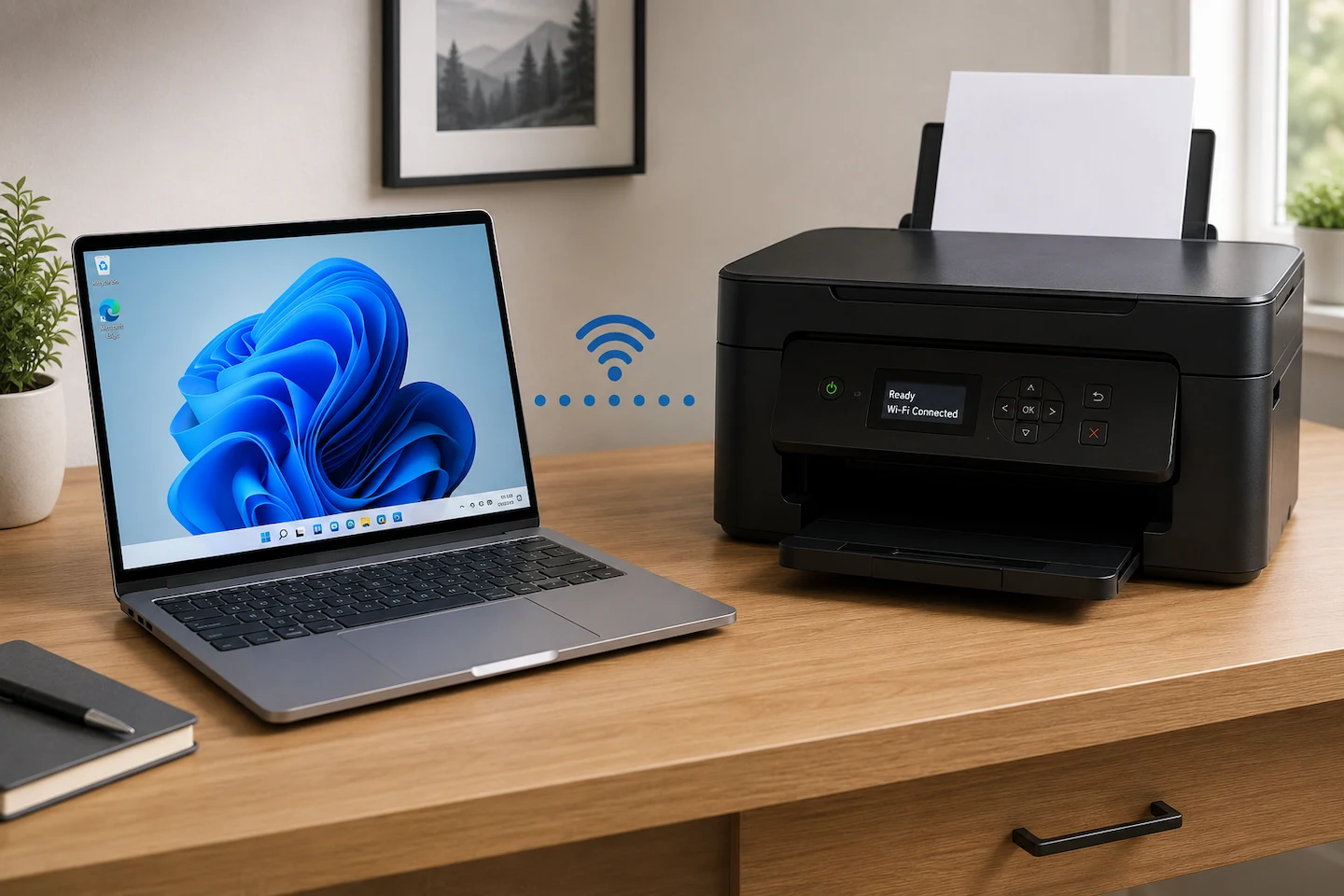
If your printer won’t print but everything looks connected, the problem is not necessarily the Wi-Fi, cable or printer itself. Windows may be able to see the printer even though the print job is failing somewhere else along the way.
Instead of changing several settings at once, start by checking the printer itself, make sure the document is being sent to the right printer, then watch what happens to one simple print job. That gives you a much better idea of where to look next.
Quick answer: If your printer won’t print but everything looks connected, first check the printer for an error and make sure the correct physical printer is selected in the app. Then send one simple document and open the Windows print queue to see what happens. If the job stays there, disappears without printing, changes to Offline or never reaches the queue at all, that gives you an important clue about where the problem is. Do these checks before reinstalling drivers, removing the printer or resetting your network.
Why Your Printer Won’t Print but Everything Looks Connected
Printing involves more than the connection between your computer and printer.
A simplified version of the path looks like this:
Document → selected printer → Windows print queue → connection → physical printer
A problem at any point along that path can result in the same frustrating symptom: you select Print, but no page comes out.
For example, the printer might be switched on and connected to Wi-Fi, but your application could be sending the document to the wrong printer. Windows could receive the job but leave it waiting in the queue. Or Windows might successfully pass the job on while the printer itself is stopped by an error.
That is why seeing the printer listed in Windows does not, by itself, prove that the complete printing path is working.
What to Check First
1. Check the Printer for an Error
Look at the printer itself before changing anything in Windows.
Check its display, lights or status panel for conditions such as:
- a paper jam;
- an empty paper tray;
- an open cover;
- an ink, toner or cartridge warning;
- another error message that needs attention.
If the printer appears asleep, use its normal controls to wake it and make sure it responds.
If there is an obvious printer-side error, deal with that before going further.
Why this matters: changing a Windows setting cannot clear a paper jam or another physical condition that is preventing the printer from operating.
If the printer looks ready, move on.
2. Make Sure You Are Sending the Job to the Right Printer
Open the Print window in the application you are using and check the selected destination.
Make sure it is the physical printer you actually want to use.
This matters particularly if Windows contains several printer entries. You may also see destinations such as Microsoft Print to PDF, an older printer you no longer use, or another virtual printer.
Microsoft recommends confirming that the intended printer is selected when an application will not print, and checking that options such as Print to PDF or Print to file have not been selected instead.
If the wrong destination is selected, choose the correct printer and try again.
Why this matters: the printer can be working normally while the application is sending the document somewhere else.
3. Send One Simple Print Job and Watch the Queue
Rather than repeatedly trying to print the same problem document, use one simple test document.
Then open the Windows print queue.
In Windows 11, go to:
Settings → Bluetooth & devices → Printers & scanners → select your printer → Open print queue
Send the test document and watch what happens.
You do not need to understand every status message. The important question is what the job actually does.
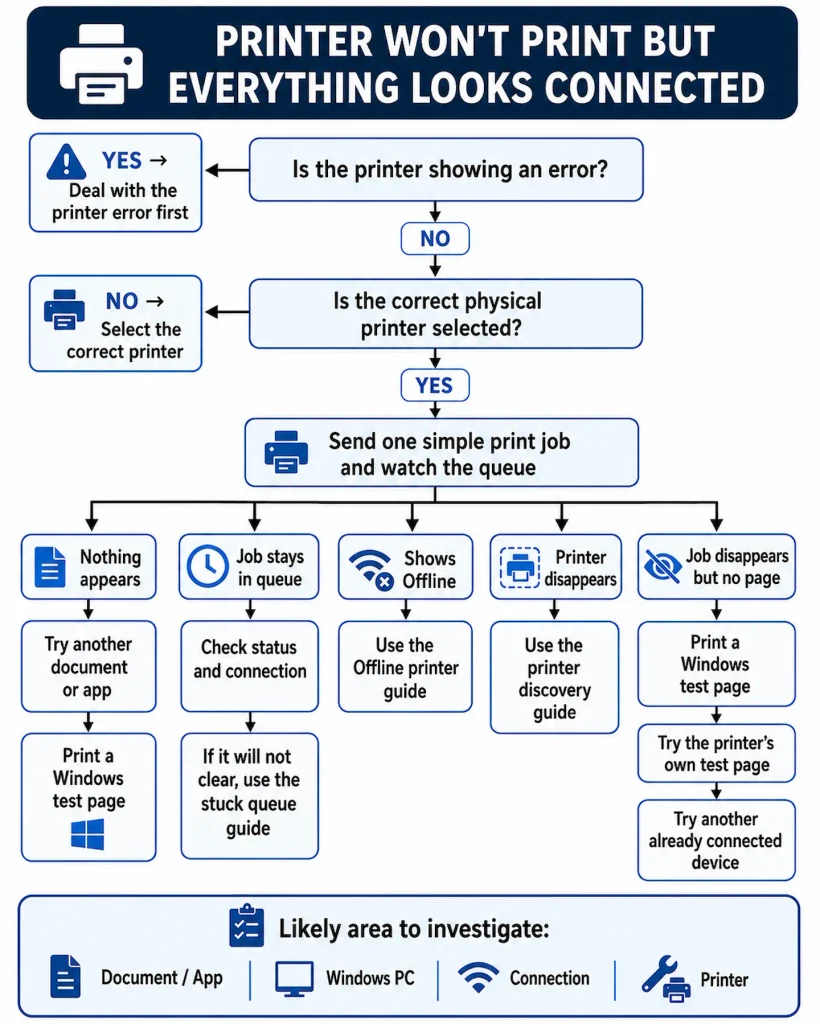
What the Print Queue Tells You
Nothing Appears in the Queue
If you press Print and nothing ever appears in the expected printer queue, go back to the application first.
Confirm again that the correct printer is selected. Then try printing a simple document from another application.
For example, if one PDF will not print, try a small document from a different program.
Microsoft recommends trying another file or application when investigating an application-specific printing problem. If another file or program prints normally, concentrate more closely on the original document or application rather than changing the whole printer setup.
A Windows test page, covered below, is also useful here.
Why this matters: if the print job never reaches the printer’s Windows queue, there is little reason to start changing Wi-Fi settings or assuming the printer hardware has failed.
The Job Stays in the Queue
If the document remains in the queue, look at its status before changing anything else.
If Windows now reports the printer as Offline, move to the Offline section below.
If the job can be cancelled normally, cancel it and make one basic connection check.
For a USB printer, make sure the cable is firmly connected at both ends.
For a Wi-Fi or Ethernet printer, check that the printer itself still reports that it is connected to the network.
Then send one fresh test job.
If the document remains stuck and will not cancel or clear normally, follow Print Job Stuck and Won’t Delete in Windows 11. That guide covers normal cancellation first, then Print Spooler troubleshooting and the more involved queue-clearing procedure if it is actually needed.
Why this matters: a job waiting in the queue tells you that Windows received it, but it does not yet tell you whether the problem is the queue itself or communication with the printer.
The Printer Now Shows Offline
If Windows now reports the printer as Offline, the symptom has become more specific.
Windows knows the printer exists, but it is currently unable to communicate with it in the way it expects.
Follow Printer Offline but Connected to Wi-Fi: What to Check First for the Offline-specific checks. That guide covers printer readiness, network communication, the Windows printer entry and the print queue in the appropriate order.
Windows Can No Longer Find the Printer
If the printer has disappeared from Printers & scanners, you are dealing with a discovery or connection problem rather than simply a document that will not print.
See Printer Connected to Wi-Fi but Computer Can’t Find It for the Windows 11 discovery checks and ways to distinguish a printer/network problem from one affecting only the PC.
The Job Disappears but Nothing Prints
This situation can be particularly confusing.
You send a document, it appears in the queue briefly and then disappears as though Windows has finished with it — but the printer produces nothing.
Do not assume that the disappearing job proves that the printer successfully printed it.
Instead, use a Windows test page and, where possible, a test that does not rely on this PC. Those checks help separate a document or Windows problem from a fault involving the printer itself.
Print a Windows Test Page
A Windows test page is one of the most useful checks because it removes your original document and application from the test.
In Windows 11:
Settings → Bluetooth & devices → Printers & scanners → select your printer → Printer properties
On the General tab, select Print Test Page.
Microsoft recommends this test to help establish whether Windows can communicate with the printer.
If the Windows Test Page Prints
That is useful evidence.
Windows has successfully sent at least one basic print job through the printer configuration you are testing.
If your original document still will not print, concentrate more closely on that document, its application and its print settings.
If the Windows test page prints but normal documents still do not, Printer Test Page Prints but Documents Won’t: What to Check walks through the quickest way to narrow the problem down to the file, application or wider Windows printing path.
Try another simple document in the same application.
If that works, the original file becomes more suspicious. If the application still cannot print but other programs can, the application itself deserves closer attention.
A successful Windows test page does not prove that every printer feature, application or document is fault-free. It simply narrows the problem down.
If the test page prints but normal documents still do not, Printer Test Page Prints but Documents Won’t: What to Check takes that troubleshooting path further.
If the Windows Test Page Does Not Print
The failure is broader than one particular document or application.
At this point, check whether the printer can produce a page without relying on this Windows PC.
Check Whether the Printer Can Print Without This PC
Print a Page Directly From the Printer
Many printers have a way of producing a page from their own controls.
Depending on the make and model, it might be called a:
- status page;
- printer report;
- configuration page;
- network report;
- nozzle check;
- test page.
The exact procedure varies considerably, so use the printer’s own menu or the official support information for your exact model rather than following generic button combinations intended for another printer.
The exact test varies by manufacturer and model. For example, Epson recommends running a printer-side product check when nothing prints; if its test page works, its guidance then turns attention towards the printer software and computer side of the setup.
If the printer can produce its own page, you have evidence that its basic printing mechanism is capable of producing output.
If it cannot even produce its own internal page, stop making unrelated Windows changes. Check the printer’s own warnings, paper path and consumables, then use the manufacturer’s troubleshooting information for that model.
If the printer feeds paper but the page itself comes out blank, Printer Printing Blank Pages: What to Check First walks through the printer, ink or toner checks in the right order.
Why this matters: a printer-side test removes Windows, the application and the PC-to-printer connection from the test.
Try Another Device If One Is Already Set Up
If another computer, phone or tablet has already used this printer successfully, try printing from it.
There is no need to configure a completely new device solely to perform this test.
If another device prints normally, the affected Windows PC becomes a stronger suspect.
If the printer works normally from another computer but not this one, Wireless Printer Works on One Computer but Not Another walks through the PC-specific checks.
If another computer can still print but this one cannot, use Wireless Printer Works on One Computer but Not Another to troubleshoot the affected PC.
If no previously working device can print, attention shifts more towards the printer itself or something shared by all the devices, such as its network connection.
These results are useful clues rather than absolute proof, but they can prevent a lot of unnecessary troubleshooting.
Further Checks If the Basic Tests Have Not Explained the Problem
Only move on to these steps once you have looked at the printer status, checked the selected printer and observed what happens to a print job.
Restart the Printer and Windows
At this stage, a normal restart is reasonable.
Save any open work and restart Windows normally.
Then restart the printer using its normal power controls.
Once both devices are ready again, send one simple test job.
If printing returns to normal, stop there rather than continuing to change settings.
There is an advantage to performing the earlier observations before restarting everything: you keep the useful evidence about what the failed print job was doing.
Run the Windows Printer Troubleshooter
Windows 11 includes printer troubleshooting through Microsoft’s Get Help app.
Open Get Help, search for printer troubleshooter, then follow the prompts.
The troubleshooter can check the Windows printer setup and look for common problems.
This is a sensible Windows-specific step once the simpler observations have not identified the problem.
It should not, however, replace checking what the printer and print queue are actually doing.
Check Support for Your Exact Printer Model
If the problem continues, go to the printer manufacturer’s official support website and use the exact printer model.
Look for:
- model-specific error information;
- current printer software;
- driver information;
- firmware guidance;
- an official diagnostic utility, if one is provided.
Microsoft also recommends checking the manufacturer’s support information when an installed printer is not working correctly.
Avoid generic third-party “driver updater” or “printer repair” applications.
If a driver or printer software change is genuinely required, use Windows Update, Microsoft guidance or the printer manufacturer’s official support pages.
Only Consider Reinstalling the Printer or Driver Later
Removing a printer or uninstalling its driver can sometimes be appropriate, but it should not be one of the first things you try simply because nothing printed.
Doing so changes a configuration that Windows may currently recognise and can create an additional setup or discovery problem.
Consider this type of step only after the simpler checks have failed and the evidence points more strongly towards this Windows PC or its printer configuration.
Microsoft includes driver updates and printer reinstallation in its broader troubleshooting guidance, but there is little advantage in jumping there before you know whether the printer can print independently, whether another device works, or whether the fault is actually limited to one document.
How to Tell Where the Problem Probably Is
Once you have completed a few controlled tests, the pattern is more useful than the original “nothing printed” symptom.
| What you find | Where to focus next |
|---|---|
| Only one document fails | The document itself |
| Only one application fails | That application or its print settings |
| Nothing reaches the queue | Selected printer or application path |
| Job stays in the queue | Windows print queue or printer communication |
| Printer changes to Offline | Printer communication / Offline troubleshooting |
| Printer disappears from Windows | Discovery or connection troubleshooting |
| Windows test page prints | Original application or document |
| Printer’s own page prints but Windows cannot print | Windows, printer configuration or PC-to-printer connection |
| Printer cannot print its own page | Printer-side problem |
| Another device prints normally | The affected Windows PC |
| No previously working device prints | Printer or shared connection |
These are diagnostic clues rather than absolute proof.
The aim is to narrow the problem down before making more disruptive changes or spending money on replacement hardware.
What Probably Isn’t Worth Changing Yet
If you still do not know where the problem lies, avoid making several broad changes at once.
In particular, do not:
- factory-reset the printer or router;
- run a full Windows network reset;
- randomly change printer ports or IP settings;
- disable security software;
- uninstall printer configurations without a clear reason;
- install third-party driver-update tools.
Those actions can have a place when a specific fault has been identified, but “the printer didn’t print” is not enough evidence on its own to justify them.
Making several changes together can also make troubleshooting harder because you no longer know which change affected the result.
When Printer Repair or Replacement Might Make Sense
A Windows PC failing to print does not, by itself, mean you need a new printer.
Replacement makes particularly little sense if the printer can still produce its own test pages or another device can print to it normally. In those situations, the printer is demonstrating that at least its basic printing hardware still works.
Repair or replacement becomes more reasonable when there is stronger evidence of a printer-side fault.
Examples include:
- persistent hardware errors;
- failure to produce the printer’s own internal test or status page after straightforward paper and consumable checks;
- the same printer-side failure occurring independently of one particular PC;
- an official manufacturer diagnostic identifying a hardware problem.
Even then, consider the age and value of the printer before paying for a repair.
For many printing problems, there is no need to buy anything at all.
The Most Useful Clue Is What Happens After You Press Print
When a printer looks connected but produces nothing, avoid changing several things at once.
Check what happens to one simple print job, then use that result to decide whether to concentrate on the document, Windows, the connection or the printer itself.
That gives you a much better troubleshooting path than starting with driver reinstalls or network resets and hoping one of them works.