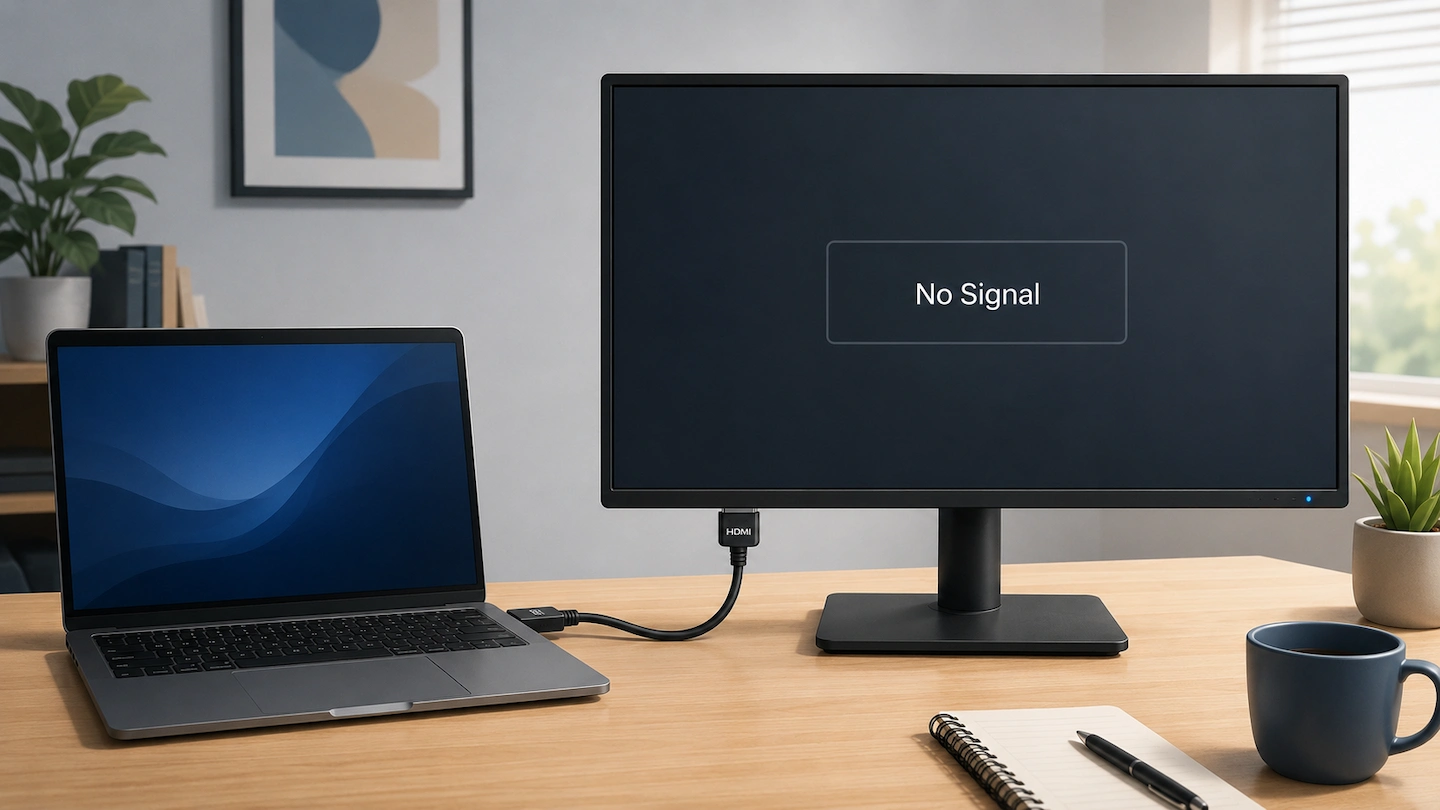
An HDMI no signal message can be confusing when the cable is clearly plugged into both the computer and monitor. The connection may look correct, but that does not prove that a usable video signal is reaching the display.
The most useful approach is to follow the HDMI connection from the computer to the monitor and change one part at a time. That helps you work out whether the problem is more likely to be the selected HDMI input, cable, computer output, monitor input or something between them.
Quick answer: If HDMI is connected but your monitor says No Signal:
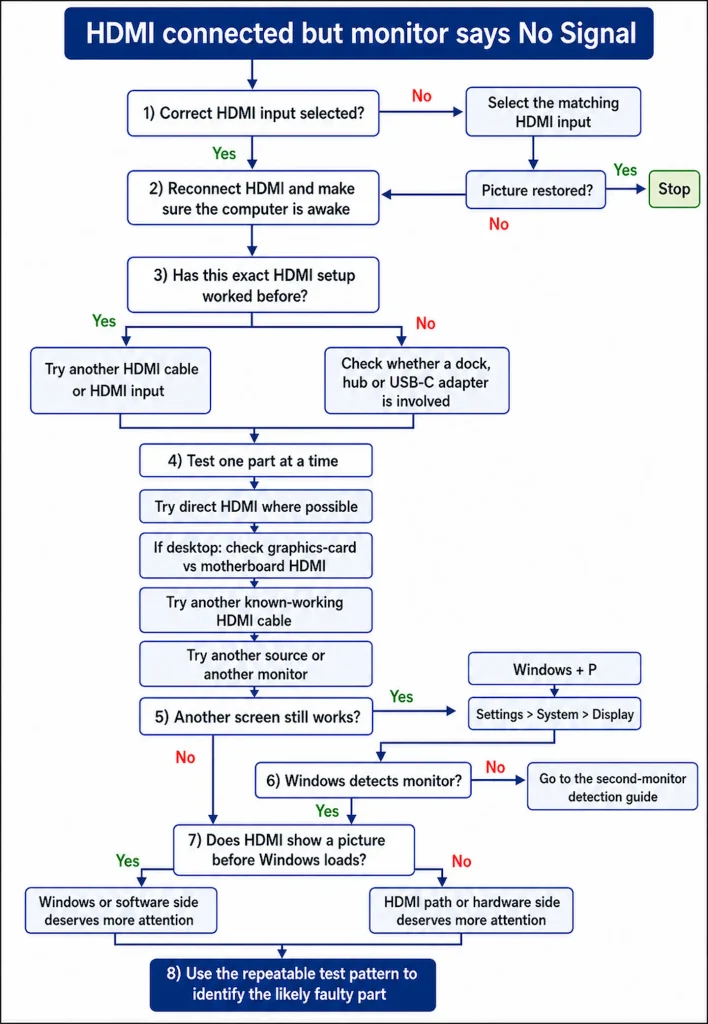
- Make sure the monitor is set to the exact HDMI input you are using, such as HDMI 1 or HDMI 2.
- Disconnect and firmly reconnect the HDMI cable at both ends.
- Make sure the computer is awake and restart it normally if practical.
- If a dock, hub or adapter is involved, temporarily try a direct HDMI connection if your computer supports one.
- Try another known-working HDMI cable while leaving everything else unchanged.
- On a desktop with a dedicated graphics card, check that the monitor is connected to the intended video output.
- If another screen still works, press Windows key + P and check whether Windows detects the HDMI monitor.
Change one part of the HDMI connection at a time. The result of each test is usually more useful than trying several fixes together.
HDMI No Signal: What This Usually Means
A direct HDMI connection normally looks like this:
Computer HDMI output → HDMI cable → monitor HDMI input
If extra hardware is involved, it may instead look like this:
Computer → dock or adapter → HDMI cable → monitor
When the monitor displays HDMI No Signal, it means it is not currently receiving a usable picture through the selected HDMI input.
That does not tell you which part is causing the problem.
If your monitor is showing No Signal over another connection such as DisplayPort or USB-C, see our broader guide to what to check when a monitor says No Signal.
What to Check First
Start with these three simple checks before changing drivers, buying cables or assuming the monitor has failed.
1. Match the HDMI Input to the Socket
If your monitor has more than one HDMI socket, check which one the cable is connected to.
For example, if the cable is plugged into HDMI 2, make sure HDMI 2 is also selected in the monitor’s Input or Source menu.
A monitor can show No Signal simply because it is listening to the wrong input.
2. Reconnect HDMI at Both Ends
Disconnect the HDMI cable completely from the computer and monitor.
Check the plugs and cable for obvious damage, then reconnect both ends firmly.
If a dock or adapter is involved, make sure those connections are secure too.
3. Make Sure the Computer Is Awake
Move the mouse or press a normal key to make sure the computer has not gone to sleep.
If another screen still works, such as a laptop’s built-in display, try a normal Windows restart.
Avoid repeatedly forcing the computer off simply because the external monitor is blank.
Has This Exact HDMI Setup Worked Before?
If the same computer, cable, monitor and HDMI connection worked previously, basic compatibility becomes less likely. Concentrate on what has changed and then isolate the HDMI path one part at a time.
If this setup has never produced a picture, first establish whether it is really a direct HDMI connection.
For example:
Computer HDMI port → HDMI cable → monitor
is different from:
Computer USB-C port → dock or adapter → HDMI cable → monitor
If USB-C is providing the HDMI connection, the capabilities of that port, dock or adapter matter too.
If you’re using a USB-C-to-HDMI adapter and it is not working, see Why Doesn’t My USB-C to HDMI Adapter Work? for the adapter-specific checks in the right order.
If you are not sure whether your laptop’s USB-C port can output video, see Does My Laptop USB-C Port Support a Monitor?
Try a Direct HDMI Connection Where Possible
If you are currently using:
Computer → dock, hub or adapter → HDMI cable → monitor
and the computer also has a suitable HDMI port, temporarily bypass the extra hardware.
Test:
Computer → HDMI cable → monitor
Microsoft recommends simplifying external-monitor connections during troubleshooting by temporarily removing docks, dongles and adapters where possible.
If direct HDMI works reliably, the dock, adapter or its connection to the computer deserves more attention.
If direct HDMI still shows No Signal, continue testing the basic HDMI path.
Not every computer has a direct HDMI output, so skip this test if yours does not.
On a Desktop PC, Check Which HDMI Port You Are Using
Some desktop computers have display connections in two different areas on the back.
You may see:
- HDMI or DisplayPort connections grouped with the motherboard’s USB and network sockets; and
- another group of display connections lower down on a dedicated graphics card.
If your computer has a dedicated graphics card, check which set of video outputs the computer is intended to use. Manufacturers such as Dell specifically include this check in No Signal troubleshooting for desktops with separate graphics hardware.
Do not assume that a motherboard HDMI port can never work. Whether it works depends on the processor, graphics configuration and computer.
If you are unsure, check the documentation for your exact desktop model.
Use HDMI Swap Tests to Find Which Part Is Failing
Once the basic connection looks correct, controlled swap tests are usually more useful than guessing.
The important rule is:
Change one part at a time and leave everything else unchanged where possible.
For example:
| Change only this | If the picture works |
|---|---|
| HDMI cable | The original cable becomes the main suspect |
| HDMI 1 to HDMI 2 | The original monitor HDMI input deserves more attention |
| Computer video output | The original computer output becomes more suspicious |
| Source computer or device | The original computer deserves more attention |
| Bypass the dock or adapter | The accessory path deserves more attention |
These results are diagnostic clues rather than absolute proof.
Another HDMI Cable Works
If another known-working HDMI cable repeatedly works while the computer, monitor and ports stay the same, the original cable becomes the leading suspect.
If another cable makes no difference, do not keep buying HDMI cables hoping that a more expensive one will solve the problem.
Another HDMI Input Works
If your monitor has HDMI 1 and HDMI 2, move the same cable to the other input and select that input on the monitor.
If one HDMI input repeatedly works while the other does not, the original input deserves closer investigation.
One failed test is not enough to prove that the socket is physically broken.
Another Computer or Source Works
If another suitable computer or HDMI source is already available, connect it to the monitor.
If the monitor works normally with another source, attention moves towards the original computer or its output.
If the monitor still shows HDMI No Signal, test with a known-working cable before deciding that the monitor itself has failed.
You do not need to buy extra equipment simply to perform every possible test.
If Another Screen Still Works
If you can still use your laptop screen or another monitor, make two quick Windows checks.
Check Windows + P
Press:
Windows key + P
Try Duplicate or Extend.
Microsoft includes this as a standard external-display troubleshooting step.
If the HDMI picture returns, you can stop there.
Check Whether Windows Detects the Monitor
Open:
Settings → System → Display
Look for the external monitor.
If necessary, expand Multiple displays and use Detect.
If Windows cannot see the monitor at all, move to Laptop Won’t Detect a Second Monitor: What to Check rather than repeating the same HDMI tests indefinitely.
If Windows can see the monitor but the monitor itself still reports HDMI No Signal, basic Windows detection is less likely to be the whole problem.
Does HDMI Work Before Windows Loads?
If you are still stuck, pay attention to when the HDMI picture disappears.
No Picture at Any Stage
If the monitor never shows anything from the computer, the HDMI path still deserves careful attention.
That includes:
- the selected HDMI input;
- HDMI cable;
- computer video output;
- monitor input; and
- any dock or adapter in the connection.
However, some computers do not show their startup or firmware screen on every external display connection. The absence of a startup picture does not by itself prove that the HDMI hardware path is faulty.
If the same monitor normally showed startup information and has now stopped doing so, the timing can still be a useful clue.
Picture During Startup, Then No Signal in Windows
If the monitor displays a manufacturer logo or startup screen and then loses the signal when Windows takes over, Windows or graphics software becomes more relevant.
Possible areas to investigate later include:
- display mode;
- graphics driver behaviour;
- resolution or refresh settings; and
- official manufacturer updates.
Again, treat the timing as a clue rather than proof of a Windows or driver fault.
f the monitor normally shows a picture but flickers or briefly cuts out instead of staying on No Signal, External Monitor Flickering or Cutting Out: What to Check First is the better troubleshooting guide.
How to Tell Where the HDMI Problem Probably Is
By this stage, the pattern from your tests should be more useful than the original No Signal message.
| What you find | What it suggests |
|---|---|
| Another HDMI cable repeatedly works | Original cable becomes the main suspect |
| HDMI 2 works but HDMI 1 does not | Original monitor input deserves attention |
| Direct HDMI works but the dock or adapter path does not | Focus on the accessory path |
| Monitor works normally with another computer | Focus more on the original computer or output |
| Another monitor works from the same computer output | Original monitor or its input becomes more suspicious |
| Windows cannot detect the HDMI monitor | Move to second-monitor detection troubleshooting |
| Windows detects it but the monitor still says No Signal | Basic detection is less likely to be the main issue |
| Picture works before Windows loads but disappears afterwards | Windows or software-side causes deserve more attention |
Look for a repeatable pattern before deciding that any part has failed.
Further Checks if HDMI Still Says No Signal
If the exact setup worked previously and the physical HDMI tests have not found the cause, software and manufacturer-specific checks become more reasonable.
There is still no reason to open the PC, clear the CMOS, reseat RAM or use third-party driver-updater software simply because HDMI shows No Signal. Those steps need stronger evidence of an internal computer problem.
Reset the Windows Graphics Driver
If Windows is still running and another screen remains usable, press:
Windows key + Ctrl + Shift + B
Microsoft documents this shortcut as a way to reset the graphics driver while troubleshooting an external display.
The screen may briefly flicker or you may hear a beep.
If nothing changes, continue rather than repeatedly using the shortcut.
Check Official Manufacturer Updates
For a setup that previously worked, check the official support page or update utility for your exact computer or dock.
Depending on the hardware, relevant updates may include:
- graphics drivers;
- system or chipset updates;
- docking-station firmware; or
- system firmware or BIOS/UEFI updates where specifically relevant.
An available update is not proof that outdated software caused the HDMI problem.
Use official manufacturer tools and documentation rather than third-party driver-update websites.
If the manufacturer specifically recommends a firmware or BIOS update, follow its instructions carefully. Keep a laptop connected to mains power and do not interrupt the update once it has started.
When Repair or Replacement Makes Sense
Replace or repair something when the problem repeatedly follows that component, not simply because the monitor displayed HDMI No Signal once.
For example:
- Fault follows the HDMI cable: replacing the cable is reasonable.
- Fault follows one monitor HDMI input: investigate that input or the monitor.
- Fault follows the computer’s HDMI output: investigate the computer or its graphics hardware.
- Direct HDMI works but the dock or adapter fails: investigate the dock, adapter or accessory connection.
- The evidence remains mixed: do not buy hardware yet.
The aim is to narrow the problem down before spending money. A repeatable test result is much stronger evidence than the No Signal message on its own.