Printer printing blank pages? It does not necessarily mean the printer has failed or that you need to buy new ink or toner.
The quickest way to narrow the problem down is to work out whether the printer can still put ink or toner onto paper when it prints a test or diagnostic page. That can help you decide whether to keep troubleshooting the printer or start looking at the document, app or computer instead.
Quick answer: First, check that the page you are trying to print actually contains visible content and that the printer is not showing an ink, toner or cartridge warning.
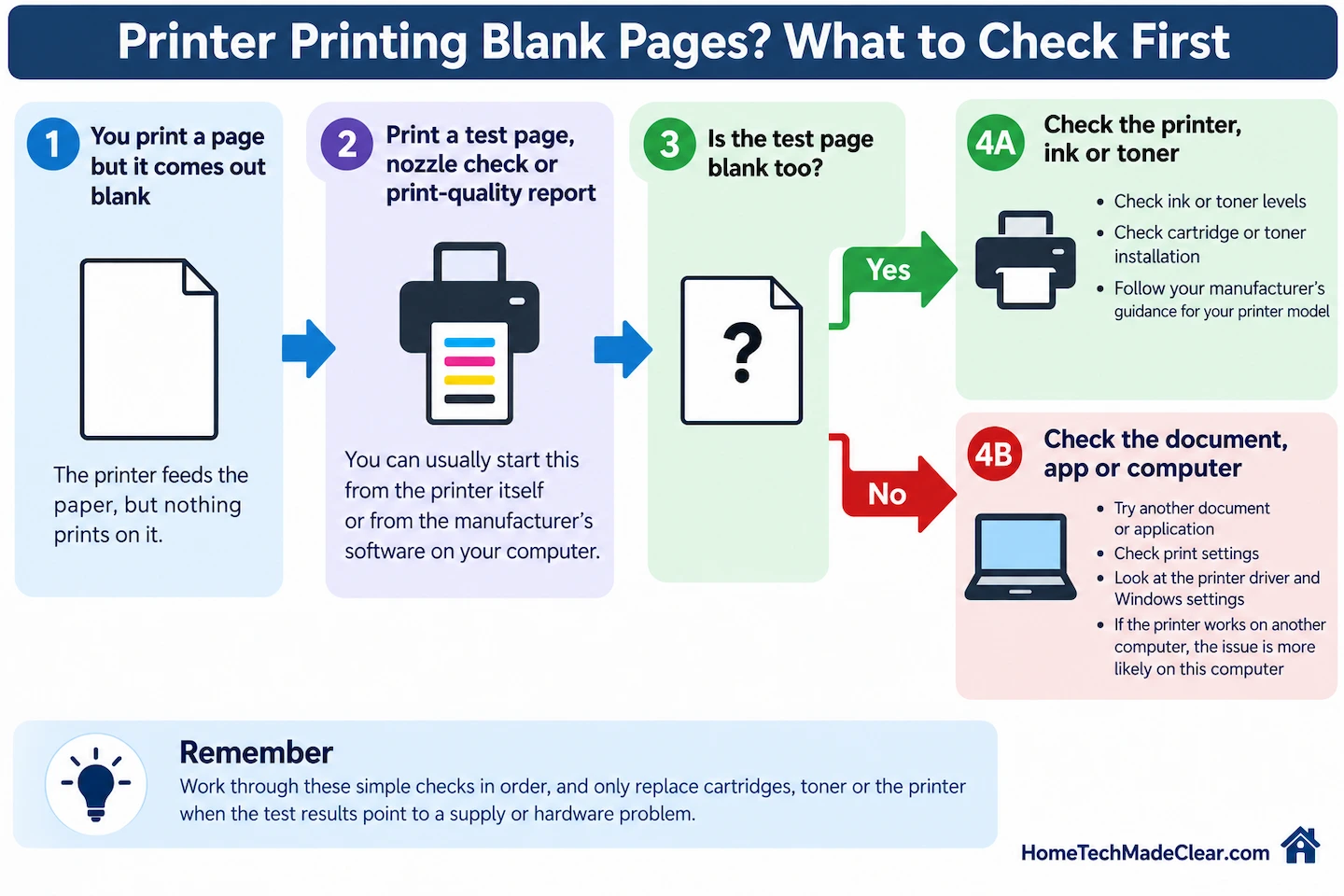
Then print a test page, nozzle check or print-quality report that does not rely on the original document. Depending on the printer, you may start this from the printer itself or from the manufacturer’s maintenance software.
- If the test or diagnostic page is blank too, concentrate on the printer, ink or toner, cartridge installation and model-specific maintenance.
- If the test or diagnostic page prints normally, the document, application, print settings or computer becomes more likely to be the cause.
Do not start by replacing cartridges, repeatedly cleaning the printer or reinstalling drivers. First find out which side of the problem you are dealing with.
What a completely blank printed page usually means
A printer that accepts a job, pulls paper through and then produces a blank sheet is usually dealing with one of two broad problems.
The first is on the printer side. Depending on the type of printer, this might involve ink, toner, cartridge installation, blocked ink nozzles or another part of the printing system.
The second is on the document or computer side. The printer may be capable of printing normally, but the document, application, settings or software being used to print is not producing the expected output.
The steps below are designed to separate those two possibilities before you try more technical fixes.
First, make sure it is really the same problem
This guide is for situations where the printer feeds a sheet of paper but the text, photograph or other content you expected to see is missing.
That is slightly different from a printer that successfully prints your document and then feeds an extra blank sheet afterwards. An additional blank page can be caused by page layout, document formatting or print settings rather than the printer failing to put ink or toner onto the page.
If the sheet that should contain your document is itself blank, continue with the checks below.
Check the simplest things first
Before changing printer settings or running maintenance routines, rule out a few simple causes.
Check Print Preview
Open the document’s Print Preview and make sure the page you intend to print actually contains visible content.
Also check that you have selected the correct page or page range.
This may sound basic, but it is worth doing because it separates a document problem from a printer problem without changing anything on the printer.
If the preview looks normal but the printed page is blank, continue to the next check.
Look for printer warnings
Check the printer’s screen, status lights or printer software for any warning about:
- ink or toner;
- a cartridge;
- a printer cover;
- maintenance;
- another printer error.
A warning does not always tell you the exact cause, but it can provide an important clue.
Do not rely only on an ink or toner percentage shown on screen. A printer reporting that ink or toner remains does not by itself prove that it is reaching the page correctly.
Think about what changed recently
If the problem started immediately after replacing an ink or toner cartridge, that change is worth checking before moving on.
Make sure the replacement has been installed according to the instructions for your exact printer model.
Some cartridges require model-specific preparation before installation. Rather than assuming that every cartridge uses the same seals, vents or protective parts, check the manufacturer’s instructions for the cartridge and printer you are using.
Print a test or diagnostic page
This is the most useful check in the troubleshooting process.
Many printers can produce some form of test or diagnostic page without relying on the original document you were trying to print. Depending on the manufacturer and model, this may be called a:
- test page;
- nozzle check;
- print-quality report;
- diagnostic page;
- printer status page.
The exact name and method vary by model. On some printers, you start the test from the printer’s own screen or control panel. On others, you may use the manufacturer’s maintenance software on the computer.
The reason this test matters is that it removes your original document and application from the equation.
If the test or diagnostic page is blank
If the printer’s test, nozzle-check or print-quality page also comes out blank, the problem is more likely to be on the printer or supply side than with the original document.
At this point, it makes more sense to investigate ink, toner, cartridges and the printer’s own printing system than to start reinstalling Windows printer drivers.
The next checks depend on whether you have an inkjet or laser printer.
If the test or diagnostic page looks normal
If the test page contains normal text, patterns or colours, that shows the printer is capable of putting ink or toner onto paper under those test conditions.
That makes the document, application, print settings or computer side more likely, although it does not completely rule out every possible printer-side problem.
Try printing a very simple document, such as a few lines of text, or try printing from another application.
Microsoft also recommends testing printing from another application when trying to separate a printer problem from a problem within a particular program. Its current Windows guidance explains several ways to isolate application and printer problems in Fix printing problems in Word, Excel or other apps.
If the printer’s test page works but documents from the computer remain blank, you have already narrowed the fault considerably. The next stage is to investigate the document, application, Windows print settings or printer software rather than the ink or toner system.
If the test page prints normally but documents from Windows still do not, Printer Test Page Prints but Documents Won’t: What to Check takes that computer-side troubleshooting further.
If the problem affects only one computer while the printer works from another, Wireless Printer Works on One Computer but Not Another may also help narrow down the computer-side problem.
If you have an inkjet printer
If the printer’s test or diagnostic page is blank or clearly defective and you are using an inkjet printer, concentrate on the ink system first.
Check the ink cartridges
Look for any cartridge warning and check the ink levels reported by the printer.
If a cartridge was recently installed, check that it is seated correctly according to the instructions for your model.
Avoid immediately buying another set of cartridges simply because the page is blank. First use the printer’s diagnostic and maintenance tools to gather more evidence.
Run the printer’s nozzle check
Many inkjet printers provide a nozzle-check function.
A nozzle check prints a pattern designed to show whether ink is passing through the printhead correctly.
Depending on the printer, you may start the nozzle check from the printer’s own maintenance menu or from the manufacturer’s printer software on the computer.
For example, Canon describes its nozzle-check pattern as a way to determine whether ink is being ejected properly from the printhead. Epson uses a similar process before recommending printhead cleaning.
Follow the instructions for your exact printer model rather than using a generic sequence.
You can find examples of the process in Canon’s nozzle-check guidance and Epson’s print-quality troubleshooting guidance.
Clean the printhead only if the results point that way
If the manufacturer’s nozzle check indicates blocked or missing nozzles, use the cleaning procedure recommended for your printer.
Do not make repeated printhead cleaning the first response to every blank page.
Cleaning routines use ink, and a blank page can have causes that cleaning will not solve. Follow the manufacturer’s recommended sequence and reassess the test pattern after each instructed step.
The exact maintenance options and number of cleaning attempts vary by printer model.
If you have a laser printer
Laser printers use toner rather than liquid ink and do not use inkjet nozzle-cleaning procedures.
If the printer’s own test or diagnostic page is blank, start with the toner cartridge and any warning shown by the printer.
Check the toner cartridge
If the toner was recently replaced, confirm that it has been installed correctly according to the manufacturer’s instructions.
Check for any toner or cartridge error and make sure the printer recognises the installed supply.
Do not assume that advice written for inkjet cartridges also applies to a laser printer.
Follow the manufacturer’s drum or imaging checks
Depending on the laser printer, the toner cartridge, drum and imaging components may be separate parts or combined in different ways.
Brother and HP, for example, provide printer-specific troubleshooting for blank or missing output that can involve the toner cartridge or imaging system.
Because these components vary considerably between models, avoid touching drums, electrical contacts or other internal surfaces unless the manufacturer’s instructions for your exact printer specifically tell you to do so.
If printer-side troubleshooting reaches this stage, use the support documentation for the model rather than a generic procedure.
What if the problem started after replacing ink or toner?
A problem that begins immediately after fitting a replacement cartridge or toner is a useful clue.
Check the installation again before assuming the printer itself has failed.
Depending on the cartridge and printer, possible issues can include:
- the cartridge not being seated correctly;
- a cartridge preparation step being missed;
- the printer not recognising the cartridge;
- the replacement supply itself being faulty or unsuitable for the printer.
The exact checks depend on the model, so compare the installation with the printer manufacturer’s instructions.
If reinstalling the supply according to those instructions does not help, run the printer’s test or diagnostic page again before buying another cartridge.
When to look at Windows, the app or printer driver
Computer-side troubleshooting becomes more relevant when the printer can successfully produce a normal test or diagnostic page.
Try printing a basic document from another application.
If that works, the issue may be limited to the original document or program.
If several applications produce blank output while the printer’s own test page remains normal, the problem may involve Windows print settings, the printer driver or another part of the computer’s printing setup.
At that point, avoid repeatedly cleaning the printer or replacing ink and toner. The successful test page makes the computer or document side more likely.
When replacing ink, toner or the printer might make sense
Replacement should come after the diagnostic checks rather than before them.
Buying new ink or toner becomes more reasonable when:
- the printer reports the supply as empty or faulty;
- the cartridge or toner is clearly not being recognised;
- model-specific troubleshooting points to a failed supply;
- the printer’s test or diagnostic page remains blank after the correct maintenance procedure.
Replacing the whole printer is a bigger decision.
It may become reasonable when the printer still cannot produce a normal test or diagnostic page after appropriate supply and manufacturer-approved maintenance checks, particularly if repairs or replacement components would cost a significant proportion of the price of a suitable replacement printer.
But if the printer’s test page looks normal, replacing the printer is unlikely to be the sensible first response. Concentrate on the document or computer side instead.
FAQs
Why is my printer printing blank pages even though it says it has ink?
The displayed ink level tells you that the printer believes ink remains in the cartridge, but it does not prove that the ink is reaching the page correctly.
Run the printer’s nozzle check or other print-quality test using the procedure for your model. If that is blank or incomplete too, continue with the manufacturer’s cartridge and printhead troubleshooting.
Why does the printer’s test page print but my document does not?
A successful test page shows that the printer can physically put ink or toner onto paper under those test conditions.
That makes the original document, application, print settings, Windows printing system or printer software more likely places to investigate next.
Try a simple document or another application before changing anything else on the printer.