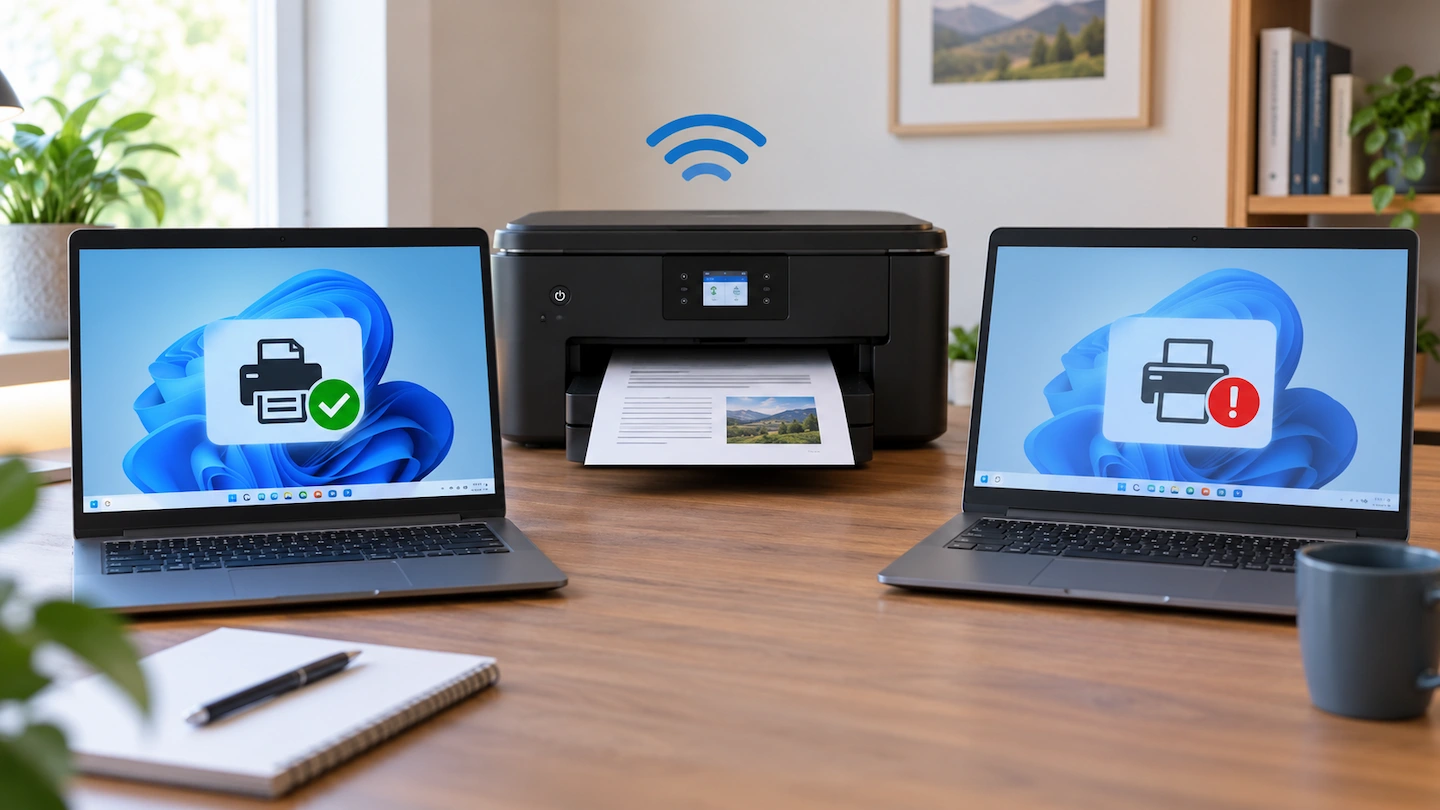
If your wireless printer works on one computer but not another, that is an important troubleshooting clue. It suggests the printer itself can still print and has at least one working connection, so the best place to start is usually the computer that cannot print.
Rather than resetting the printer or changing your Wi-Fi settings, first check what is different about the problem computer. In many cases, the cause is something fairly simple, such as the wrong printer being selected, an old printer entry, a stuck print job or Windows not seeing the printer correctly.
Quick Answer: If your wireless printer works on one computer but not another, start with the computer that cannot print.
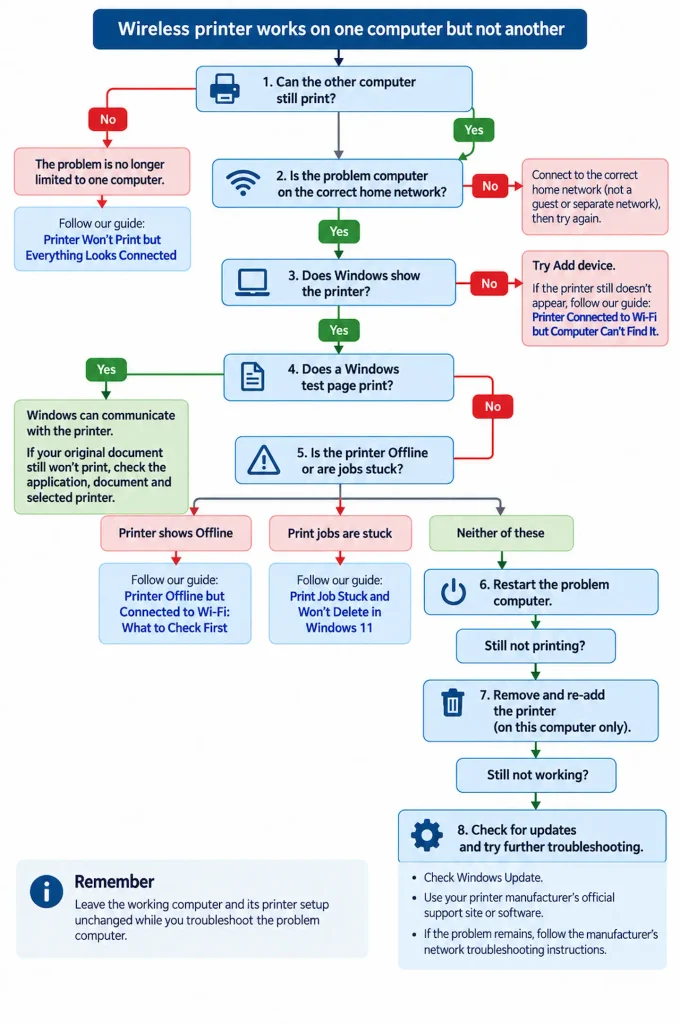
Make sure it is connected to the expected home network, check whether Windows can see the correct printer, and then try printing a Windows test page. If the printer is missing, try adding it in Windows. If Windows shows the printer as Offline or print jobs are stuck, deal with that specific problem before reinstalling anything.
Only move on to removing and re-adding the printer, checking drivers or investigating more technical network issues if the simpler checks do not work.
Leave the working computer and its printer setup unchanged while you troubleshoot the problem computer.
What It Means When a Printer Works on One Computer but Not Another
A printer that still works from another computer gives you useful information before you change anything.
It means:
- the printer can still physically print;
- it has at least one functioning connection;
- a complete printer failure is less likely;
- a complete home-network failure is also less likely.
It does not prove that every part of the printer or network is working perfectly. However, it makes the computer that cannot print the most sensible place to start.
This is why resetting the printer or router should not normally be your first step.
First, Confirm the Other Computer Can Still Print
Before troubleshooting the problem computer, make sure the printer really does still work from the other one.
On the computer that normally works:
- Open a simple document or webpage.
- Choose the wireless printer.
- Print one page.
- Confirm that the page actually comes out of the printer.
If it prints normally, continue with the checks below.
If the printer feeds the paper but the page comes out blank, follow Printer Printing Blank Pages: What to Check First instead, because that points to a different troubleshooting path.
If the printer has now stopped working from both computers, this is no longer a one-computer problem. A broader troubleshooting path, such as Printer Won’t Print but Everything Looks Connected, is more appropriate.
Check That the Problem Computer Is on the Right Home Network
Next, check the network connection on the computer that cannot print.
A common cause of printer-discovery problems is that the computer and printer cannot communicate across the same usable home network.
For example, the affected computer may have:
- joined a guest Wi-Fi network;
- automatically connected to another saved Wi-Fi network;
- connected through a second router that creates a separate network;
- lost its normal network connection.
Click the network icon in the Windows taskbar and check which network the computer is currently using.
If both the computer and printer use Wi-Fi, check that they are connected to the same home network rather than a guest or separate network.
They Do Not Both Have to Use Wi-Fi
A desktop computer connected to your router with an Ethernet cable can normally print to a wireless printer.
The important point is not that both devices use the same type of connection. They need to be able to communicate across the same home network.
If another computer is already printing successfully, avoid changing router settings or Wi-Fi bands at this stage.
Check Whether Windows Can See the Printer
On the computer that cannot print, go to:
Start → Settings → Bluetooth & devices → Printers & scanners
Look through the installed printers.
If the Printer Appears
Select it and continue with the checks below.
Do not remove it yet. There are several easier things to check first.
If the Printer Is Missing
If this is a new Windows 11 PC and the printer already works from another device, our guide to adding an existing wireless printer to a new Windows 11 PC walks through the normal setup first.
Select Add device next to the option to add a printer or scanner.
Give Windows a little time to search.
If the printer appears, add it and try printing again.
If Windows cannot find the printer at all, follow the more focused steps in Printer Connected to Wi-Fi but Computer Can’t Find It before making wider changes to the printer or network.
Make Sure You Are Printing to the Correct Printer
If Windows can see the printer, check which printer your application is actually trying to use.
It is possible to have several printer entries on the same computer, including:
- an older installation of the same printer;
- a duplicate printer entry;
- another printer used previously;
- Microsoft Print to PDF.
Open a simple document and choose Print.
Check the printer shown in the Print window. Deliberately select the wireless printer you know is working from the other computer, then try printing.
If that works, the problem may simply have been the wrong printer being selected.
Do You Need to Make It the Default Printer?
Not necessarily.
You can make your preferred printer the Windows default if you want Windows to select it automatically, but changing the default is not required just to test whether the printer works.
For troubleshooting, deliberately choosing the correct printer is enough.
Try a Windows Test Page
A Windows test page is useful because it takes the application or document you were using out of the equation.
On the computer that cannot print:
- Go to Settings → Bluetooth & devices → Printers & scanners.
- Select the printer.
- Select Printer properties.
- On the General tab, select Print Test Page.
What happens next helps narrow down the problem.
If the Test Page Prints
If the Windows test page prints normally, Windows can communicate with the printer.
If your original document still will not print, focus on the application, document or printer selected inside that application rather than reinstalling the printer.
Try:
- closing and reopening the application;
- printing a different simple document;
- checking the selected printer again.
There is little reason to reinstall the printer if a Windows test page prints successfully.
If the Test Page Does Not Print
If the test page also fails, continue with the print queue and printer-status checks below.
This points more strongly towards the Windows printer setup or communication between that computer and the printer.
Check the Print Queue and Printer Status
Go back to:
Settings → Bluetooth & devices → Printers & scanners
Select your printer and choose Open print queue.
Look for print jobs that are waiting but never complete.
If several old jobs are stuck in the queue, they can prevent newer jobs from printing.
If a print job is stuck and won’t delete, deal with the stuck queue before removing or reinstalling the printer.
Also pay attention to the printer’s status in Windows.
If Windows Says the Printer Is Offline
If the printer appears in Windows but specifically shows Offline, you now have a more precise symptom to troubleshoot.
Follow Printer Offline but Connected to Wi-Fi: What to Check First rather than repeating all of those checks here.
If the Queue Looks Normal
If there are no stuck jobs and Windows does not show an obvious Offline problem, continue to the next step.
Restart the Computer That Cannot Print
Restart the affected computer before changing the printer itself.
A normal Windows restart can clear temporary problems with printing services, drivers and network connections.
Save any open work, then select:
Start → Power → Restart
When Windows loads again, try another test page.
There is no need to restart the computer that is already printing correctly.
I would also leave the router alone for now. Another computer successfully printing through the same home network makes a router-wide failure less likely.
Remove and Re-add the Printer Only If Needed
If the printer appears in Windows but still will not print after the simpler checks, removing and re-adding its Windows installation is a reasonable next step.
Only remove the printer from the computer that is having the problem. Leave the working computer unchanged.
On the problem computer:
- Open Settings → Bluetooth & devices → Printers & scanners.
- Select the affected printer.
- Choose Remove.
- Restart the computer.
- Return to Printers & scanners.
- Select Add device.
- Add the printer again.
- Try another Windows test page.
Re-adding the printer can replace an old or damaged Windows printer entry without changing the printer’s own Wi-Fi configuration.
If this fixes the problem, there is usually no reason to make any further changes.
Check Windows and Printer Driver Updates
If the printer still will not work from this computer, check for updates before moving into more advanced troubleshooting.
Start with Windows Update.
Go to:
Settings → Windows Update
Check for available updates and restart Windows if required.
Windows can provide printer-driver updates as part of the normal update process.
If the problem continues, check the printer manufacturer’s official support website or official support utility for your exact printer model.
The manufacturer may provide:
- an updated printer driver;
- printer setup software;
- firmware information;
- model-specific troubleshooting instructions.
Avoid third-party “driver updater” utilities and unofficial driver-download websites. Use Windows or the printer manufacturer’s official support service instead.
If the Printer Is Shared Through Another Computer
Most wireless printers connect directly to your home network, so each computer communicates with the printer without depending on another PC.
Some older or less common setups use a printer connected to one Windows computer and then shared with another.
In that case, the host computer usually needs to be switched on, connected to the network and still sharing the printer.
If your printer connects directly to your home network by Wi-Fi or Ethernet, you normally do not need Windows printer sharing. Do not enable sharing settings unless you know your setup uses them.
If you are deciding whether a direct connection or network printing would suit your home better, USB Printer vs Wi-Fi Printer: Which Is Easier at Home? compares the practical differences.
Advanced Check: Windows May Have Outdated Printer Connection Information
If the printer still appears installed but cannot communicate after the checks above, Windows may be holding outdated connection information.
Removing and re-adding the printer often replaces that information automatically.
If the problem remains after that, use the printer manufacturer’s official network troubleshooting instructions rather than changing TCP/IP ports or IP addresses at random.
Manual network configuration should be a later troubleshooting step, not one of the first things to try.
What Not to Reset
When a wireless printer works on one computer but not another, avoid making large changes before you know they are necessary.
Do not start by:
- factory-resetting the printer;
- resetting the router;
- changing your Wi-Fi name or password;
- changing 2.4 GHz or 5 GHz settings;
- disabling your firewall or antivirus protection;
- deleting the printer from every computer in the house.
Those actions affect parts of the setup that may already be working correctly.
They can also create additional problems and make it harder to identify what was wrong with the affected computer in the first place.
Start with the smallest, most reversible check and only move further when the result gives you a reason to do so.
When the Problem Points Somewhere Else
As you work through the checks above, you may discover that the original symptom has become more specific.
Use that new information rather than continuing to make unrelated changes.
- Neither computer can print: move to Printer Won’t Print but Everything Looks Connected.
- The problem computer cannot find the printer at all: use Printer Connected to Wi-Fi but Computer Can’t Find It.
- Windows specifically says Offline: use Printer Offline but Connected to Wi-Fi: What to Check First.
- Print jobs are stuck and will not clear: use Print Job Stuck and Won’t Delete in Windows 11.
- You fix the printer but it repeatedly goes Offline again: move to Why Does My Wi-Fi Printer Keep Going Offline?
Each of those symptoms narrows the problem further.
Frequently Asked Questions
Why Can My Printer Work on One Computer but Not Another?
The two computers can have different printer installations, drivers, network connections, print queues and Windows settings.
If one computer still prints successfully, start by checking what is different about the computer that does not work rather than assuming the whole printer or network has failed.
Do Both Computers Need to Be on the Same Wi-Fi?
They need to be able to communicate across the same usable home network, but they do not necessarily both have to use Wi-Fi.
For example, a desktop connected to the router by Ethernet can normally print to a printer connected to the same home network by Wi-Fi.
If both computers use Wi-Fi, check that the problem computer has not joined a guest or separate network.
Should I Reinstall the Printer on the Computer That Cannot Print?
Not immediately.
First check the network, make sure Windows can see the printer, select the correct printer, try a Windows test page and inspect the print queue.
If those checks do not solve the problem, removing and re-adding the printer on the affected computer is a reasonable later step.
Should I Reset the Printer If It Still Works From Another Computer?
Usually not as a first step.
A successful print from another computer suggests the printer itself is still functioning. Resetting it could disrupt the computer that currently works without fixing what is different about the problem computer.
Final Thoughts
When a printer works on one computer but not another, the working computer gives you an important clue.
Start with the computer that cannot print.
Check its network connection, make sure Windows sees the correct printer, try a Windows test page, and inspect the printer status and print queue. Restart that computer before removing anything, and only move on to re-adding the printer, updating drivers or advanced network troubleshooting if the simpler steps fail.
Most importantly, avoid rebuilding parts of the setup that are already working. A targeted change on the affected computer is usually a safer place to start than resetting the printer or your home network.