How often should you back up your home computer? There is no single schedule that suits everyone.
A sensible backup frequency depends mainly on how often your important files change and how much recent work you would be unhappy to lose if your computer or storage drive suddenly failed.
For many home users, a daily or weekly routine is a reasonable starting point. But if you have just imported important photos, finished a major document or created something you could not easily replace, it can make sense to back it up sooner rather than waiting for your normal schedule.
Quick answer: If important files on your computer change most days, daily backup is a sensible starting point. If you only create or change important files occasionally, weekly may be enough.
The more useful question is:
If your computer failed today, how much work created since your last backup would you be comfortable losing?
If the answer is “very little”, your backups should happen more frequently.
The UK’s National Cyber Security Centre recommends making regular backups and notes that automatic backup services may run daily, weekly or when new files are added. There is no requirement for every home user to follow exactly the same timetable.
There isn’t one backup schedule that suits everyone
Two people can use similar computers but need very different backup routines.
Someone who writes, edits photographs or works on important documents every day may create valuable new files several times during a single day.
Another person might mainly use their computer for browsing, email and storing a collection of family photos that changes only occasionally.
Backing up both computers on exactly the same schedule would not necessarily make sense.
What matters is not how often the computer is switched on. It is how often important information changes.
If you are unsure which information deserves the most attention, What Files Should You Back Up on a Home Computer? explains which personal files are usually worth protecting first.
Ask how much recent work you could afford to lose
A simple way to choose a backup frequency is to imagine that your computer stopped working today.
When was your last backup?
What have you created or changed since then?
Would losing those changes be a minor inconvenience, or would it be a serious problem?
For example, imagine that your last backup was seven days ago.
If you had only browsed the web and read email during that week, there might be very little important information to lose.
But if you had written several documents, edited hundreds of photographs or completed important personal work, losing a week’s changes could be much more painful.
That is why backup frequency should be based on your files and how you use them, rather than an arbitrary rule.
A simple backup schedule for most home users
The following is a practical starting point rather than a strict rule.
| How your important files change | Practical starting point |
|---|---|
| Important files change several times a day | Frequent or automatic backup |
| Important files change most days | Daily backup |
| Important files change only a few times each week | Weekly may be enough |
| You have just created or imported something important | Make another backup soon |
| An archive rarely changes | Back up after meaningful additions |
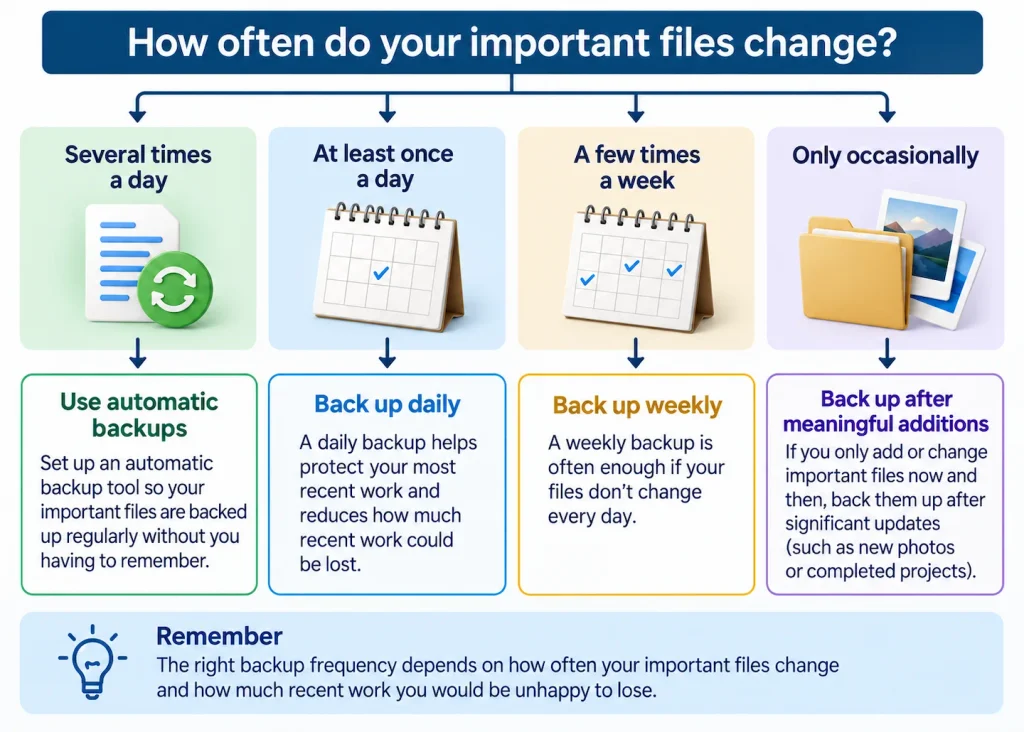
The key is the gap between one backup and the next.
A daily routine means that, in normal circumstances, there may be less new work waiting to be protected than with a weekly routine.
A weekly backup may still be perfectly reasonable if your important files hardly change and you would not lose much by going back to the previous week’s copy.
Back up important new files sooner
Your normal schedule does not have to control every backup you make.
Some events are worth treating differently.
For example, you might want to make an additional copy after:
- importing a large collection of family photos;
- completing an important document;
- scanning valuable paperwork;
- organising files before replacing a computer;
- downloading important records that would be difficult to obtain again.
You do not need to wait until your usual weekly or daily backup time if something particularly important has just changed.
This is especially useful for irreplaceable personal files. A photograph may only be added once, but its importance can be much greater than the number of times it changes.
Automatic backups are easier to keep consistent
A good backup routine needs to happen reliably.
A manual schedule can work well if you remember to follow it. But a plan to make a backup every evening is not much protection if several weeks regularly pass between copies.
Automatic backup can reduce that problem because the software handles much of the routine for you.
Microsoft says that Windows File History can periodically check protected folders for changes and save copies to an external drive or network location. You can read Microsoft’s current overview of backup, restore and recovery options in Windows.
You do not need to configure File History simply because you are reading this article. The important point is that a realistic routine that happens consistently is more useful than an ambitious routine that you rarely follow.
If you prefer making copies to an external drive yourself, How to Back Up Files to an External Drive in Windows 11 walks through the process.
Does OneDrive change how often you need to back up?
Cloud storage can make the question slightly less straightforward.
Services such as OneDrive can keep copies of selected files online and synchronise changes between devices. That can provide useful protection and make files available if a computer is lost or replaced.
However, synchronisation and an independent backup are not exactly the same thing.
Changes made to a synchronised file can also be reflected in the cloud version. The exact protection available depends on the service, its settings and features such as version history or deleted-file recovery.
For that reason, it is better to think of cloud storage as one part of your overall protection rather than assuming that synchronisation removes the need to think about backups altogether.
Windows Backup vs OneDrive: What’s the Difference? explains that distinction in more detail.
What about an external backup drive?
If you use an external hard drive or SSD for backups, the same basic frequency rule applies: connect it often enough that your most recent backup is not older than you would be comfortable with.
That does not mean the drive necessarily needs to stay connected permanently.
There are separate advantages and risks to leaving backup storage attached to the computer, so that question is better considered separately from how often the backup itself should run.
For this article, the useful principle is simply:
Do not leave such a long gap between backups that losing everything since the previous copy would cause a serious problem.
Three realistic backup routines
You do not need an elaborate backup timetable. A routine matched to how you actually use the computer is usually easier to maintain.
Light home use
You mainly browse the web, use email and occasionally add documents or photos.
A weekly backup may be perfectly reasonable if little important information changes between backups.
If you add something particularly valuable, make an extra copy rather than waiting until the end of the week.
Regular home use
You create or change documents, photos or other important files on most days.
A daily or automatic backup is a sensible starting point because it reduces the amount of recent work sitting outside your latest backup.
Frequently changing important work
You work on important files throughout the day and losing even one day’s changes would be a significant problem.
In this situation, consider more frequent automatic protection rather than relying on one manual backup at the end of the day.
You may also want more than one form of protection for particularly valuable files, but that is a separate question from backup frequency itself.
Is backing up once a week enough?
It can be.
If your important files change only occasionally and you would be comfortable losing anything created since the previous week’s backup, a weekly routine may be sufficient.
If you regularly create important files between those backups, a shorter interval would reduce the amount of recent work at risk.
Should I back up my computer every day?
Not everyone needs to.
Daily backup is a sensible starting point when important files change most days. If your files rarely change, daily copies may provide little extra practical benefit.
The frequency should reflect how much new information you would potentially lose between backups.
Do files need backing up again if they haven’t changed?
Usually, the important issue is whether a safe copy already exists.
If a file has not changed since your last reliable backup, repeatedly making another identical manual copy may add little value.
Automatic backup systems may handle unchanged files differently depending on how the software works, so you generally do not need to manage every individual file yourself.
Should I back up new photos straight away?
If the photos are important and difficult or impossible to replace, making another copy soon after importing them is sensible.
You do not need to wait for your normal daily or weekly backup simply because that is your usual routine.
So, How Often Should You Back Up Your Home Computer?
You do not need to find the perfect backup timetable.
Choose a routine that answers one question:
If something went wrong today, would my latest backup be recent enough?
If important files change every day, daily or automatic backup is a sensible place to start. If they change much less often, weekly may be enough.
And whenever you create something particularly important, there is no harm in making another backup sooner.