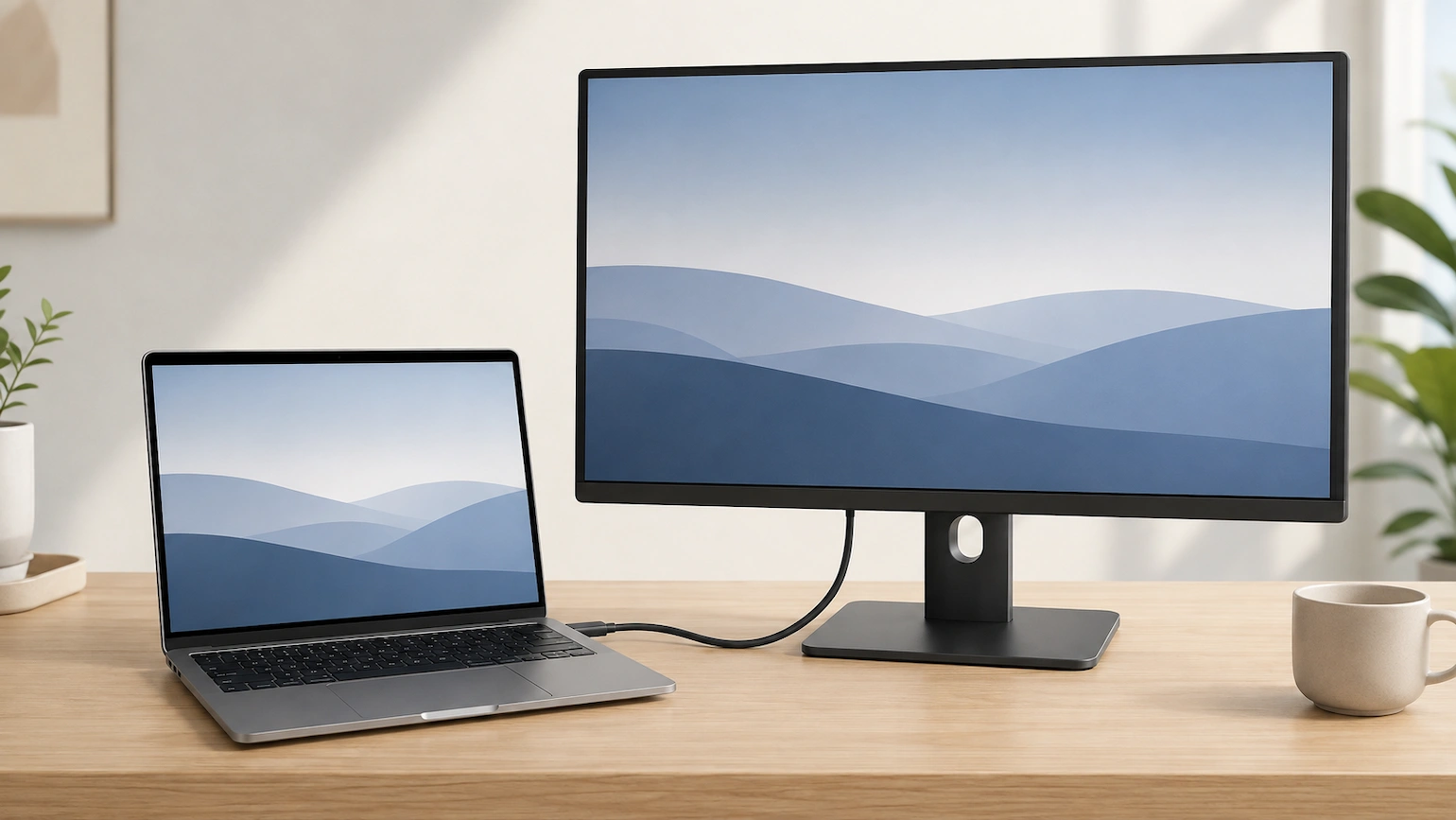
Does my laptop USB-C port support a monitor? Seeing a USB-C port on your laptop does not automatically mean you can use it to connect an external display.
USB-C ports can support different combinations of data, charging and video. The important question is not simply whether your laptop has USB-C, but what that particular USB-C port is designed to support.
If you want to know whether one USB-C connection can handle both the monitor picture and laptop charging, see Can USB-C Charge a Laptop and Run a Monitor at the Same Time?
Fortunately, you do not need to understand all the different USB standards to find out.
Quick answer: The most reliable way to check whether your laptop’s USB-C port supports a monitor is to look at the specifications or manual for your exact laptop model.
Look for wording such as DisplayPort over USB-C, DisplayPort Alt Mode, DisplayPort 1.2 or 1.4, Thunderbolt, or explicit external-display support.
A specification that only says USB-C, USB 3.2 Gen 1, USB 3.2 Gen 2 or Power Delivery does not, by itself, confirm that the port can send video.
If the manufacturer confirms that your USB-C port supports a monitor but you still get no picture, you are dealing with a different problem. See our guide to USB-C Monitor Charges Your Laptop but Shows No Picture for the next checks.
A USB-C port does not automatically support a monitor
USB-C describes the shape and type of connector, but it does not tell you every function available through that connector.
Depending on the laptop and the particular port, a USB-C connection may support:
- data transfer;
- charging or power delivery;
- video output;
- or a combination of these functions.
This means two USB-C sockets can look almost identical while having different capabilities.
For a monitor to receive video through a conventional USB-C display connection, the laptop needs to provide a suitable video signal through the USB-C port. One common way of doing this is DisplayPort Alt Mode, which allows DisplayPort video to travel through a USB-C connection.
VESA, the standards body behind DisplayPort, calls this DisplayPort Alt Mode for USB Type-C, often described more simply as DisplayPort over USB-C.
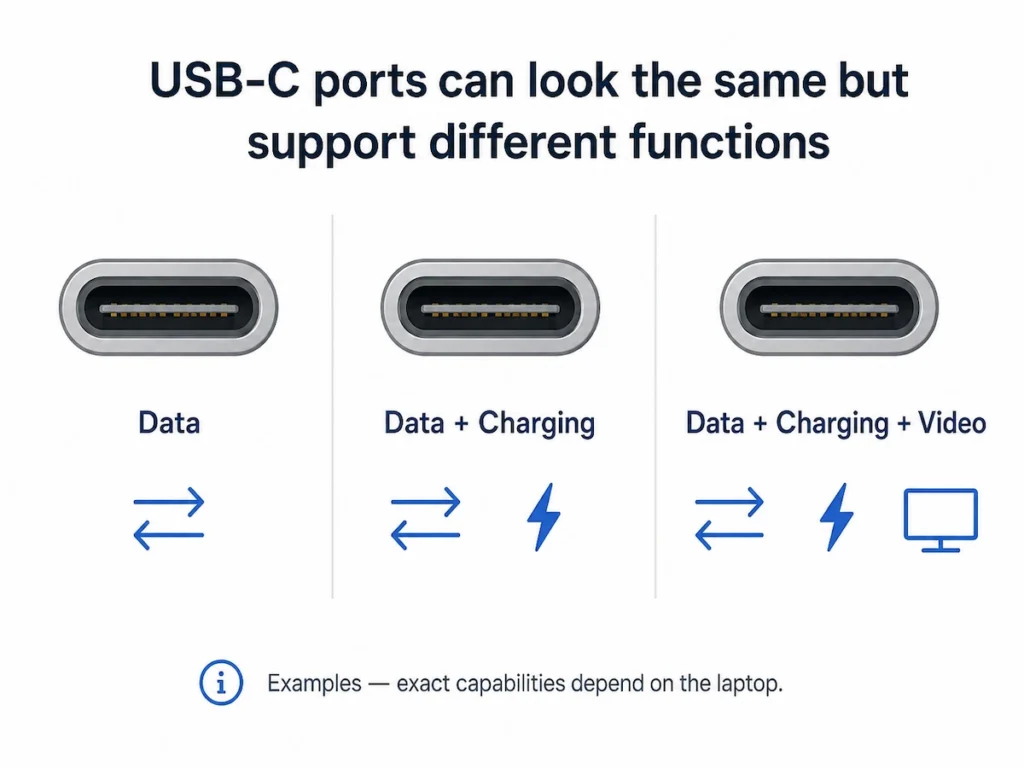
The practical lesson is simple: do not judge the port only by its shape.
How to check whether your USB-C port supports a monitor
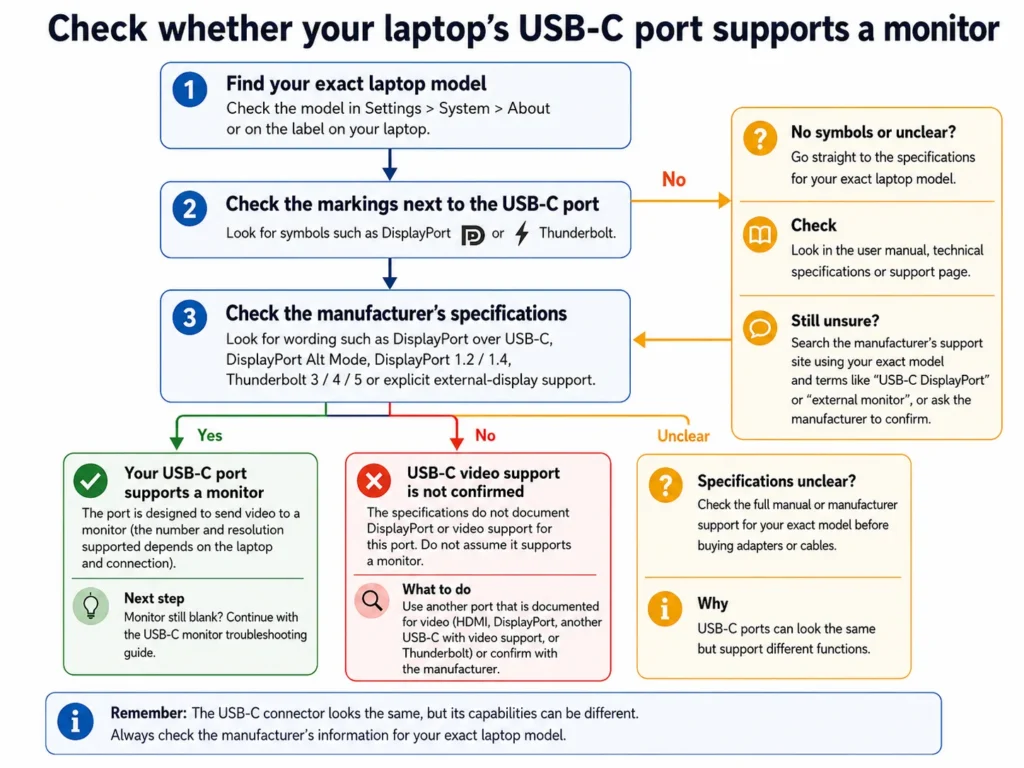
Use the following checks in order. In most cases, the manufacturer’s specification will give you the clearest answer.
1. Find your exact laptop model
Start by identifying the exact model of laptop you have.
A broad name such as “Lenovo ThinkPad”, “Dell Inspiron” or “HP Pavilion” is usually not enough. Different models within the same range can have different ports and capabilities.
You may find the model:
- on a label on the bottom of the laptop;
- in the documentation or order information that came with it;
- in the manufacturer’s support application;
- or in Windows.
In Windows 11, one simple way to check is:
- Open Settings.
- Select System.
- Select About.
- Look for the laptop model shown near the device name.
If Windows only gives you a broad model name, use the label on the laptop or the manufacturer’s support page to identify the exact variant.
Why this matters: USB-C capability is hardware-specific. Checking information for a similar-looking laptop can give you the wrong answer.
2. Look at the markings beside the USB-C port
Next, look carefully around the USB-C socket.
Some manufacturers place a symbol beside ports that support particular functions. You may see a DisplayPort-related marking, a Thunderbolt symbol or other manufacturer-specific labelling.
These markings can be useful clues, but they should not be your only check.
In particular, do not assume that an unmarked USB-C port cannot support a monitor. Port labelling is not consistent across every laptop.
Treat a symbol as useful supporting evidence, then confirm the capability in the documentation for your exact model.
3. Check the manufacturer’s specifications or manual
This is normally the most useful check.
Go to the laptop manufacturer’s official support website and search for your exact model. Look for its:
- technical specifications;
- user manual;
- hardware maintenance manual;
- port information;
- or product specification page.
Useful sections may be labelled:
- Ports
- I/O
- Connectivity
- USB
- Display
- External displays
You are looking for the description of the specific USB-C port you intend to use.
This is important if your laptop has more than one USB-C socket, because the manufacturer may list their functions separately.
What wording should you look for in the specifications?
Laptop specifications can look more complicated than they really are.
You do not need to understand every number. Concentrate on wording that tells you whether video is supported.
| Specification wording | What it tells you |
|---|---|
| DisplayPort over USB-C | Video support is explicitly stated. |
| DisplayPort Alt Mode / DP Alt Mode | The USB-C port can carry DisplayPort video. |
| USB-C with DisplayPort 1.2, 1.4 or another DisplayPort version | Display capability is explicitly stated for that connection. |
| Thunderbolt 3, 4 or 5 on a USB-C port | Supports external displays, although the number and resolution supported depend on the laptop and connection. |
| USB 3.2 Gen 1 / Gen 2 | Not enough information by itself. It describes USB capability but does not alone confirm video output. |
| USB Power Delivery / PD | Not enough information by itself. This describes power capability, not whether video is supported. |
| USB-C with no other information | Unclear. Check the full manual or manufacturer’s support information. |
This distinction matters because manufacturers often list data, charging and display capabilities separately.
For example, a specification might describe a port as:
USB-C 3.2 Gen 2 with Power Delivery and DisplayPort 1.4
In that example, DisplayPort 1.4 is the part that confirms display capability.
If a specification says only:
USB-C 3.2 Gen 2
you should not assume that video is supported unless the manufacturer states it elsewhere.
This is why buying an adapter based only on the words “USB-C” or “USB 3.2” can be a mistake.
Can different USB-C ports on the same laptop support different things?
Yes, they can.
Some laptops have two or more USB-C ports, and their capabilities are not necessarily identical.
For example, the manufacturer may document one USB-C port with DisplayPort or Thunderbolt support while describing another differently.
That does not mean multiple USB-C ports will always have different capabilities. Many laptops use ports with matching functions.
The important point is to check the specification for the particular port you plan to use, rather than assuming that every USB-C socket on the laptop behaves in exactly the same way.
Microsoft’s USB-C troubleshooting guidance also distinguishes between USB-C ports that support particular Alternate Modes and those that do not.
What if the specifications are unclear?
Sometimes the specification page simply says “USB-C” without explaining whether the port supports video.
If that happens, do not guess.
Try these checks in order:
- Look for the full user manual for the exact laptop model.
- Check whether the manufacturer provides a diagram explaining the ports.
- Search the manufacturer’s support pages using the exact model number together with terms such as USB-C DisplayPort or external monitor.
- If the documentation remains unclear, ask the manufacturer to confirm the capability for that model.
If you already have a suitable monitor and cable available, you can also use a known-compatible connection as an additional practical check.
However, you do not need to buy an adapter or cable purely to discover whether the laptop supports video. Confirming the port specification first is usually the better approach.
What if the USB-C port does not support video?
If the manufacturer clearly states that the USB-C port does not provide display output, changing Windows display settings will not add that hardware capability.
Instead, check whether the laptop has another display connection, such as:
- HDMI;
- DisplayPort;
- another USB-C port that is documented for video;
- or Thunderbolt.
Use whichever connection the laptop manufacturer documents as suitable for an external monitor.
Some specialised USB display adapters use technologies such as DisplayLink to send display data over USB rather than relying on normal DisplayPort video from the USB-C port. These are a different type of solution and require compatible hardware and software.
Most importantly, do not buy a standard USB-C-to-HDMI or USB-C-to-DisplayPort adapter expecting it to add video support to a port that does not provide DisplayPort video.
Those adapters rely on the laptop already providing a compatible display signal.
What if the port supports video but the monitor still shows no picture?
If the manufacturer’s specifications confirm that your USB-C port supports an external monitor, you have answered the compatibility question.
A blank monitor then needs a different type of troubleshooting.
The next things to consider include:
- whether the correct monitor input is selected;
- whether you are using the correct USB-C ports;
- whether the cable supports the required video connection;
- whether a dock, hub or adapter is affecting the connection;
- whether Windows detects the monitor;
- and, later in the process, whether manufacturer driver, firmware or BIOS updates are relevant.
If you’re using a USB-C-to-HDMI adapter, see Why Doesn’t My USB-C to HDMI Adapter Work? for the adapter, HDMI cable and display checks in the right order. If you’re using a direct USB-C monitor connection, see USB-C Monitor Charges Your Laptop but Shows No Picture instead.
There is little value repeating them before you have established whether your laptop’s USB-C port is designed to send video in the first place.
The simplest way to decide
If you remember only one thing, make it this:
The USB-C connector itself is not proof of monitor support.
Find your exact laptop model and check the manufacturer’s description of the particular USB-C port.
If it explicitly mentions DisplayPort, DisplayPort Alt Mode, external-display support or Thunderbolt, you have useful evidence that the port is designed to carry video.
If the specification only mentions USB-C, USB data speeds or charging, keep checking rather than assuming.
And if the documentation clearly says that the port does not support video, avoid buying a standard USB-C display adapter in the hope that it will change that capability.