What files should you back up? Start with the ones you would struggle to replace. You do not normally need to copy every file on a home computer.
For most people, that means documents, photos, videos and other personal files before Windows or programs that can usually be reinstalled.
Quick answer: Back up files that are personal, unique or difficult to replace. Start with your documents, photos, videos and files you created yourself, then check the Desktop, Downloads, custom folders and any other drives where you store personal data.
Windows and normally reinstallable programs are a lower priority for a standard personal-file backup.
If important files are stored in OneDrive, check that they have actually synchronised. For files you could not afford to lose, it can also make sense to keep another independent copy rather than relying on synchronisation alone.
What Files Should You Back Up First?
A useful way to decide what needs backing up is to ask:
If this computer stopped working tomorrow, could I easily get this file back from somewhere else?
If the answer is no, it should be near the top of your backup list.
Examples might include:
- family photos and home videos;
- documents you have created;
- scans of important paperwork;
- household or personal records;
- study files and personal projects;
- creative projects;
- family history or archive material;
- anything else where the computer holds the only copy.
The UK National Cyber Security Centre describes a backup as a copy of important data stored in a separate safe location. Its examples include documents, photos and videos.
Files do not have to be completely irreplaceable to be worth backing up. Something you could recreate may still be worth protecting if doing so would take hours, days or considerable effort.
The important point is to think about the value of the file, not just the folder it happens to be stored in.
Which Windows Folders Should You Check?
Windows gives you several standard folders for personal files. They are a sensible place to start, but they are not a complete list of everything you might want to protect.
Microsoft’s current Windows Backup options include Desktop, Documents, Pictures, Videos and Music as folders that can be backed up to OneDrive.
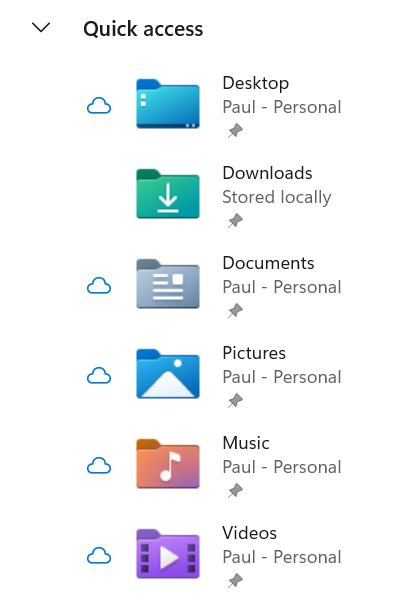
Documents
Check Documents for files such as Word documents, spreadsheets, PDFs, letters, household records and project files.
Do not assume that everything important will be here, though. Programs can save files elsewhere, and you may have created your own folders in other locations.
Pictures and Videos
Photos and personal videos are often among the hardest files to replace.
If the computer contains the only copies of family photographs, phone imports, scanned photographs or home videos, those files deserve particular attention.
Even if some photos are also stored on a phone or online service, check before assuming that every image on the computer exists somewhere else.
Desktop
The Desktop is easy to overlook because some of the icons on it are only shortcuts.
But it can also contain real files and folders.
If you regularly save documents, photos or other work to the Desktop, check it just as you would Documents or Pictures. Do not assume that something is safely stored elsewhere simply because you can see an icon for it on the Desktop.
Downloads
You probably do not need to back up everything in Downloads.
Many files there may be installers, temporary downloads or documents that you could easily download again.
But look through the folder before excluding it.
You may find:
- documents you downloaded and never moved;
- photos or files sent to you by someone else;
- purchased downloads;
- older files that are no longer available online;
- documents that you edited after downloading them.
The right question is not “Should I back up Downloads?” but “Is there anything important in Downloads that I do not have somewhere else?”
If you are also trying to free up space on the PC, Windows 11 Storage Full: What Can You Safely Remove? explains what you can review and remove safely, and what you should leave alone.
Music and Other Personal Folders
If you keep a personal music collection, recordings or other media on the computer, check those folders as well.
Also look for folders you created yourself. You might have a folder for household paperwork, genealogy, photography, hobbies or a particular project that sits outside the standard Windows folders.
Your filing system does not have to match Windows’ default layout for the files to matter.
Don’t Forget Files Stored Somewhere Else
Checking Documents and Pictures is a good start, but important files can be stored almost anywhere.
If your computer has another internal drive, perhaps shown as D: in File Explorer, check that too.
A second drive inside the computer is a different storage location, but it is not automatically a backup. If the only copy of an important file is on that drive, you could still lose it through hardware failure, accidental deletion, theft or another problem affecting the computer.
The same principle applies to an external drive.
If you copied a file to an external drive and kept the original, you have a second copy.
If you moved the file to the external drive and deleted the original, the external drive now holds the only copy. In that situation, the file is not backed up — it has simply been moved somewhere else.
Also think about files stored in application-specific folders. Some programs may keep projects or other useful data somewhere other than Documents.
The goal is to find your important data wherever it lives rather than assume that backing up a particular set of Windows folders covers everything.
Do You Need to Back Up Windows and Your Programs?
For a normal personal-file backup, usually not.
There is an important difference between protecting your files and preserving an entire computer setup.
A file backup is primarily there to protect things such as your documents, photos and other personal data.
A system backup or system image is intended to preserve more of the computer’s Windows installation, configuration and potentially its applications.
For many home users, protecting personal files is the first priority because Windows and most programs can be installed again. Your family photos or documents may not be replaceable.
You should also not treat copying the Program Files folder to an external drive as a reliable way to back up installed programs. Installed software normally depends on more than the files visible in that one folder.
If recreating your entire Windows setup is important to you, that is a separate backup decision rather than a reason to include every Windows file in your normal personal-file backup.
Should You Back Up AppData?
Not automatically.
The hidden AppData folder in your Windows user account can contain application settings, caches and other program-specific information. Depending on the application, some of that information may be useful or important, while much of it may not need to be included in a normal home backup.
For that reason, copying the entire AppData folder simply because it exists is not a particularly helpful rule.
Instead, think about the applications you use.
If a particular program contains important projects, databases, saved information or other local data that you cannot easily recreate, check the documentation for that program to find out where it stores that data and how the developer recommends backing it up.
For most home users, it is better to identify specific application data that matters than to start copying unfamiliar hidden Windows folders.
What If Your Files Are Already in OneDrive?
OneDrive can help protect important files by synchronising selected folders, but first check which files are actually being synchronised.
Windows Backup can synchronise selected standard folders to OneDrive, but files kept outside those locations are not automatically included just because OneDrive is installed.
If you are unsure what Windows Backup adds beyond OneDrive file protection, Windows Backup vs OneDrive: What’s the Difference? explains the difference between your files, Windows settings and app information.
It is also worth understanding the difference between synchronisation and an independent backup.
With OneDrive, changes made to synchronised files are reflected between OneDrive and the computer. Microsoft also explains that deleting a file from the OneDrive folder in File Explorer can delete it from both the computer and OneDrive.
That does not make OneDrive useless — far from it. It does mean that “my files are in OneDrive” and “I have another independent copy” are not quite the same thing.
If you are unsure how cloud synchronisation fits into your backup plan, our guide to whether OneDrive is really a backup explains the difference in more detail.
For particularly important files, consider whether you would be comfortable if the OneDrive copy was the only other copy you had.
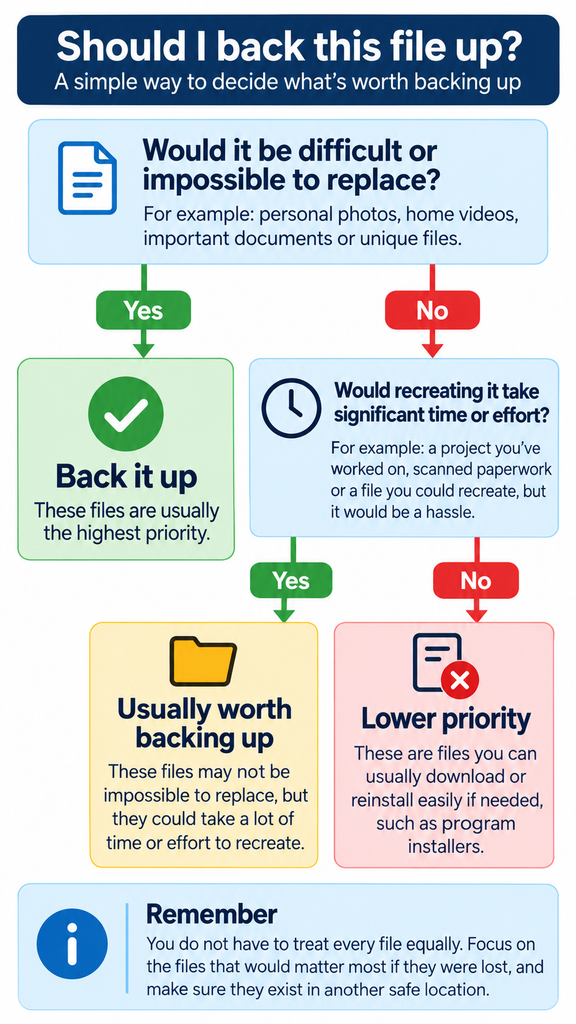
A Simple Way to Decide What Belongs in Your Backup
You can reduce most backup decisions to a few questions.
| Ask yourself | What it means |
|---|---|
| Could I easily download or reinstall it? | It is a lower priority for a personal-file backup. |
| Could I recreate it, but only with considerable time or effort? | It is usually worth backing up. |
| Is it unique or impossible to replace? | Definitely back it up. |
| Is this currently my only copy? | Create another copy if the file matters. |
| Is it in OneDrive or another cloud service? | Confirm it has synchronised and decide whether you also need an independent copy. |
You do not have to treat every file equally.
A downloaded application installer that remains available from the developer is very different from ten years of family photographs.
Protect the things whose loss would actually matter first.
Once You Know What Needs Backing Up
After deciding which files need protecting, the next question is how much data they occupy.
Our guide to how much storage you need for a computer backup explains how to estimate the capacity you need without simply using the total size of the computer’s drive.
If you plan to keep a separate copy on an external drive, External SSD vs HDD for Backups: Which Should You Choose? explains when each type makes sense.
Once you have a backup routine in place, How Often Should You Back Up Your Home Computer? can help you decide how frequently that backup should be updated.
If you already have a suitable drive, How to Back Up Files to an External Drive in Windows 11 shows how to create the backup using File Explorer or File History.
You do not need to make your backup unnecessarily complicated.
Start with the files you would most regret losing, check every place where those files might be stored, and make sure they exist in another safe location before you need them.