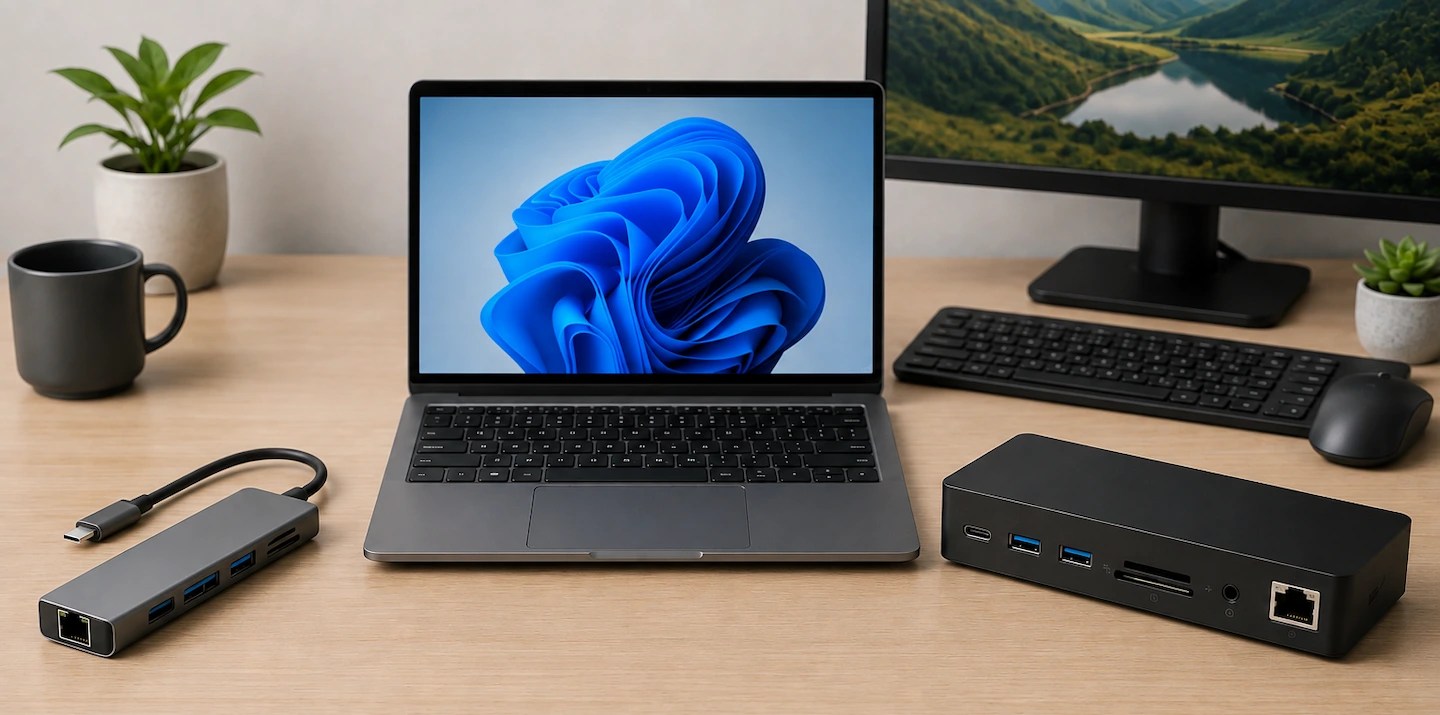
If you’re comparing a USB-C hub vs docking station, the right choice depends less on the label and more on what you actually need to connect.
The confusing part is deciding which one you actually need. The terms USB-C hub and docking station overlap, and two products with similar-looking connections can have very different capabilities.
Quick answer: A USB-C hub is usually the better starting point if you mainly need a few extra ports, something portable, or perhaps one external monitor. A docking station makes more sense when your laptop regularly becomes a desktop setup with one or more monitors, Ethernet, several peripherals and laptop charging connected through one device.
However, do not choose based only on whether the product is called a hub or a dock. Check the exact monitor, charging and port capabilities of the device, and make sure your laptop’s USB-C port supports the features you intend to use.
USB-C Hub vs Docking Station: The Difference in Plain English
There is no perfectly reliable technical dividing line between a modern USB-C hub and a docking station.
Manufacturers sometimes use the terms differently.
In general, a USB-C hub is smaller and designed to add a handful of connections to a laptop. It may give you USB-A ports, HDMI, Ethernet, an SD card reader or USB-C charging pass-through in a compact device.
A docking station is more commonly designed around a permanent or semi-permanent desk setup. It often provides more connections and may put greater emphasis on external displays, Ethernet and charging the laptop.
Those are useful general differences, but they are not rules.
Some USB-C hubs support charging and multiple displays. Some docking stations are surprisingly compact. A device having more ports or a separate power supply does not automatically make it suitable for your particular laptop.
What matters most is what you want to connect and whether the laptop and accessory support that combination.
USB-C Hub vs Docking Station at a Glance
| If you mainly need… | Start by looking at… |
|---|---|
| A few extra USB ports | USB-C hub |
| USB ports and an SD card reader | USB-C hub |
| One monitor and a few peripherals | A suitable USB-C hub may be enough |
| Something compact for travel | USB-C hub |
| A permanent desk connection | Docking station |
| One or more monitors, keyboard, mouse and Ethernet | Docking station |
| One connection that also charges the laptop | Often a docking station, although some hubs can do this |
| Two or more monitors | Often a dock, but verify the actual display support |
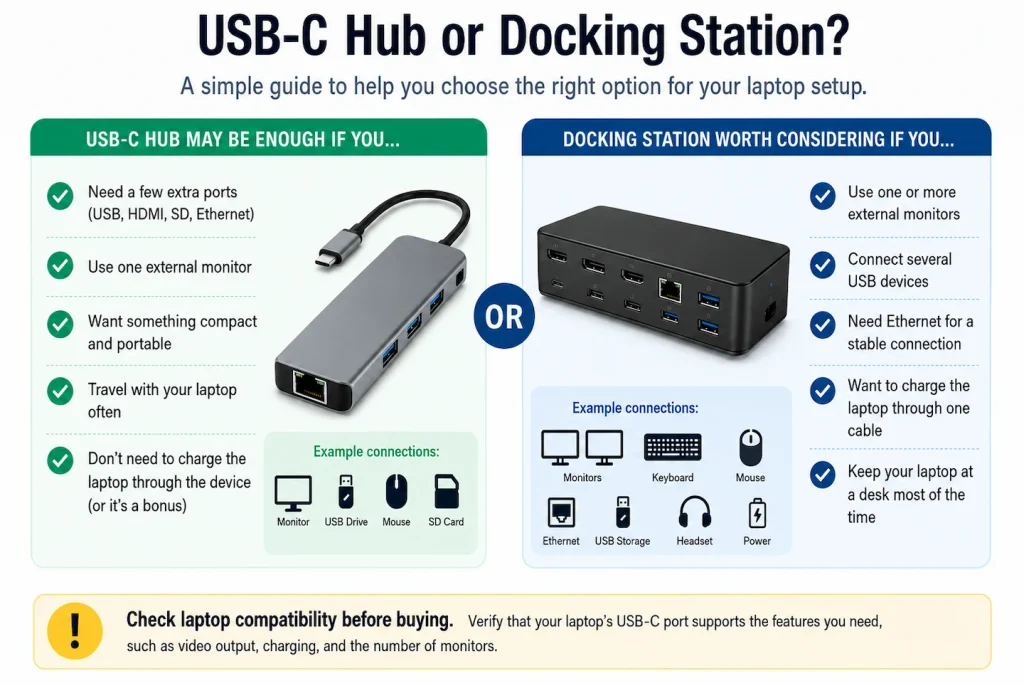
Treat this table as a starting point rather than a compatibility guarantee.
If monitors or laptop charging are important, check the specifications of both the laptop and the individual hub or dock before buying.
Choose a USB-C Hub If You Mainly Need a Few Extra Connections
A USB-C hub is often enough when your needs are fairly simple.
For example, imagine you regularly connect:
- one monitor;
- a mouse;
- a USB drive;
- and perhaps an SD card.
You may not gain much from buying a large docking station if a suitable hub already provides those connections.
A hub also makes sense if you travel with your laptop and want something small enough to keep in a bag.
Some hubs can support an external monitor and can pass power from a USB-C charger through to the laptop. If those features matter, however, you need to check that the particular hub supports them.
Do not assume that every hub can run a monitor or charge a laptop simply because it connects through USB-C.
For a relatively simple setup, the advantage of a hub is often that you can buy only the connections you actually need rather than paying for a more elaborate desk setup.
Choose a Docking Station If Your Laptop Regularly Becomes a Desktop PC
A docking station becomes more attractive when you repeatedly connect a larger collection of equipment.
For example:
- one or more monitors;
- keyboard;
- mouse;
- Ethernet;
- webcam;
- USB storage;
- speakers or another audio device;
- and laptop charging.
Instead of reconnecting several cables each time, a suitable dock can leave most of the desk equipment connected permanently.
You then connect the laptop to the dock when you sit down at the desk.
This one-cable desk setup is one of the strongest practical reasons to choose a docking station.
A dock can therefore be worthwhile even if you could technically connect the same equipment using several smaller adapters. You are paying partly for convenience and a tidier, repeatable connection.
That does not mean every docking station will support every laptop or monitor arrangement.
Before buying one, check the specifications that actually affect your setup.
Check These Specifications Before You Buy
1. Check What Your Laptop’s USB-C Port Supports
USB-C tells you the connector type. It does not tell you everything the port can do.
Depending on the laptop and port, USB-C may support different combinations of:
- data;
- charging;
- external video;
- USB4;
- Thunderbolt;
- or other features.
USB Implementers Forum guidance specifically notes that USB Type-C is not the same thing as USB Power Delivery or USB4. Manufacturers can support different capabilities through USB-C.
This matters particularly if you want to connect a monitor.
For a hub or dock that relies on the laptop’s native USB-C video output, the USB-C port itself must support video. A USB-C connector fitting the laptop does not prove that video output is available.
If an external display is part of your setup, first check whether your laptop’s USB-C port supports a monitor. Our separate guide, Does My Laptop USB-C Port Support a Monitor?, explains how to check the specifications for your exact laptop without guessing from the connector alone.
The same caution applies to cables. USB-C cables do not all support the same combinations of power, data and video.
2. Check How Many Monitors You Want to Use
If you need an external monitor, check the hub or dock’s documented display support rather than simply counting its HDMI or DisplayPort sockets.
For native video over USB-C, some setups use DisplayPort Alt Mode to carry the display signal through the USB-C connection.
Two display sockets on a dock do not automatically prove that your laptop can use two independent external monitors through it.
Monitor support can depend on:
- the laptop;
- the USB-C, USB4 or Thunderbolt connection;
- the hub or dock;
- the number of displays;
- the resolution of those displays;
- and the refresh rates you want to use.
For an ordinary single-monitor home setup, a suitable USB-C hub may be perfectly adequate.
If you want two or more external displays, a docking station often becomes more attractive, but you should still verify the manufacturer’s stated display configurations before buying.
This is especially important if you want high-resolution or high-refresh-rate monitors.
One exception worth knowing about is DisplayLink. Some docks use DisplayLink technology to provide external displays over USB rather than relying only on the laptop’s native USB-C video output. These docks use DisplayLink software, so check operating-system compatibility and the manufacturer’s stated display support before buying.
3. Check Whether You Want the Hub or Dock to Charge the Laptop
One of the attractions of a desk dock is being able to connect the laptop and charge it through the same main cable.
But USB-C charging needs its own check.
A product listing might say that a hub or dock supports USB Power Delivery, often shortened to USB PD, but that does not automatically mean it will provide the right amount of charging power for every laptop.
USB Power Delivery supports different power levels, and the laptop, charger, cable and hub or dock all form part of the charging arrangement.
Before buying, check:
- whether the hub or dock supports charging the connected laptop;
- how much power it can provide to the laptop;
- what power your laptop normally expects;
- whether a suitable power supply is included or needs to be connected separately.
4. Check Which Ports You Actually Need
Before shopping, make a list of what you intend to connect.
For example:
- USB-A for existing USB devices;
- USB-C data for newer storage or accessories;
- HDMI or DisplayPort for a monitor;
- Ethernet for a wired network connection;
- SD or microSD for memory cards;
- audio if you still need a separate headphone or speaker connection.
Then look for a hub or dock that provides those connections.
This is usually more useful than choosing whichever product advertises the largest number of ports.
A twelve-port dock is not automatically better for you than a six-port hub if half of its connections will never be used.
5. Check Whether Data Speed Actually Matters for Your Devices
Product descriptions often give a lot of attention to maximum USB transfer speeds.
Those specifications can matter, but not equally for every device.
If your USB connections are mainly for a:
- keyboard;
- mouse;
- printer;
- headset;
- or other relatively undemanding peripheral;
you probably do not need to choose a hub or dock purely because it offers the highest headline data speed.
Faster connections become more useful when you regularly move large amounts of data to fast external SSDs or use other equipment that genuinely benefits from the extra bandwidth.
Start with what you actually connect rather than assuming the highest specification is automatically necessary.
6. Do You Need Thunderbolt or USB4?
Probably not simply because they are available.
Thunderbolt and USB4 can be valuable when the laptop supports them and you have requirements that benefit from the additional capabilities.
That might include demanding monitor arrangements, fast storage or other higher-performance peripherals.
But many home users connecting one monitor, Ethernet, keyboard, mouse and a few ordinary USB devices can be well served without buying an expensive Thunderbolt dock.
There is also little benefit in paying extra for a Thunderbolt feature you cannot use because the laptop itself does not support it.
Check the laptop specifications first, then decide whether the extra capability solves a real requirement.
What Most Home Users Probably Do Not Need
It is easy to end up comparing increasingly expensive docks because each model adds another feature.
More is not automatically better.
If you mainly connect one normal monitor and a few USB devices, you probably do not need:
- several display outputs;
- a large number of unused USB ports;
- the fastest available data connection;
- Thunderbolt simply because your laptop supports it;
- a large powered docking station for occasional travel;
- or an expensive multi-monitor dock for a single-screen setup.
Buying a simpler hub can be the more sensible choice if it already meets your needs.
The opposite is also true.
If your laptop is the centre of a permanent desk with several peripherals, Ethernet, one or more monitors and charging, buying several small adapters to avoid the price of a proper dock can leave you with a less convenient setup.
The aim is not to buy the cheapest or most capable device. It is to buy the simplest device that reliably supports the setup you actually use.
A Simple Way to Decide
If you are still unsure, work through these questions in order.
Do you mainly need a few extra ports?
Start by looking at a USB-C hub.
Do you need something compact that travels with the laptop?
A USB-C hub is usually the better fit.
Will the laptop regularly sit at a desk with a monitor, keyboard, mouse, Ethernet and other peripherals?
A docking station becomes more useful.
Do you want one connection to handle the desk equipment and charge the laptop?
A docking station is often the more convenient option, although some capable hubs can also provide charging and display connections.
Do you want two or more monitors?
Do not decide from the word dock alone. Check exactly how many displays the laptop and docking device support at your required resolution and refresh rate.
Already have a USB-C display setup that charges the laptop but shows no picture?
That is a troubleshooting problem rather than a hub-versus-dock decision. See USB-C Monitor Charges Your Laptop but Shows No Picture for the checks in the right order.
Whichever type you choose, the final check is the same:
Verify the exact hub or docking station against the exact laptop before buying.
For most home users, that is more important than whether the product is labelled a hub or a dock.
References
- USB Implementers Forum — USB Type-C Product and Packaging Guidelines
- USB Implementers Forum — USB Power Delivery
- VESA — DisplayPort FAQ
- Synaptics — DisplayLink USB Graphics Software