Printer offline but connected to Wi-Fi? The Wi-Fi connection may not be the whole problem. The printer can be connected to your home network while Windows is still unable to communicate with the printer it is trying to use.
The best approach is to start with the printer itself, then check the network and Windows before changing anything more technical.
Quick answer: Make sure the printer is awake and showing no errors, restart it, then confirm the printer and PC are connected to the expected home network. In Windows, make sure you are using the correct printer entry and check for stuck print jobs. If another device can still print, the problem is more likely to be on this PC. Leave removing and re-adding the printer until the simpler checks have failed.
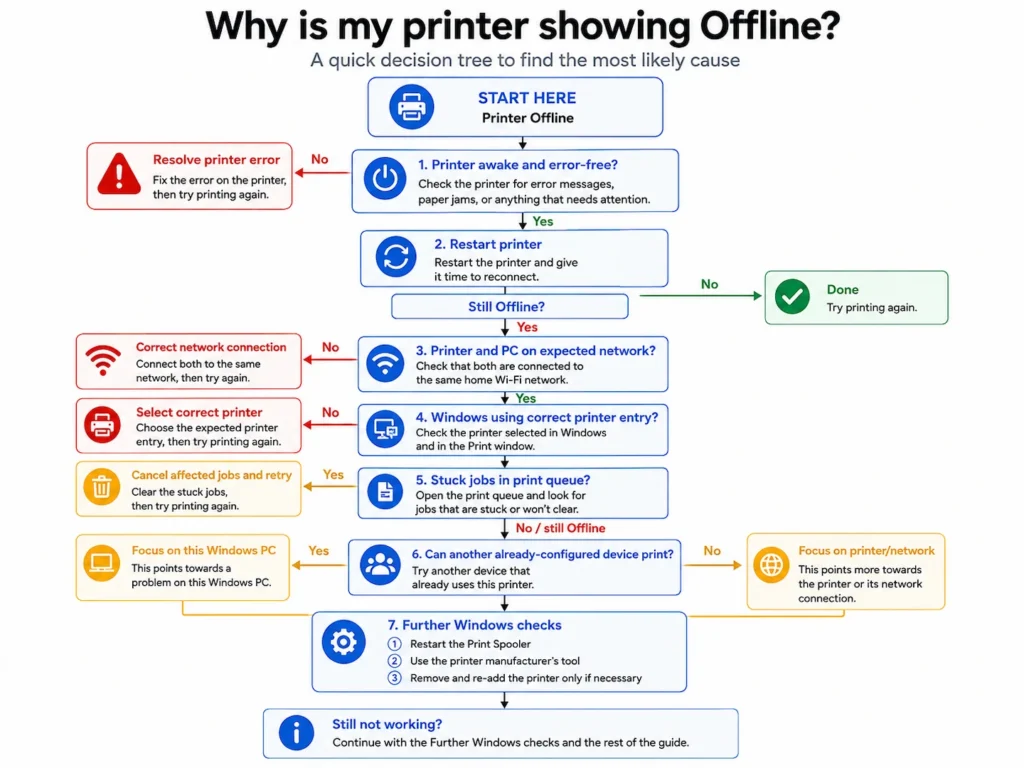
Printer offline but connected to Wi-Fi: why this happens
A Wi-Fi symbol or light usually indicates that the printer’s wireless connection is enabled or connected, although the exact meaning varies by model. It does not necessarily mean that Windows can currently communicate with the printer.
An Offline status can therefore come from several places:
- the printer itself may not be ready;
- the printer may not be connected to the network you expect;
- Windows may be using the wrong printer entry;
- the Windows print queue or printing service may be stuck.
You do not need to work through all of those possibilities at once. Start with the simplest checks.
What to check first
1. Make sure the printer is actually ready
Before changing anything in Windows, look at the printer itself.
Check that:
- it is switched on;
- it is awake rather than in an error state;
- there is no paper jam;
- there is no cover-open, paper, ink, toner or other message that needs attention.
The exact warnings depend on the printer, but any obvious printer-side error is worth dealing with first.
Why this matters: if the printer is waiting for you to fix a problem at the machine, changing Windows settings is unlikely to help.
If the printer looks ready but Windows still says it is Offline, continue to the next check.
2. Restart the printer
Turn the printer off normally.
Microsoft’s offline printer troubleshooting guidance recommends unplugging the printer, waiting about 30 seconds, plugging it back in and switching it on again.
Give the printer time to finish starting up and reconnect to Wi-Fi before trying to print again.
Why this matters: restarting the printer is a low-risk way to re-establish its network and printing connection without changing its setup.
If the printer comes back online, there is no need to continue changing settings.
If it still shows Offline, move on to the network check.
3. Check that the printer and PC are on the expected network
This is more useful than simply checking whether the printer has a Wi-Fi light.
On your Windows PC, check the Wi-Fi network you are connected to. Then check the printer’s network name using its screen, network menu or manufacturer app if your model provides one.
The exact method varies between printers, so check the manual or manufacturer’s support information if you cannot see the network name on the printer itself.
Microsoft also recommends confirming that the printer and Windows device are connected to the same network when troubleshooting wireless printer problems.
Why this matters: a printer can have a working Wi-Fi connection but still be connected somewhere Windows is not expecting it to be.
For example, this can happen after changing router settings, reconnecting the printer or switching to another available network.
You generally do not need to start changing 2.4 GHz or 5 GHz settings just because the printer says Offline. The useful first check is whether the printer and PC are connected to the expected home network.
If they are, move on to Windows.
Check that Windows is using the right printer
4. Check the printer entry in Windows
In Windows 11:
- Select Start.
- Open Settings.
- Select Bluetooth & devices.
- Select Printers & scanners.
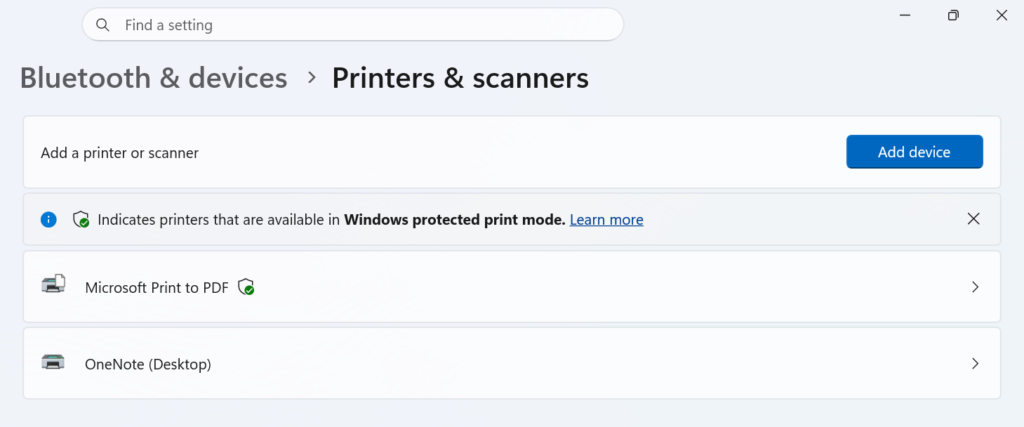
Find your printer in the list.
Look carefully if you see:
- two printers with very similar names;
- an older copy of the same printer;
- an entry left over from a previous installation.
Duplicate or old printer entries can sometimes leave Windows trying to use a different printer connection from the one you expect.
The important question is not simply whether one printer is marked as the default. It is whether the program you are printing from is sending the job to the correct printer entry.
Try printing again and make sure the correct printer is selected in the Print window.
Why this matters: the physical printer may be working normally while Windows is trying to use an old or incorrect printer connection.
If your printer does not appear in Windows at all, that is a different problem from an installed printer showing Offline. If this is a new Windows 11 PC and you have not added the printer to it before, start with our guide to adding an existing wireless printer to a new Windows 11 PC. If the printer was already set up on this PC but Windows can no longer find it, move to printer-discovery troubleshooting instead.
5. Check the print queue
A stuck print job can also interfere with normal printing.
In Windows 11:
- Go to Start > Settings > Bluetooth & devices > Printers & scanners.
- Select your printer.
- Select Open print queue.
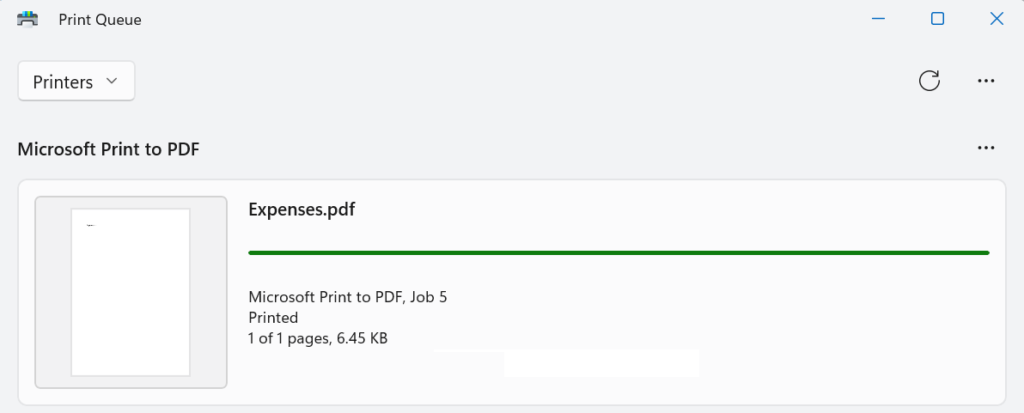
Microsoft also provides current instructions for viewing a printer’s print queue in Windows.
Look for documents that have been sitting in the queue without printing.
If there are jobs you no longer need, you can cancel them.
Be aware: cancelling a print job removes it from the queue. If you still need the document, you will need to send it to the printer again later.
Once the queue is clear, try printing one simple document again.
Why this matters: this helps you work out whether the problem was a particular job or a stuck queue rather than the printer connection itself.
If Windows still reports the printer as Offline, it is worth working out which side of the connection is causing the problem before making bigger changes.
Work out whether the problem is the printer or the PC
If you have another device that is already set up to use this printer, try printing from it.
That might be:
- another computer;
- a phone;
- a tablet.
Do not spend time setting up a completely new device just for this test. The check is most useful when another device has printed successfully before.
If another device can print
This points towards a problem with this Windows PC rather than a complete failure of the printer or its network connection.
If another computer can print normally and the problem is limited to this PC, see Wireless Printer Works on One Computer but Not Another for a broader PC-specific troubleshooting path.
Focus on:
- the printer entry Windows is using;
- the print queue;
- the Windows printing service.
It does not prove that the printer and network are perfect, but it makes a problem limited to this PC more likely.
If no device can print
The problem points more towards the printer or its network connection.
Check the printer again for warnings and confirm that it is still connected to the expected network before making more changes to Windows.
If the printer itself is showing an error
Deal with that error first.
There is little value in reinstalling a Windows printer while the physical printer is stopped by a paper jam or another condition requiring attention.
This printer-versus-PC test helps narrow down where to concentrate next instead of simply trying more fixes at random.
Further Windows checks
If the printer appears ready, both devices are on the expected network and the basic Windows checks have not helped, there are a few more things worth trying.
6. Restart the Print Spooler
The Print Spooler is the Windows service that manages print jobs.
If you have documents waiting in the print queue, restarting the service will briefly pause printing while the service restarts.
To restart it in Windows 11:
- Select Search on the taskbar and type services.
- Open Services.
- Scroll down to Print Spooler.
- Right-click Print Spooler and select Restart.
Microsoft includes restarting the Print Spooler in its offline-printer troubleshooting guidance.
Then try printing again.
Why this matters: if the Windows printing service has become stuck, restarting it can restore normal print handling without removing the printer or changing its network settings.
If individual print jobs repeatedly become stuck in the queue, that deserves separate queue-focused troubleshooting rather than turning this into a deeper Windows repair job.
7. Try the printer manufacturer’s troubleshooting tool if available
Some printer manufacturers provide their own diagnostic or connection tools.
These can sometimes check the connection between the PC and printer more specifically than Windows can.
Whether such a tool is available — and what it is called — depends on the printer manufacturer and model. Use the official support site for your exact printer rather than downloading printer repair software from an unrelated website.
This step is optional. You do not need to install manufacturer software merely because the printer briefly appeared Offline.
8. Remove and re-add the printer only if the simpler checks have failed
If the printer works on the network but Windows still cannot use its existing printer entry, removing and adding that printer again can be a reasonable final Windows-side step.
Before doing this: removing the printer deletes that printer setup from Windows. You will need to add it again afterwards.
To remove the printer in Windows 11:
- Open Start > Settings > Bluetooth & devices > Printers & scanners.
- Select the affected printer.
- Select Remove and confirm the removal.
To add it again:
- Return to Settings > Bluetooth & devices > Printers & scanners.
- Make sure the printer is switched on and connected to the network.
- Next to Add a printer or scanner, select Add device.
- Select your printer when Windows finds it and follow the instructions.
Microsoft’s printer installation guidance for Windows covers the current process for adding a printer.
Why this is near the end: removing and re-adding the printer can correct a damaged or outdated Windows printer configuration, but it is more disruptive than restarting the printer, checking the network or clearing the queue.
If Windows cannot find the printer when you try to add it again, stop there rather than repeatedly deleting settings. A printer that cannot be discovered is a separate troubleshooting problem.
When a new printer probably isn’t the answer
Seeing Offline in Windows does not by itself mean the printer is broken.
An Offline status can be caused by communication, network or Windows-side problems even when the printer hardware still works.
Replacing the printer makes more sense only when you have stronger evidence of a hardware problem, such as persistent printer-side errors or a fault that remains independently of one particular computer.
If the printer otherwise works, avoid buying a replacement simply because Windows reports it as Offline.
If you mainly print from one computer and are wondering whether a simpler connection would suit you better, USB Printer vs Wi-Fi Printer: Which Is Easier at Home? explains when a direct USB connection may make more sense.
And if the problem keeps returning after you get the printer working again, that is a different question from a one-off Offline state. See why your Wi-Fi printer keeps going Offline to work out whether the recurring problem is with the printer’s Wi-Fi connection, your home network, or one Windows PC.