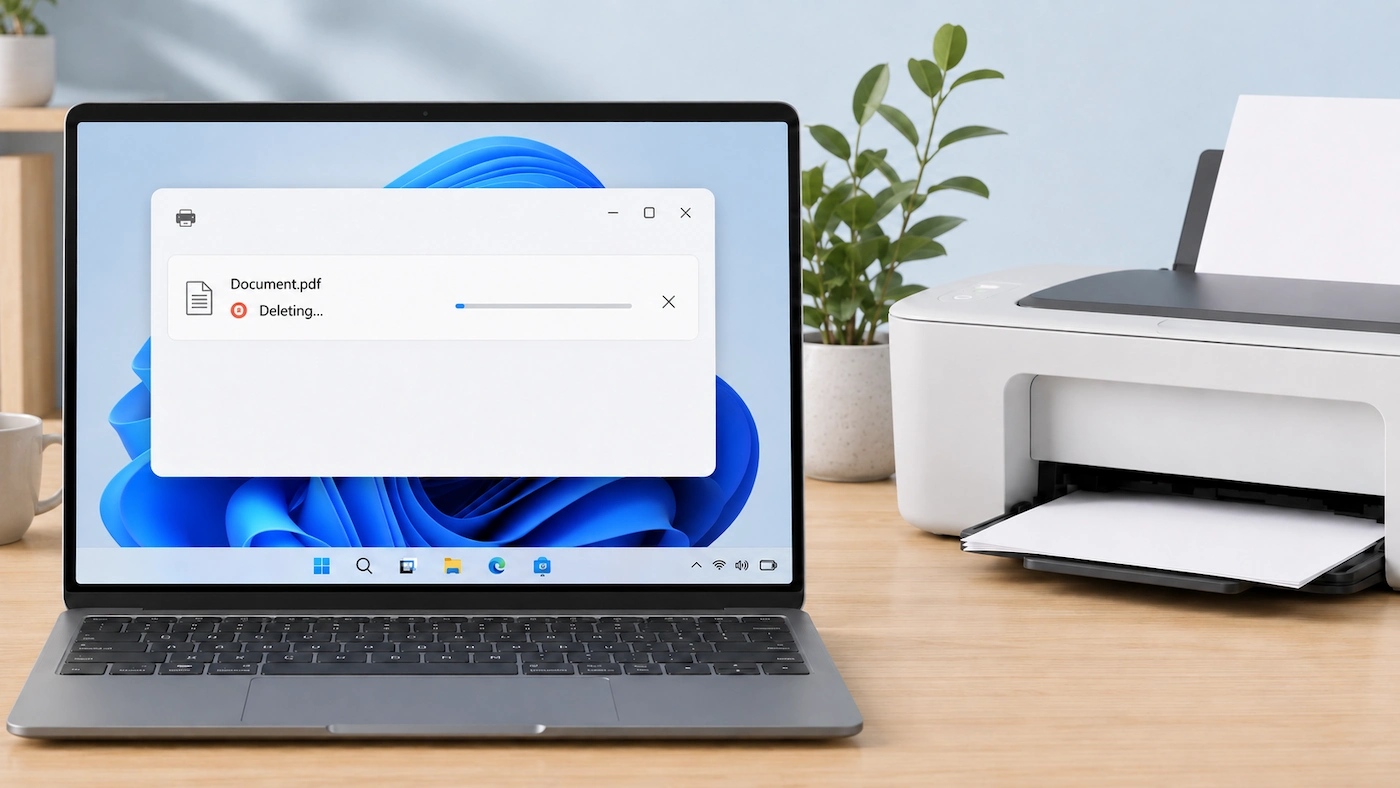
If you have a print job stuck in Windows 11 that will not delete, the problem is often with the Windows print queue rather than the printer itself.
Start by trying to cancel the job normally. If it refuses to disappear, restart the Windows Print Spooler, then restart the printer and your PC before moving to the more advanced step of manually clearing the queued print files.
Quick answer: If a print job is stuck and won’t delete in Windows 11:
- Open Settings > Bluetooth & devices > Printers & scanners.
- Select your printer and open its print queue.
- Try to cancel the stuck job normally.
- If it stays in the queue, restart the Print Spooler service.
- If it is still stuck, restart the printer and Windows.
- Only if those steps fail, stop the Print Spooler and clear the pending files from the Windows spool folder.
- Start the Print Spooler again, restart the printer and PC, then try printing one simple document.
If the stuck job disappears and printing works normally again, stop there. You do not need to reinstall the printer or change unrelated Windows settings.
Print Job Stuck? What It Usually Means
When you print something in Windows, the document normally passes through a print queue before it reaches the printer.
The basic path is:
Document → Windows print queue → printer
Windows uses a service called the Print Spooler to manage those waiting print jobs.
Sometimes an individual job or the printing service can stop processing normally. The document may remain in the queue with a status such as Printing, Error or Deleting, and later print jobs can become stuck behind it.
Microsoft describes the Print Spooler as the Windows service that handles print jobs and recommends restarting it when ordinary cancellation does not solve a stuck queue.
A stuck queue is different from a printer that has disappeared from Windows or one that is showing as Offline. This guide is specifically for a document that remains visible in the Windows print queue and refuses to delete.
Try Cancelling the Print Job Normally First
Start with the normal Windows cancellation process.
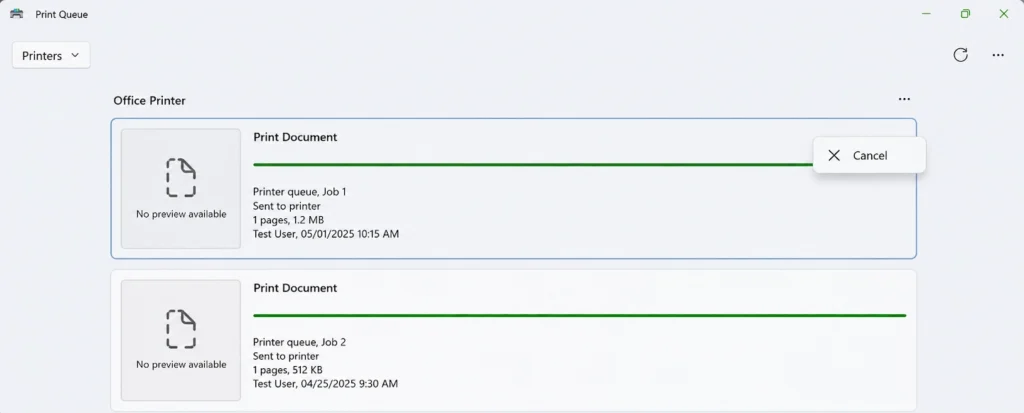
In Windows 11:
- Select Start.
- Open Settings.
- Select Bluetooth & devices.
- Select Printers & scanners.
- Choose the affected printer.
- Select Open print queue.
- Find the stuck document.
- Right-click it and select Cancel.
Give Windows a short time to remove the job.
If the job disappears, try printing one simple document again.
If that works, stop troubleshooting.
Cancelling a print job removes that job from the queue. It does not delete the original Word document, PDF, photo or other file from your computer. If you still need to print it, you can send it to the printer again later.
Why this matters: normal cancellation is the least disruptive way to clear the problem. There is no reason to restart services or delete queued files if Windows can remove the job normally.
Restart the Print Spooler
If the print job stays in the queue even after you cancel it, restart the Windows Print Spooler.
The Print Spooler is the Windows service that manages jobs waiting to be printed. Restarting it resets that part of Windows printing without removing your printer or changing its Wi-Fi or network settings.
Microsoft’s guidance for stuck print jobs also recommends restarting the Print Spooler when normal cancellation does not clear the queue.
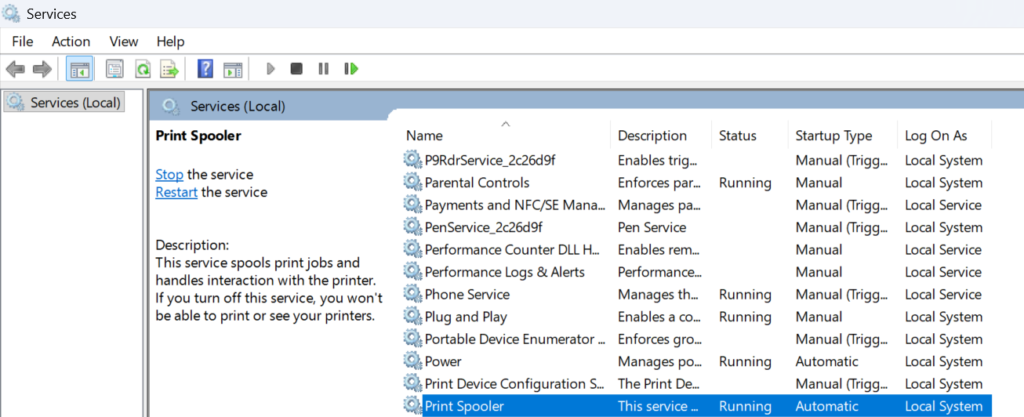
To restart it:
- Select Search on the taskbar.
- Type services.
- Open Services.
- Scroll down to Print Spooler.
- Right-click Print Spooler.
- Select Restart.
Reopen the print queue and check whether the stuck job has gone.
If the queue is now clear, send one simple document to the printer.
If it prints normally, stop there.
Why this matters: if the Windows printing service has temporarily stopped handling the queue correctly, restarting it can restore normal print handling without changing the printer setup.
Restart the Printer and Windows If the Job Is Still Stuck
If restarting the Print Spooler has not cleared the job, try a normal restart before manually deleting anything.
First save any open work, then:
- Switch the printer off normally.
- Wait for about 60 seconds.
- Switch the printer back on.
- Allow it to finish starting.
- On your PC, select Start > Power > Restart.
- Let Windows start normally.
- Open the printer’s print queue again.
If the stuck job has disappeared, send one simple test document to the printer.
If printing works normally, stop troubleshooting.
If the job is still there, move to the manual queue-clearing step below.
Why this matters: restarting the printer and Windows is fully reversible and can reset a stalled printing process. It is worth trying before manually deleting files from the Windows spool folder.
Clear the Print Spooler Files If the Job Still Won’t Delete
If normal cancellation, restarting the Print Spooler and restarting the printer and Windows have all failed, you can manually clear the files Windows is holding in the print queue.
Before you continue: clearing the spool folder removes the pending print jobs stored in the Windows queue. It does not delete your original documents, PDFs, photos or other source files.
However, any jobs you still want to print will need to be sent to the printer again afterwards.
Also be careful to delete only the files inside the PRINTERS folder. Do not delete the PRINTERS folder itself.
Stop the Print Spooler
- Select Search on the taskbar.
- Type services.
- Open Services.
- Find Print Spooler.
- Right-click it.
- Select Stop.
Leave the Services window open.
Clear the Queued Print Files
- Open File Explorer.
- Go to:
C:\Windows\System32\spool\PRINTERS

- Delete the files inside the PRINTERS folder.
If the folder is already empty, there is nothing to clear. Do not delete the PRINTERS folder itself.
Start the Print Spooler Again
Return to the Services window.
- Right-click Print Spooler.
- Select Start.
- Reopen the printer’s print queue.
- Confirm that the stuck jobs have disappeared.
Once the queue has been cleared, restart the printer and Windows once more before testing. This gives the printing system a clean start after the queued spool files have been removed.
Test Printing Again
Once the queue is clear and the printer and PC have restarted, avoid changing anything else for the moment.
Send one simple document to the printer.
What happens next tells you whether the problem was probably a one-off stuck queue or something that needs further investigation.
If the Document Prints Normally
Stop.
The immediate problem is solved.
There is no benefit in reinstalling the printer, removing drivers or changing network settings just because one print job became stuck.
If the New Print Job Becomes Stuck as Well
A second stuck job is more useful diagnostically than one isolated failure.
It suggests there may be a recurring problem involving Windows printing, the printer driver, the application you are printing from or the printer itself.
Work through the checks in the next section rather than repeatedly clearing the queue.
If the Queue Is Clear but the Printer Shows Offline
That is a different problem.
See Printer Offline but Connected to Wi-Fi: What to Check First for checks aimed specifically at an installed printer that Windows reports as Offline.
What If Print Jobs Keep Getting Stuck?
One stuck document does not necessarily mean there is a wider problem.
If print jobs repeatedly become stuck, try to identify the pattern before making more changes.
Only One Document or App Causes the Problem
Try printing:
- a different simple document from the same program; or
- a simple document from another application.
If other files print normally, the printer and Windows printing system may be working correctly and the problem may be limited to the original document or application.
For example, you could try opening the document again, saving a fresh copy where appropriate, or checking the printing options inside the affected application.
Avoid changing the printer configuration if everything else prints normally.
Every Print Job Gets Stuck
If even simple new documents repeatedly become stuck, the problem is more likely to involve the wider Windows printing setup or the printer.
At that stage, sensible next checks include:
- running the Windows 11 Printer troubleshooter in the Get Help app;
- checking the official support page for your exact printer model;
- checking whether the manufacturer provides a current printer driver or diagnostic tool for that model.
Do not start by randomly uninstalling printer drivers. Removing drivers changes more than the stuck queue and is better reserved for a persistent problem where simpler checks have already failed.
The Queue Clears but the Printer Is Offline
If the stuck jobs disappear but Windows now reports the printer as Offline, move to Printer Offline but Connected to Wi-Fi: What to Check First.
That guide covers the printer connection, Windows printer entry and network side of the problem rather than duplicating those checks here.
Windows Can No Longer Find the Printer
If the printer no longer appears in Windows at all, that is also a separate troubleshooting path.
See Printer Connected to Wi-Fi but Computer Can’t Find It for checks that help distinguish a Windows discovery problem from a printer or home-network problem.
What Probably Isn’t Worth Changing Yet
A stuck print queue by itself is not a good reason to make broad changes elsewhere.
Unless you have evidence of another problem, avoid:
- factory-resetting the printer;
- resetting the router or Windows networking;
- editing the Windows Registry;
- installing generic driver-updater or “printer repair” software;
- repeatedly removing and re-adding the printer.
These actions change much more than the print queue and can create additional problems without addressing the original cause.
Change one thing at a time and stop when normal printing returns.
Do You Need a New Printer?
Probably not because of a stuck print job alone.
A document refusing to leave the Windows print queue mainly tells you that the print-processing path has not completed normally. It does not prove that the printer hardware has failed.
Replacing the printer becomes more reasonable only when there is separate evidence of a hardware problem, such as persistent errors shown on the printer itself or the same fault occurring independently of one particular Windows computer.
If the queue clears and the printer goes back to working normally, there is no reason to replace it simply because one document became stuck.