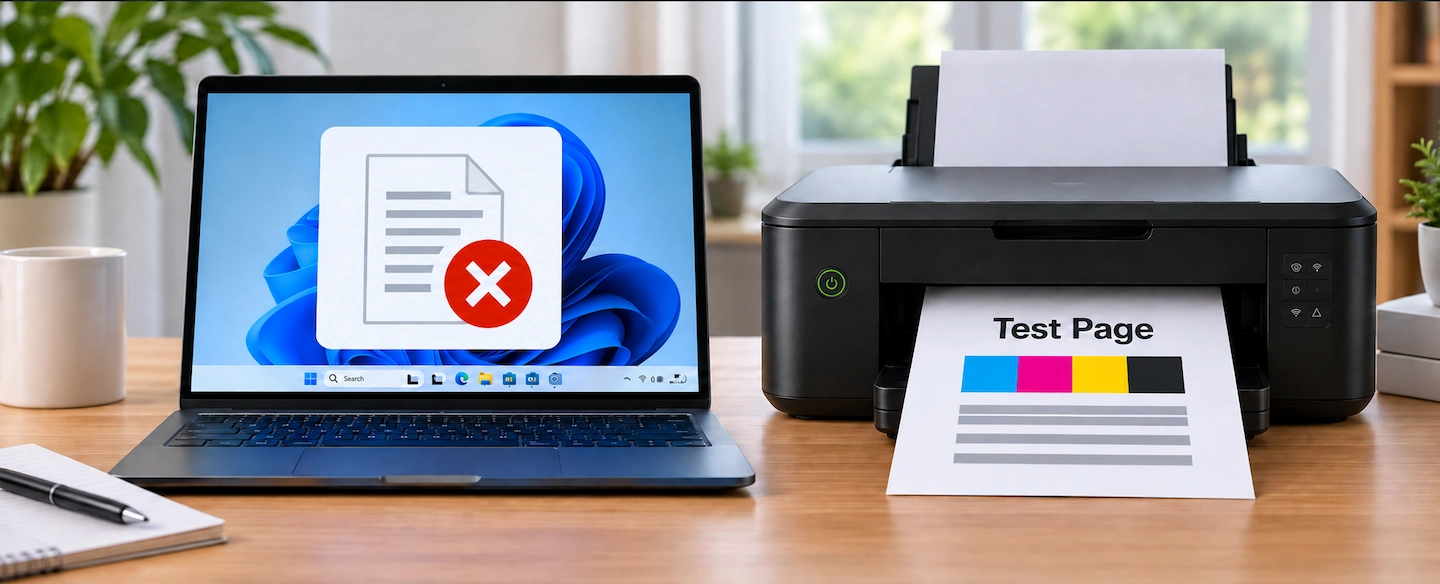
If your printer can print a test page but normal documents will not print, the successful test gives you a useful clue. It does not necessarily mean every part of the printing setup is working correctly.
The most useful next step is to work out which type of test page printed, then compare a simple document with the file or application that is failing. This can often show whether the problem follows one document, one application or the wider Windows printing system.
Quick answer: If a printer test page prints but documents won’t, do not reinstall the printer straight away.
First, check whether the successful page was a Windows Test Page or a page generated directly by the printer. Then make sure the correct printer is selected and try printing:
- a simple new document;
- the same type of document from another application, where practical.
If one application or one file fails while other normal documents print, concentrate on that application or file.
If several normal applications fail despite a successful Windows Test Page, the problem is broader and it makes sense to move on to general Windows printer troubleshooting.
Printer Test Page Prints but Documents Won’t: What That Tells You
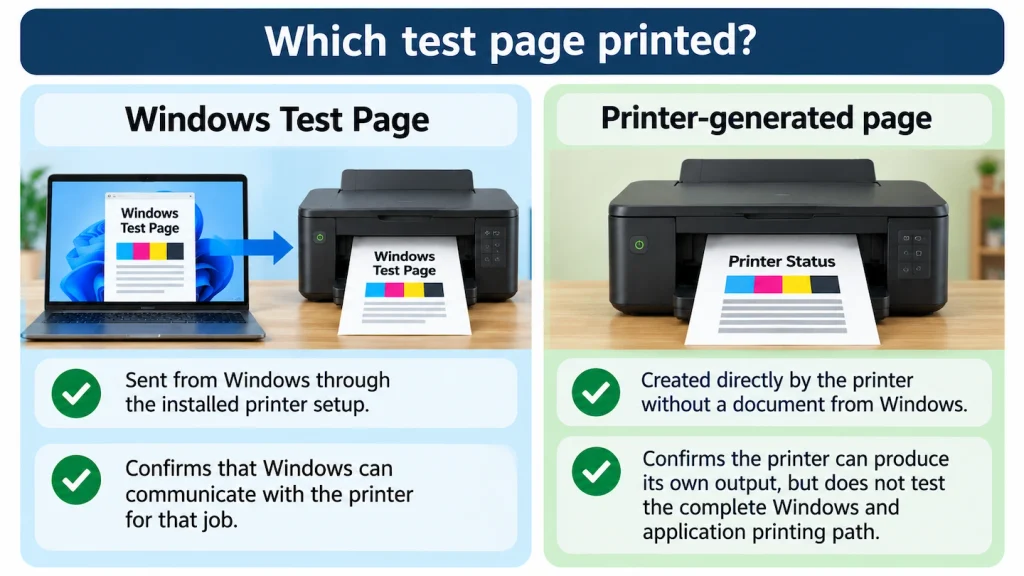
Not all test pages check the same part of the printing process.
If It Was a Windows Test Page
A Windows Test Page is sent from Windows through the installed printer setup.
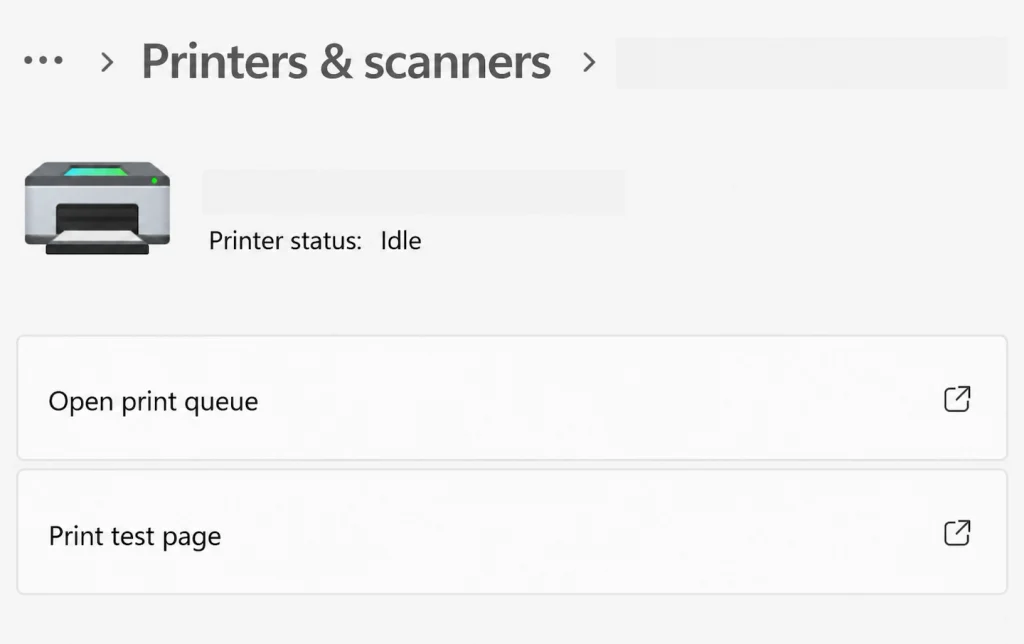
If it prints successfully, Windows has managed to send that particular job to the printer.
That makes a complete printer failure less likely, but it does not prove that:
- every application can print correctly;
- every document is valid;
- every print setting is correct;
- every type of print job will behave normally.
Microsoft also recommends comparing files and applications when troubleshooting situations where Windows can print but a particular program cannot.
If the Page Came Directly From the Printer
Many printers can produce their own pages without receiving a normal document from Windows.
Depending on the model, these might be called:
- configuration pages;
- status pages;
- nozzle checks;
- network reports;
- print-quality reports.
If one of these prints correctly, you know the printer is capable of producing output.
However, it does not test the full route from an application on your computer, through Windows, to the printer.
If you are not sure which type of page you printed, do not assume Windows printing has already been ruled out.
Check the Printer Selected in the Application
Before doing anything more technical, open the document that will not print and choose Print.
Check that the selected destination is the printer you actually want to use.
Watch for:
- another printer with a similar name;
- an old printer installation;
- Microsoft Print to PDF;
- another virtual printer.
If the correct printer is already selected, continue with the comparison tests below.
If your actual printer is missing altogether, that is a different problem. Printer Connected to Wi-Fi but Computer Can’t Find It covers that situation in more detail.
Try Printing a Simple New Document
The next step is to remove the original document from the test.
On Windows 11, you can use a simple application such as Notepad:
- Open Notepad.
- Type a short sentence.
- Choose Print.
- Select the correct printer.
- Try printing.
If the Simple Document Prints
This is useful evidence.
It shows that a normal application has successfully sent a document to the printer.
That makes the original file or application a more sensible place to investigate than the whole printer installation.
Do not reinstall the printer at this stage.
If the Simple Document Does Not Print
The problem is not limited to the original file.
The next question is whether another normal application behaves the same way.
Try Printing From Another Application
You only need one sensible comparison.
For example:
- if Word will not print, try Notepad;
- if a PDF will not print, try a simple text document;
- if a browser page will not print, try another application.
The aim is not to test lots of programs. It is simply to find out whether the problem follows one application or affects normal printing more generally.
If Another Application Prints Normally
Concentrate on the application that fails.
There is little reason to change the whole printer setup if other programs can still use the printer successfully.
If Several Applications Fail
If a Windows Test Page prints but simple documents from several normal applications do not, the problem is broader than one file or program.
At that point, move to wider Windows printer troubleshooting rather than repeatedly changing the original document.
Printer Won’t Print but Everything Looks Connected covers that broader diagnostic path.
If Only One Application Won’t Print
If other applications print normally, start with the program that is failing.
Try these simple checks:
- Close the affected application.
- Open it again.
- Create or open a different simple document.
- Check that the correct printer is selected.
- Try printing again.
If a Different Document Prints
The original file becomes the more likely place to investigate.
If Every Document in That Application Fails
The problem appears to follow the application rather than the printer as a whole.
Look for troubleshooting or repair options for that particular program before changing the printer installation.
For Microsoft applications, Microsoft provides specific guidance for printing problems in Word, Excel and other apps.
If Only One Document or PDF Won’t Print
If other documents from the same application print normally, avoid making wider Windows or printer changes.
The problem is now much more closely associated with the original file.
Try:
- closing and reopening the document;
- saving a fresh copy if the application allows it;
- trying the copy;
- testing another document of the same type.
For example, if one PDF will not print but another PDF prints normally, investigate the troublesome PDF before changing the printer setup.
Adobe provides separate PDF printing troubleshooting guidance if the problem appears to be limited to PDF files.
Do not assume the file is definitely corrupt simply because it does not print. The comparison only tells you that the problem appears to follow that particular document.
If the Print Job Becomes Stuck
If your normal document appears in the Windows print queue and stays there without printing, the problem has moved beyond the file-versus-application comparison covered here.
Try cancelling the job normally first.
If it refuses to clear, Print Job Stuck and Won’t Delete in Windows 11 covers the queue and Print Spooler troubleshooting in more detail.
There is no need to repeat those more technical steps here unless a stuck queue is actually the symptom you have.
How to Tell Where the Problem Probably Is
Use the results of the simple comparisons to decide what deserves your attention next.
| What you find | Where to look next |
|---|---|
| Windows Test Page works and a simple normal document prints | Original application or file |
| One application fails but another prints | Affected application |
| One document fails but other documents print | Original document or file |
| Several normal applications fail despite a successful Windows Test Page | Broader Windows printing path |
| Normal jobs remain stuck in the print queue | Print queue / Windows printing troubleshooting |
These are diagnostic clues rather than guarantees.
The aim is to narrow the problem before changing something that may already be working.
What to Do if the Problem Is Broader
If the correct printer is selected and several normal applications still cannot print even though a Windows Test Page succeeds, you have already ruled out some of the simpler explanations.
At that point, broader checks such as the Windows print queue, Print Spooler, printer driver or printer installation may become relevant.
Rather than repeating all of those steps here, continue with Printer Won’t Print but Everything Looks Connected.
If the printer works correctly from another computer but not this one, Wireless Printer Works on One Computer but Not Another is the more useful troubleshooting path.
A successful test page is most useful when you treat it as evidence, not as proof that everything is working.
By comparing one simple document and one other application, you can often work out whether to focus on the file, the application or the wider Windows printing system before making more disruptive changes.