Windows Backup vs OneDrive can be confusing because Windows 11 presents them as related ways to protect your information.
They are related, but they are not two separate backup systems doing the same job. OneDrive mainly handles your files, while Windows Backup brings those files together with supported Windows settings and app information to make setting up another PC easier.
This article covers Windows Backup on a home PC using a personal Microsoft account. Work or school accounts can have different backup options.
Quick answer: OneDrive stores and synchronises files in Microsoft’s cloud. Windows Backup uses OneDrive to protect supported personal folders, then adds supported Windows settings, preferences and information about your installed apps.
Windows Backup does not create a second independent copy of files that are already protected through OneDrive. It also does not create a complete image of your Windows installation or a working copy of every program on the computer.
So the simplest way to think about them is:
OneDrive = your cloud files
Windows Backup = OneDrive-backed files + supported Windows setup information
Windows Backup vs OneDrive in Plain English
The two features overlap, but they have different jobs.
| What it does | OneDrive | Windows Backup |
|---|---|---|
| Stores and synchronises files in the cloud | Yes | Uses OneDrive for supported folders |
| Protects selected personal folders | Yes, through OneDrive folder backup | Yes — selected folders are synced to OneDrive |
| Remembers supported Windows settings | Not its main role | Yes |
| Remembers installed-app information | No | Yes |
| Makes a complete copy of installed programs | No | No |
| Creates a full image of Windows | No | No |
| Helps set up another Windows PC | Makes your cloud files available | Restores supported files, settings and app information |
Windows Backup is therefore broader than OneDrive alone, but it should not be thought of as a separate complete copy of everything on your computer.
What OneDrive Actually Does
OneDrive is Microsoft’s cloud storage and synchronisation service.
Files stored in OneDrive can be made available on other computers, phones and tablets when you sign in with the same account. On Windows, OneDrive can also protect familiar folders such as Desktop, Documents and Pictures.
Microsoft explains that files in OneDrive synchronise between your computer and the cloud. If you add, change or delete a synchronised file, that change can be reflected in OneDrive as well.
That synchronisation is useful because it keeps your files up to date across devices. It also means OneDrive should not automatically be thought of as an untouched second copy that never changes.
If you want the deeper distinction between cloud synchronisation and an independent backup, Is OneDrive Really a Backup? What Home Users Need to Know explains where OneDrive provides useful protection and where another copy can still help.
OneDrive is mainly concerned with your files. It is not designed to recreate your entire Windows installation exactly as it was.
What Windows Backup Actually Does
Windows Backup brings several different parts of your Windows setup together.
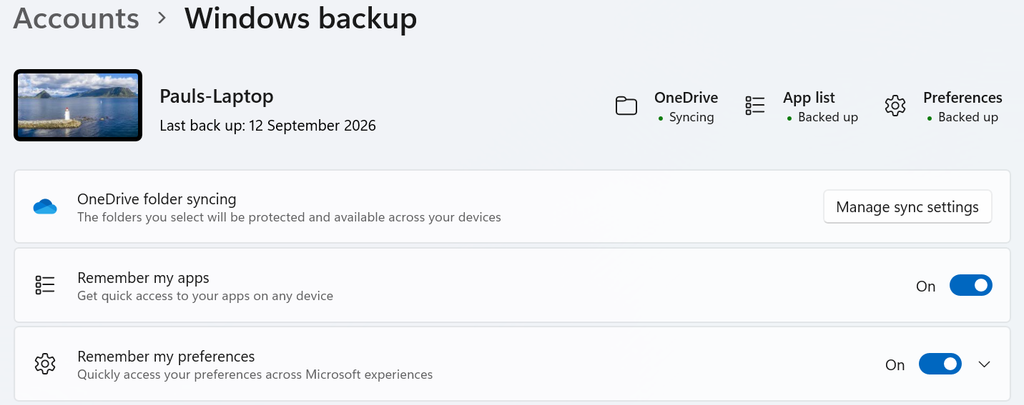
Microsoft describes Windows Backup as a way to protect files, supported settings, installed-app information and Wi-Fi information, particularly so that moving to another Windows PC is easier.
Your files
When you use Windows Backup to protect personal folders, those folders are synchronised to OneDrive.
Microsoft currently allows Windows Backup to manage protection for folders including:
- Desktop
- Documents
- Pictures
- Videos
- Music
This is an important distinction: Windows Backup does not place another independent copy of these files in a separate Windows Backup storage area.
The file part of Windows Backup relies on OneDrive.
So if your Documents folder is already being protected through OneDrive, turning on Windows Backup does not mean you suddenly have two separate cloud copies of those documents.
Your Windows settings
Windows Backup can also remember supported Windows settings and preferences associated with your Microsoft account.
These can include areas such as:
- accessibility settings;
- personalisation;
- language preferences;
- Wi-Fi networks and passwords;
- some File Explorer and notification preferences;
- other supported Windows settings.
The exact list can change as Windows develops, so Microsoft’s Windows Backup Settings Catalog is the best place to check a particular setting.
For most home users, the important point is simpler: Windows Backup can remember more about how Windows was set up than OneDrive file synchronisation does on its own.
Your apps
Windows Backup can also remember information about installed apps.
This does not mean Microsoft makes a complete backup copy of every program installed on the PC.
When a Windows Backup is restored, app pins can be returned to their previous locations. Microsoft Store apps can normally be selected from those restored pins to reinstall them.
For programs that are not available in the Microsoft Store, Windows may direct you to the web so you can download the installer again.
That is very different from restoring an exact working copy of every installed application.
Does Windows Backup Just Use OneDrive?
For your protected personal folders, yes — Windows Backup uses OneDrive.
But that is only part of what Windows Backup does.
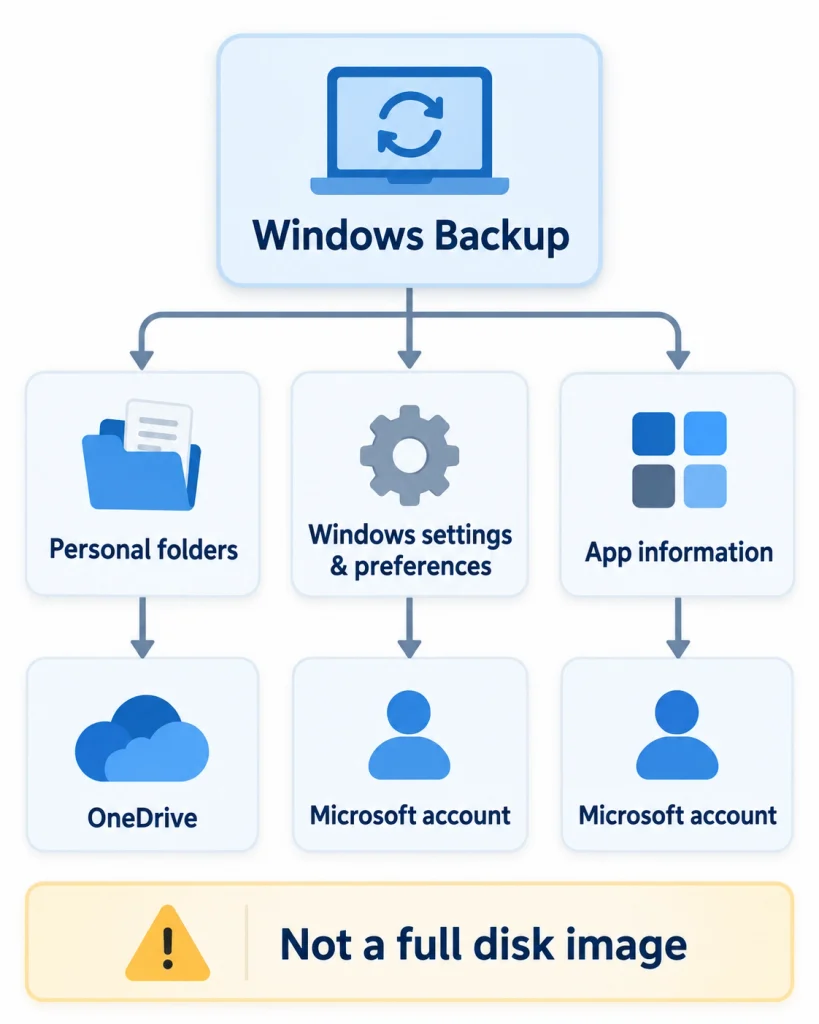
Windows Backup also remembers supported Windows settings, preferences and app information so that another Windows PC can be set up more like the one you were using before.
This is why the two names can be confusing. Windows Backup is not a completely separate file-backup service sitting alongside OneDrive. OneDrive provides the file-storage part of the Windows Backup system.
Microsoft’s Windows Backup guidance confirms that folders selected through Windows Backup are synchronised to the user’s OneDrive account.
What Happens When You Set Up a New PC?
This is where the extra parts of Windows Backup become most useful.
When you set up a new Windows PC using the same personal Microsoft account, Windows can recognise backups associated with that account and offer to restore supported information.
In practice, that can mean:
- Your OneDrive files become available again.
Once you sign in to OneDrive with the same Microsoft account, files that successfully reached OneDrive can be accessed from the new PC. - Supported Windows settings can be restored.
This can make the new computer feel more familiar without requiring you to recreate every preference manually. - Your app information and pins can return.
Apps may still need to be installed again. A restored app pin is not the same thing as restoring a complete installed program.
The result can make moving to a replacement computer much easier.
It is not the same as taking an exact clone of your old computer and putting it onto the new one.
What Windows Backup Does Not Back Up
The word backup can make Windows Backup sound more comprehensive than it actually is.
Windows Backup should not be treated as:
- a complete disk image of your computer;
- an exact copy of the whole Windows installation;
- a second independent copy of files already protected through OneDrive;
- a complete working copy of every installed desktop program;
- automatic protection for every file stored on every internal or external drive.
For example, a file stored somewhere outside the folders being protected through OneDrive is not automatically protected simply because Windows Backup is switched on.
Likewise, if a program has to be downloaded and installed again after moving to another PC, Windows Backup has not stored a complete working copy of that program.
None of this makes Windows Backup useless. It simply means it solves a different problem from a full-system image or a separate independent file backup.
Do You Need Windows Backup If You Already Use OneDrive?
Possibly — it depends on what you want to recover.
If your main concern is making your cloud files available on another device, OneDrive already handles that part.
Windows Backup becomes more useful if you also want Windows to remember supported settings, preferences and app information.
For example, if you replace your computer, Windows Backup can help the new PC resemble your previous setup rather than leaving you to recreate every supported preference manually.
The important point is that enabling Windows Backup does not give you another independent copy of the same OneDrive files.
If Documents, Pictures and Desktop are already protected through OneDrive, Windows Backup is using that same OneDrive protection for those folders.
Do You Still Need a Separate Backup?
Possibly. Windows Backup and OneDrive provide useful protection, but they do not create an independent second copy of your OneDrive files.
For irreplaceable photos, important documents or personal work, keeping another separate copy can give you an additional recovery option if something goes wrong.
If you want to keep that extra copy on an external drive, How to Back Up Files to an External Drive in Windows 11 shows the simplest ways to do it using File Explorer or File History.
If you are unsure what deserves extra protection, What Files Should You Back Up on a Home Computer? can help you decide. If you are considering an external backup drive, How Much Storage Do You Need for a Computer Backup? explains how to choose a sensible capacity.
The Bottom Line
OneDrive and Windows Backup are not competing versions of the same backup service.
OneDrive handles the cloud storage and synchronisation of your files. Windows Backup uses that OneDrive protection for supported personal folders and adds supported Windows settings, preferences and app information.
That can make replacing or reinstalling a Windows PC much less disruptive.
But Windows Backup does not create a second independent copy of your OneDrive files, copy every installed program, or make a complete image of the computer.
For most home users, the useful approach is to understand what OneDrive and Windows Backup are already protecting, then keep an additional independent copy of any files that would be genuinely difficult or impossible to replace.