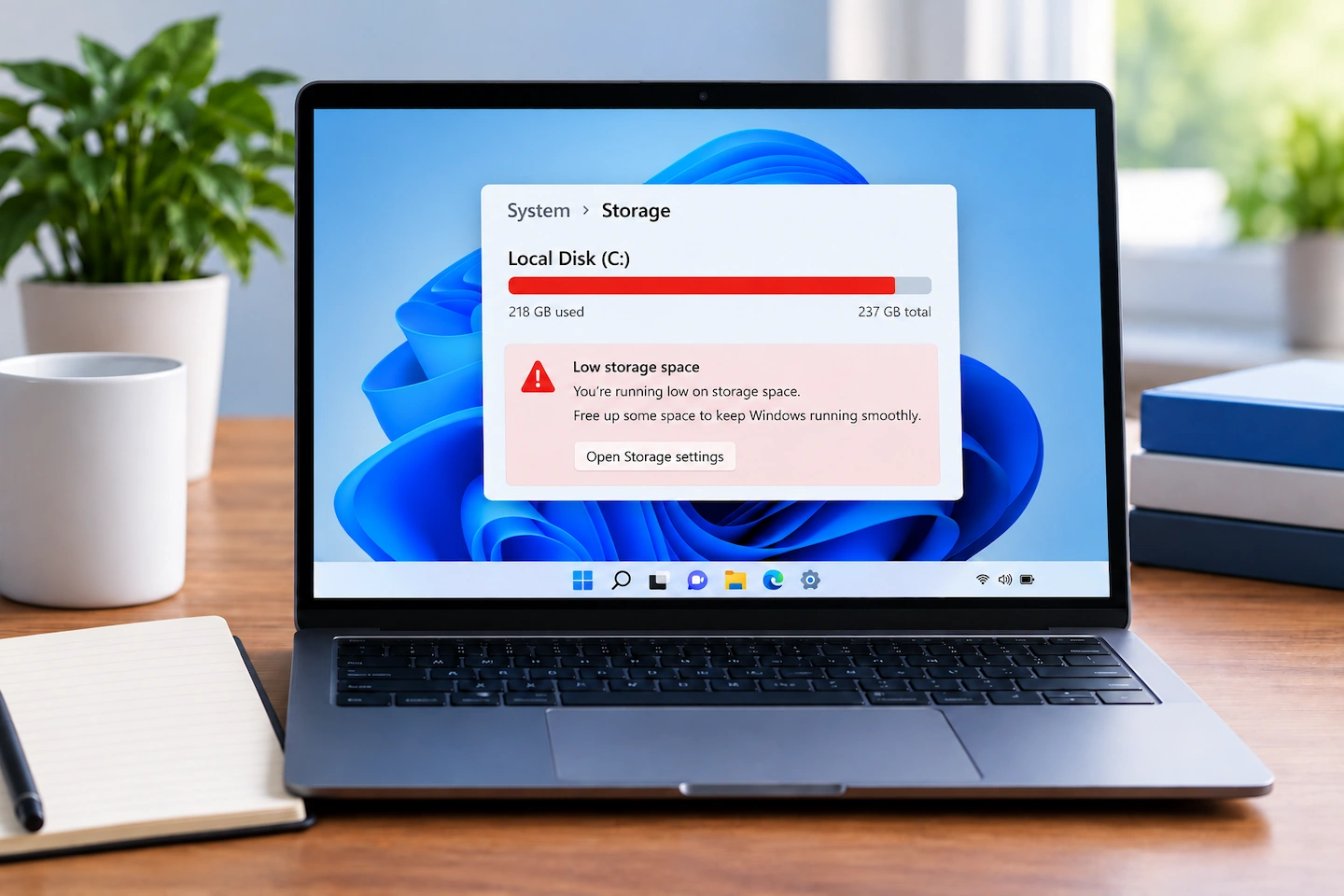
Windows 11 storage full? You do not need to start deleting unfamiliar folders or system files.
The safest approach is to first find out what is actually using the space. Windows can show you whether the problem is temporary files, installed apps, personal files or something else.
Once you know where the space is going, you can remove the lowest-risk items first and leave anything important or unfamiliar alone.
Quick answer: If your Windows 11 storage is full, start with Settings > System > Storage and check what is using the drive.
The safest places to begin are usually Windows’ own Cleanup recommendations, clearly unwanted temporary files and Recycle Bin contents you have already checked.
Be more careful with Downloads, personal documents, unused apps, OneDrive files and previous Windows installation files. Do not manually delete files from folders such as Windows, Program Files or AppData simply because they are large.
| Usually a good place to start | Check carefully first | Do not manually delete |
|---|---|---|
| Windows-managed temporary files | Downloads | Windows folder |
| Reviewed Recycle Bin contents | Personal documents, photos and videos | Program Files |
| Clearly unwanted cleanup recommendations | Apps you no longer use | AppData |
| Previous Windows installation files | Unfamiliar system folders | |
| OneDrive-synchronised files | Random hidden files |
Windows 11 Storage Full? Check What Is Taking Up the Space
Before deleting anything, check which type of data is actually filling the drive.
A computer with 100 GB of installed applications needs a different solution from one with a large Downloads folder or several gigabytes of temporary files.
Check Storage in Settings
To see where your storage is being used:
- Open Settings.
- Select System.
- Select Storage.
- Wait for Windows to calculate the storage categories.
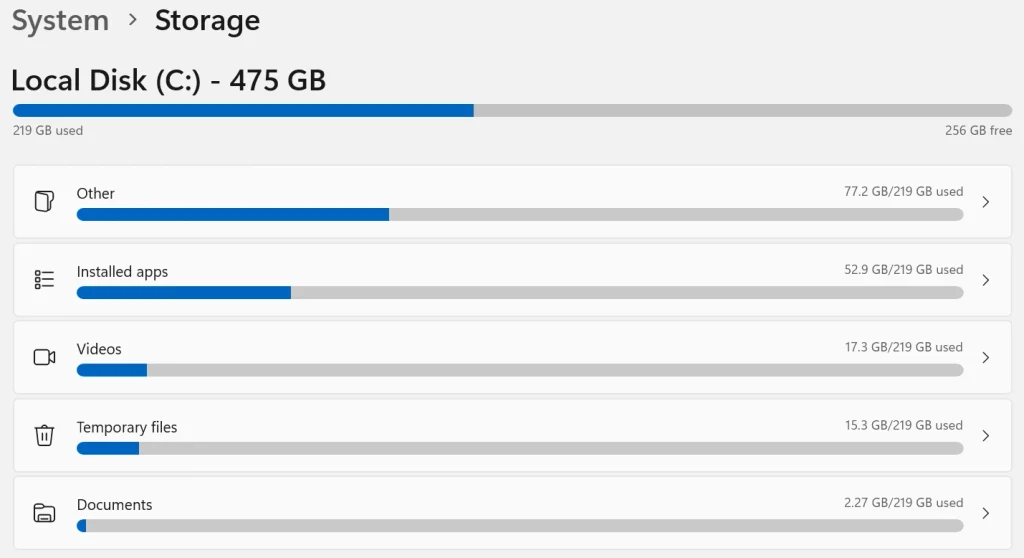
You should see categories such as installed apps, temporary files, documents, pictures and other storage use.
Microsoft explains the main Windows storage tools in its guide to freeing up drive space in Windows.
Do not worry if some categories take a few moments to update. The important thing is to identify which ones are using the most space before you start removing anything.
What Can You Safely Remove First?
Once you know what is using the drive, start with the areas Windows provides specifically for storage cleanup.
Review Cleanup Recommendations
In Settings > System > Storage, open Cleanup recommendations if it is available on your PC.
Windows may suggest several types of content that could free space, including:
- temporary files;
- large or unused files;
- files already synchronised with cloud storage;
- apps you may no longer use.
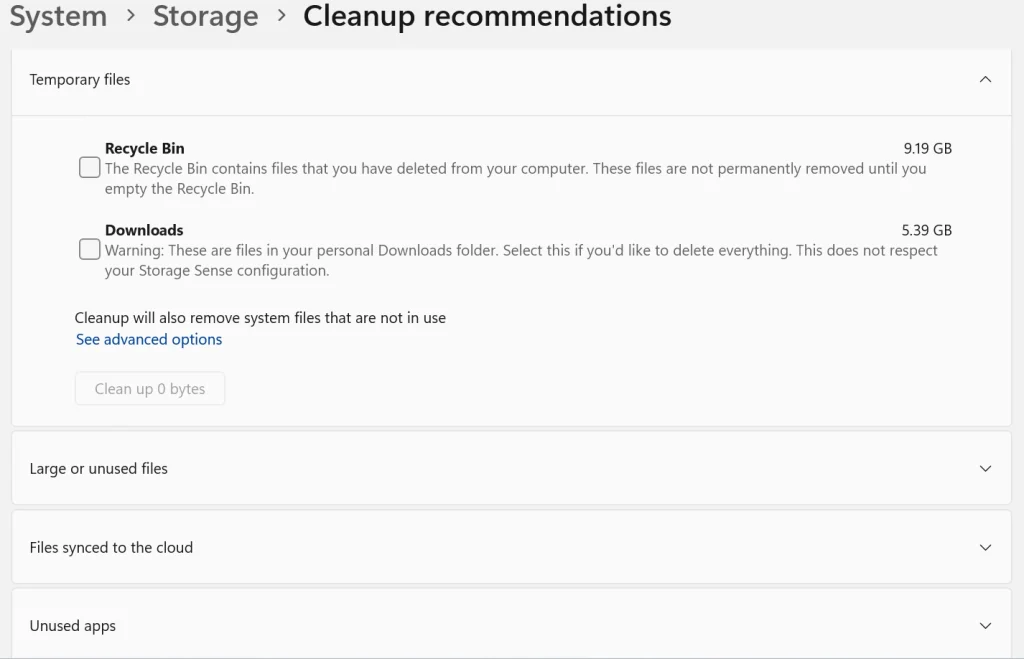
Treat these as recommendations to review, not instructions to select everything.
Microsoft’s Windows storage guidance also recommends reviewing the items Windows identifies before removing them.
Look at each category and make sure you understand what will be removed.
Temporary Files
Temporary files are often one of the better places to start because many exist only to help Windows or applications perform short-term tasks.
Open:
Settings > System > Storage > Temporary files
Windows will calculate what is available for removal.
Read the description beside each category before selecting it. Some entries are straightforward cleanup items, while others — such as previous Windows installation files — have consequences that are worth understanding before you remove them.
For ordinary home users, using Windows’ built-in cleanup tools is safer than opening hidden Temp or Windows folders and manually deleting files.
You usually do not need to search through system folders yourself.
Recycle Bin Contents
Files in the Recycle Bin still use storage.
If you have recently deleted large videos, photos, downloads or other files, the Recycle Bin can sometimes contain a significant amount of data.
Before emptying it:
- Open the Recycle Bin.
- Check that it does not contain anything you still need.
- Restore anything you deleted by mistake.
- Empty the Recycle Bin only when you are satisfied with what is inside.
Once the Recycle Bin has been emptied, recovering a file is much less straightforward, so do not treat this as an automatic cleanup step.
What Should You Check Before Deleting?
Some of the biggest storage savings can come from personal files and installed applications, but these need more care than temporary Windows data.
Downloads and Other Personal Files
Your Downloads folder is not automatically disposable.
It may contain:
- PDFs;
- documents;
- photos;
- software installers;
- downloaded videos;
- files you intended to keep.
Open the folder and review the contents rather than deleting everything at once.
If you recognise a file and know you no longer need it, deleting it may be reasonable.
If you are not sure what a file is, leave it alone until you have checked.
The same applies to Documents, Pictures, Videos and other personal folders.
If you are unsure which files deserve protecting before you start clearing space, What Files Should You Back Up on a Home Computer? explains which personal data is usually most important.
Large or Unused Files
Windows may identify large files that have not been opened recently.
That can be useful, but large does not mean unnecessary.
A family video may take several gigabytes and still be irreplaceable. A large ISO file or installer, on the other hand, may be something you downloaded once and no longer need.
Review large files individually and decide whether to:
- keep them;
- back them up;
- move them to another drive;
- delete them.
Avoid bulk deleting files based only on their size.
Apps You No Longer Use
Installed applications can take substantial amounts of storage.
To review them:
- Open Settings.
- Select Apps.
- Select Installed apps.
- Look for applications you recognise and genuinely no longer use.
If you decide to remove an application, use Windows’ Uninstall option.
Do not browse into Program Files and manually delete an application’s folder. Uninstalling through Windows allows the application to remove its files and associated components properly.
Be cautious with applications or components you do not recognise. Some may belong to Windows, your computer manufacturer, hardware drivers or software you still use.
Previous Windows Installation Files
After a major Windows upgrade, Windows may keep files from the previous installation for a period of time.
These files can occupy a considerable amount of storage.
They may appear under temporary files or storage cleanup options as Previous Windows installation(s).
They can be removable, but there is an important consequence: deleting them can remove your ability to return to the previous Windows version.
Microsoft explains this in its guidance on removing a previous Windows installation.
If your computer has only recently been upgraded and you are unsure whether everything is working properly, do not rush to remove these files just to gain space. In most cases, Windows gives you 10 days after an upgrade to go back to the previous version, and removing the previous installation files can take that option away.
Can OneDrive Free Space Without Deleting Your Files?
If you use OneDrive, some files may be stored both in the cloud and locally on your computer.
That means they can consume storage on your Windows drive even though another copy is stored in OneDrive.
What “Free Up Space” Actually Does
OneDrive Files On-Demand allows some files to remain visible in File Explorer without keeping a full local copy on your PC.
For a suitable OneDrive file or folder, you may be able to right-click it and choose Free up space.
This removes the local copy while keeping the file in OneDrive. The file remains visible and can be downloaded again when you open it, provided you have an internet connection.
Microsoft explains how this works in its OneDrive Files On-Demand guide.
This can be useful if you have a relatively small laptop drive but a large collection of files stored in OneDrive.
Why Deleting a Synced File Is Different
Free up space is not the same as deleting the file.
If you delete a normally synchronised file from a OneDrive folder, that deletion can also synchronise with OneDrive.
That means you should not delete cloud-synchronised files simply because you assume another copy will remain online.
Microsoft explains what happens when you delete files or folders from OneDrive.
If you use OneDrive as part of your storage setup, it is also worth understanding the difference between synchronisation and a separate backup. Is OneDrive Really a Backup? What Home Users Need to Know explains that distinction.
What Should You Not Delete Manually?
When a drive is nearly full, it can be tempting to search for the largest folders and start deleting files.
That is risky when the folders belong to Windows or installed applications.
Windows and System Folders
Do not manually clear files from the Windows folder simply because a storage analyser shows that it is large.
Windows stores operating-system files, updates, components and other data there.
Some individual files or caches inside Windows can be cleaned safely in particular circumstances, but Windows’ own cleanup tools should normally handle that for you.
A large Windows folder is not, by itself, evidence that something is wrong.
Program Files
The Program Files and Program Files (x86) folders normally contain installed applications and their components.
If an application is no longer needed, uninstall it through Windows.
Deleting its folder manually may leave other parts of the program behind and can cause applications or shortcuts to stop working properly.
AppData and Other Unfamiliar Folders
The AppData folder can contain application settings, user-specific data, caches and other files used by installed software.
Some individual applications can build unusually large caches there, but that does not make AppData as a whole a safe cleanup location.
The same principle applies to other unfamiliar hidden or system folders.
If you do not know what a folder is for, its size alone is not a good reason to delete it.
What If the Drive Fills Up Again?
Freeing space should normally give you some breathing room.
If you delete several gigabytes and the drive quickly becomes full again, repeatedly cleaning the same files may not solve the real problem.
Something may be creating new data.
Possible causes include:
- an application generating unusually large temporary files;
- repeated downloads;
- cloud files being downloaded to the PC again;
- Windows or application update files;
- another program continually creating logs, cache files or other data.
Microsoft documents situations where application files can cause temporary storage to grow unexpectedly in its Windows drive-space troubleshooting guidance.
Go back to Settings > System > Storage and check which category is increasing.
If the same category keeps growing, investigate that cause rather than repeatedly deleting unrelated files.
How to Tell What You Should Do Next
Once you know what is using the space, the next step is usually clearer.
| What you find | Sensible next step |
|---|---|
| Mostly temporary files | Use Windows’ built-in cleanup tools |
| Large Recycle Bin | Review the contents, then empty it if appropriate |
| Large Downloads or personal files | Keep, move, back up or delete them individually |
| Installed apps use most of the space | Uninstall applications you genuinely no longer use |
| OneDrive files use substantial local storage | Consider Files On-Demand and Free up space |
| Previous Windows installation is large | Remove it only if you are comfortable losing the rollback option |
| Windows or system folders look unusually large | Do not delete them manually; investigate further |
| Free space disappears again quickly | Find out what is growing before doing more cleanup |
The aim is not to remove as much as possible.
It is to recover useful storage without creating a bigger problem than the one you started with.
When More Storage Might Actually Make Sense
Sometimes a full drive is not caused by clutter at all.
More storage may be worth considering if:
- you genuinely need to keep a large photo or video collection on the computer;
- the applications you regularly use take up most of the drive;
- your normal files comfortably exceed the capacity of the current storage;
- sensible cleanup only recovers a small amount.
But if the drive is full because of temporary data, old downloads or software you no longer use, adding more storage only postpones the same problem.
If you are considering moving important files to backup storage instead of deleting them, How Much Storage Do You Need for a Computer Backup? can help you estimate the capacity you are likely to need.
For most home users, the safest sequence remains the same:
Check what is using the space, clean up the lowest-risk items first, review personal files carefully, and leave unfamiliar system folders alone.