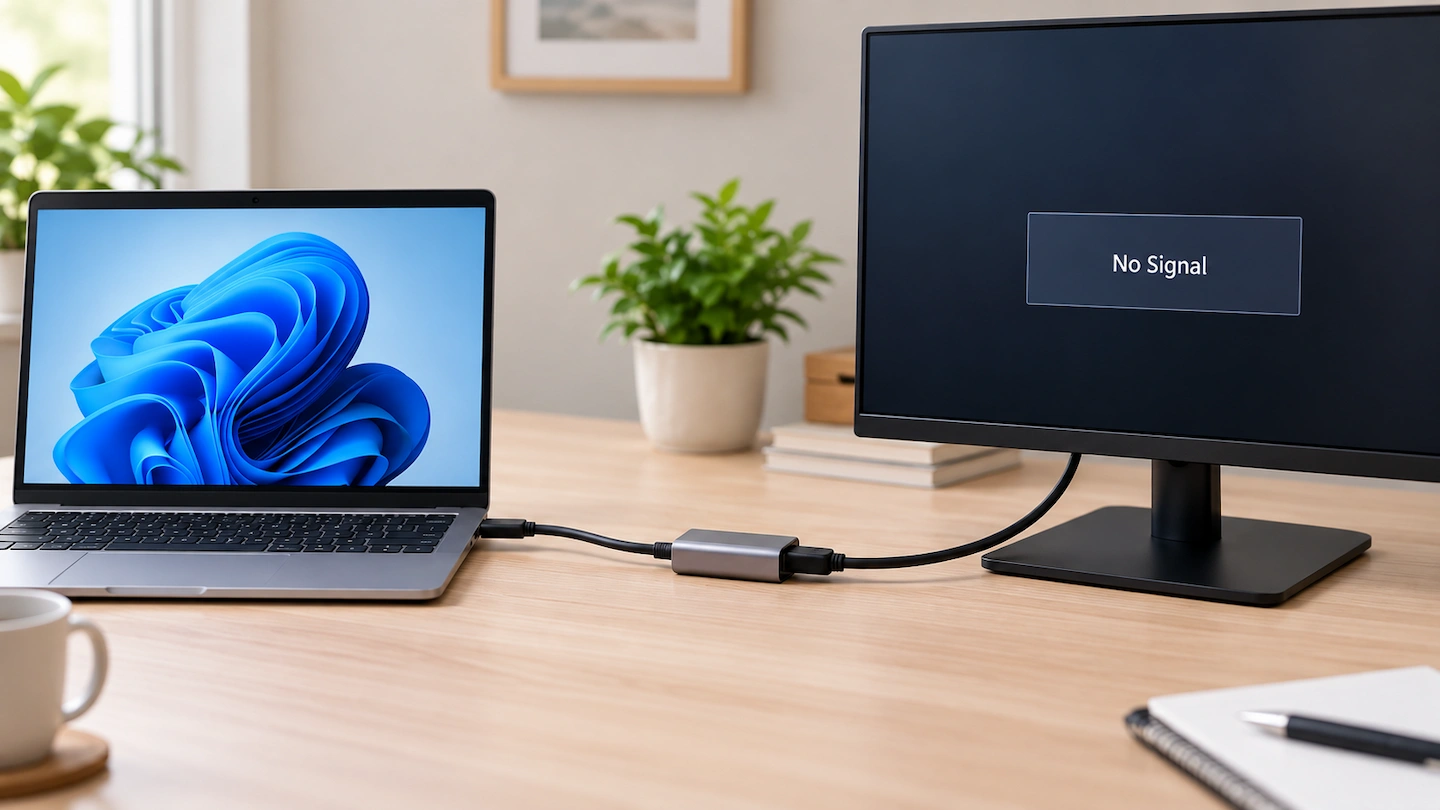
USB-C to HDMI adapter not working? The monitor or TV may show No Signal, stay blank or fail to appear in Windows.
That does not automatically mean the adapter is faulty. The problem could be the USB-C port, the HDMI cable, the display input, the adapter itself or the way Windows is using the external screen.
The best approach is to check each part of the connection in a sensible order rather than replacing things or changing drivers straight away.
Quick answer: If your USB-C-to-HDMI adapter is not working:
- Make sure the monitor or TV is switched to the correct HDMI input.
- Disconnect and firmly reconnect the adapter and HDMI cable.
- Connect the adapter directly to the computer while troubleshooting, without a hub or dock in between.
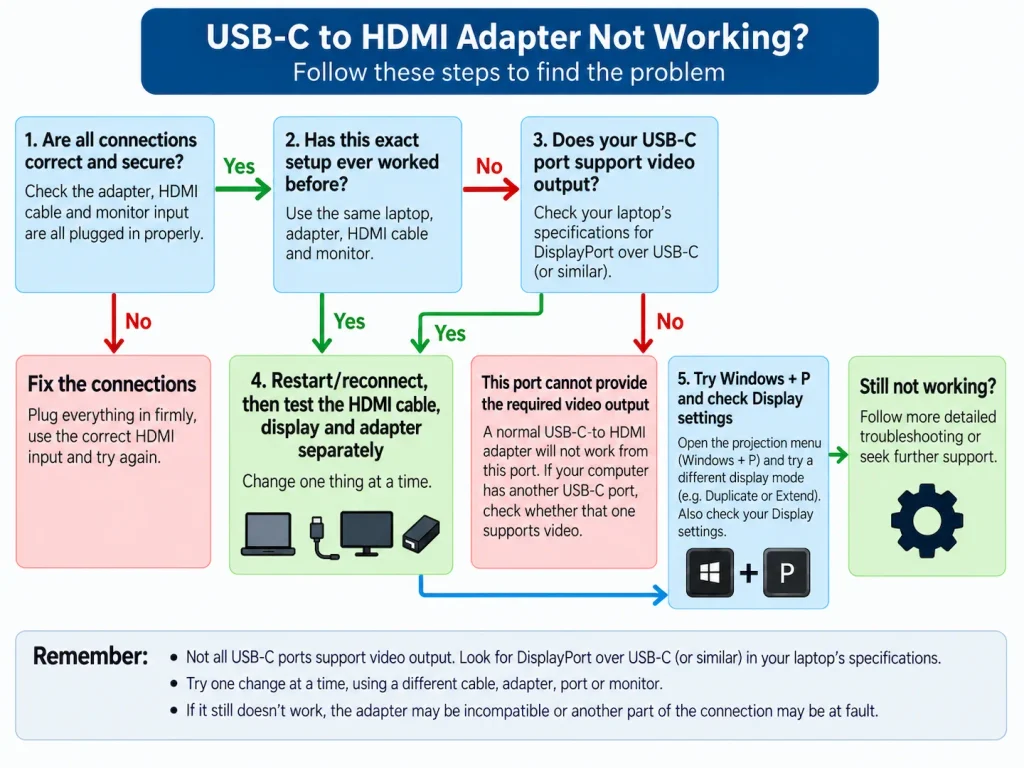
- Ask whether this exact setup has ever worked before.
- If it has never worked, check whether that USB-C port actually supports video output.
- If the port supports video, or the setup previously worked, test the HDMI cable, display and adapter one at a time.
- Only then move on to Windows display settings or more technical troubleshooting.
You usually do not need to start by reinstalling drivers or buying another adapter.
What a USB-C-to-HDMI Adapter Needs to Work
A typical connection looks like this:
Computer → USB-C port → USB-C-to-HDMI adapter → HDMI cable → monitor or TV
Every part of that chain needs to work.
One important point is that USB-C describes the shape of the connector, not everything the port can do. Two laptops can have USB-C sockets that look identical but support different features.
For a conventional USB-C-to-HDMI adapter to provide a picture, the computer’s USB-C connection needs to support a compatible video output, commonly DisplayPort over USB-C. VESA explains that DisplayPort can use the USB-C connector and can then be adapted to HDMI for a compatible display.
If you are not sure about your laptop, see Does My Laptop USB-C Port Support a Monitor? before spending too much time changing cables or Windows settings.
What to Check First
1. Make Sure the Monitor or TV Is Using the Correct HDMI Input
Start with the display itself.
If your monitor or TV has more than one HDMI socket, it may have inputs labelled something like:
- HDMI 1
- HDMI 2
- HDMI 3
Use the display’s Input or Source control and select the HDMI socket that your cable is actually connected to.
This matters because the computer and adapter can be working normally while the screen is simply waiting for a signal from a different input.
2. Reconnect the Adapter and HDMI Cable
Next, rule out a loose connection.
Disconnect the HDMI cable from the adapter, then disconnect the adapter from the computer.
Reconnect both firmly.
Also look for anything obvious such as:
- a connector that does not sit fully in the socket;
- a loose HDMI plug;
- visible damage to the cable or adapter;
- a laptop cover or other obstruction preventing the USB-C plug from going fully into the port.
Do not force a connector that does not fit properly.
3. Connect the Adapter Directly to the Computer
If the USB-C-to-HDMI adapter is currently connected through another device, simplify the setup temporarily.
Remove any:
- USB-C hub;
- docking station;
- extension cable;
- additional converter.
For troubleshooting, use:
Computer → USB-C-to-HDMI adapter → HDMI cable → display
Microsoft recommends connecting a USB-C device or dongle directly to the computer when troubleshooting USB-C compatibility problems.
This does not mean you cannot use your hub or dock later. It simply removes extra possible failure points while you work out what is wrong.
Has This Exact Setup Ever Worked?
This is one of the most useful questions you can ask.
If it has never worked
Check the USB-C port’s video capability before assuming that the adapter, HDMI cable or Windows is faulty.
If it used to work
Basic incompatibility is much less likely.
Move towards reconnecting the equipment, restarting the computer and testing the cable, display and adapter separately.
This distinction can save a lot of unnecessary troubleshooting.
USB-C to HDMI Adapter Not Working? Check the USB-C Port
Check Whether the USB-C Port Supports Video
A USB-C adapter physically fitting into the computer does not prove that the port can send a display signal.
Check the specifications or manual for the exact laptop or computer model and look for wording that confirms external-display support through USB-C.
You may see terms such as:
- DisplayPort over USB-C or DisplayPort Alt Mode;
- support for an external display through USB-C;
- Thunderbolt with display support.
VESA says that DisplayPort over USB-C can connect to HDMI displays using an appropriate adapter. It also confirms that a USB-C port without the required DisplayPort capability will not send video through that route.
Microsoft similarly advises checking that the USB-C port being used supports the correct Alternate Mode for the connected display device.
If the specifications confirm that your USB-C port does not provide compatible video output, stop there.
A conventional USB-C-to-HDMI adapter cannot create a native display output that the computer does not provide.
Try Another USB-C Port If Your Computer Has More Than One
Some computers have several USB-C ports.
Do not assume they all provide exactly the same features just because they look identical.
If your computer has another USB-C socket, check the manufacturer’s specifications to see whether that particular port supports an external display. If it does, try the adapter there.
Check That the Adapter Is Intended for This Connection
The setup covered by this guide is:
USB-C computer → HDMI monitor or TV
Some video converters and cables are designed to work in a particular direction.
If the adapter’s purpose is unclear, check its label, packaging or manufacturer documentation and make sure it is intended to take video from USB-C and send it to an HDMI display.
What About DisplayLink Adapters?
Some USB graphics adapters use technology such as DisplayLink and work differently from a conventional USB-C video adapter.
They may require their own software.
If the manufacturer specifically identifies your adapter as a DisplayLink device, follow its installation instructions rather than assuming that it behaves like a standard USB-C display adapter.
For most ordinary USB-C-to-HDMI adapters, however, there is no reason to start by installing random driver software.
Test the HDMI Cable, Display and Adapter Separately
If the USB-C port supports video, the next goal is to find out which part of the connection is causing the problem.
The most useful rule here is:
Change one thing at a time.
If you replace several parts at once and the screen starts working, you will not know which change solved the problem.
Test the HDMI Cable
If you already have another HDMI device available, use it to test the same cable and display.
For example:
Another HDMI source → same HDMI cable → same monitor or TV
If the screen works normally, the HDMI cable becomes less likely to be the cause.
If it does not work, try a different known-working HDMI cable if one is already available.
Microsoft recommends trying another cable or display when isolating external-monitor connection problems.
You do not need to buy another cable simply to perform this test if you have no suitable spare.
Try Another HDMI Input or Display
If the monitor or TV has another HDMI socket, try moving the cable to that input and select the corresponding source on the display.
If another monitor or TV is readily available, you can also try the setup with that screen.
If the problem now looks more like a general HDMI connection issue, HDMI Connected but Monitor Says No Signal takes you through that side of the troubleshooting in more detail.
Test the USB-C-to-HDMI Adapter
If possible, try the adapter with another computer whose USB-C port is already known to support an external display.
Keep the rest of the connection the same.
If the adapter works on that computer, a completely failed adapter becomes less likely and attention moves back towards the original computer or USB-C port.
Another useful test, if you already have the hardware available, is to connect a known-working compatible USB-C-to-HDMI adapter to the original computer.
If the replacement adapter works in exactly the same setup, the original adapter becomes more suspect.
These results are clues rather than absolute proof, but changing one component at a time usually makes the problem much easier to narrow down.
If the Same Setup Used to Work
If the exact laptop, USB-C port, adapter, HDMI cable and display worked together previously, there is little value in starting by questioning whether the USB-C port supports video.
Instead:
- Disconnect the adapter.
- Restart the computer.
- Switch the monitor or TV off and back on if practical.
- Reconnect the adapter directly to the computer.
- Test the HDMI cable, display and adapter one at a time if the problem remains.
Also think about what changed shortly before the problem started.
For example:
- Was the setup moved?
- Was the HDMI cable changed?
- Did you start using a hub or dock?
- Was the adapter moved to a different USB-C port?
- Was the monitor changed to another input?
- Did Windows or the computer receive an update?
A recent change can be a useful clue, but do not assume an update caused the problem just because one happened recently.
Check What Windows Can See
Once you know that the USB-C port should support the connection and the basic hardware checks have not found the problem, look at Windows.
Try Windows + P
Press:
Windows key + P
A panel should appear with the available display modes.
Try Duplicate or Extend.
Microsoft recommends checking the current projection mode when troubleshooting an external screen.
If the monitor starts working, the physical connection may have been fine and Windows simply was not set to use the external display in the way you expected.
Check Display Settings
In Windows 11, open:
Settings → System → Display
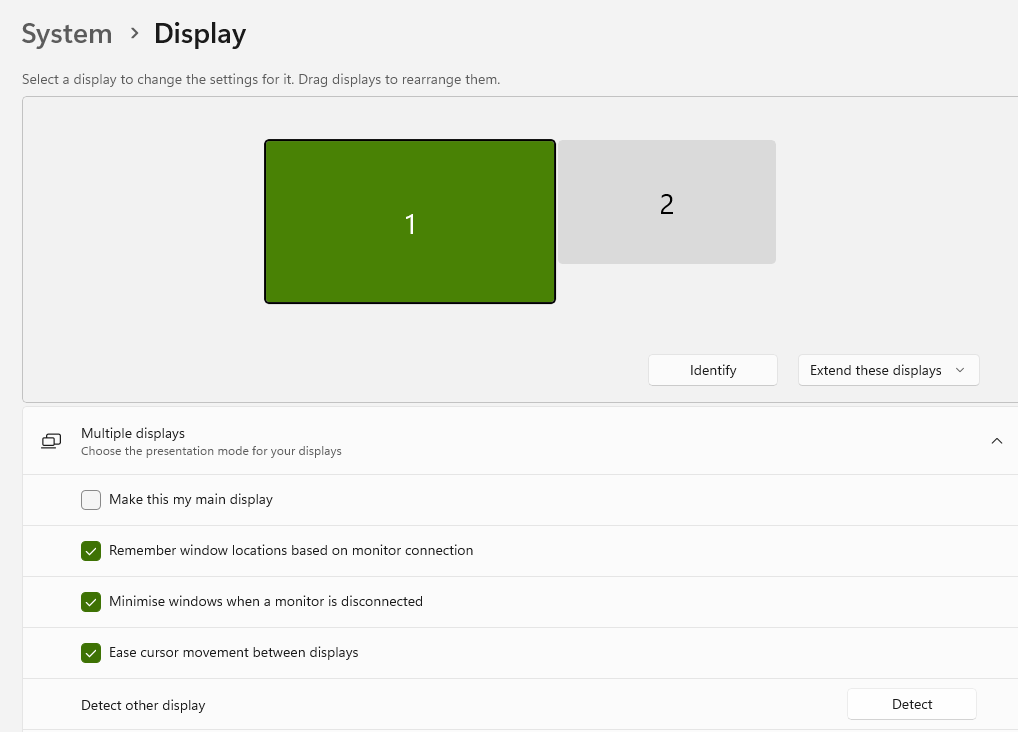
Look at the display diagram near the top of the page.
If Windows recognises two screens, you should normally see two numbered display boxes.
If only one appears, look for the option to detect another display.
The important question at this stage is not just whether the monitor has a picture, but whether Windows can see that another display is connected.
If Windows Sees the Monitor but There Is Still No Picture
If Windows shows the external monitor in Display settings but the screen remains blank or still says No Signal, check the resolution and refresh rate before assuming the adapter has failed.
In Settings → System → Display, select the external display and use the Recommended display resolution where possible.
You can also open Advanced display and check the refresh rate. If a higher refresh rate is selected, temporarily try a lower supported rate, such as 60 Hz, where available.
This can help when the laptop, adapter and display are connected but the selected display mode is more than one part of the connection can reliably handle.
If lowering the resolution or refresh rate makes the picture appear, check the specifications for the adapter and display before choosing the final settings.
If the monitor does show a picture but it flickers, flashes or briefly cuts out, External Monitor Flickering or Cutting Out: What to Check First covers that intermittent display problem in more detail.
If Windows Still Cannot Detect the Monitor
If:
- the USB-C port supports video;
- the HDMI cable and display appear to work;
- the adapter should be compatible;
- but Windows still cannot see the monitor;
the problem has moved beyond basic USB-C-to-HDMI checks.
Continue with Laptop Won’t Detect a Second Monitor: What to Check, which covers Windows detection troubleshooting in more detail.
How to Tell Which Part Is Causing the Problem
Use the tests above to look for a pattern.
| What happens | What it suggests |
|---|---|
| Another HDMI cable works | The original HDMI cable becomes more suspect |
| Another HDMI input works | The original HDMI input may be causing the problem |
| The adapter works on another video-capable computer | Check the original computer or USB-C port more closely |
| Another compatible adapter works on the original computer | The original adapter becomes more suspect |
| The USB-C specifications show no external-display support | A conventional USB-C-to-HDMI adapter is unlikely to work from that port |
| Windows sees the display but the screen remains blank or says No Signal | Check the signal path, display settings, resolution and refresh rate |
| Windows cannot see the display at all | USB-C capability, the connection, adapter or Windows detection still needs isolating |
None of these results should be treated as absolute proof on its own.
The safest conclusion comes from changing one part at a time and looking for a repeatable result.
What Probably Isn’t Worth Doing Yet
There are several advanced fixes that are usually poor starting points for this problem.
Avoid jumping straight to:
- uninstalling graphics drivers;
- third-party driver-updater programs;
- Registry changes;
- BIOS or UEFI changes;
- resetting Windows;
- buying several different adapters;
- replacing the monitor.
None of these can make an incompatible USB-C port suddenly provide the required video output.
They can also add new problems before you have established whether the fault is simply a cable, input or adapter.
If the basic hardware and compatibility checks pass and the setup still fails, official Windows or computer-manufacturer troubleshooting may become appropriate. That is a later step, not the starting point.
When Replacing the Adapter or HDMI Cable Makes Sense
Buying replacement hardware makes sense when your testing gives you a reason.
Consider Replacing the HDMI Cable If:
- another HDMI cable works reliably in exactly the same setup; or
- the original cable or connector is visibly damaged or loose.
Consider Replacing the USB-C-to-HDMI Adapter If:
- the USB-C port is confirmed to support a suitable video output;
- the HDMI cable and display are known to work;
- another compatible adapter works with the original computer; or
- the suspect adapter repeatedly fails with another compatible computer.
Do not buy another conventional USB-C-to-HDMI adapter simply because the first one produces no picture if you have not yet confirmed that the computer’s USB-C port supports an external display.
If the port cannot provide compatible video output, replacing the adapter with another similar one will not solve that limitation.
Frequently Asked Questions
Do All USB-C Ports Work With HDMI Adapters?
No.
USB-C describes the connector, but USB-C ports can support different capabilities. A conventional USB-C-to-HDMI adapter needs the computer to provide a compatible video output through that port.
Check the specifications for your exact laptop or computer model rather than relying on the shape of the connector alone.
Does a USB-C-to-HDMI Adapter Need a Driver?
Many conventional USB-C-to-HDMI display adapters do not require a separate adapter driver because they use video capability already provided by the computer.
However, some USB graphics adapters use technologies such as DisplayLink and may require specific software.
Check the manufacturer’s instructions for your particular adapter rather than installing generic driver software.
Why Does My USB-C-to-HDMI Adapter Work on One Laptop but Not Another?
The two USB-C ports may look identical while supporting different features.
If the adapter works on one computer but not another, check whether the second computer’s USB-C port supports an external display.
A successful test on another compatible computer makes a completely failed adapter less likely, but it does not guarantee that the adapter will work with every USB-C computer.