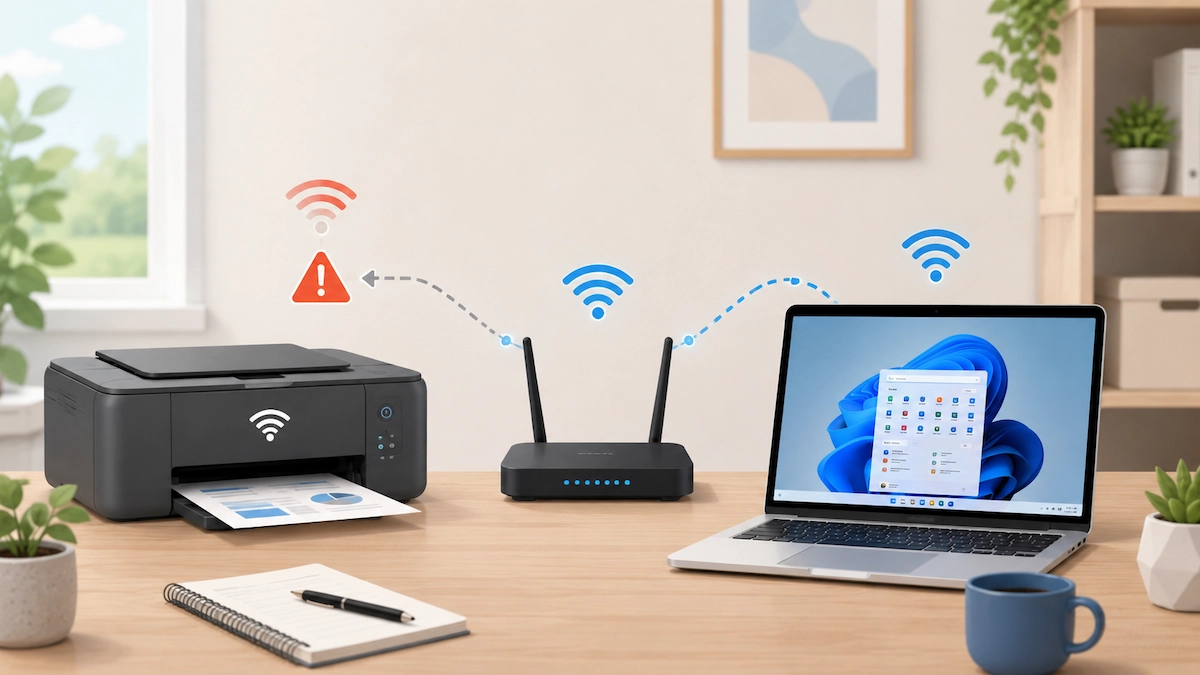
If your Wi-Fi printer works normally and then keeps going Offline again, repeatedly restarting it may get you printing without explaining why the problem keeps returning.
The most useful approach is to check what still works at the moment the fault happens. That can help you work out whether the recurring problem is with the printer’s Wi-Fi connection, communication across your home network, or one computer’s connection to the printer.
Quick answer: When your Wi-Fi printer goes Offline again, first check whether the printer itself is still connected to Wi-Fi. Then, if possible, try another phone, tablet or computer that already uses the printer. If every device loses access, concentrate on the printer or network. If another device can still print, concentrate on the affected computer. Leave IP-address changes, printer-port changes and resets until these simpler checks have narrowed down the cause.
What it usually means when a Wi-Fi printer keeps going Offline
An Offline message does not automatically mean the printer itself is broken.
It usually means that the device trying to print cannot currently communicate with the printer in the way it expects. Microsoft and printer manufacturers therefore include both network checks and computer-side checks when troubleshooting an Offline printer.
With a recurring problem, there are three broad possibilities:
- the printer itself keeps losing its Wi-Fi connection;
- the printer stays on Wi-Fi, but devices on the network lose access to it;
- the printer and network continue working, but one computer loses its usable connection to the printer.
You do not need to troubleshoot all three possibilities at once. The first job is to narrow down which one fits what is happening in your home.
Check what happens when the problem returns
Try to make the following checks while the printer is actually showing Offline or refusing to print.
If you restart the printer, router or computer immediately, you may restore the connection — but you can also remove some of the clues that would have helped identify where the problem was.
A useful troubleshooting habit with recurring faults is to check what still works at the moment of failure before changing anything.
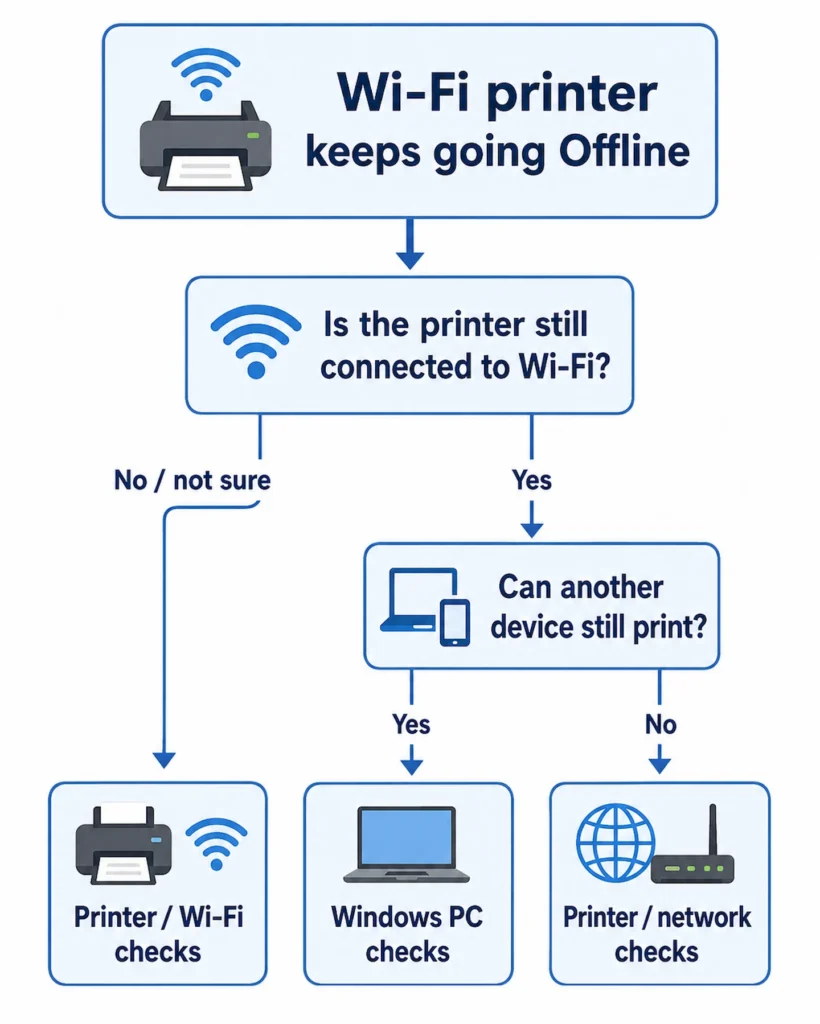
Is the printer itself still connected to Wi-Fi?
Look at the printer first.
Depending on the model, you may be able to check its wireless connection using:
- a Wi-Fi or wireless indicator;
- the printer’s screen or network menu;
- the manufacturer’s printer app;
- a network-status or wireless test report.
The exact method varies by printer, so use the manual or official support page for your model if the connection status is not obvious.
If the printer has clearly lost Wi-Fi, move to If the printer itself keeps losing Wi-Fi below.
If it still appears connected, continue to the next check.
Can another device that already uses the printer still print?
If you have another computer, phone or tablet that has successfully used this printer before, try printing from it while the problem is happening.
Do not spend time installing the printer on a completely new device just for this test. It is most useful when another device is already set up and known to work.
If another device can print, the printer is still communicating with at least part of your network. That makes a problem limited to the affected computer more likely.
If no device can print, the problem points more towards the printer or its connection to the home network.
This does not prove exactly what is wrong, but it tells you where to concentrate next instead of changing settings at random.
| What happens | Where to focus next |
|---|---|
| Printer has lost Wi-Fi | Printer / Wi-Fi connection |
| Printer has Wi-Fi but no device can print | Printer / network communication |
| Another device can print normally | Affected computer / Windows |
| No second device is available | Check the printer’s own network status |
Does the problem follow a pattern?
Also notice when the printer tends to become unavailable.
For example:
- after it has been idle for a while;
- after the printer restarts;
- after the router restarts;
- after the computer restarts;
- only from one particular computer;
- after the printer was moved;
- after a router or Wi-Fi change.
Treat these as clues rather than diagnoses.
For example, a printer becoming unavailable after being idle does not automatically mean that sleep mode should be disabled. What matters is whether the printer is also losing its network connection when that happens.
If the printer itself keeps losing Wi-Fi
If the printer is no longer connected to Wi-Fi when the fault occurs, concentrate on that connection before changing Windows.
Confirm it reconnects to the expected home Wi-Fi
Check the network name shown by the printer, where your model allows this.
Make sure it is using the home network you expect rather than:
- an old network name;
- a guest network;
- another saved wireless network.
Your computer and printer need to be able to communicate across the same usable home network.
If the printer says it is connected but your computer can’t find the Wi-Fi printer at all, that is a slightly different discovery problem and is better handled separately rather than repeatedly reinstalling it.
Check whether Wi-Fi strength could be contributing
If the printer is some distance from the router, consider whether location could be part of the pattern.
For example:
- is the printer several rooms away?
- is it on another floor?
- are there thick walls or large obstacles between it and the router?
- does the connection become more reliable if the printer is moved closer, where that is practical?
If Wi-Fi is also unreliable elsewhere in that part of your home, our guide to Wi-Fi working downstairs but not upstairs may help you investigate the wider coverage problem.
Do not start changing router channels, splitting wireless bands or buying new networking equipment solely because a printer has gone Offline.
Check the printer’s network-status or configuration report
If the connection problem keeps returning, the printer’s own network information can be more useful than the Offline message in Windows.
Many printers can display or print some form of:
- network-status page;
- network configuration report;
- wireless test report.
The name and method vary by manufacturer and model.
These reports may show:
- whether the printer thinks Wi-Fi is connected;
- the network name, where available;
- signal strength, where supported;
- whether the printer has been given an IP address.
You do not need to start changing the IP address just because you can see one.
Why this matters: the report tells you what the printer itself thinks is happening on the network, rather than relying only on Windows’ view of the connection.
If no device can reach the printer
Suppose the printer still appears to have Wi-Fi, but your computer, phone and other previously working devices all lose access to it.
That makes a shared printer or network communication problem more likely than a fault limited to one Windows PC.
Start with the least disruptive checks.
Restart the printer normally
Switch the printer off normally, wait for it to shut down, then turn it back on and allow time for Wi-Fi to reconnect.
A normal restart is a reasonable low-risk troubleshooting step.
If printing returns, note that result — but remember that a restart fixing the symptom does not tell you why it keeps happening.
Think about what changed recently
Recurring connection problems are particularly worth comparing with recent changes such as:
- a new router;
- a changed Wi-Fi name or password;
- adding or moving an extender or mesh unit;
- moving the printer;
- reconnecting the printer to Wi-Fi.
If the printer started dropping out shortly after one of these changes, investigate that relationship before changing unrelated Windows settings.
If several devices in the home are also experiencing Wi-Fi problems, the issue may be wider than the printer. If everything else on the network is working normally, keep your troubleshooting focused on the printer for now.
Use the manufacturer’s network diagnostic tools
If the printer’s own status report has not explained the problem, check the official support page for the exact model.
Some manufacturers provide wireless tests, connection diagnostics or model-specific troubleshooting procedures.
Use the manufacturer’s official support site rather than downloading a generic “printer repair” utility from an unrelated website.
If another device works but your Windows PC says Offline
If another device can print at the same moment that your Windows PC says the printer is Offline, avoid changing the router or printer’s Wi-Fi settings for now.
The evidence points more strongly towards that computer or the printer connection Windows is using.
Start by checking:
- Windows is using the expected printer entry;
- there is not an obvious duplicate or old printer entry;
- the print queue is not stuck or paused;
- Microsoft’s printer troubleshooter in the Get Help app does not identify a problem;
- official software or driver updates are available for your exact printer model.
If the problem remains limited to that PC, our guide to printer offline but connected to Wi-Fi covers the Windows-side troubleshooting sequence in more detail.
Do not install a third-party driver updater or “printer repair” utility simply because the printer occasionally goes Offline.
If restarting the printer fixes it only temporarily
A restart temporarily restoring printing tells you that the problem is recoverable. It does not tell you why the problem keeps returning.
The next time the fault appears, try to check what is still working before restarting anything.
That observation is usually more useful than repeatedly applying the same temporary fix.
When the printer’s IP address or Windows port becomes relevant
A Wi-Fi printer normally has an IP address that identifies it on your home network. Windows also needs a working printer connection that reaches the right device.
If those details no longer line up correctly, the printer can sometimes become unavailable even though it is still connected to Wi-Fi.
However, this does not mean that every printer that goes Offline needs a manually assigned static IP address.
Consider IP-address or printer-port troubleshooting only when the earlier checks give you a reason to look there — for example:
- the printer remains connected to Wi-Fi;
- the problem repeatedly returns;
- its network report shows unexpected addressing information;
- manufacturer guidance for your model directs you towards its network or Windows printer-port configuration.
At that point, follow the instructions for your exact printer and router rather than applying a universal static-IP tutorial.
Why this matters: changing network addressing without establishing that it is part of the fault can turn a recurring printer problem into a wider configuration problem.
Check manufacturer updates if the problem still returns
If the basic printer, network and Windows checks have not explained the recurring fault, check the official support page for your exact model.
Depending on the printer, relevant updates may include:
- printer firmware;
- manufacturer printer software;
- Windows printer drivers;
- model-specific connection utilities.
Treat updates as a later troubleshooting step, not proof that outdated software caused the problem.
If you update printer firmware, follow the manufacturer’s instructions carefully and do not interrupt the update once it has started.
What probably isn’t worth changing yet
Recurring printer problems can tempt you to change several settings at once. That usually makes it harder to tell which change helped — or which one created a new problem.
Unless your diagnosis or the manufacturer’s documentation gives you a specific reason, avoid using these as early fixes:
- assigning a manual or static IP address;
- changing Windows printer ports at random;
- disabling printer sleep or power-saving features;
- splitting 2.4 GHz and 5 GHz Wi-Fi networks;
- changing router channels;
- turning off firewall or antivirus protection;
- running a full Windows network reset;
- repeatedly removing and reinstalling the printer;
- resetting the printer’s network settings;
- factory-resetting the printer;
- factory-resetting the router.
Some of these can be legitimate troubleshooting steps in specific situations. They are simply poor first steps for a recurring Offline message.
If your printer is simply Offline right now
If this is the first time the printer has shown Offline and your main goal is simply to get it printing again, start with our guide to printer offline but connected to Wi-Fi.
That covers the immediate printer, network and Windows checks.
This guide is intended for the slightly different situation where you get the printer working, only for the Offline problem to keep returning.
If Windows cannot see the printer at all rather than showing an installed printer as Offline, see printer connected to Wi-Fi but computer can’t find it instead.
Does a Wi-Fi printer that keeps going Offline need replacing?
Usually, an Offline message on its own is not enough reason to replace a printer.
If the printer still works after restarting or can still print from another device, there is good reason to investigate its network or computer connection before assuming the hardware has failed.
Replacement or repair becomes more reasonable when there is stronger evidence of a printer fault, such as:
- persistent printer-side hardware errors;
- the printer repeatedly failing to maintain its own network connection after appropriate manufacturer troubleshooting;
- a confirmed hardware fault;
- repair costs that no longer make sense for the age and value of the printer.
If the evidence still points towards Wi-Fi, network addressing or one Windows PC, replacing the printer may leave the original cause untouched.