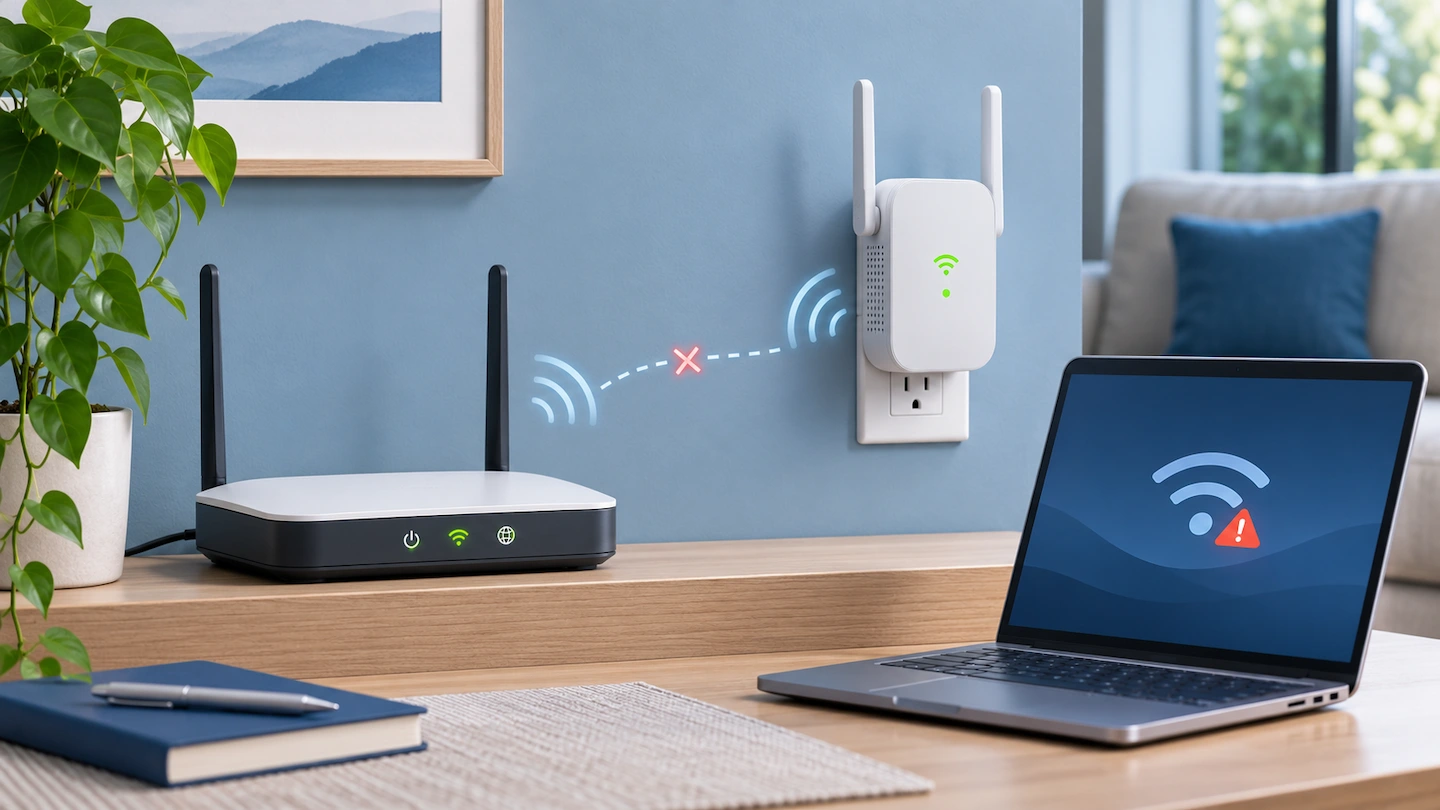
If your Wi-Fi extender is connected but has no internet, it does not necessarily mean the extender is faulty. Your phone or laptop may connect to its Wi-Fi signal even when the extender cannot provide a working internet connection.
The best starting point is to find out whether the problem comes from your main router, the extender or the device you are using. A few simple checks can help you narrow this down without changing advanced settings or resetting everything.
Quick answer: First, check whether the internet works when you connect directly to your main router. If it does, try another device through the extender and check whether the extender has a working connection to the router. You may also need to move it closer to the router. Do not factory-reset the extender or change advanced network settings until you have tried these simpler checks.
Why Your Wi-Fi Extender Can Connect Without Internet
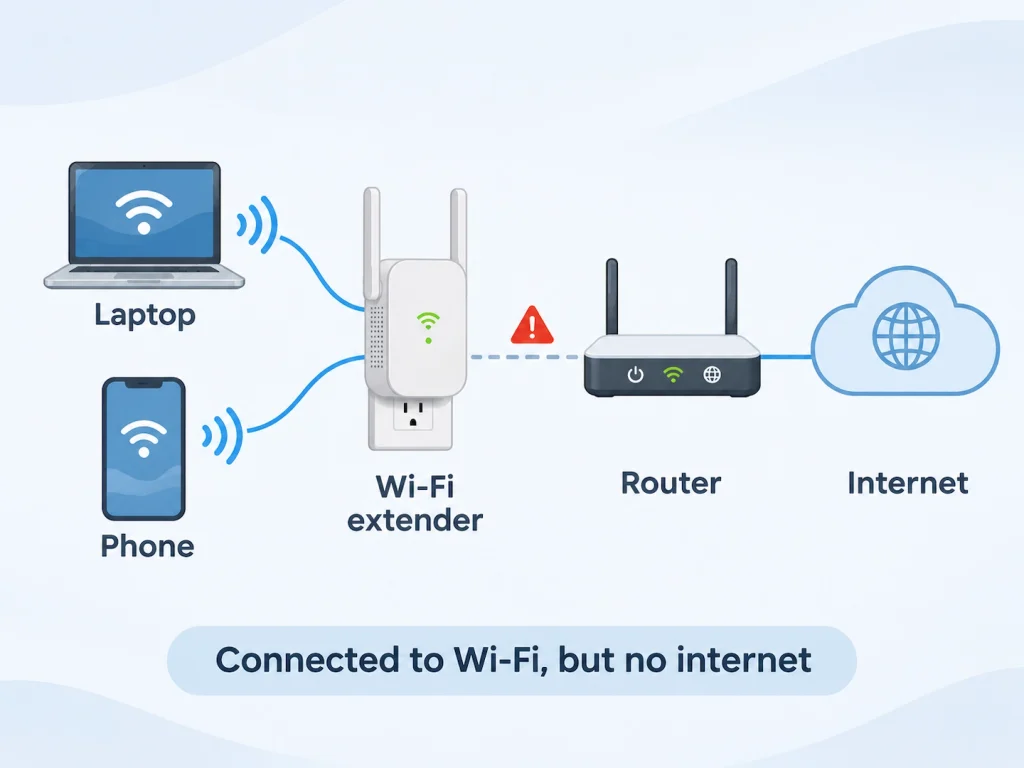
A Wi-Fi extender normally receives a wireless signal from your main router and provides Wi-Fi coverage farther into your home.
For internet access to work, several connections need to be working:
- Your phone, laptop or other device connects to the extender.
- The extender maintains a connection to the main router.
- The router has a working internet connection through your broadband service.
If one of these connections fails, your device may still show that it is connected to Wi-Fi.
For example, an extender might provide a strong Wi-Fi signal in an upstairs bedroom while its connection back to the downstairs router is too weak or has stopped working.
This is why a strong Wi-Fi signal does not always mean you have internet access.
Some extenders can also operate as wired access points, using an Ethernet cable to connect to the router rather than a wireless link. The checks for that connection are slightly different.
The aim is to identify which part of the connection needs attention before making changes.
What to Check First
Before restarting equipment or changing settings, establish whether the problem affects your whole home network or only devices using the extender.
Start with three questions:
- Does the internet work when you connect directly to the main router?
- Do other devices have the same problem when using the extender?
- Does the extender show that it has a working connection to the router?
Also, try opening more than one unrelated website. If only one website or app fails while everything else works, the problem may be with that service rather than your Wi-Fi extender.
You do not need to understand technical network settings to carry out these initial checks.
1. Check Whether the Main Router Has Internet Access
This is the most useful first test because a Wi-Fi extender relies on the main router’s internet connection.
Choose a phone, tablet or computer and connect it directly to the router, rather than through the extender.
If possible, test near the router using a connection you know is direct. An Ethernet connection can also help if your equipment supports one.
Important: Some extenders use the same Wi-Fi network name as the main router. In that situation, selecting the network name does not necessarily prove which device you are connected to.
If necessary and practical, you can temporarily switch off the extender to confirm that your test device is connecting directly to the router. This will briefly interrupt connections for any devices using the extender. Do not press its Reset button.
With the extender switched off, check that your test device is connected to the main router’s Wi-Fi before opening any websites.
Once you have confirmed the connection:
- Open two or three unrelated websites.
- Check whether they load normally.
- If you are testing with a phone, make sure it is using Wi-Fi rather than mobile data.
If the Internet Does Not Work Through the Router
The extender may not be responsible.
The problem could involve the router, broadband connection or internet provider.
In that situation, our Wi-Fi Connected but No Internet: Is It the PC or the Router? guide can help you investigate the wider connection.
There is little benefit in changing the extender’s settings while the main internet connection is unavailable.
If the Internet Works Through the Router
You have established that the main router can provide internet access.
The next step is to find out whether the problem affects one device using the extender or several devices.
2. Check Whether Other Devices Have the Same Problem
If your laptop cannot access the internet through the extender, try a phone or tablet as well.
Ideally, use another device that normally works reliably on your home Wi-Fi.
Make sure both devices are using the extender’s connection. This is easier when the extender has a separate network name, but some models share the router’s network name.
If you cannot tell which access point a device is using, check whether your extender’s app or management page provides a connected-device list. Availability varies by model.
Then compare the results.
If Only One Device Has No Internet
If another device works normally through the extender, the problem may involve the affected phone or computer.
A sensible next step is to disconnect and reconnect that device to Wi-Fi.
You could also restart the affected device normally.
There is no reason to factory-reset the extender simply because one device is having trouble while another works.
If Several Devices Have No Internet
If two or more devices cannot access the internet through the extender, but the main router works normally, the shared connection through the extender becomes the more useful place to investigate.
Continue with the next check.
3. Check the Extender’s Connection to the Router
Many Wi-Fi extenders have indicator lights showing their connection status. Some also provide more detailed information through an app or web-based management page.
These indicators can help you determine whether the extender has established a connection to the main router.
However, do not assume that a particular light colour means the same thing on every extender.
Different manufacturers use different indicators, and some models have separate lights for power, wireless signal and router connectivity.
Look for information described in your extender’s instructions as:
- Router connection.
- Signal strength.
- Connection status.
- Extended network status.
A normal-looking connection indicator is useful information, but it does not guarantee that internet access is working.
If your extender is made by TP-Link, its official range extender troubleshooting guidance provides additional checks for supported models.
For other manufacturers, use the instructions for your exact model.
If the Extender Is Not Connected to the Router
The problem may involve its position, saved network details or configuration.
Before changing settings, try the positioning check below.
If the Extender Appears Connected
Continue testing rather than assuming everything is working.
The extender may have a connection to the router without providing usable internet access to your devices.
4. Try Moving the Extender Closer to the Router
A common difficulty with wireless extenders is finding a position that provides useful coverage while still receiving a reliable signal from the main router.
If the extender is too far away, it may provide Wi-Fi coverage without having a dependable connection back to the router.
For a temporary test:
- Unplug the extender from its current location.
- Move it to a suitable socket closer to the main router.
- Allow it to start and reconnect.
- Check its connection indicator or status information.
- Test internet access through the extender again.
Make sure you are actually testing the extender rather than connecting directly to the router, particularly if they share the same network name.
If internet access works when the extender is nearer the router, but fails in its original position, that suggests the wireless link between the router and extender may be too weak or unreliable.
You may need to find a better position between the router and the room where you want improved coverage.
Our guide to where to put a Wi-Fi extender explains how to choose a suitable location without simply moving it into the weakest part of the house.
NETGEAR also provides official guidance on Wi-Fi extender placement.
If moving the extender makes no difference, return it to a sensible position and continue with the next check.
Note: This positioning test applies to extenders using a wireless connection back to the router. If your extender is operating as a wired access point, check its Ethernet connection instead.
5. Check for Recent Router or Network Changes
Think about whether anything changed shortly before the problem started.
For example:
- You replaced your main router.
- Your broadband provider supplied new equipment.
- The router’s Wi-Fi name or password changed.
- You changed the extender’s settings.
- The extender was moved or connected differently.
An extender may still have saved details from an earlier network configuration.
If the router has been replaced or its Wi-Fi settings have changed, the extender may need to be connected or configured again.
Use the setup instructions for your particular model rather than trying random router settings.
If Your Extender Uses an Ethernet Cable
Some extenders support an access-point mode where they receive their network connection through Ethernet.
If yours is configured this way, check that the cable is firmly connected at both ends and that it has not become damaged or disconnected.
You can also check whether the device’s status page reports a working wired connection.
Moving a wired access point closer to the router is not the relevant test unless you are also changing the cable connection.
Do not change the operating mode simply as an experiment. Doing so may disconnect devices and require further configuration.
6. Restart the Extender If the Problem Continues
If the main router works, several devices are affected through the extender and the earlier checks have not helped, a normal restart is reasonable.
For a plug-in extender, this may involve switching off its power, waiting briefly and switching it on again.
Follow the manufacturer’s normal restart instructions if your model uses a different procedure.
After restarting:
- Allow the extender to finish starting.
- Wait for it to reconnect to the main router.
- Check its connection status.
- Try accessing the internet through it again.
A restart can allow the extender to establish a fresh connection without deliberately removing its saved settings.
Restarting is not the same as factory-resetting.
Do not hold down a Reset button or select a factory-reset option as part of an ordinary restart.
A factory reset removes configuration settings and may require you to set up the extender again.
Also, never interrupt the device while a firmware update is in progress.
Further Checks If the Extender Still Has No Internet
If you have tried the simple checks and still cannot access the internet through the extender, the next steps depend on its model and configuration.
There is no universal advanced setting that should be changed on every extender.
Check the Manufacturer’s Connection Status
If your extender provides a management app or settings page, look for information about its connection to the main router.
Depending on the model, this may show whether the extender has connected to the intended network and whether it has received suitable network information.
Follow the official documentation for your device.
If the extender reports that it cannot connect to the router, concentrate on its saved connection details and the relevant setup instructions.
If it shows a router connection but connected devices still have no internet, further manufacturer-specific troubleshooting may be necessary.
Check Advanced Network Settings Only If Necessary
Some connection failures involve settings such as IP addresses, DHCP or network access restrictions.
An IP address helps identify a device on the local network. DHCP is commonly used to provide those network details automatically.
Incorrect settings can sometimes cause connectivity problems, but there is no reason to assume they are responsible for every extender failure.
Do not start changing address ranges, disabling DHCP or altering router security settings unless the evidence and official instructions support those changes.
If your extender has a specific error message, the manufacturer’s support information may help you identify the relevant next step.
Firmware updates should also be handled carefully. Use only firmware intended for the exact model and hardware version, and follow the manufacturer’s instructions.
For many home users, contacting the manufacturer’s support team is preferable to making unfamiliar advanced network changes.
How to Tell Where the Problem Is
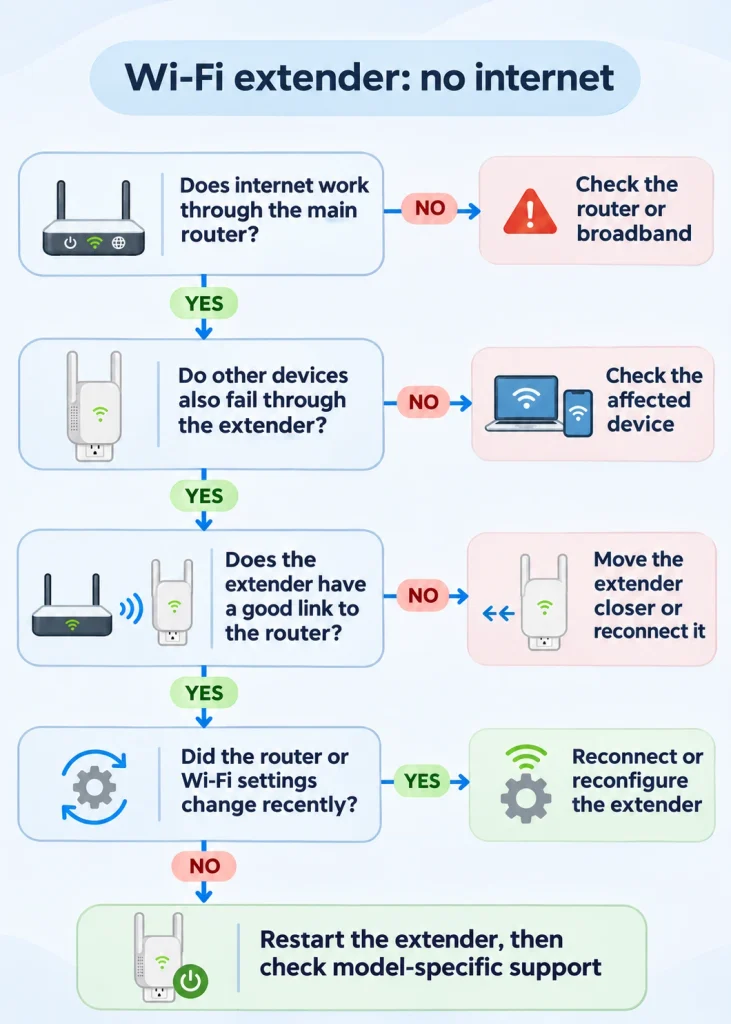
The results of the earlier checks should help you decide where to concentrate next.
| What you find | Where to investigate |
|---|---|
| Internet also fails directly through the router | Router, broadband connection or internet provider |
| Only one device fails through the extender | The affected device or its connection |
| Several devices fail through the extender, but the router works | Extender connection or configuration |
| The extender works nearer the router but not in its original location | Wireless signal between router and extender |
| Problems began after a router replacement | Extender setup and saved network details |
| A wired access point has lost connectivity | Ethernet connection or access-point configuration |
These results provide clues rather than guaranteed diagnoses.
For example, if several devices cannot get online through the extender, that makes a shared connection issue more likely. It does not automatically prove that the extender itself is faulty.
The aim is to narrow the problem down before taking more disruptive action.
When Resetting or Replacing the Extender Might Make Sense
A Wi-Fi extender that temporarily loses internet access does not necessarily need replacing.
Before spending money, check that:
- The main router has a working internet connection.
- The extender is positioned where it can receive a usable signal.
- The problem is not limited to one device.
- The extender is configured for your current router and connection method.
- The manufacturer’s recommended troubleshooting has been followed.
When a Factory Reset Might Be Justified
A factory reset may be worth considering if the extender’s configuration is no longer usable and the manufacturer recommends resetting it before setting it up again.
However, a factory reset removes saved settings.
You may need to reconnect the extender to your router, enter network details and reconnect devices afterwards.
Do not reset it unless you know how to set it up again and have the necessary network information.
When Replacement Might Be Reasonable
Replacement becomes more reasonable if the extender repeatedly fails despite a verified working router connection, suitable positioning and correct configuration.
It may also be appropriate if the manufacturer identifies a hardware fault or the device is no longer adequately supported.
Even then, you do not automatically need a more expensive system.
If your problem is mainly unreliable coverage in one room, investigate the positioning and connection before buying anything.
If several rooms or floors consistently have poor Wi-Fi coverage, our mesh Wi-Fi vs Wi-Fi extender comparison can help you decide whether a different approach is worthwhile.
The main thing to remember: When a Wi-Fi extender connects but has no internet, start by checking the main router, comparing devices and confirming the extender’s connection. Those simple tests can help you identify the next sensible step without unnecessary resets, complicated settings or replacement purchases.