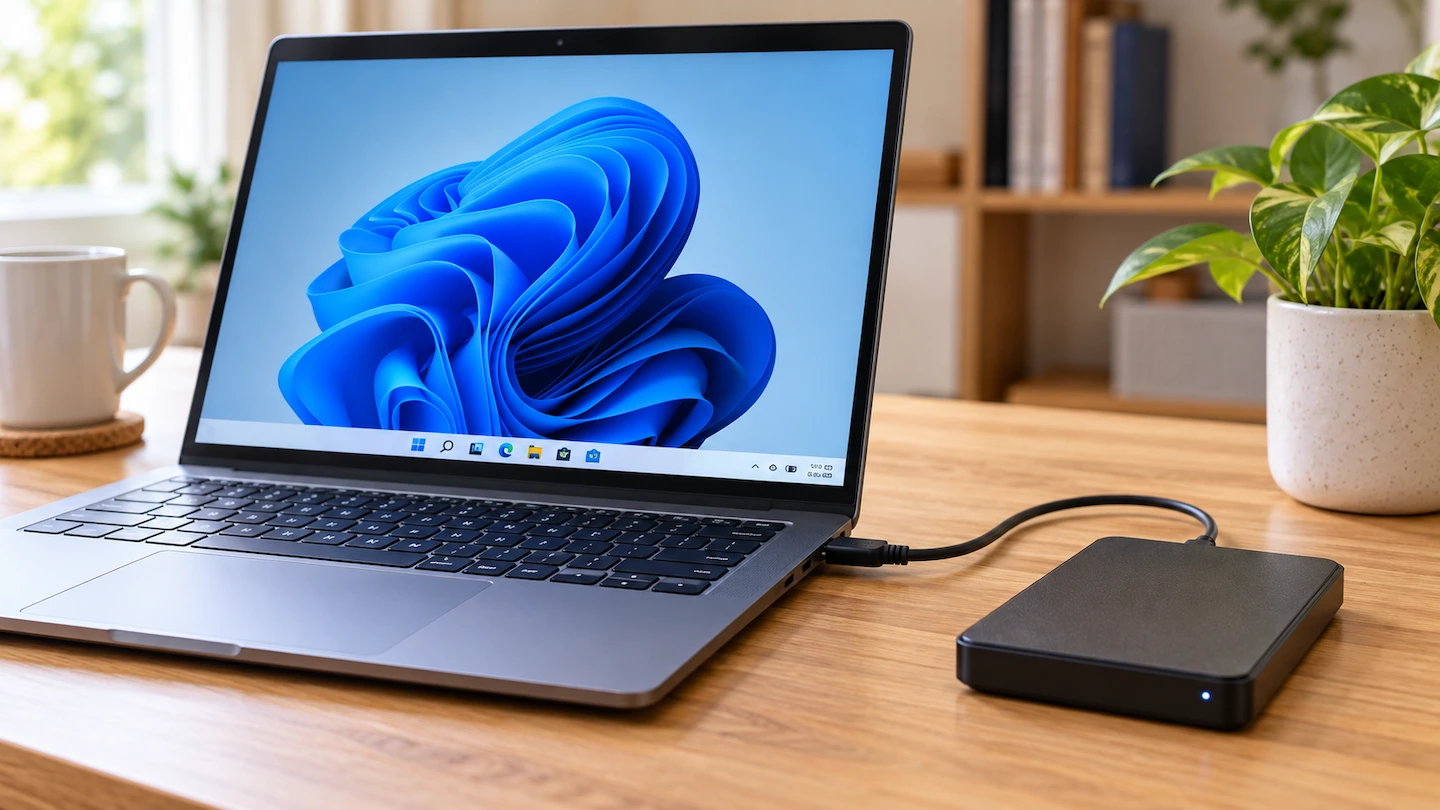
If you’re wondering whether to leave an external backup drive connected to your computer, the answer depends mainly on how you make your backups. But disconnecting the drive when it is not being used gives your backup more separation from problems that affect the computer.
For most home users, the right choice depends on how the drive is being used. Someone who makes a manual backup once a week has different needs from someone who relies on automatic backups throughout the day.
Quick answer: If you make manual backups, it usually makes sense to disconnect the external drive after the backup has finished and you have checked that your files are there.
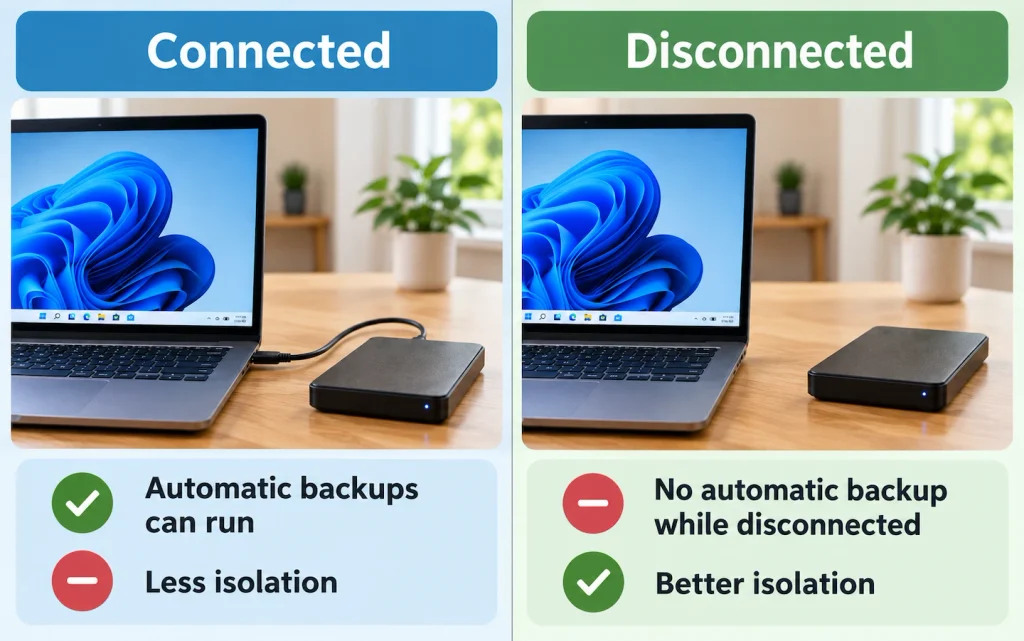
If you rely on automatic backups, the drive needs to be available when those backups run. Leaving it connected is more convenient, but it also means the backup has less physical separation from the computer.
A useful way to think about the choice is:
Connected = easier automatic backups.
Disconnected = better isolation.
Neither approach is perfect. The important thing is to have backups that are recent enough to be useful while giving important files sensible protection.
Why disconnecting a backup drive can be safer
An external drive provides useful separation from your computer when it is physically disconnected.
If the drive remains connected and accessible, some problems affecting the computer could potentially affect files on the external drive as well. Ransomware is one example: malicious software may attempt to encrypt files on storage that the computer can access.
The UK’s National Cyber Security Centre (NCSC) recommends disconnecting removable backup media when it is not being used.
This does not mean that leaving a backup drive connected guarantees that something will happen to it. Nor does disconnecting the drive make your backup indestructible.
It simply provides useful isolation. While the drive is disconnected, a problem on the computer cannot normally access it in the same way as an attached drive.
Why you might leave the backup drive connected
Disconnecting a backup drive sounds straightforward until you consider how the backups are actually being made.
Automatic backup software needs access to its backup destination when a backup is due to run. If the external drive is sitting disconnected in a drawer, the software cannot write a new backup to it.
For example, Microsoft’s File History can save copies of personal files to an external drive or network location. If its external drive is unavailable, it needs to become available again before backups can continue. Microsoft’s File History guidance explains how the feature works with an external drive.
Keeping the drive connected therefore has a genuine advantage: your backups can happen without you having to remember to connect it each time.
That matters.
A disconnected backup may have better isolation, but that advantage becomes less useful if you forget to reconnect the drive and your most recent backup is several months old.
The aim is not simply to disconnect the drive. It is to find a routine that gives you useful protection and that you will actually maintain.
What should you do if you make backups manually?
If you connect an external drive specifically when you want to make a backup, there is usually little reason to leave that drive connected afterwards.
A sensible routine is:
- Connect the external drive.
- Make your backup.
- Wait for the backup or file copy to finish completely.
- Check that the expected files or backup are on the drive.
- Eject the drive properly in Windows.
- Disconnect it and keep it somewhere sensible.
- Reconnect it when your next backup is due.
Checking the backup before disconnecting the drive is important. Simply copying files or running backup software does not help if the files you expected to protect were not actually included.
If you are not yet sure how to create the backup itself, How to Back Up Files to an External Drive in Windows 11 takes you through the process step by step.
You also need to make backups regularly enough for them to be useful. If you would struggle to remember, set a recurring reminder for a day that suits you.
What if your backups run automatically?
This is where leaving the drive connected becomes more reasonable.
If you leave the drive connected
The main advantage is convenience.
Your backup software can access the drive when it needs to, so scheduled backups are more likely to happen without any action from you. That can mean your backup stays more up to date.
The trade-off is that the connected drive has less physical separation from the computer.
That does not make automatic backups a bad idea. It simply means that convenience and isolation are pulling in different directions.
If you disconnect the drive
A disconnected drive has better isolation while it is not attached to the computer.
However, your backup software cannot write new backups to that drive until you reconnect it.
That creates a new responsibility: you have to remember to reconnect the drive often enough to keep the backup current.
If you forget, you could discover that the backup you thought was protecting your files is considerably older than expected.
A practical compromise
You do not necessarily have to choose between leaving the drive connected permanently and abandoning automatic backups.
One practical routine is to:
- Connect the external drive regularly.
- Allow the scheduled backup to run.
- Check that the backup has completed.
- Eject the drive properly.
- Disconnect it again.
A recurring reminder can help if you are likely to forget.
This takes more effort than leaving the drive permanently connected, but it provides periods when the backup is physically separated from the computer.
Is leaving an external drive connected bad for the drive?
Leaving an external drive connected does not automatically mean you are damaging it. For a backup drive, the more useful question is whether your backup routine is reliable and gives your important files enough protection.
Decide whether to disconnect the drive mainly according to how you make your backups and how much isolation you want, rather than worrying about drive wear.
For a backup drive, the more important questions are:
- Are your backups actually happening?
- Are they recent enough to be useful?
- Have you checked that the files you need are included?
- Would an additional independent copy be sensible for your most important files?
Those questions have a much greater effect on whether your backup will help when you need it.
Is one external backup enough?
Having your important files on both your computer and an external drive is much better than keeping the only copy on the computer.
But one external drive should not automatically be treated as complete protection for irreplaceable files.
External drives can fail. They can also be lost, damaged or stolen along with the computer.
Think about which files would be genuinely difficult or impossible to replace. Family photographs, personal documents and important work may justify having another independent copy.
If you are unsure what deserves protecting, What Files Should You Back Up on a Home Computer? explains how to prioritise your files.
That additional copy does not necessarily have to be another external drive. Depending on what you are protecting, another suitable backup method may be more convenient.
Just remember that cloud synchronisation and an independent backup are not necessarily the same thing. If that distinction is unclear, Windows Backup vs OneDrive: What’s the Difference? explains how the two approaches differ.
A simple routine for most home users
There is no single connection rule that suits every backup setup.
| If you… | A sensible approach |
|---|---|
| Make occasional manual backups | Back up → check → eject → disconnect |
| Rely on automatic external-drive backups | Keep the drive available when backups need to run |
| Want automatic backups with more isolation | Connect regularly, allow the backup to run, then disconnect |
| Have particularly important or irreplaceable files | Consider keeping another independent copy as well |
For straightforward manual backups, back up, check the copy, eject the drive and disconnect it is a sensible routine.
If you rely on automatic backups, keeping the drive connected may make those backups more reliable simply because they can happen without you remembering to plug anything in. If the files are particularly important, consider whether another independent copy would give you the extra protection you need.
The goal is not simply to keep your external backup drive connected or disconnected. It is to have backups that are recent enough to be useful while keeping important copies reasonably separated from the computer they protect.