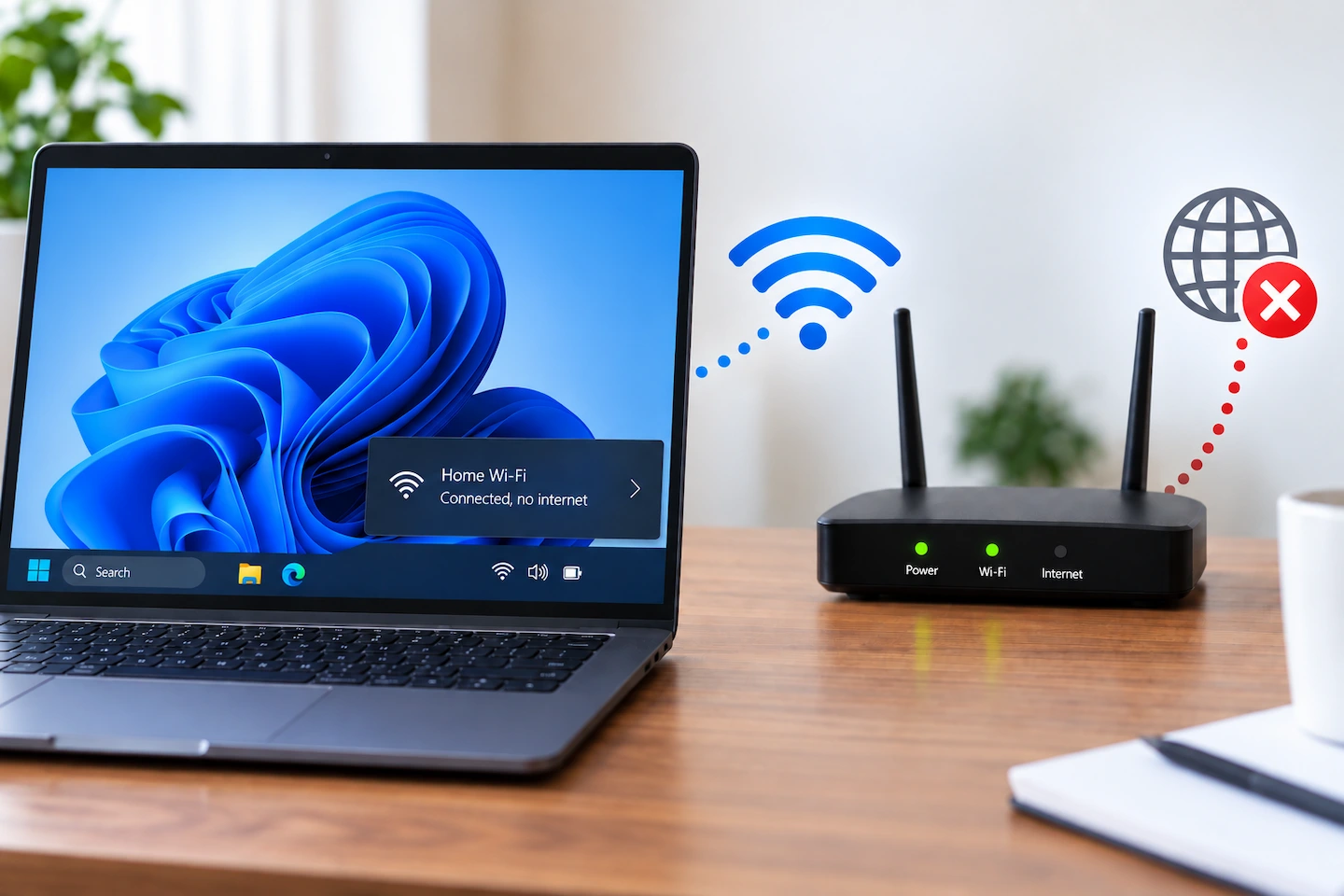
If your Windows PC shows Wi-Fi connected but no internet, the problem is not necessarily the Wi-Fi signal itself.
The quickest way to narrow it down is to find out whether the problem affects only this PC or every device on your home network. That one check can save you from resetting Windows settings or restarting equipment that is working normally.
Quick answer: If your PC is connected to Wi-Fi but has no internet, first try more than one website. Then check whether another phone, tablet or computer can get online using the same home Wi-Fi.
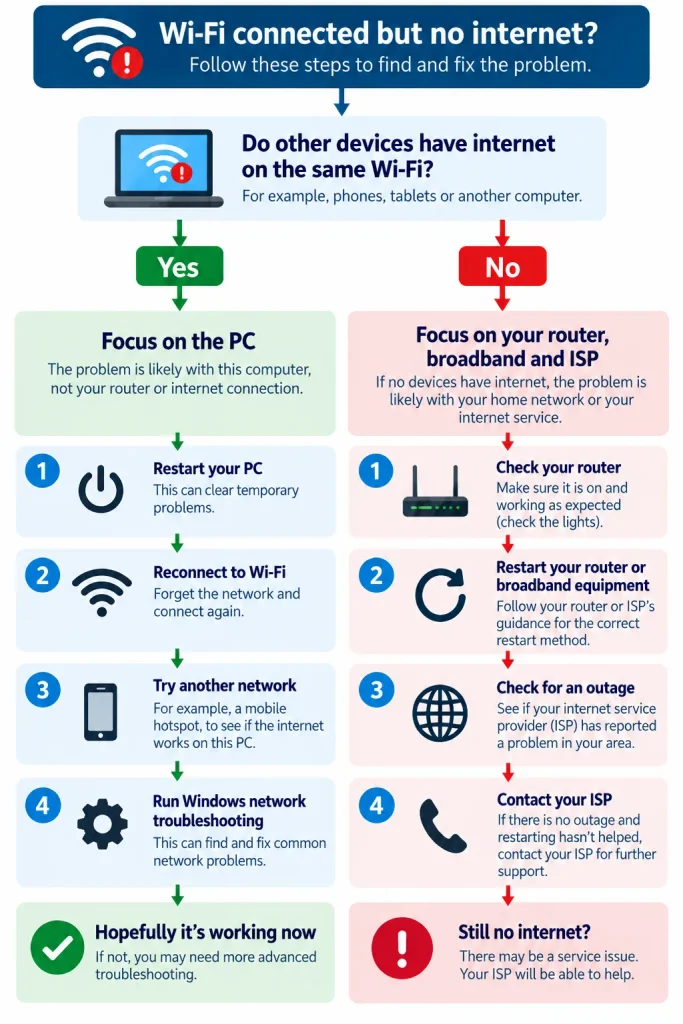
If other devices work normally, concentrate on the affected PC. If none of your devices can get online, concentrate on the router, broadband connection or your internet provider instead.
Do not factory-reset the router or reset Windows networking yet. Simple checks can usually tell you which side of the connection needs attention first.
Wi-Fi Connected but No Internet: What It Usually Means
Wi-Fi and internet access are related, but they are not the same thing.
Your PC first connects wirelessly to your home router. The router then provides a route from your home network to your broadband connection and the wider internet.
That means Windows can show the PC as connected to Wi-Fi even when something further along that path is not working properly.
A connection problem can therefore be caused by:
- the affected PC;
- the connection between that PC and the router;
- the router or broadband equipment;
- your internet provider;
- or, occasionally, the particular website or online service you are trying to use.
The aim is to work out which of those areas is actually failing before changing anything.
First, Make Sure the Internet Is Really Down
Before troubleshooting Windows or restarting the router, make sure you are dealing with a general internet problem.
Try More Than One Website
Open two or three unrelated websites.
If one website fails but others open normally, your home internet connection is probably working. The problem may be limited to that website or service.
It can also help to try another app that needs internet access.
For example, if websites load normally but one streaming or email app does not, troubleshooting the whole home network is unlikely to be the best starting point.
Check Whether You Are Using a VPN
If you deliberately use a VPN, temporarily disconnect it and try a normal website again.
A problem with a VPN connection can sometimes make it appear that the internet itself has stopped working.
Do not remove VPN software or change work-related settings simply as a test. Disconnecting it temporarily is enough at this stage.
Check Another Device on the Same Wi-Fi
This is the most useful test.
Pick another device that normally uses the same home Wi-Fi, such as a phone, tablet or another computer.
Make sure it is actually using Wi-Fi rather than mobile data, then try opening a website.
If Other Devices Still Have Internet
If another device works normally on the same Wi-Fi, the broadband connection and router are at least providing internet access to something in your home.
That makes the affected PC the sensible place to investigate first.
There can still be an interaction between that PC and the router, but there is little reason to restart or reset the entire home network before checking the computer.
Continue with If Only Your PC Has No Internet below.
If Other Devices Also Have No Internet
If several devices are connected to Wi-Fi but none of them can get online, a Windows problem on one computer becomes much less likely.
The shared part of the connection is now the better place to look:
router → broadband connection → internet provider
Skip to If Every Device Has Lost Internet below.
If devices can get online but the Wi-Fi signal is simply poor in one part of your home, that is a different problem. See Weak Wi-Fi in One Room: What Usually Causes It? instead.
If Only Your PC Has No Internet
If phones, tablets or other computers work normally, start with simple checks on the affected Windows PC.
Restart the PC and Reconnect to Wi-Fi
Restart Windows normally, then reconnect to your usual home Wi-Fi and try a website again.
This is deliberately the first PC-specific step because it is simple and does not permanently change any network settings.
A temporary Windows, Wi-Fi adapter or network-session problem may disappear after a normal restart.
If the connection still fails, continue rather than repeatedly restarting the computer.
Forget the Wi-Fi Network and Reconnect
Windows stores information about Wi-Fi networks you have connected to before. Removing that saved connection and creating it again can help if those saved details have become a problem.
Before doing this, make sure you know your Wi-Fi password.
In Windows 11:
- Open Settings.
- Select Network & internet.
- Select Wi-Fi.
- Open Manage known networks.
- Select your home Wi-Fi network.
- Choose Forget.
- Connect to the network again and enter the Wi-Fi password.
Then test the internet connection.
Forgetting a network does not reset your router. It removes that network’s saved connection details from the PC.
Try the PC on Another Internet Connection
If practical, connecting the PC to a different network can give you useful diagnostic information.
A phone hotspot is often the simplest temporary test.
If:
- the PC has no internet on your home Wi-Fi; but
- the same PC works normally through a phone hotspot,
then the Wi-Fi adapter is clearly capable of connecting to another network and reaching the internet.
That does not prove your router is faulty. It means the problem is more likely to involve the way that particular PC is communicating with your home network.
Remember that using a phone hotspot may use your mobile-data allowance.
Run the Windows Network Troubleshooter
If the basic checks have not helped, use Windows’ built-in network troubleshooting before moving to manual commands or resets.
On current Windows 11 versions, Microsoft directs users towards the Get Help app for automated network troubleshooting.
You can also refer to Microsoft’s Windows Wi-Fi troubleshooting guidance for the current Microsoft-recommended steps.
Follow any result carefully rather than changing unrelated network settings at the same time.
Check VPN or Proxy Settings
If the PC still fails while other devices work, check whether something on that computer is controlling how its internet traffic is routed.
If you use a VPN, disconnect it temporarily.
If you deliberately use a manual proxy for work, school or another service, do not simply delete those settings. An incorrectly configured proxy can stop normal internet access, but removing a required configuration could cause a different problem.
For most home users who have never configured a proxy, there should be no reason to create one as part of troubleshooting.
If Every Device Has Lost Internet
If several devices cannot get online, stop making Windows-specific changes.
The evidence now points towards something shared by those devices.
Check the Router and Broadband Equipment
Look at your router and any separate broadband equipment supplied by your internet provider.
Check for:
- an obvious warning light;
- an internet or broadband light that is off or showing an error;
- equipment that appears to be repeatedly reconnecting.
The exact lights and colours vary between routers, so use the instructions supplied by your provider or router manufacturer if you are unsure what they mean.
Do not assume a particular colour means the same thing on every model.
Restart the Router
A normal router restart is reasonable once you know several devices are affected.
Follow your internet provider’s or router manufacturer’s normal restart instructions.
After restarting it:
- allow the router time to reconnect fully;
- reconnect a phone or computer;
- test the internet on more than one device.
Restarting the router temporarily interrupts the connection for everyone in the home, which is one reason it is better to establish that the problem is shared before doing it.
Restarting is not the same as factory-resetting.
Do not press a recessed Reset button or choose a factory-reset option unless you specifically intend to erase the router’s saved configuration.
Check for a Broadband or ISP Outage
If all your devices remain offline, use mobile data on your phone to check your internet provider’s service-status page or app.
A local broadband outage cannot be repaired by changing Windows settings.
If your provider confirms a fault, the sensible option is usually to wait for that fault to be repaired rather than continuing to change devices around the home.
When to Contact Your Internet Provider
Contact your provider if:
- several devices remain unable to reach the internet;
- restarting the router has not helped;
- the provider’s own status or line-checking tools report a problem;
- or the broadband equipment does not appear to be establishing its normal connection.
They may be able to test the line remotely or identify a fault outside your home.
If the PC Still Will Not Get Online
Only continue with the checks below if other devices still have internet access and the simpler PC checks have failed.
These steps are more technical, so there is no benefit in using them when the evidence already points towards a broadband outage.
Check Whether Windows Has Received an IP Address
Your router normally gives each connected device the network information it needs to communicate properly.
If that process fails, the PC can appear connected to Wi-Fi without having a usable network connection.
One useful clue is an IPv4 address beginning:
169.254
Windows can assign an address in this range when it has not received a normal address from the router.
You can check the address in Windows network properties or by opening Command Prompt and entering:
ipconfig
Look for the IPv4 address associated with the Wi-Fi adapter.
If it begins with 169.254, the problem is more specific than a general loss of broadband: the PC has not received the normal network configuration it needs from the router.
Renew the PC’s Network Address
If the PC appears to have an address problem, Windows can request fresh network information.
Search Windows for Command Prompt, then choose Run as administrator and approve the prompt.
Run:
ipconfig /release
Then:
ipconfig /renew
The connection will briefly be interrupted while Windows releases its current address and requests another one.
Afterwards, try a website again.
Clear the DNS Cache
DNS is the system that translates names such as example.com into the addresses computers use to communicate.
A damaged or outdated local DNS cache can sometimes cause website-name lookups to fail even when the underlying internet connection is available.
In the same administrator Command Prompt, enter:
ipconfig /flushdns
Then test again.
This is preferable to immediately changing the PC to a different public DNS provider without evidence that the configured DNS service is actually the problem.
Check the Wi-Fi Adapter and Driver
If the connection still fails only on this PC, check Windows Update and, where appropriate, the PC manufacturer’s support page for relevant network-driver updates.
Do not start by downloading drivers from random third-party driver websites.
Removing and reinstalling a Wi-Fi adapter driver is more disruptive and should only be considered after simpler troubleshooting has failed.
If Windows reports an adapter error or the Wi-Fi connection fails on several completely different networks, a driver or hardware problem becomes more plausible.
Use Network Reset Only as a Last Resort
Windows includes a Network Reset feature, but it should not be treated as an ordinary early troubleshooting step.
Network Reset removes and reinstalls network adapters and returns networking settings to their defaults. Software that depends on specialised network adapters or settings, such as some VPN or virtualisation software, may need to be configured again afterwards.
For that reason, only consider Network Reset after the earlier checks have failed.
If you rely on work VPNs or specialist networking software and are unsure how they are configured, it may be better to seek support before resetting Windows networking.
How to Tell Where the Fault Probably Is
The result of a few simple tests can usually tell you where to concentrate next.
| What you find | Where to investigate first |
|---|---|
| One PC fails but other devices work | The affected PC |
| Every device on the Wi-Fi fails | Router, broadband or ISP |
| PC works normally on a phone hotspot | Interaction between the PC and home network |
| PC has a 169.254 IPv4 address | PC is not receiving normal network information from the router |
| Only one website or app fails | That website, app or service |
| Websites work even though Windows reports No Internet | Windows connectivity detection, VPN, proxy or another PC-specific issue |
The important point is that “connected to Wi-Fi but no internet” is a symptom, not a diagnosis.
Testing another device usually tells you far more than immediately resetting everything.
Should You Replace the Router or Wi-Fi Adapter?
Usually, not yet.
A single internet failure does not tell you that a router or Wi-Fi adapter has failed.
Replacing hardware becomes more reasonable when testing repeatedly points towards the same device.
For example:
- a Wi-Fi adapter fails on several different networks;
- the router repeatedly loses its broadband connection even when the provider reports no service fault;
- the manufacturer or ISP confirms a hardware problem;
- or the equipment is no longer properly supported and reliable drivers or firmware are unavailable.
If your real problem is poor Wi-Fi coverage rather than loss of internet access, buying a new router is not automatically the answer either. Coverage problems should be diagnosed separately before choosing extra equipment.