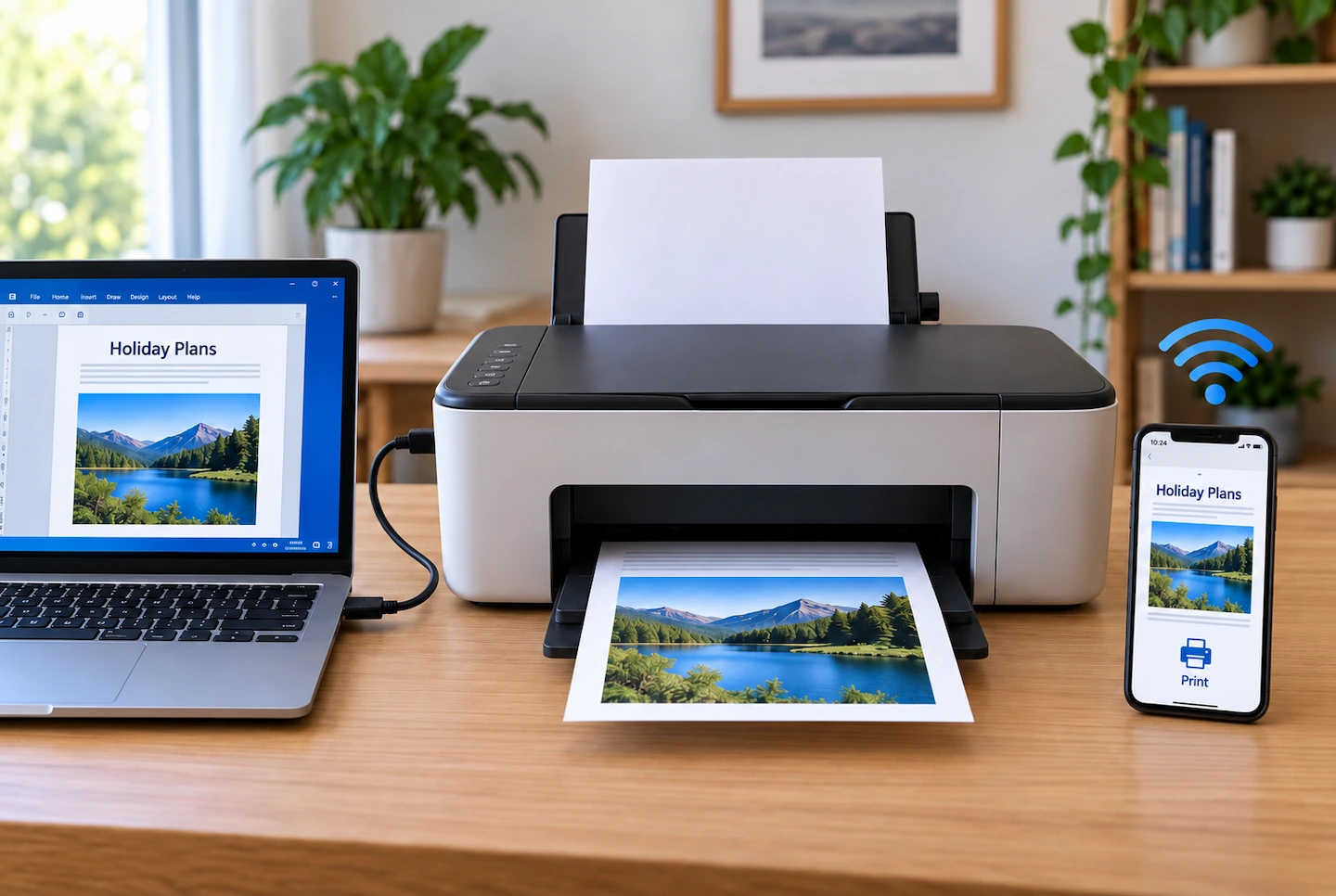
If you are comparing a USB printer vs Wi-Fi printer setup at home, the easiest option depends mainly on how many devices need to print and where the printer will sit.
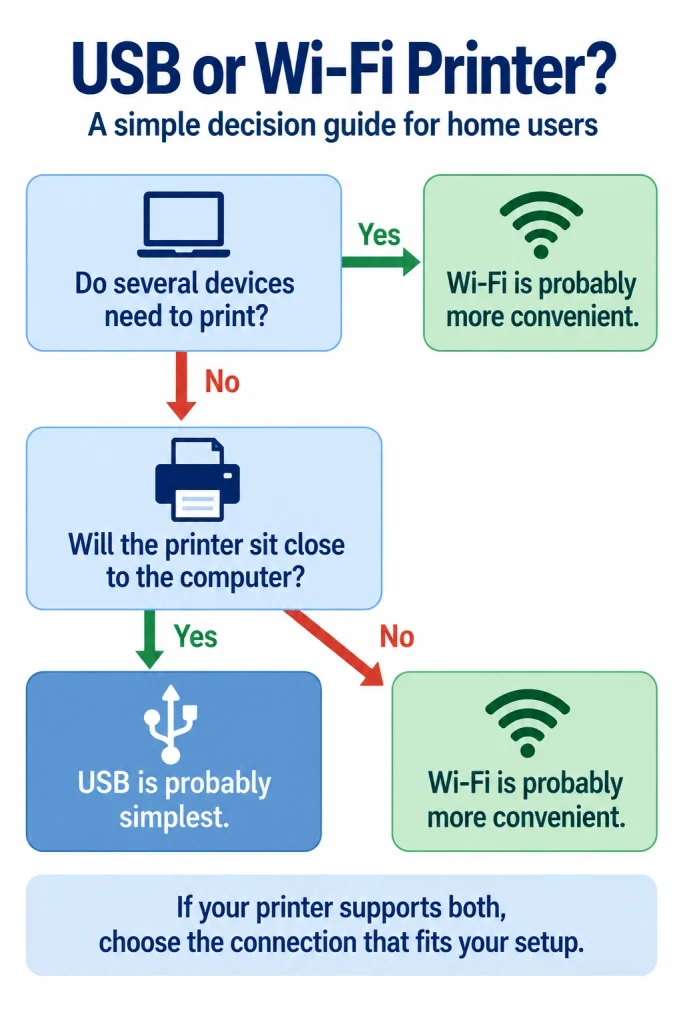
For one computer close to the printer, USB is usually the simpler choice. If several computers, phones or tablets need to use the printer, Wi-Fi is normally more convenient.
Many home printers support both connections, so you may not need to choose between two different printers. You may simply be deciding which way to connect the printer you already have.
Quick answer: For one computer sitting close to the printer, USB is usually the easiest option. You connect the printer directly to the computer, and Windows can often install it automatically.
Wi-Fi usually makes more sense when several computers or mobile devices need to print, or when you want to place the printer away from the computer.
When the printer is connected directly to that computer by USB, the home network is removed from the printing path, which means there are fewer connection points to check if something stops working. Wi-Fi adds that network dependency, but in return it makes sharing the printer around the home much more convenient.
If your printer supports both, choose the connection that matches how you actually print rather than assuming wireless is always better.
The Difference Between USB and Wi-Fi Printing
With USB, the printer connects directly to a computer using a USB cable.
The basic path is:
Computer → USB cable → printer
Microsoft says that in most cases a local or wired printer will install automatically in Windows after it is connected and switched on. Some printers may still need additional software or updated drivers for all their features.
With Wi-Fi, the printer connects to your home network instead of directly to one computer.
The basic path is:
Computer or mobile device → home network → printer
Brother describes wireless printing in much the same way: the printer connects to the Wi-Fi network, then computers, smartphones and tablets can connect to it without a physical cable between each device and the printer.
That difference is important because a “USB printer” and a “Wi-Fi printer” are not always two different types of printer. Many models provide both connections.
USB Printer vs Wi-Fi Printer at a Glance
| What matters | USB | Wi-Fi |
|---|---|---|
| One nearby computer | Usually simplest | Often more setup than necessary |
| Several computers | Less convenient | Usually better |
| Phones and tablets | Limited | Usually better when supported |
| Printer placement | Limited by the cable | More flexible |
| Initial setup | Usually simpler | May require network setup |
| Depends on home Wi-Fi | No | Yes for normal network printing |
| Fault-finding | Fewer connection points | More parts of the connection to check |
Neither option wins every category.
The important question is whether you value the simplest direct connection or the convenience of making the printer available across your home network.
Choose USB If You Mainly Print From One Computer
USB makes the most sense when one desktop or laptop does almost all the printing and the printer can sit reasonably close to it.
There is less involved in the connection because the print job does not have to travel across your home network.
That can be particularly useful if you simply want to connect the printer, leave it beside one computer and use it from there.
Windows also handles many directly connected printers with very little setup. Microsoft says most local or wired printers install automatically after they are plugged into the Windows device and switched on.
That does not guarantee every printer will be completely plug-and-play. Your model may have additional manufacturer software or drivers for scanning, ink information or other features.
Why USB Can Be Easier to Troubleshoot
A USB connection has fewer parts between the computer and printer.
If a USB-connected printer suddenly stops responding, you are mainly dealing with the computer, printer, USB connection and Windows printing system.
A Wi-Fi printer adds the home network to that path.
That does not mean USB printers never have problems. A damaged cable, a USB port problem, an incorrect printer entry, a driver issue or a stuck print queue can still stop printing.
The advantage is simply that the router and wireless connection are not additional possibilities that need to be ruled out.
The Main Downsides of USB
The biggest disadvantage is convenience.
The printer needs to be within practical cable reach of the computer. That may be fine for a desktop PC, but less useful if you normally carry a laptop between rooms.
A direct USB connection also centres the setup around one computer.
Windows does allow a printer connected to one PC to be shared with other Windows computers over a network. However, Microsoft notes that this requires printer sharing to be configured and the primary computer to remain switched on and connected to the network.
If several computers regularly need the printer, connecting the printer itself to the home network is normally a cleaner arrangement.
Choose Wi-Fi If Several Devices Need the Printer
Wi-Fi becomes much more useful when the printer is shared around the household.
Instead of taking a laptop to the printer or swapping a USB cable between computers, compatible devices can reach the printer across the home network.
That makes Wi-Fi a better fit when several family members print, laptops are used in different rooms, or the printer needs to sit somewhere more convenient than beside the main computer.
Microsoft’s Windows printer guidance says a wireless printer should be switched on and connected to the same wireless network as the Windows device before it is added.
If you are setting up a printer that is already connected to your home network on a new PC, see How to Add an Existing Wireless Printer to a New Windows 11 PC.
In that situation, you normally add the existing printer to the new computer rather than setting the printer up from scratch.
Wi-Fi Is Often More Convenient Once It Is Set Up
It is easy to concentrate only on which connection takes less effort on the first day.
USB often wins that comparison.
But day-to-day convenience can be different.
Once a Wi-Fi printer is correctly connected to the home network, you do not normally need to plug each laptop into it before printing. Several compatible devices can use the same printer while it stays in one sensible location.
Phone and tablet printing is another important difference.
Apple’s AirPrint system, for example, allows an iPhone or iPad to print to a compatible network-connected printer. Apple says the device and printer should be connected to the same Wi-Fi network.
If printing from mobile devices matters to you, Wi-Fi is therefore usually the more practical choice, provided the printer supports the relevant mobile-printing method.
What Wi-Fi Adds to the Connection
The trade-off is that the printer’s network connection now matters.
If Windows cannot find a wireless printer, the problem may involve the computer, printer or communication across the home network rather than the physical printer itself.
If your printer is connected to Wi-Fi but Windows cannot find it, use the dedicated troubleshooting guide rather than changing network settings at random.
For a household where wireless printing works normally, none of this needs to be a problem. It simply means there are more parts involved than with a direct USB connection.
Is USB More Reliable Than Wi-Fi?
It is more accurate to say that USB is simpler, rather than saying that USB is always reliable and Wi-Fi is unreliable.
A direct USB connection removes wireless signal and home-network communication from the printing path. That gives you fewer connection points to investigate when something goes wrong.
Microsoft’s own printer troubleshooting separates checks for USB printers from checks for wireless printers. For wireless models, its guidance includes checking the printer’s wireless connection and making sure the computer and printer can communicate over the appropriate network.
A properly configured Wi-Fi printer can still work reliably for years. There is no reason to switch to USB simply because wireless printing might one day develop a problem.
If the actual problem is that your Wi-Fi printer keeps going offline repeatedly, it is better to investigate why that is happening before assuming the printer needs replacing or abandoning Wi-Fi altogether.
Does a Wi-Fi Printer Need the Internet?
Wi-Fi and internet access are not the same thing.
For normal local network printing, the important connection is between your device and the printer across the home network. Microsoft, for example, tells Windows users to make sure a wireless printer is connected to the same wireless network as the computer.
This means losing your broadband internet connection does not necessarily mean local printing must stop if your home network itself is still operating.
However, the exact behaviour depends on the printer and how you use it.
Some manufacturer apps, cloud-printing features, account services or setup processes may require internet access. You should therefore avoid assuming that every feature of every Wi-Fi printer will work without an internet connection.
What If Your Printer Supports Both USB and Wi-Fi?
If your printer provides both connections, you may not have to treat the decision as permanent.
For one nearby computer, USB may be all you need.
If your needs change and several devices start using the printer, Wi-Fi may become more useful.
Check your printer manufacturer’s instructions before changing connection methods because the exact setup process varies between models.
Also, do not assume that every printer can use its USB and Wi-Fi connections simultaneously in every possible setup. Supporting both connection methods does not necessarily mean every combination of them is supported at the same time.
Which Is Easier for You?
For one computer beside the printer, USB is usually the simpler choice. It keeps the connection straightforward and removes the home network from the printing path.
For several computers, Wi-Fi is usually more convenient because the printer can be shared across the home network without swapping cables.
For phones and tablets, Wi-Fi is usually the better fit when the printer supports the relevant mobile-printing method.
If you are still unsure and your printer supports both, think about what happens after installation.
If you expect to leave one computer connected to one nearby printer, USB is probably all you need.
If you expect to carry laptops between rooms, print from phones or let several people use the printer, Wi-Fi is likely to be easier to live with.
If your printer supports both connections, use the one that removes the most inconvenience from the way your household actually prints.
Frequently Asked Questions
Can Two Computers Use a USB Printer?
Yes, but a direct USB printer is normally connected to one primary computer.
Windows can share that printer with other Windows PCs over a network, but the primary PC needs to remain switched on and connected, and printer sharing has to be configured.
If several computers regularly need the printer, connecting a compatible printer directly to your home network is normally more straightforward.
Can I Print From My Phone to a USB-Connected Printer?
A printer connected only to a computer by USB is not the normal AirPrint setup. AirPrint uses a compatible printer available over the network.
Apple says AirPrint works with compatible printers over a Wi-Fi or wired network connection.
If phone printing matters, check the printer’s specifications for AirPrint or another supported mobile-printing method.
Is USB Printing Faster Than Wi-Fi?
USB can provide plenty of connection bandwidth, but theoretical connection speed is rarely the most useful way to choose between USB and Wi-Fi for ordinary home printing.
For typical documents and photos, factors such as the printer itself, print-quality setting and complexity of the job usually matter more to the time you actually wait for the page.
Choose USB or Wi-Fi mainly according to convenience, device sharing and connection simplicity rather than theoretical transfer speed.
References
- Microsoft Support — Add or install a printer in Windows
- Microsoft Support — Share a printer as a network printer
- Microsoft Support — Fix printer connection and printing problems in Windows
- Apple Support — Use AirPrint to print from your iPhone or iPad
- Brother UK — How to connect your printer to Wi-Fi