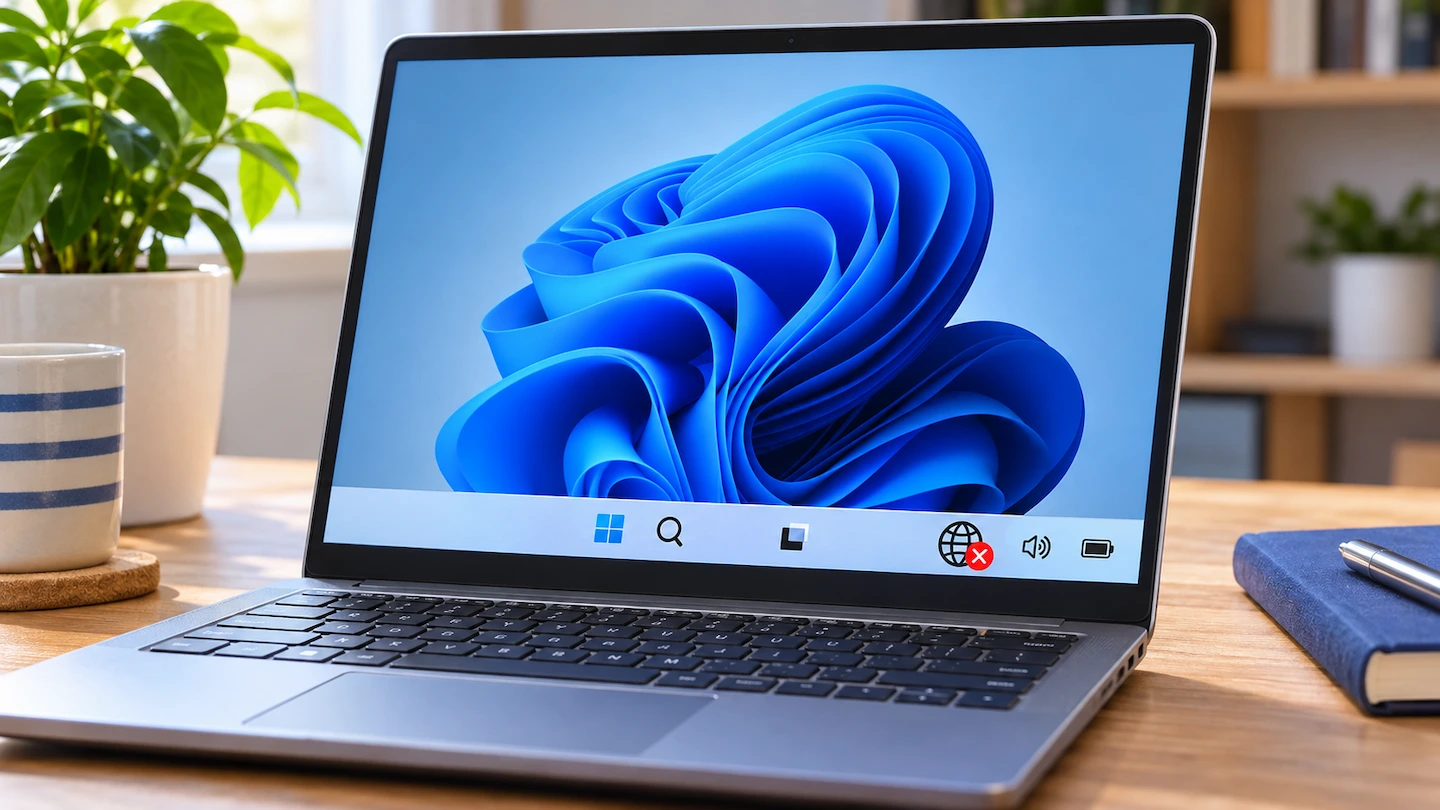
If the Wi-Fi option is missing in Windows 11, you may find that you cannot see available wireless networks or connect your computer to the internet.
The problem does not automatically mean your computer’s wireless hardware has failed. Sometimes a setting has changed, Windows is not recognising the wireless adapter, or a service needed for Wi-Fi is not running.
This guide explains what to check first, how to identify where the problem lies, and when more technical troubleshooting might be necessary.
Quick answer: If the Wi-Fi option has disappeared in Windows 11, start with these checks:
- Open Settings > Network & internet to see whether Wi-Fi is available there, even if it is missing from Quick Settings.
- Check that Airplane mode is turned off and that any physical wireless switch on your computer is enabled.
- Restart Windows normally.
- If Wi-Fi is still missing, check whether the wireless adapter is disabled or is not being detected by Windows.
Start with these checks before resetting your network settings or removing any drivers. You may be able to restore Wi-Fi without making more significant changes.
What Does a Missing Wi-Fi Option Mean?
Windows uses a wireless network adapter to connect your computer to Wi-Fi. This may be built into your laptop or desktop, or provided by a separate USB or internal adapter.
For Wi-Fi to work, Windows must be able to recognise and use that adapter.
If the Wi-Fi option disappears, possible explanations include:
- Wi-Fi has been disabled through a setting or wireless control.
- The wireless adapter is disabled.
- Windows is having difficulty recognising the adapter.
- A wireless network service is not running.
- The wireless driver is missing or experiencing a problem.
A hardware fault is also possible, but it should not be assumed before checking the simpler explanations.
There is an important distinction between Wi-Fi being missing and Wi-Fi being connected without internet access.
If you can connect to a wireless network but websites will not load, our guide to Wi-Fi connected but no internet is a better starting point.
First, Check Where the Wi-Fi Option Is Missing
Before changing anything, establish whether Wi-Fi is missing from one part of Windows or from the network settings more generally.
Wi-Fi Is Missing From Quick Settings
- Press Windows + A, or select the network, sound or battery area on the right-hand side of the taskbar.
- Look for the Wi-Fi control.
- If it is missing, open Start > Settings > Network & internet.
- Check whether a Wi-Fi option appears there.
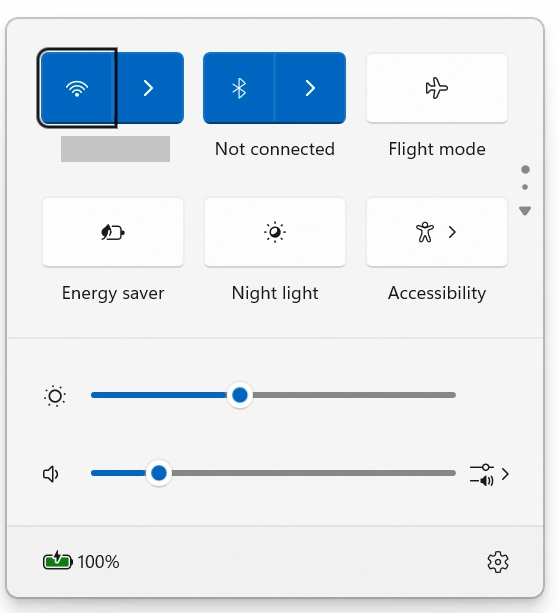
If Wi-Fi is available in Settings, try switching it on there and connecting to your usual network.
If the connection works, you do not need to continue with the adapter and driver troubleshooting below. The missing Quick Settings control does not, by itself, mean the wireless adapter has failed.
Wi-Fi Is Also Missing From Network & Internet Settings
If Wi-Fi is absent from both places, Windows may not currently be offering a usable wireless connection.
This is a reason to investigate the adapter and its settings, rather than assuming that something is wrong with your router.
Continue with the checks below.
Check Airplane Mode and Wireless Controls
Airplane mode can disable wireless connections, so it is worth checking before changing network settings or drivers.
- Open Start > Settings > Network & internet.
- Look for Airplane mode, if it is available.
- Make sure it is turned off.
- Check whether the Wi-Fi option has returned.
Some laptops also have a physical wireless switch or a keyboard key that controls wireless connectivity.
Look for a wireless symbol on the keyboard or a switch on the side of the computer. The exact control varies by manufacturer, and many computers do not have a separate wireless switch.
If you are unsure what a key does, consult your computer manufacturer’s instructions rather than trying unfamiliar keyboard combinations.
Microsoft includes checking wireless hardware controls in its guidance for fixing Wi-Fi connection problems in Windows.
If the Wi-Fi option returns, you can stop here. Otherwise, continue.
Restart Your Windows 11 Computer
A normal restart is a sensible next step because it allows Windows to restart its services and initialise hardware again.
- Save any open work.
- Select Start > Power > Restart.
- Allow Windows to restart completely.
- Check Quick Settings and Settings > Network & internet again.
Choose Restart, rather than simply closing the laptop lid or putting the computer to sleep.
If Wi-Fi returns, try connecting to your usual network.
If the option disappears again later, especially after waking the computer from sleep, make a note of when it happens. This information may be useful if further troubleshooting is needed.
If restarting makes no difference, avoid repeating it several times. Move to the next check.
Check Whether the Wi-Fi Adapter Is Disabled
Windows may recognise your wireless adapter but have it disabled.
You can check this through Advanced network settings.
- Open Start > Settings.
- Select Network & internet.
- Open Advanced network settings.
- Look for a network adapter labelled Wi-Fi or identified as a wireless connection.
- If the Wi-Fi adapter is listed as disabled and an Enable option is available, select it.
- Check whether the Wi-Fi option returns.
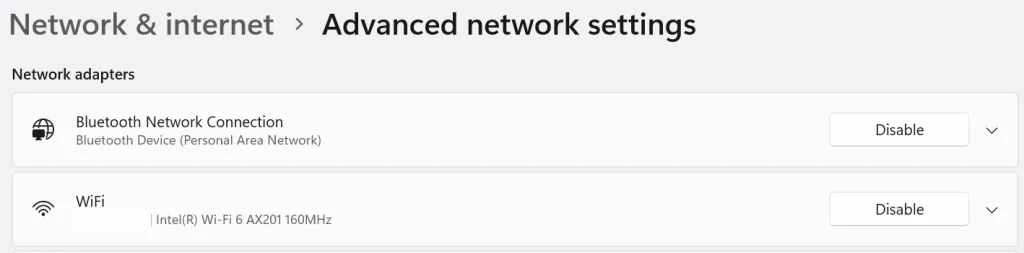
Enabling a disabled adapter is different from reinstalling its driver. It is a relatively simple change that may restore access without affecting other network settings.
If the adapter is already enabled, do not disable and re-enable it repeatedly.
If you cannot find a Wi-Fi adapter in Advanced network settings, continue to Device Manager.
Look for the Wireless Adapter in Device Manager
Device Manager shows hardware that Windows recognises and can help you establish whether the wireless adapter is available.
To open it:
- Right-click the Start button.
- Select Device Manager.
- Find Network adapters and select the arrow to expand the category.
- Look for an entry representing your wireless adapter.
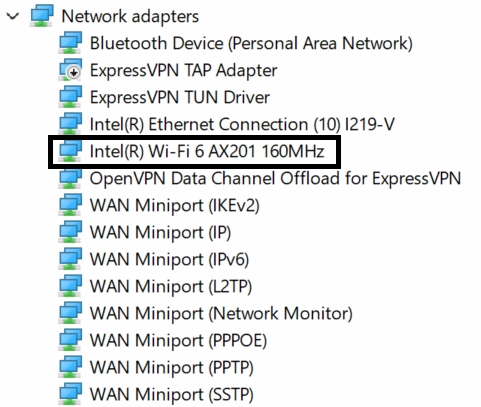
The name varies depending on the computer. It may contain terms such as Wi-Fi, Wireless, WLAN or 802.11, alongside a manufacturer name.
Be careful not to confuse the wireless adapter with an Ethernet or Bluetooth device.
What you do next depends on what appears.
The Wireless Adapter Is Listed but Disabled
If the wireless adapter has a disabled status:
- Right-click the adapter.
- Select Enable device, if that option is available.
- Allow Windows to enable it.
- Check whether Wi-Fi has returned.
If you see Disable device instead, the adapter is not currently disabled through that Device Manager control. Do not select Disable device simply to experiment.
The Wireless Adapter Shows an Error
A warning symbol beside the adapter may indicate that Windows has detected a problem with the device or its driver.
To inspect it:
- Right-click the wireless adapter.
- Select Properties.
- Read the message shown under Device status on the General tab.
The message may provide a useful indication of what Windows has detected.
Do not assume that a warning automatically means the hardware needs replacing. Driver problems and other device-specific conditions can produce errors too.
Make a note of the error message or code before attempting further changes.
The Wireless Adapter Is Missing
If no wireless adapter appears under Network adapters, Windows may not currently be detecting it.
First, establish whether your computer is supposed to have Wi-Fi.
Most modern laptops include wireless connectivity, but not every desktop computer has a built-in wireless adapter. Some desktops use a separate USB or internal Wi-Fi device.
If your computer previously connected using Wi-Fi, or the manufacturer confirms that it has a wireless adapter, its absence from Device Manager may justify investigating the driver or obtaining manufacturer support.
An adapter missing from Device Manager does not prove that the hardware has failed.
Avoid buying a replacement adapter until you have checked what hardware the computer should have and whether an appropriate driver is available.
Check WLAN AutoConfig if Wi-Fi Is Still Missing
Windows uses a service called WLAN AutoConfig to help manage wireless network connections.
If this service is stopped, the Wi-Fi control may be unavailable even when the wireless hardware is present.
To check it:
- Press Windows + R to open Run.
- Type
services.mscand press Enter. - In the Services window, find WLAN AutoConfig.
- Check its status.
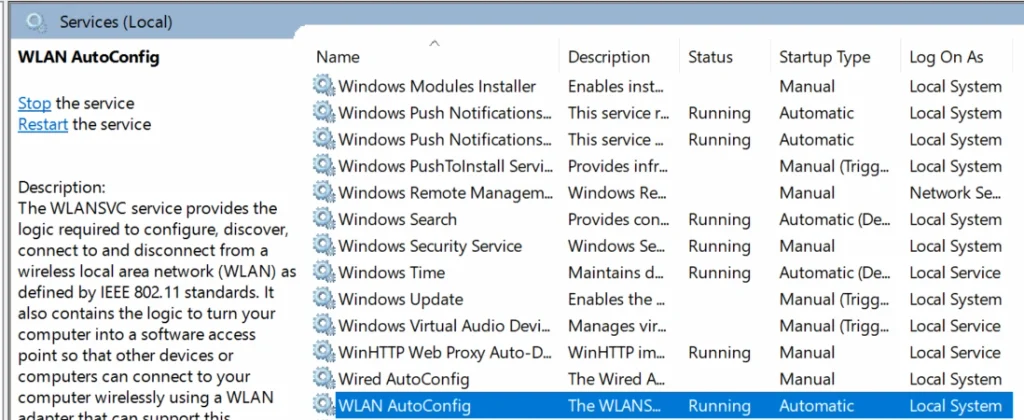
If WLAN AutoConfig is stopped, right-click it and select Start, if that option is available.
If the service is already running but the Wi-Fi option is still missing, you can right-click it and select Restart.
Restarting this service can temporarily interrupt wireless connections, so save any work that depends on your connection first.
Once the service has started or restarted, check whether the Wi-Fi option has returned.
If Windows displays an error or the service cannot start, make a note of the message rather than changing other services.
Microsoft identifies WLAN AutoConfig as an important part of diagnosing missing wireless controls in its advanced wireless troubleshooting documentation.
When a Wireless Driver Might Be the Problem
A driver is software that allows Windows to communicate with hardware such as a Wi-Fi adapter.
If the adapter shows an error, is not being detected, or the problem began after a driver or Windows update, it may be appropriate to investigate the wireless driver.
The safest next action depends on what Windows currently detects.
Check for a Suitable Driver
If you have another way to access the internet, such as an Ethernet connection, you can check Windows Update for available updates.
You can also visit your computer manufacturer’s official support website and look for a wireless driver that matches your exact model and Windows version.
If the affected computer cannot get online, you may be able to use another computer to download the correct driver and transfer it using a USB flash drive.
Avoid downloading drivers from unfamiliar websites or installing a driver intended for a different computer model.
Microsoft provides instructions for updating drivers through Device Manager.
What if the Problem Started After an Update?
If the Wi-Fi option disappeared shortly after an update, the timing may be relevant, but it does not establish that the update caused the problem.
If the wireless adapter is visible in Device Manager, its Properties > Driver tab may offer a Roll Back Driver option.
This is only available in appropriate circumstances, such as when a previous driver version is retained. Administrator permissions may be required.
If the option is unavailable, do not force another driver change merely because the problem appeared after an update.
Avoid uninstalling the wireless driver as an early troubleshooting step. If Windows cannot reinstall it automatically, you may be left without a working wireless connection.
Similarly, a full network reset should be treated as a last resort. It removes and reinstalls network adapters and resets networking settings, potentially requiring additional configuration afterwards.
For a missing adapter or a persistent Device Manager error, the computer manufacturer’s support guidance is often the more appropriate next step.
When to Contact Your Computer Manufacturer
If the Wi-Fi option is still missing after the relevant checks, further investigation may depend on your exact computer or wireless adapter.
Contact the computer manufacturer or an appropriate technical support service if:
- The wireless adapter is expected to be present but remains missing from Device Manager.
- Device Manager reports an error that does not clear after appropriate basic checks.
- The manufacturer-supplied driver cannot be installed or does not resolve the problem.
- Wi-Fi repeatedly disappears after restarting or waking the computer.
- The next proposed repair involves BIOS/UEFI changes or other unfamiliar hardware settings.
Before contacting support, note your computer model, Windows version, any Device Manager error and when the problem started.
That information can help the support provider recommend an appropriate next step without repeating checks you have already completed.
You do not necessarily need a new Wi-Fi adapter, router or computer. Replacement hardware should be considered only when there is evidence that it is needed.
Final Thoughts
When the Wi-Fi option disappears in Windows 11, the best approach is to work through the likely explanations in a safe order.
Start by checking where Wi-Fi is missing, then look at airplane mode, wireless controls and a normal restart. If those checks do not help, inspect the adapter in Windows settings and Device Manager before considering services or drivers.
The important thing is to establish what Windows can recognise before making more significant changes.
Even if the Wi-Fi option cannot be restored immediately, identifying whether the adapter is disabled, reporting an error or not detected gives you a clearer and safer next step.