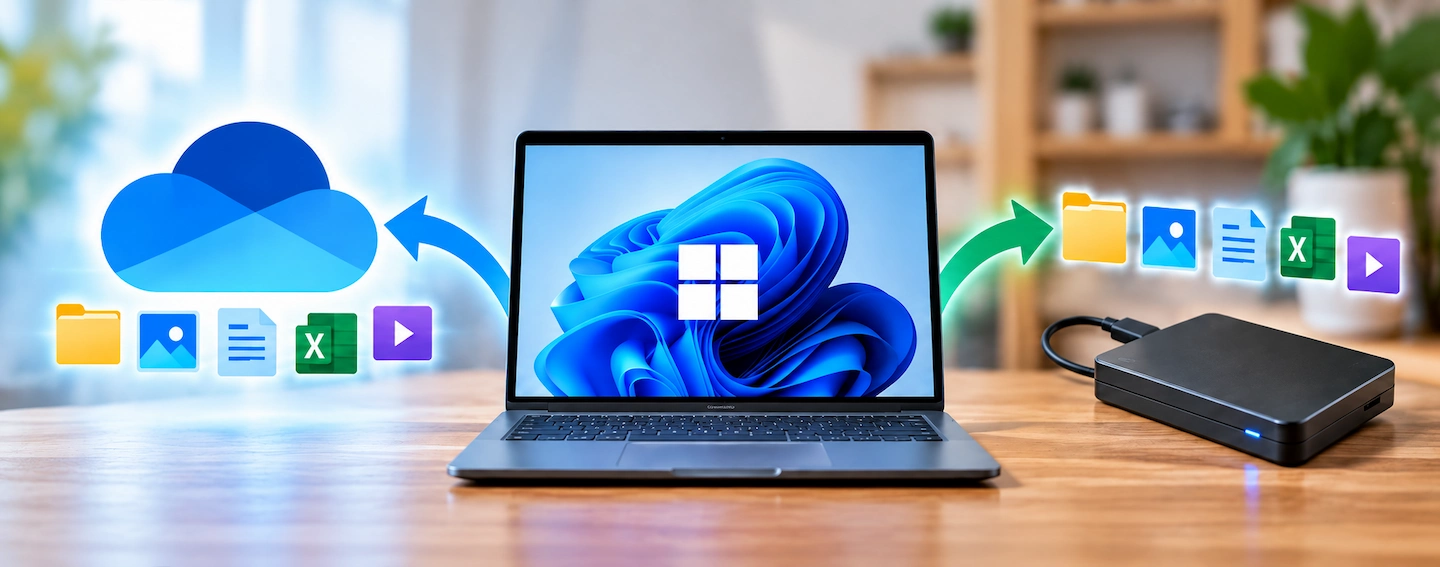
Windows Backup vs File History can be confusing in Windows 11 because both features are still available. They may sound like two versions of the same thing, but they protect your files in different ways and store the backup in different places.
Windows Backup is mainly tied to your Microsoft account and OneDrive, while File History keeps recurring copies of personal files on an external drive or network location.
Understanding that difference makes it much easier to decide which one fits what you are trying to protect.
Quick answer: Windows Backup is useful if you want supported folders, Windows settings and preferences associated with your Microsoft account, particularly if you may need to set up another Windows PC later. The file-backup part uses OneDrive.
File History is designed to keep recurring copies and earlier versions of personal files on an external drive or network location. It is useful when you want a separate backup on an external drive or network location and the ability to recover an older version of a file.
One has not simply replaced the other. They solve related but different problems.
Windows Backup vs File History at a glance
| Feature | Windows Backup | File History |
|---|---|---|
| Main purpose | Protect supported files and settings and help with moving to another Windows PC | Keep recurring backups and previous versions of personal files |
| Backup location | Microsoft account and OneDrive | External drive or network location |
| Personal files | Supported folders backed up through OneDrive | Personal files covered by File History |
| Windows settings | Supports selected settings and preferences | No |
| Previous file versions | OneDrive has its own version history; this is separate from Windows Backup | A central part of File History |
| External drive required | No | Usually, unless you use network storage |
| Full copy of Windows and installed programs | No | No |
The most important distinction is not which feature is newer. It is where the backup is stored and what you want it to protect.
What Windows Backup actually does
Windows Backup is closely connected to your Microsoft account.
According to Microsoft’s Windows Backup guidance, supported folders such as Desktop, Documents, Pictures, Videos and Music can be backed up through OneDrive. Windows can also remember supported settings, preferences and app information associated with your account.
This is particularly useful when you are setting up another Windows PC. Signing in with the same Microsoft account can help bring supported files and settings back without starting completely from scratch.
That does not mean Windows Backup creates a complete copy of your computer.
It should not be thought of as a full image containing Windows, every installed program and everything on the drive exactly as it was.
If the relationship between the two Microsoft services is confusing, Windows Backup vs OneDrive: What’s the Difference? explains that distinction in more detail.
What File History actually does
File History takes a different approach.
Instead of relying on Microsoft’s cloud storage, it keeps copies of your personal files on an external drive or suitable network location.
Its main advantage is that it can retain earlier versions of files. If you change a document and later want an older copy, or accidentally remove something that was previously backed up, File History may let you recover an earlier version.
Microsoft still documents File History as a Windows backup and recovery option. In Windows 11, it is less prominent than Windows Backup and is managed through Control Panel, which can make it look like an outdated or removed feature even though it is still available.
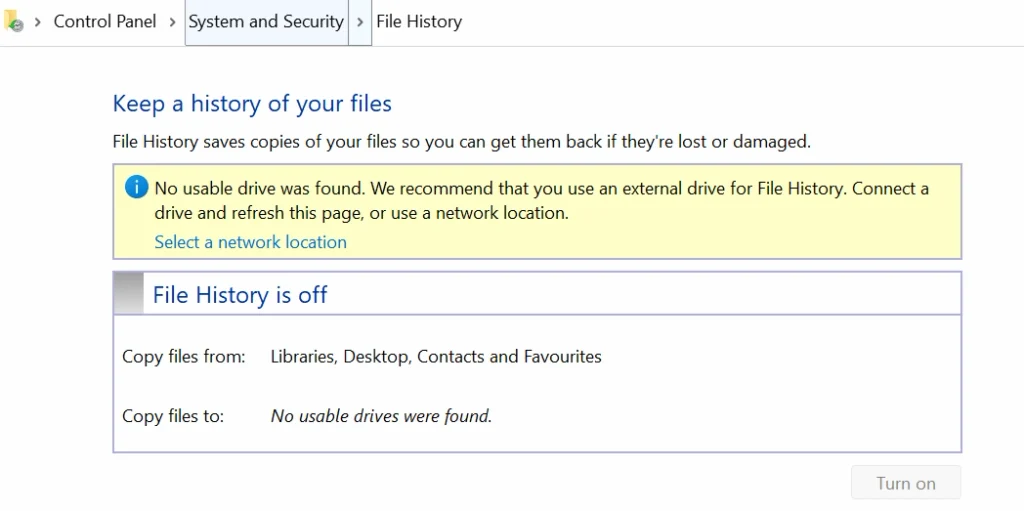
File History is primarily about your files. It does not create a complete restorable copy of Windows and all your installed software.
If this sounds closer to the type of backup you want, How to Back Up Files to an External Drive in Windows 11 covers the practical setup process.
The biggest difference is where your backup is stored
This is usually the simplest way to separate the two features.
Windows Backup → Microsoft account and OneDrive
File History → external drive or network storage
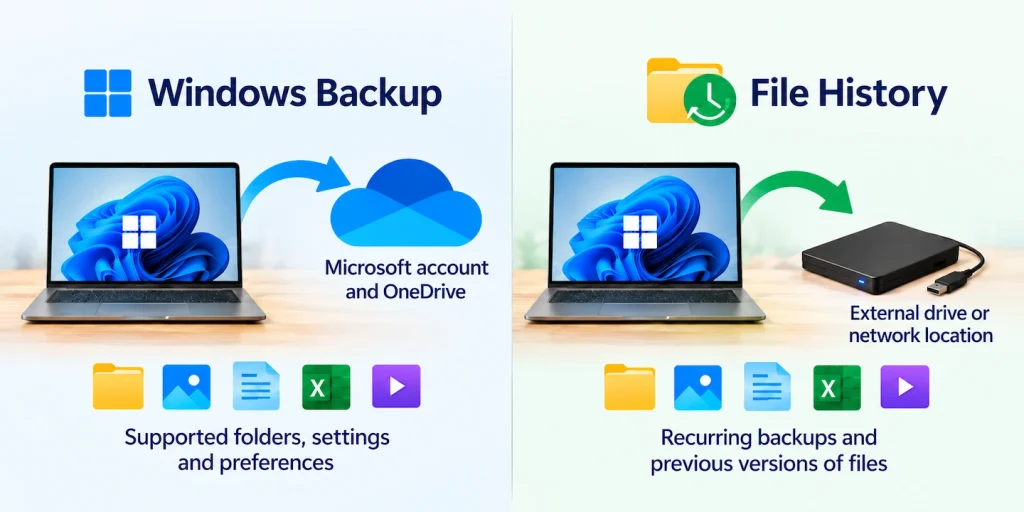
With Windows Backup, supported folders are stored through OneDrive. That can be convenient because you do not have to remember to connect a USB drive before your files can be protected.
File History gives you a separate copy outside the computer and outside OneDrive. For many people, that external copy is exactly what they mean when they say they want to “back up to a hard drive”.
Neither approach is automatically better.
Cloud storage is convenient and can help if the computer itself is lost or damaged. An external backup gives you a separate copy that you control and does not depend on your OneDrive storage allowance.
The right choice depends on which of those outcomes matters to you.
Choose Windows Backup if…
Windows Backup is the more relevant option if you already use a Microsoft account and OneDrive and want supported files and Windows settings associated with that account.
It can also make sense if moving to another Windows PC is one of your main concerns. Microsoft has designed Windows Backup partly around making it easier to restore supported information when setting up another computer.
It is also simpler if you do not want to manage a separate backup drive.
That convenience has a trade-off: the file-backup part relies on OneDrive. If your goal is specifically to keep a separate copy of your files on storage in your home, Windows Backup does not provide that in the same way as File History.
Choose File History if…
File History is the more relevant option if you specifically want backup copies stored on an external drive or network location.
It is also useful if recovering earlier versions of documents matters to you. Someone who regularly edits documents, spreadsheets or other important files may find that version history more useful than simply having the current copy available.
File History can also appeal to someone who does not want their only protection to depend on cloud storage.
You do need somewhere for those backups to go, however. That normally means keeping an external drive available or using suitable network storage.
There is no reason to buy another drive simply because File History exists. First decide whether this type of backup actually fits what you want to protect.
Can you use Windows Backup and File History together?
Yes. They can complement each other because they do different jobs.
For example, someone might use Windows Backup for the convenience of Microsoft-account-based settings and OneDrive-backed folders while also using File History to keep a separate history of important personal files on an external drive.
That does not mean every home user needs both.
Running several backup systems can add protection, but it can also add complexity. The important thing is to understand what each system is protecting rather than turning on several backup features and assuming everything must therefore be safe.
If you are not yet sure which files actually need protecting, What Files Should You Back Up on a Home Computer? can help you prioritise them.
What neither Windows Backup nor File History does
The word backup can make both features sound more comprehensive than they really are.
Neither Windows Backup nor File History should automatically be treated as a complete copy of the whole computer.
Windows Backup does not simply create one restorable image containing Windows, every installed application and every file exactly as they appeared on the original PC.
File History is also not a full-system backup. Its job is primarily to protect personal files and keep earlier versions of them.
Microsoft separates these tools from its other Windows backup, restore and recovery options, which is another useful reminder that no single Windows feature covers every type of recovery.
Which should you use?
Start with the result you actually want.
If you want supported files and settings connected to your Microsoft account, with the convenience of restoring supported information when setting up another Windows PC, Windows Backup is the better fit for that particular need.
If you want recurring copies of personal files stored on an external drive and want access to earlier file versions, File History is the better fit for that need.
You can use both if you want the advantages of cloud-based protection and a separate external or network-based file history, but you do not need to turn on every backup feature simply because it exists.
The important distinction is straightforward:
Windows Backup is mainly about Microsoft-account and OneDrive-based protection. File History is mainly about keeping recurring versions of personal files on separate storage.
Once you know where you want your backup stored and what you want it to protect, the choice becomes much clearer.
FAQs
Is File History still available in Windows 11?
Yes. File History is still documented by Microsoft for Windows 11, although it is managed through Control Panel rather than being presented alongside Windows Backup in the main Settings app.
Can Windows Backup save files to an external hard drive?
Windows Backup’s supported folder backup is based on OneDrive rather than an external hard drive. If you specifically want recurring backups stored on an external drive, File History is the built-in Windows option designed for that purpose.