
A backup can look as though it is working without telling you everything you need to know. A successful status message is reassuring, but the more useful question is whether the backup contains the files you expect and whether you can get one back when you need it.
You do not need to delete an original file or restore your whole computer to check this.
A simple test is enough: check that the backup is recent, find a file you know should be included, restore a copy somewhere safe, then open that restored copy.
Quick answer: To check your computer backup is working, start with these four simple checks:
- Check when the backup last ran.
- Find a recent file you know should have been backed up.
- Restore or copy that file to a different location without overwriting the original.
- Open the restored copy and check that it contains what you expected.
If all four checks work, you have useful evidence that ordinary file recovery is working.
It does not prove that every file in the backup is perfect, but it is a much stronger check than relying on a “backup completed” message alone.
A successful backup message is only the first check
Most backup tools provide some kind of status, date or confirmation when a backup completes.
That is worth checking. If Windows or your backup software reports an error, or the last successful backup was much longer ago than expected, there is already something to investigate.
But a successful status does not necessarily tell you:
- whether all the folders you care about are included;
- whether a recent file has actually been copied;
- whether you could recover a file successfully.
That is why it is worth going one step further and performing a small test restore.
The UK’s National Cyber Security Centre recommends testing backups regularly and making sure you know how to restore files before you have to do it for real.
Check when your backup last ran
Start by finding the date of the most recent backup.
The exact place to check depends on how you back up your files. You might see a backup date in Windows, in your backup software or by looking at the contents of an external drive.
You are not trying to prove everything works at this stage. You are simply checking whether the backup is recent enough to be useful.
For example, if you regularly create documents or add photos but the most recent backup is several months old, the backup may still be readable but it will not protect those newer files.
What counts as recent enough?
There is no single schedule that suits everyone.
The useful question is:
How much recent work or data would you be comfortable losing?
Someone who changes important files every day will usually need more frequent backups than someone whose files rarely change.
For this check, look for anything obviously wrong rather than trying to choose the perfect schedule. If you expected the backup to run this week and the latest copy is three months old, investigate that before relying on it.
Check that an important recent file is actually included
Next, choose one small file that you know should be in the backup.
A good test file might be:
- a document you changed recently;
- a recent photograph;
- a spreadsheet;
- another small personal file that is easy to recognise.
Try to choose something recent enough that its presence tells you the backup has been updating.
Then look for that file in your backup.
This is more useful than opening an external drive and seeing hundreds of folders. You are checking for something specific that you already know should be protected.
If you are not sure which files and folders should be included in the first place, What Files Should You Back Up on a Home Computer? explains which personal files normally deserve priority.
If the file is missing
Do not immediately assume the backup drive has failed.
First check whether the folder containing that file is actually included in your backup.
For example, your Documents folder might be protected while another folder where you save important files is not.
A missing recent file may therefore point to a coverage or setup problem rather than a faulty drive.
Restore one file without risking the original
Finding the file in the backup is a good sign. The stronger test is whether you can recover a copy of it.
You do not need to delete the original file first.
If you need help with the recovery process itself, How to Restore Files From a Backup in Windows 11 explains how to identify your backup type and use the appropriate restore method.
Instead, restore or copy the backed-up version to a different location, such as:
- a temporary folder on your Desktop;
- another clearly named test folder;
- Downloads, if that will not cause confusion.
Keeping the restored copy separate means the test stays reversible and you are not risking the working version of the file.
If you use File History
File History allows you to browse available versions of backed-up files and restore them.
For this test, choose a small file and use Restore to… to place the recovered copy somewhere different from the original.
Microsoft’s File History backup and restore guidance explains how to browse available versions and restore a file.
The exact screens can vary depending on your version of Windows, so concentrate on the principle rather than worrying about matching every button exactly:
find the backed-up file → choose a suitable version → restore a copy safely.
Avoid restoring directly over your current file just to prove that the backup works.
If you manually copy files to an external drive
The test is simpler.
- Open the external drive.
- Find the backed-up copy of your chosen file.
- Copy it back to a temporary folder on your computer.
- Leave the original file where it is.
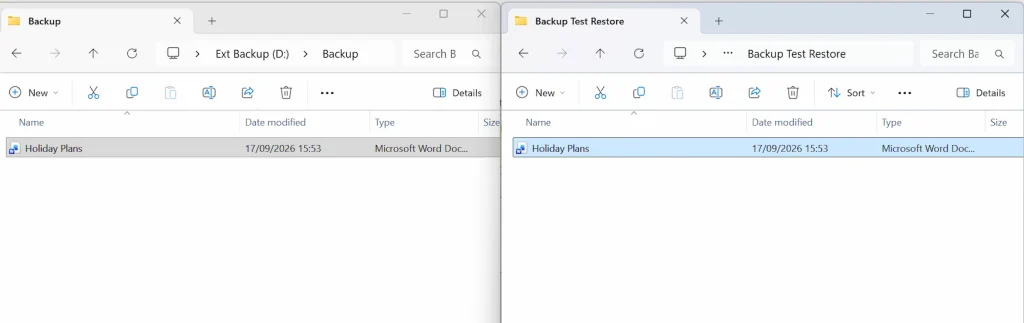
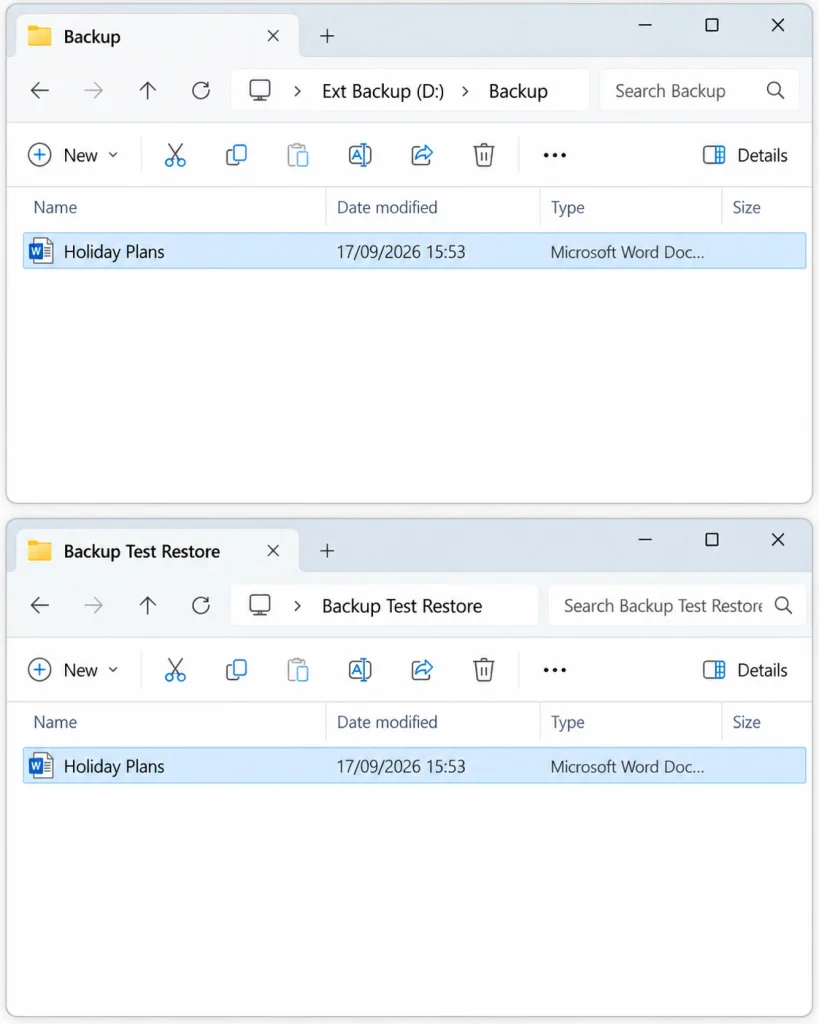
If you are still setting up this type of backup, How to Back Up Files to an External Drive in Windows 11 walks through the basic process.
If you use Windows Backup or OneDrive
Be slightly more careful about what you are testing.
Microsoft’s current Windows Backup system can back up selected folders such as Desktop, Documents and Pictures by synchronising them with OneDrive. That is different from keeping a separate copy on an external backup drive.
That can still help you recover files, but cloud synchronisation and an independent backup are not exactly the same thing.
If that distinction is unclear, Windows Backup vs OneDrive: What’s the Difference? explains how the two fit together.
For this article, the important point is the same: make sure an important recent file is actually available through the protection method you rely on, rather than assuming a green tick or status message proves everything you need.
Open the restored file
Do not stop once the file has appeared in your test folder.
Open it.
For a document, check that the contents look familiar and that it is the version you expected.
For a photograph, make sure the image opens normally.
For a spreadsheet, confirm that the expected data is there.
You are checking that the recovered file is genuinely usable, not simply that a file with the right name exists.
If it opens normally and contains the expected content, your basic test has succeeded.
What the result tells you
The result of these checks can help you identify where a problem lies.
The backup is recent, the file is there and the restored copy opens
This is a good result.
You have useful evidence that:
- your backup has been updating;
- at least one expected recent file is included;
- that file can be recovered;
- the recovered copy is usable.
That is a sensible level of confidence for a basic home backup check.
It is still better to think of the backup as tested, rather than guaranteed.
The backup is much older than expected
The problem may be that the backup is no longer running regularly.
Before worrying about file recovery, find out why it has stopped updating.
If you use an external drive, start with simple checks such as making sure the drive is connected and recognised by the computer.
The backup is recent but your test file is missing
Check whether the folder containing that file is actually included.
If other recent files from the same folder are also missing, the backup may not be protecting the location you thought it was.
The file is visible but you cannot restore it
Do not treat the backup as fully checked yet.
Try another small file and pay attention to any error message. If recovery repeatedly fails, the backup method needs further investigation before you rely on it.
The file restores but will not open
First make sure you restored the file you intended and that the program normally used to open it is available.
If several known-good files restore but cannot be opened, that is a stronger sign that something is wrong with the backup or recovery process.
One failed file on its own is not enough to conclude that the whole backup drive is faulty.
What this test does not prove
Successfully restoring one file is useful, but it does not prove that every possible recovery will work.
A single-file test does not guarantee that:
- every folder you intended to protect is included;
- every backed-up file is readable;
- every previous version can be recovered;
- your external drive can never fail;
- your entire Windows installation could be rebuilt;
- a cloud-synchronised folder gives exactly the same protection as an independent backup.
That does not make the test pointless.
For an ordinary home user, restoring a known recent file is a practical way to catch some of the most important backup problems without turning the check into a full disaster-recovery exercise.
How often should you check your backup?
You do not need to perform a test restore every time a backup runs.
It is sensible to repeat the check occasionally, especially:
- after setting up a new backup;
- after changing your backup settings;
- after replacing the backup drive;
- if you have changed where important files are stored;
- if the backup has recently shown errors or behaved differently.
When to investigate further
A backup deserves more attention if:
- its latest successful date is much older than expected;
- important recent files repeatedly fail to appear;
- test restores repeatedly fail;
- an external backup drive frequently disconnects;
- Windows or your backup software keeps reporting errors.
Start with the simplest cause first. A disconnected drive, an excluded folder or a changed file location can be more likely than serious hardware failure.
Avoid formatting the drive, resetting Windows or making other destructive changes simply because one backup check failed. Those steps can create additional problems and are rarely the right first response.
Frequently asked questions
Is a “backup completed” message enough?
It is useful, but it is not the strongest check.
A better basic test is to confirm that an important recent file is included and then restore a copy successfully.
Do I need to delete the original file to test my backup?
No.
Keep the original file where it is and restore the backed-up copy somewhere else. This checks recovery without unnecessarily putting the original at risk.
Do I need to restore my whole computer?
Not for this basic check.
Restoring one small, recognisable file is enough to find out whether ordinary file recovery is working. A complete system recovery is a different and much larger test.
How to Check Your Computer Backup Is Working
You do not need a complicated test to gain useful confidence in your backup.
Remember these four checks:
Is it recent?
Is the right file there?
Can you restore a copy safely?
Does the restored file open?
If the answer to all four is yes, your backup has passed a useful basic test.
If one of them fails, you have also learned something valuable: there is a specific part of the backup process to investigate before you need it for a real recovery.